Censoring video
58.3.2 Insert video
How to insert video
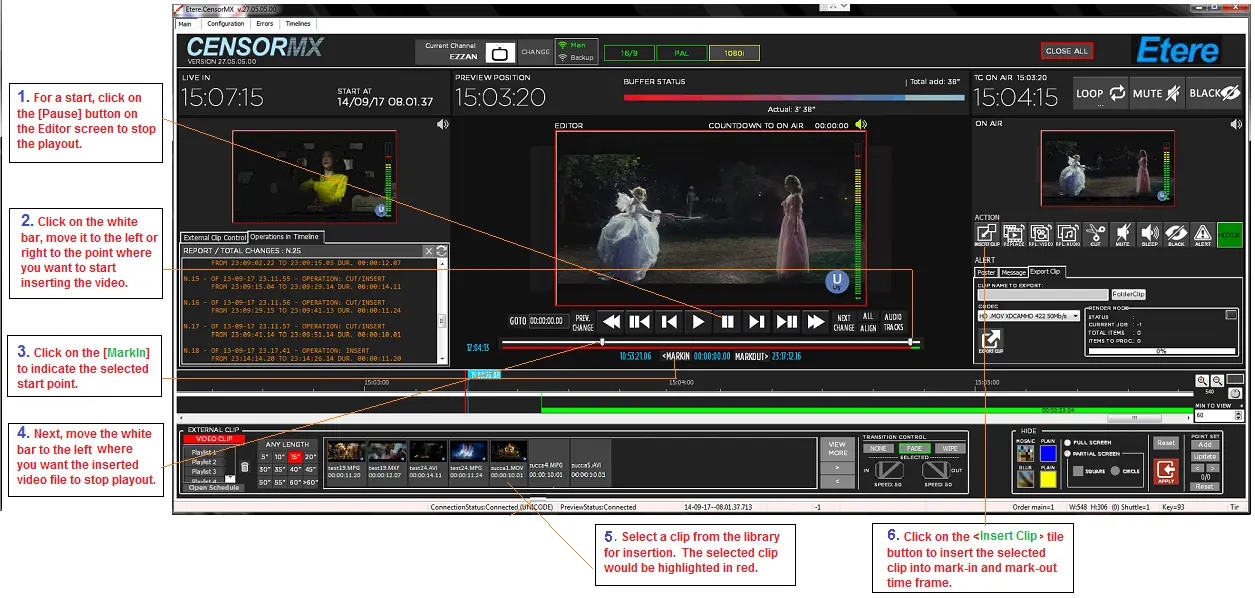
Follow the steps described below to insert a video clip:
Censormx_editor_insertvideo
If the end-point differs from the start, the footage between the mark-in and mark-out points will be deleted, and the inserted clip will start from your mark-in point. A marker will also appear on the Timeline, indicating the position that the clip has been inserted. This allows you to determine where edits have been made.
Note:
Setting the MarkOut in the Timeline is not mandatory, and it is dependent on the following conditions:
- If the duration between Marks is more significant than that of the clip, a warning message appears to warn the operator, who can choose to enter the duration.
- If the duration between the marks is less than that of the clip, the clip is inserted only for the duration between the Marks.
- It is possible to enter a part of a clip, make a preview of the clip and set the inside marks. To do this, the operator must set the Picons correctly and [PREVIEW] to understand that the MARKS have been set. The Picon will show the new duration. To reset the data, right-click the picon and [RESET MARK].
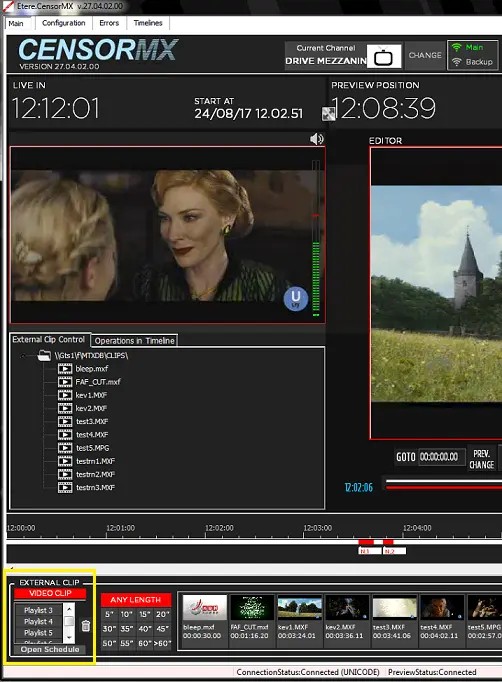
You can add up to 15 clips to the list when adding video clips for editing.
Censormx_add_playlists
 Censormx_editor_insertvideo
 Censormx_add_playlists