84.11 News Ticker
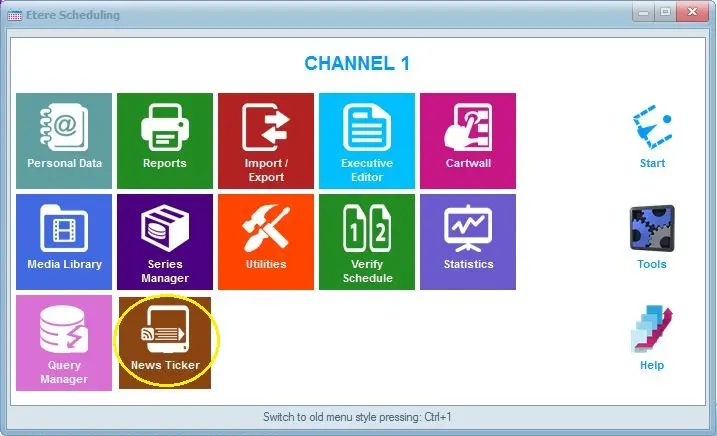
The News Ticker icon launches a News Ticker editor form that allows you to open a crawl ticker text file and edit the content directly without opening Nunzio.
Scheduling_start_menu_news
After launching the Scheduling module, click the “News Ticker” icon to open a News Ticker editor dialogue box.
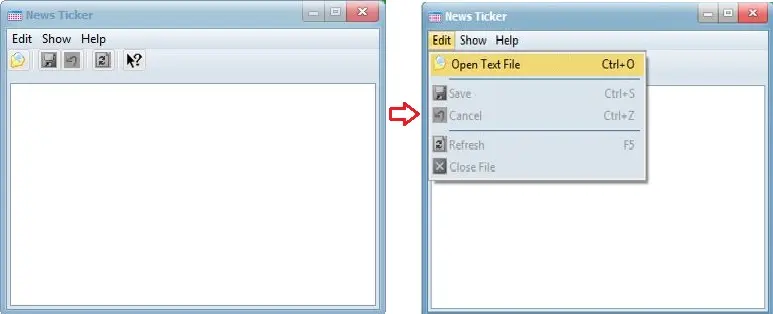
Select Edit > Open Text File from the News Ticker editor to open a crawl text file for editing.
Scheduling_ticker_edit_form
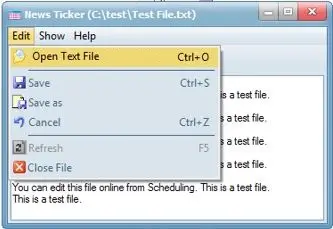
After editing, while the file is still open in the News Ticker editor dialogue box, select one of the actions from the "Edit" drop-down menu:
Scheduling_edit_ticker
•Open text File: Select this function to open another text file for editing. You will be prompted to save the changes made to the previous text file before opening another text file.
•Save: Save the changes made to the ticker file.
•Save as Save the changes made to the ticker file as a new file and assign a new file name. The News ticker file would be saved in UTF-8 Plain Text format.
•Cancel: Undo all changes made to the ticker file.
•Refresh: Reload the text file where no changes have been made.
•Close File: Close the opened text file and remove it from the dialogue box.
Upon completion, close the News Ticker dialog box and return to the Scheduling Start menu.
NB: When creating a News Ticker with Chinese or Vietnamese characters in the ticker text, the ticker file must be saved in UTF-8 format else the Chinese or Vietnamese characters would be displayed in “???” characters during the broadcast.
 5372_Scheduling_start_menu_news
 5371_Scheduling_ticker_edit_form
 5370_Scheduling_edit_ticker