70.3.6.2 Automatic HSM archive
In order to start archiving assets via T-workflow into type-related media pool(s), just follow the simple procedure described below:
1. In Etere Configuration > Configuration Editor > T-Workflow > Actions create either a template-based on the HSM-related actions:
Workflow Actions Editor
HSM archive actions:
HSM Archive -Archive an asset file on HSM tapes.
Other actions:
Other actions: -Asset File Delete in HSM
Remove an asset file archived on HSM tapes.
Other actions: -Asset File Exists in HSM
Check if an asset file is archived on HSM tapes.
Other actions: -Asset File is online in HSM
Check if an asset file archived on HSM tapes is available for being restored.
2. In Etere Configuration > Configuration Editor > T-Workflow > Designer create an archiving T-workflow containing the previously created action:
T-Workflow Designer
MD5 Checksum
It's strongly suggested to increase archiving reliability and security by including MD5 actions in your archive T-workflow:
Archive T-workflow:
MD Archive (generate a MD5 before file is archived) >> HSM Cache >> HSM
(check the MD5 on cache after file is archived)
Before the file is archived
Use a MD5 Generate action to generate a MD5 file hash (e.g. when the archiving task is approved) on the archive cloud-device (e.g. MD Archive).
After the file is archived
Use a MD5 Check action to verify the MD5 consistency of the file stored in the HSM Cache, taking a decision according to the check result:
•MD5 is ok: The T-workflow can go on normally
•MD5 is not ok: The file can be removed from HSM, and an alert can be sent to the supervisor
NB: The check is done after archiving because deleting a wrong file is faster than waiting for check completion.
3. Associate the T-workflow to the asset intended to be archived. For example, from the Media Library > Workflow tab:
Media Library
4. Etere HSM Headquarters will receive the request according to the 'workflow check' interval set under the Configurations > Options menu, under the 'Scheduling' tab:
Etere HSM - Headquarters
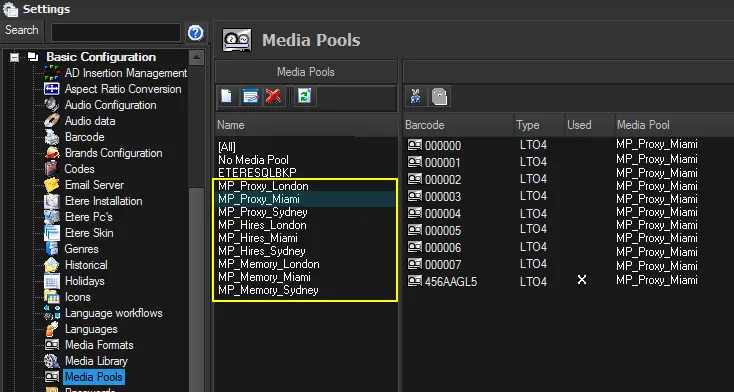
5. Etere HSM Robotics will archive the requested asset into the media pools corresponding to what set in the Etere Configuration > Settings > Types Editor > Types > HSM section:
Media Pools
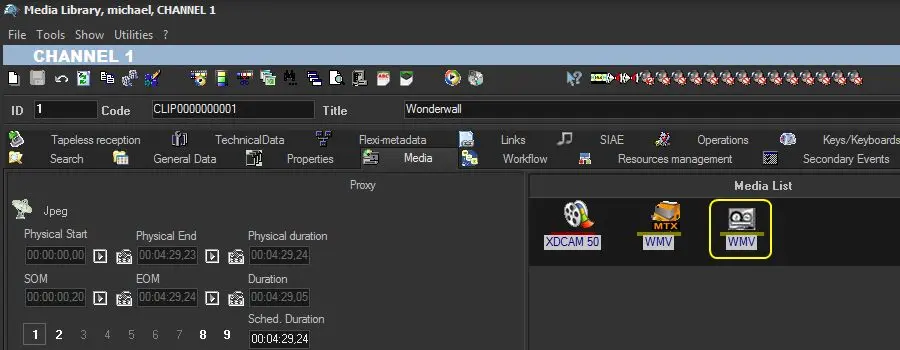
6. Once the asset has been archived, it will be indicated in the Media Library, showing also the just archived media:
Media Library
7. When archiving bundle assets to tape library, you can add a “Wait” action in workflow after archived to tape but before the deletion of the bundle assets, it would prevent the workflow been terminated by watchdog processes when repeating the same archive operations on numerous files.
NB: During the Archive operation, any non-unicode character found in the file name or directory name would be converted to “?” character for archive into database.
NB: From Etere released version 25.2 onwards, all the new tapes will be written in AXF format. If the tapes already contains data written in other formats (e.g. EXF, LTFS) it would continue to be written in existing format (e.g. EXF, LTFS).
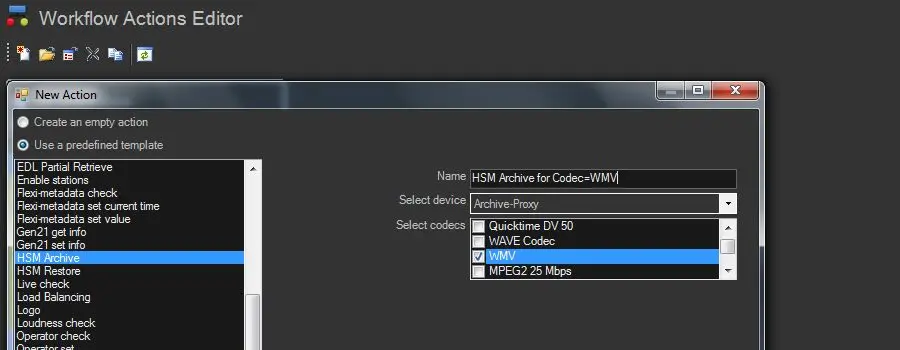 Workflow__Actions_Editor
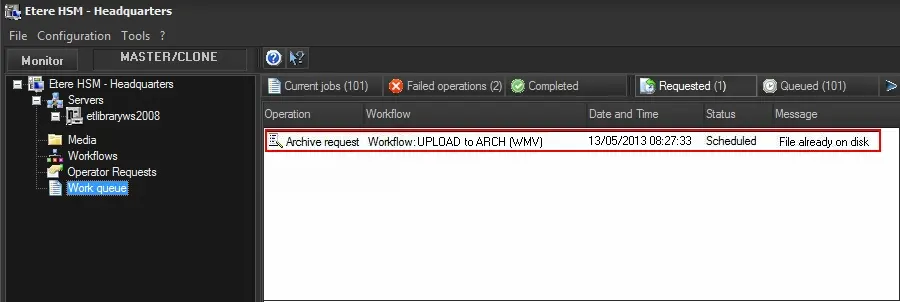 Etere_HSM_Headquarters
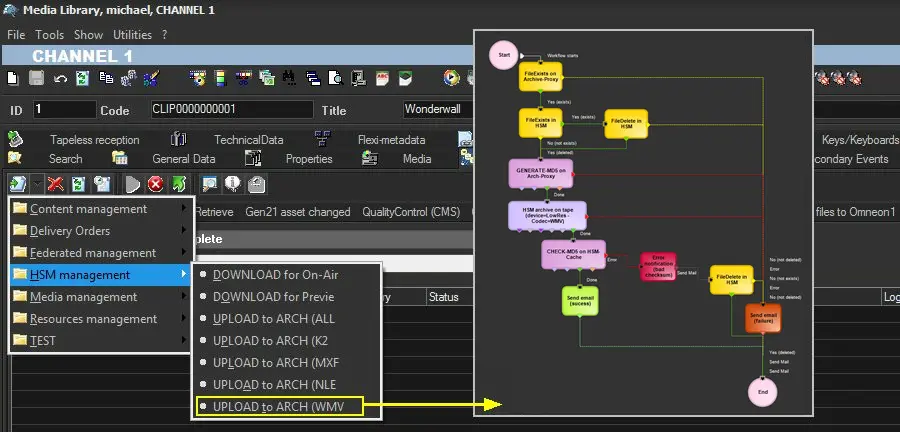 Media_Library_-_Workflow_tab
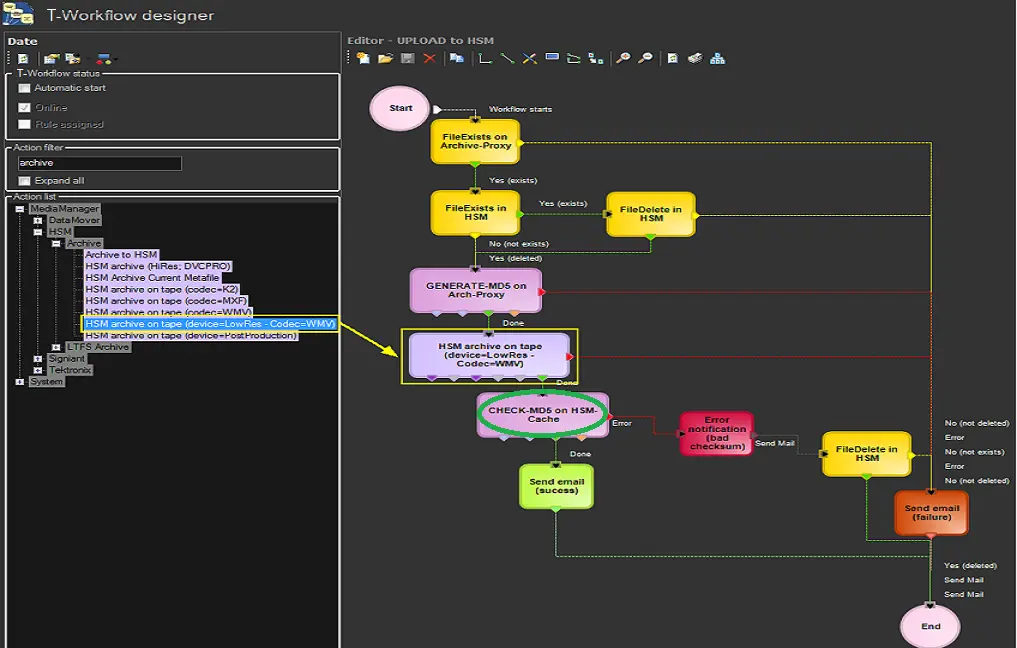 T-Workflow_Designer
 Media_Pools
 media_library