59.5.4.31 Daily Scheduling
Report Description
The daily scheduling report allows the view of all the commercial scheduling made in a particular time frame, permitting the setting of sort parameters based on the event type, time slot, date, and type.
Report Filters
All the parameters that permit a detailed report generation have been spread across seven different tabs to allow a more manageable configuration. By default, all filters are disabled (i.e., either blank or unselected); to enable them, it is enough to configure at least one parameter inside. Available filters include:
•Date: Indicate the period on which the schedules to be included in the report are based,
•Time: Narrow the data retrieval to only a specific daily time interval,
•Report date: If enabled, the date on which the report is being generated will be displayed on the footer of all pages,
•Page number: If enabled, the page number will be displayed in the footer of all report pages,
•Display asset: Indicate the field that will be displayed to detail the asset, select between the description (brief self-describing text) or media (i.e., associated video files),
•Events sorting: Indicate the criteria to sort the data present in the report, select between segment (i.e., schedule block), order lines, order (i.e., contract) or asset (i.e., media material),
•Type: By default, all event types are included in the report; however, here, it's possible to relate the report to only one event type (e.g., commercials),
•Station: Choose the station from which scheduled data will be retrieved,
•Split: Select the code of the split network on which the schedules are made.
Report Preview
The [Settings] permits configuring the page layout of the outgoing document; once filters and settings have been set, it will be possible to select between displaying a preview using the related [Preview] button or printing the document directly using the [Report] button. Please note that some reports permit the export of the generated document in the most common formats (PDF, CSV, doc, xls, XML, etc) just by using the [Export] button.
Daily_Scheduling_preview
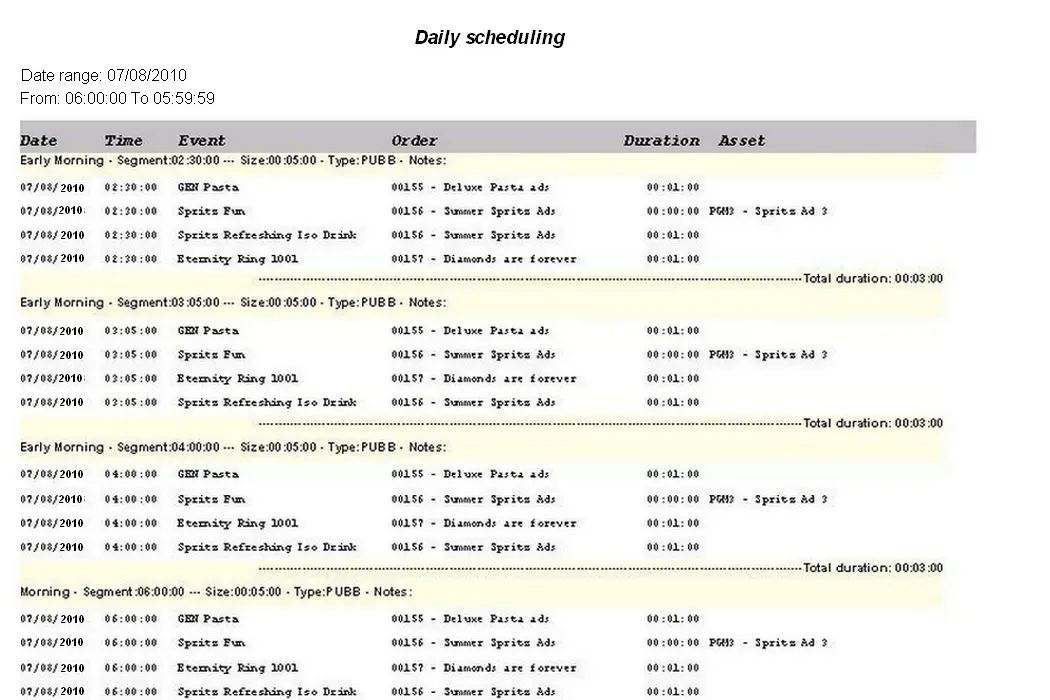 Daily_Scheduling_preview