59.3.9.141 Media Manager Service
The Media Manager Service action allows file processing from the source device to the destination device through a dedicated service installed in the server that is in charge of operating.
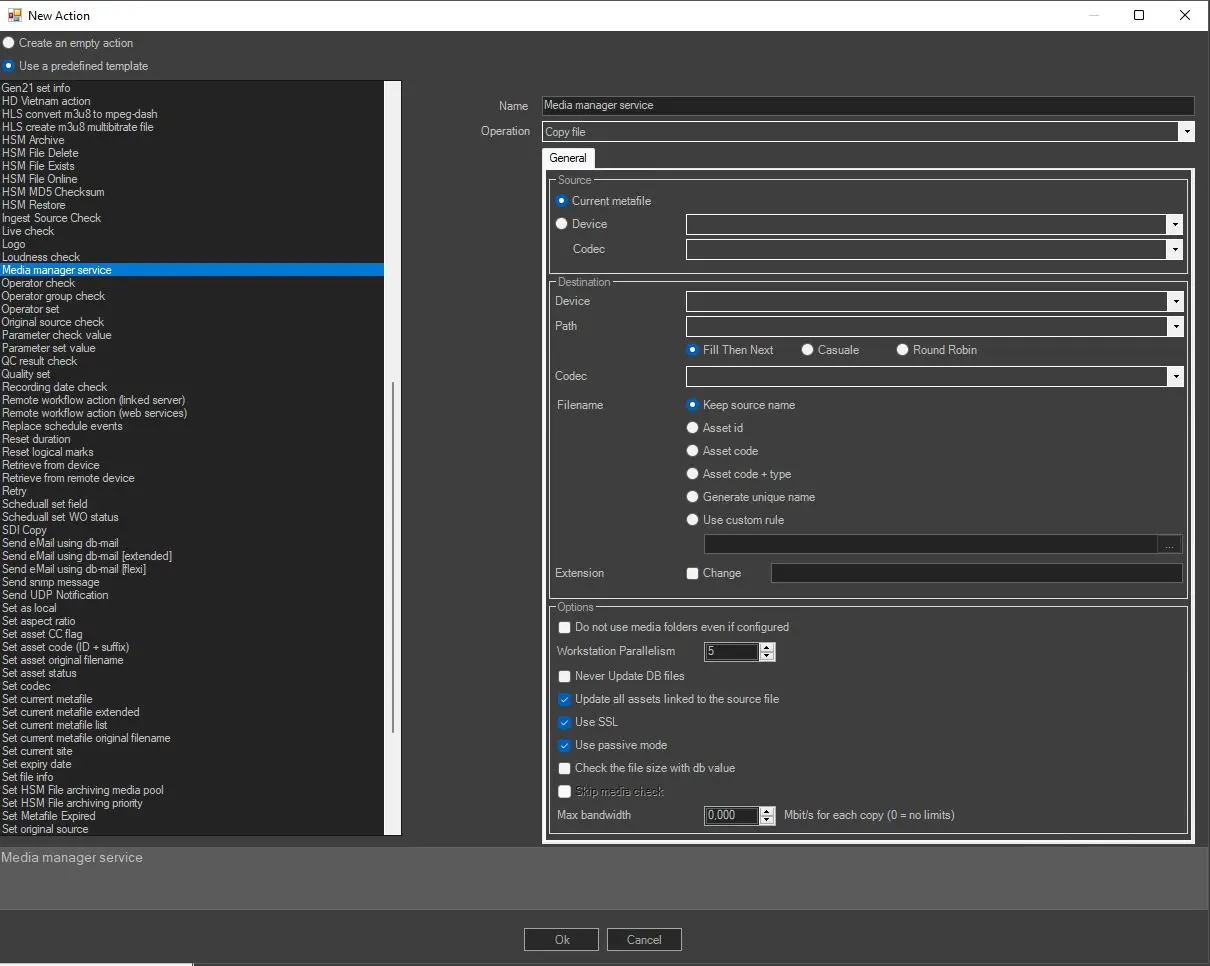
Below are explained the parameters contained in the General tab of each MMS action type.
Action Parameters
To create an action of a specific operation, the following fields must be compiled:
Media_Manager_Service
Name: Give a short name to identify the action.
Operation: Select one of the following actions:
• Copy file: Copy files from source to destination device.
• Delete file: Delete the file in the device specified. Only files in the source device can be deleted.
• Move file: Move file from a source device into a destination device.
• Rename file: Change filename only.
• Delete all files: Delete all files linked to the asset, whether codec or device.
• Loudness check: Check the loudness value associated with the metafile.
• Execute process: Run a manually defined command line.
• Etere Transcoding: Perform the transcoding action.
• Media Info: Perform the MediaInfo action.
• MD5 Checksum: Generate or check the MD5 hash file.
• Icons regeneration: Generate automatically picons and thumbnails from a linked video or image file.
• Memory cut: Cut a file recorded with Etere Memory, according to the marks specified in Memory Browser Web.
• Partial retrieve: Create a new file from an existing one, according to the marks specified in the source asset's EDL.
• Conforming process: Launch the process etConform.exe, allowing the merge of 2 or more segments into a single video file (see chapter 62.3.2.0).
• Asset Data Export: Perform the Asset Data Export (see chapter 93.2.1.13).
• Advanced QC: Advanced audiovideo Quality check from Etere
• Orbox QC: Advanced audiovideo qualitycheck from Orbox
• Packaging: Export multiple files linked to an asset as one single package (either as a directory or a zipped file).
• Create vod project: see chapter 93.2.1.19
• Auto censorship:
• AWS S3 integration: Manage file from ETERE to Cloud Amazon "Upload, download, and delete files"
• Wave form export: export the selected metafile waveform on a png image (see chapter 93.2.1.21).
Source
Current metafile: Select this option to use the current metafile.
Device / Codec: Select the source device and codec. If the meta device contains multiple versions (codecs) of the file, select the codec you wish to copy or delete.
NB: These parameters are not available for Delete all files action.
Destination
Device: Select the destination device to which the files would be copied. This parameter is not available for Delete file, Delete all files, Rename file, Loudness check and Mediainfo actions.
Path: If the selected cloud device contains more than one path, this parameter allows one to choose one of them as the destination path. This parameter is not available for Delete file, Delete all files, Rename file, Loudness check and Mediainfo actions.
Codec: Select the destination codec where the files would be copied to. This parameter is not available for Delete file, Delete all files, Loudness check and Mediainfo actions.
Filename: Choose, among the following options, how the destination filename should be managed.
• Keep source name - Enable this option to maintain the file source file name in the destination. This option is enabled by default. Not available for Rename file action.
• Asset ID - Rename the file as the ID of the asset to which the wf is attached.
• Asset code - Rename the file as the asset code to which the wf is attached.
• Asset code + type - Rename the file as the code and the type of the asset to which the wf is attached.
• Generate a unique name - The physical file will be named using a unique identification (UID) automatically generated by a system algorithm.
By default, one unique name is generated for each metafile; therefore, in case the file is formed by multiple physical files (e.g. mpg, pd, vix), Etere DataMover will use the same UID for all files but different extensions; for instance, the files 2143.mpg, 2143. vix and 2143.pd will become 02BD0000000000000075.mpg, 02BD0000000000000075.vix, 02BD0000000000000075.PD.
If the metafile name is changed, Etere DataMover will use the same UID for both the file and the metafile, thus allowing the support of video servers on which video files are managed, maintaining a relationship between the name of metafiles and physical files.
• Use custom rules - The file will be named with a custom filename based on database references (e.g. Flexi-metadata, asset data...) and free text.
NB: These options are NOT available for Delete file, Move file, Delete all files, Loudness check, Execute process, Partial retrieve, Icons regeneration, MD5 Checksum and Mediainfo actions.
NB2: If in the RENAME action, a rule is used that must take the value from a flexi that contains characters not supported by the operating system (such as | \ / : * ") ETERE automatically replaces them with the character - (minus)
Extension: This parameter allows modification of the extension of the destination file, activating the "Change" flag and typing it in the field.
NB: This option is NOT available for Delete file, Move file, Delete all files, Loudness check, Execute process, Partial retrieve, Icons regeneration, MD5 Checksum and Mediainfo actions.
Options
Do not use media folders even if configured: Enable this option to ignore the translated path, even if it's configured.
Workstation parallelism/Concurrent processes: Indicate the maximum number of actions that can be taken at the workstation simultaneously.
Never update DB files: The file won't be updated in the Database.
Update all assets linked to the source file: If enabled (default), the copied file will be associated with all the asset forms linked to the source file.
Enabling this option is useful; for instance, when a single file is used by multiple assets (e.g. which transmit it overlaid with different logos); in this case, every time the file is copied, the new copy will be updated across all linked assets.
If disabled, the copied file will be associated only with the asset form for which the T-workflow has been launched.
Disabling this option is useful, for instance, when a single big file (e.g. a live feed recording) is used by multiple assets which partially retrieve a smaller file; in this case, only the support from which the partial retrieve has been executed will be updated.
Use SSL: Enable this option to use SSL (Secure Socket Layer) when saving the file in a destination path over the network. If enabled, the service media manager would attempt to complete the action using the following authentication steps in sequential order:
- FTP over TLS (Transport Layer Security)
- FTP over SSL (Secure Socket Layer)
- Plain FTP (without encryption)
If the FTP server supports SSL encryption, the Media Manager service will use a new set of libraries for copying files. Else, Plain FTP would be used.
Use passive mode: If checked, the FTP client will try to use passive mode for all file transfers (upload/download/move); otherwise (if disabled), the standard active way will be used.
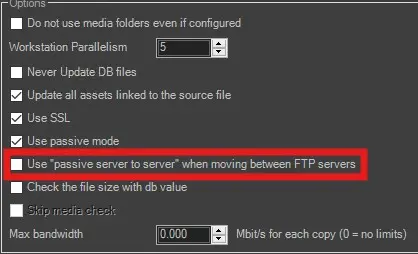
Use "passive server to server" when moving between FTP servers: Enable this option if both source and destination devices use the FTP protocol and support 'passive mode'.
Check the file size with db value: If enabled, an additional check would be performed to compare the size of the copied physical file and the file size stored on db. This is useful to signal if the file has not been copied entirely into the destination folder. In this case, its file size differs from the original one, and this check can alert the operator by signalling an error in the wf.
Skip media check: Allow to avoid checking if the source file's device and codec match with the ones defined in the action. This is mandatory in the case of the Memory cut action because the Memory cut wf is attached to a new empty asset with no meta file, so the action would end in error if this parameter is disabled.
Maximum Bandwidth: The max. The bandwidth option is only supported for copies to limit the bandwidth used for data transfers.
Command
This parameter is available only for the Execute process, Partial retrieve (see below) and Memory cut actions.
Allow to specify which executable will perform the action and some additional attributes related to the media name, the job, the log filename, etc.
By default, it's compiled with an example string.
A legend below the field shows the available variables that can be used in the command line.
From Etere version 33.1, if this action exits as an Error, an SNMP message will be sent from the workstation where the service runs to the workstation where the SNMP console is opened.
See the Monitoring console page in the Etere Configuration chapter for further information.
Hereafter, the action-specific parameters are described.
Etere Transcoding action
transcoding_tab
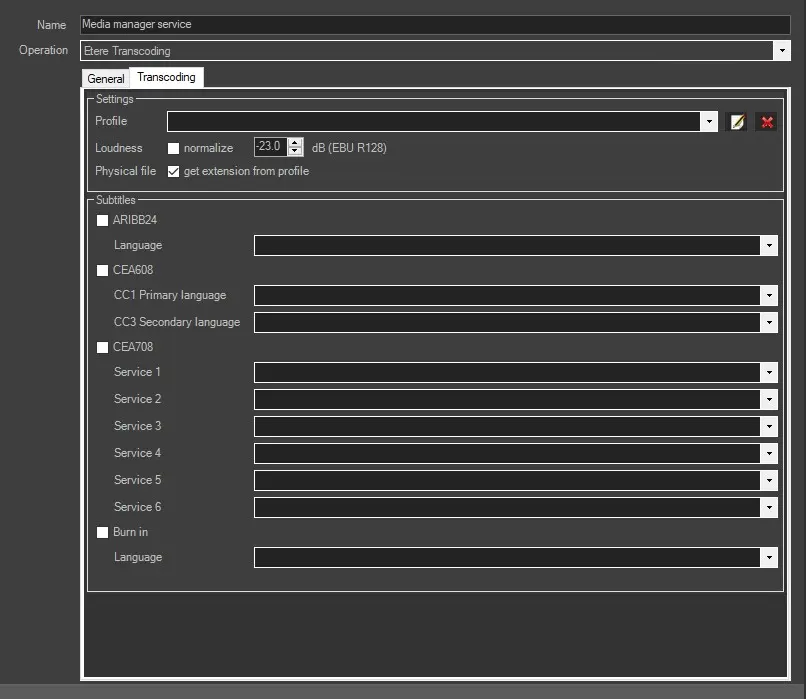
Profile: Select an existing transcoding profile or create a new one, choosing <New profile> in the droplist. If an existing profile is selected, it's possible to edit or delete it using the buttons beside the combo box. Otherwise, the module will prompt a new form where the user can type a name for the new profile and then another form to configure it (see Chapter 62.4.14.10 for more information about the transcoding profile fields).
Loudness: If enabled, Etere Transcoder will normalize the audio level to the value set in the form beside the checkbox.
Physical file: Choose if the file extension will be taken from the related field in the transcoding profile (by default, it's enabled).
If the asset contains subtitles, select the subtitles standard available below and the subtitles languages to be inserted in the transcoded file. The Languages are mapped to the Language properties defined in the Database.
ARIBB24: Enable this option for ARIB subtitles and select an available language from the list.
CEA608: Enable this option for CEA608 subtitles and select a primary and a secondary language from the list.
CEA708: Enable it for CEA708 subtitles and select up to 6 languages from the droplist.
Burn in: Enable this option and select a language code to "burn" the subtitles into a video file. The start time of subtitles insertion is taken from the asset's physical start time rather than starting from zero.
MediaInfo action
mediainfo_tab
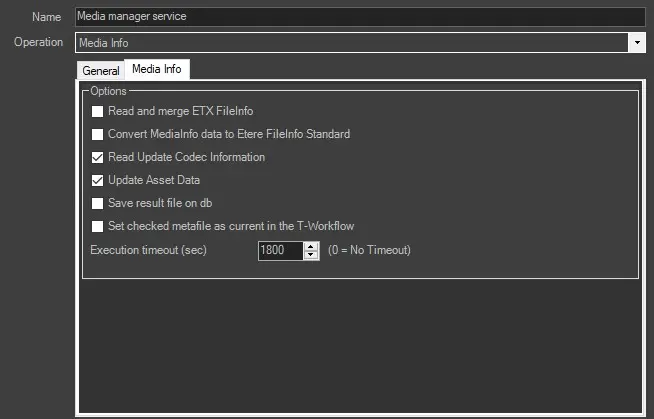
Read and merge ETX Fileinfo: If enabled, when several ETX file info is appended to the standard MediaInfo XML, the information is exported to metafile data in XML format and not added to SMPTE metadata.
Convert Mediainfo data to Etere FileInfo Standard: If checked, the retrieved MediaInfo data will be converted and inserted in the Etere FileInfo metadata structure.
NB: If data conversion fails, uncheck this option and retry the data conversion. Etere MediaInfo has been enhanced to better interpret metadata in the file when processed by MediaInfo workflow action.
Read update codec information: If checked, once MediaInfo data is converted into the FileInfo standard, the codec mapping will be applied (to set the correct codec matching the defined codec).
With this option enabled, it would probably prevent the destination codec from being changed to the "UNK" (Unknown) codec despite the "UNK" codec being disabled in configuration settings.
Update asset data: If checked, MediaInfo data will be used to update asset data (e.g. duration).
Save result file on db: This option determines whether the XML file containing the result information generated from the MediaInfo action would be saved into the DOMA database in SQL Server. By default, this option is disabled to lighten SQL Server workload and maintain Data Mover stability.
Set checked metafile as current in the workflow: If enabled, at the end of the job, the checked metafile will be set as the T-workflow's current metafile (i.e. the metafile against which later operations are performed).
Execution timeout (sec): Specify the maximum time to wait for the action completion before exiting with an error status.
By default, this time is 1800 sec (30 minutes); it can be disabled by setting it to 0.
MD5 Checksum action
MD5_checksum_tab
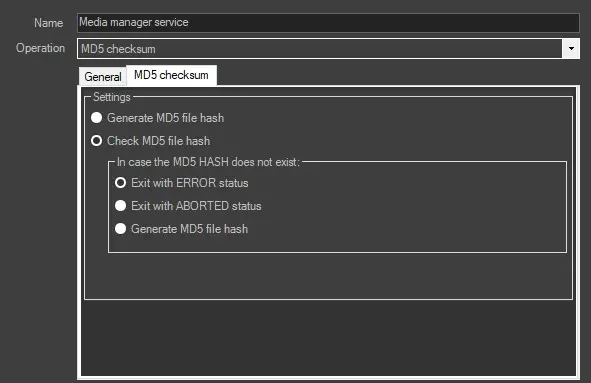
Generate MD5 file hash: Calculate the MD5 file hash of a media file and store it in the Database.
Check MD5 file hash: Calculates the MD5 file hash of a media file and compares this value to the one stored in the Database.
In case the MD5 HASH does not exist: Specify the behaviour in case the MD5 hash is missing for a metafile, that is, when at least one of the metafiles has an MD5 hash that is NULL :
• Exit with ERROR status (default) - exit the action with the "error" status.
• Exit with ABORTED status - Exit the action with "aborted" status.
• Generate the MD5 HASH - Generate a new MD5 hash for the metafile.
This parameter is useful to define the route the wf should follow once this action is completed and to correct all the assets which have one or more metafiles without MD5 hash.
The presence of the MD5 hash for a metafile is visible in the Media data tab under the MD5 Checksum column.
The possible MD5 Checksum results are listed below:
Green icon - The MD5 Checksum hash value has been calculated and stored but is still present in the file.
Green icon - The MD5 Checksum hash value was calculated and matched the stored value.
Red icon - The MD5 Checksum hash value does not match the stored. The archived file might have been corrupted.
Additional notes
• Please note that the MD5 checksum actions can be performed only for files stored on path-based meta devices (e.g. disk volumes). Using this action against files stored in video servers (e.g. ETX, Omneon) is NOT supported.
• When an asset file is removed, its md5 hash checksum is also removed.
It is impossible to remove the MD5 checksum from the asset without deleting it. However, it's possible to overwrite the existing MD5 checksum by creating a new one on the asset. The assets must be restored to disk to create a new checksum on assets in LTO tapes.
• Every time a file with an MD5 checksum is transferred, the existing checksum is also copied along with the file into the target meta device.
• It is not recommended to copy the zipped files containing MD5 checksum files from the source to the destination folder; it could result in discrepancies in checksum value when files are uncompressed at the destination folder. Zip archive has its checksum, different from the MD5 checksum.
Icons Regeneration action
icons_regeneration_tab
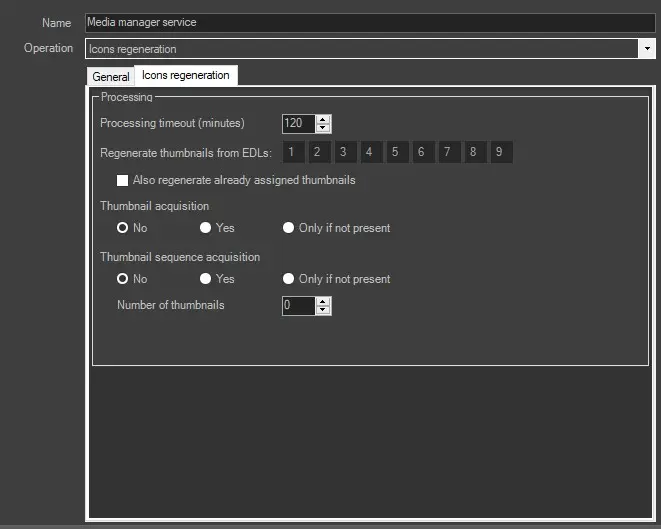
Processing timeout (minutes): Indicate the maximum time the system allows for completing the action. The action will exit with a "timeout" error if the timeout is reached without completion.
Regenerate thumbnails from EDLs: Specify the EDL lists containing segments for which Picons will be generated.
Also, regenerate already assigned thumbnails: If disabled (default), picons will be generated only for those segments without an image. Otherwise, if enabled, picons will also be generated for segments where an image is already present, thus overwriting it.
Thumbnail acquisition: If enabled, the action will generate the asset's main thumbnail by acquiring it from the frame positioned two seconds after the asset starts. Available behaviours include:
Yes - Acquire the thumbnail even if the asset already has a thumbnail.
No - Do not acquire any thumbnail.
Only if not present - Acquire the thumbnail if the asset doesn't have one.
Note: If the asset to process belongs to a season (i.e., an episode), it won't be possible to set any thumbnail since they are selected from the Season Manager module for the entire season.
Thumbnail sequence acquisition: This function allows generating a "thumbnails preview" (into the EDL 11) taken from the file matching the given device and codec. Available options include:
Yes - Acquire the thumbnail preview even if the asset already has a thumbnail.
No - Do not acquire any thumbnail preview.
Only if not present - Acquire the thumbnail preview only if the asset doesn't have one.
The Number of thumbnails parameter (default=0) allows specifying the exact number of thumbnails to be generated for the sequence preview. Please note that the first and last frames are omitted to prevent wrong images (e.g. black frames).
It's worth mentioning that thumbnails can be visible in Media Library search results by selecting Show > Thumbnail in the contextual menu. The related column must be enabled as well.
If a thumbnail sequence is present, it can be shown using the Tools menu Show thumbnail sequence function.
Also, from the contextual menu of the search results, it's possible to have a dynamic preview of the thumbnails, enabling the function View thumbnail. The image will be displayed in a separate window and changed according to the selected asset.
Partial Retreive action
partial_retrieve_tab
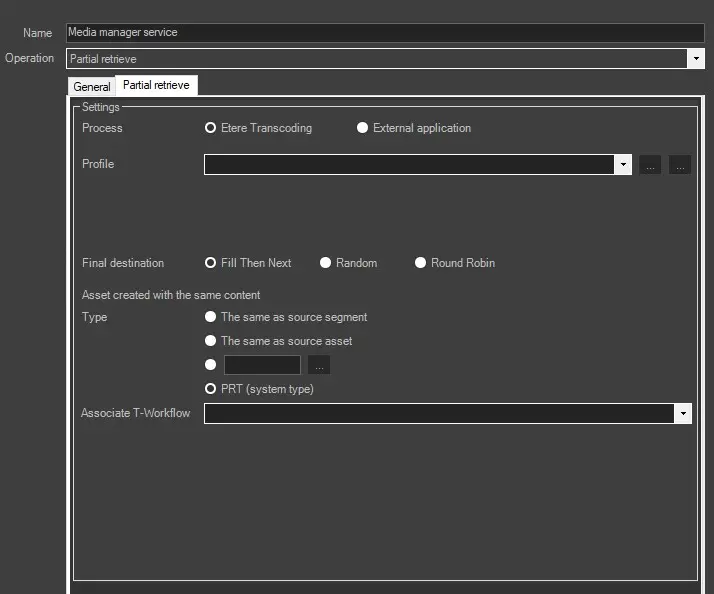
Process: Choose which process should transcode the file: Etere transcoding or a different application.
Profile: If the Etere transcoder is selected, it is possible to choose the transcoding profile to use or create a new one.
Command: In case an External application is selected, the .exe that will perform the transcoding must be specified. In the command line, some attributes can be added using the variables described in the legend below this field.
Final destination: Choose the selection mode for the destination path:
Fill Then Next: If enabled, Data Mover starts with the first path and checks whether that path has enough space; if it has enough space, Data Mover uses it. Otherwise, Data Mover checks again until the following available path is found.
Random: If enabled, a random path is chosen among the available ones.
Round Robin: If enabled, the path is chosen from the first to the last of the available ones and then starts again at the top of the list, and Data Mover continues to search in this sequence. The selection status is shared globally among all Data Mover instances that work on the configured cloud device. If a DM selects the 1st path, another DM on a second machine or another instance of the same action in the same DM will choose the 2nd one.
An asset created with the same content - Type: Choose if the new asset type should be the same as the source segment, the same as the source asset, a user-defined type or the system type PRT.
Associate t-workflow: If the system should start a wf upon completion of the partial retrieve, select it here.
ImportantNote: to use the MMS_PR action you need the ET0092 license
Asset data export action
asset_data_export_tab
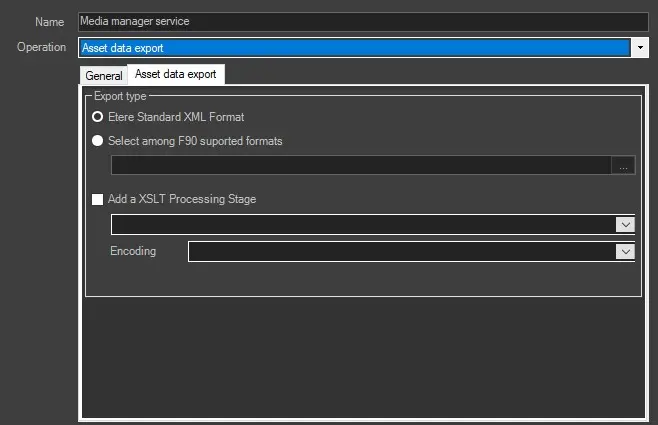
Select among F90 supported formats: Select this option to export asset data in the following formats:
Apple FCP XML - an XML file containing data of the asset related to the processing file.
Louise Cognacq-Jay XML - an XML file containing asset data related to the processing file.
Etere generic subtitle (STL) - STL file containing subtitles of the asset related to the processing file.
Etere generic subtitle (PAC) - PAC file containing subtitles of the asset related to the processing file.
CanalPlus XML - an XML file containing data regarding the processing file.
Numericable XML - XML containing a set of user-selected assets.
Orange XML - an XML file containing the catch-up schedules.
J-One XML - an XML file containing data regarding the processing file.
GAMEONE XML - an XML file containing the data related to the asset's linked files.
Discovery custom asset XML - an XML file containing asset data related to the processing file.
Won XML - an XML file containing WON's delivery data of the asset related to the processing file.
Etere Generic Assets Full for XSLT - an XML file containing data of the asset related to the processing file, transformed using an XSL style sheet.
In the Export Type dialogue, if "Etere generic asset full for XSLT" is selected, In the Parameters tab, you can select a station name (e.g. MAM, ETX, Nunzio, etc.) from the list and use the export parameters relative to the desired station.
CanalPlus MultiLanguage XML - contains the contractual and technical data, including subtitles data.
Foxtel TELEVISION Asset XML - an XML file containing segment information of Foxtel Television (TV).
Foxtel ASSOCIATED Asset XML - an XML file containing segment information of Foxtel Associated Media (AM).
Foxtel FEATURE Asset XML - an XML file containing segment information of Foxtel Feature (FTR).
Note: Selecting Foxtel export types, a parameter will be available in the form. It allows one to select which EDL should be exported.
Etere Generic Asset Full - Export assets and relevant fields to an XML file.
Note: All exports are carried out based on "Scheduling > Import/Export" parameters. All subtitle-related exports allow specifying the language and the use of an offset. Some export types allow to choose which station the export parameters should be taken from.
DALET for ABS-CBN asset xml - Export an XML file containing the assets playlist based on four different scenarios (described in chapter 91.4.4.64)
Orbit custom asset XML - Export the asset to an XML file named the asset code (see chapter 91.4.4.60).
Discovery custom asset 3rdParty XML - Export an XML file containing all data related to a specific asset (see chapter 91.4.4.68).
Rai CDT XML - Export the CDT data from the Tapeless system to the Trade system to be integrated with the current workflow (see chapter 91.4.4.87).
Mediaset archive asset xml - This process searches the Database for past assets; if there is an XML file with the same name as the asset code and with the same codec configured, it will export the assets from the path configured (see chapter 91.4.4.81).
Pluto XML - Export a TV program asset into an XML file. The exported events include episode and non-episode events (see chapter 91.4.4.84).
DEA custom asset XML - Export asset data and connect seasons of specific date into an XML file.
WON2 XML - Allows generating an XML file containing a set of asset metadata required by Whats' ON system (see chapter 91.4.4.97).
RTB asset XML
Note: All exports are carried out based on "Scheduling > Import/Export" parameters. All subtitle-related exports allow specifying the language and the use of an offset. Some export types allow to choose which station the export parameters should be taken from.
Add an XSLT processing stage: Exported data will be automatically transformed using an XSL Transformation before being written in the output file. Select here which transformation should be applied and the encoding.
Service URL: In this instance, it is the Advanced QC server URL address and port number.
User / Password: User ID and password for accessing the system.
Analysis Profile: Select one of the Advanced QC profiles configured in the template in this instance.
Source Repository: The repository used by Advanced QC. The path must match one of Etere's Media folder entries. If left blank or auto, the Media Manager Service will search for a repository with the path written exactly as the media folder where the file is to be analysed. Otherwise, the repository will process the file specified in the configuration.
Remove web project after completion (recommended): After the end of the process, choose if the project has to be removed or kept.
Save in the asset's EDL: Choose in which EDL the segments containing the video faults should be saved.
Save result on db: Choose to save on asset DOMA the resulting pdf.
Execution timeout (min.): Set the timeout threshold for the automatic abort of long operations.
If the quality check reports errors: Select if, in case of error, the action should exit on "error" output or go through "OK" output. This option lets you choose how the workflow will behave if the Advanced QC reports any error during its execution.
ORBOX quality check
Connection parameters
Url: address and port of the orbox ui
user name: domain\user
password: password
Options
Template: select qc template here
Credentials: choose credentials
Save results on db: save report to doma section if enabled
Execution Timeout: timeout for response from the service
Packaging
Structure
Set the behaviour regarding the structure of files within the package.
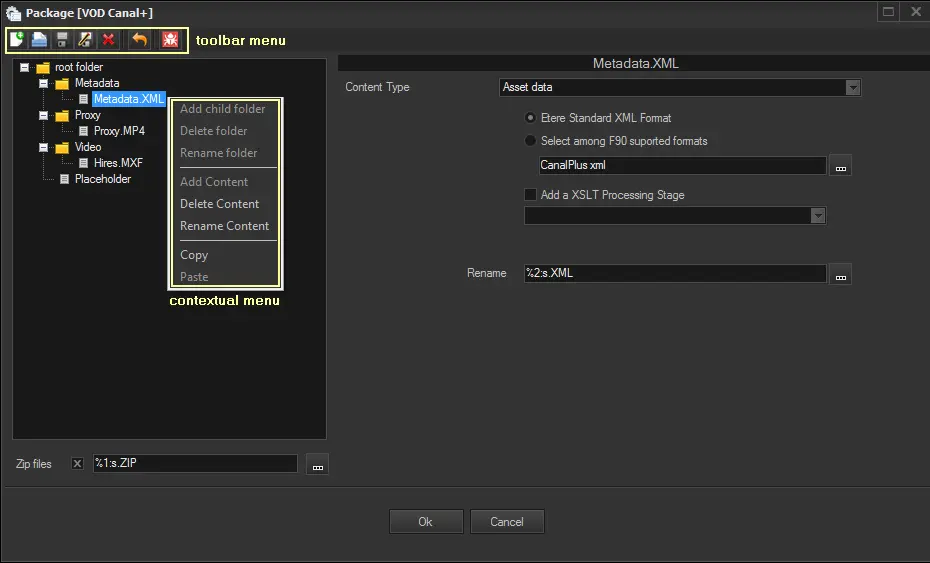
Press the button to open the Package Editor and configure the structure of the package that will be exported.
Package_Editor
1. Create a new package or open an existing one (e.g. VOD for Canal+)
2. Add all required folders (e.g. Metadata, Proxy, Video, etc.)
3. Add and configure all required contents (e.g. Metadata.xml, Proxy.mp4, Hires. mxf, etc.)
4. Apply all changes by saving the package
5. Perform a dry run to test the package creation on a specific asset.
6. Start using the packaging in T-workflows!
Toolbar menu
The following toolbar functions are provided to allow managing the creation of the package:
New package: Creates a new package from scratch.
Open package: Load an existing package.
Save package: Apply all changes performed to the current package.
Save package as...: Create a new package as a copy of the current one.
Delete package: Removes the current package from the database, definitively.
Undo everything: Cancel all changes performed to the current package since it's last save.
Dry test: Open a small form that allows simulating a package creation based on the following specific parameters:
Asset ID - Enter the asset ID for which the package creation will be performed.
Base Folder - Select the path of the cloud device in which the package will be created.
[Dry Run] - Simulate the creation of a package, and display its related information:
▪Actions to perform (i.e. action, source and destination)
▪Logs (i.e. detailed operations execution)
Zip files: If disabled (default), the package will be created as one directory containing all subfolders and contents.
If enabled, the package directory will be compressed within one zip file, preserving the directory structure.
Contextual menu
The following contextual functions are provided to allow managing the content of the package:
Add child folder: Insert a sub-folder to the currently selected folder.
Delete folder: Removes the selected folder from the current package.
Rename folder: Changes the name of the currently selected folder.
Add content: Insert new content into the selected folder. The available content types and their available parameters are described below in this page.
Delete content: Removes the selected content from the current package.
Rename content: Changes the name of the currently selected content.
Copy: Push the selected content/folder into the clipboard, making it available for pasting it as a new copy.
Paste: Pull the content/folder from the clipboard, inserting it as a new copy.
CONTENT TYPES
Available content types included are: Placeholder, Metafiles and Asset data. Here below are described the parameters available for each contant type:
Placeholder
A temporary content which is scope merely to remember the user that a real content (e.g. metafile, asset data) needs to be added in future.
Metafiles
Select the asset file to be included in the package, matched through the parameters below:
Primary source - Indicate the metadevice (e.g. HiRes) and codec (e.g. PRJ) from where to take the file.
Fallback source - Indicate the metadevice (e.g. NLE) and codec (e.g. PRJ) from where to take the file, ONLY if the primary source doesn't exist.
Rename - Press the [...] button and define a filename using the Rules Editor. If using a file selection filter, only matched files will be renamed.
Keep external folder hierarchy - If enabled, the content (e.g. Track_01.wav) will be placed into its package folder (e.g. root folder/), recreating also the metafile's original relative path (e.g. /Audio/Tracks/), thus keeping the external hierarchy (e.g. root folder/Audio/Tracks/Track_01.wav).
File selection filter - Specify the filter pattern (e.g. Track) to be used to exclusively filter some particular files (e.g. Track_01.wav, Track_02.wav, etc.) and ignore other files in the metafile (e.g. Video. mxf, etc.).
Regular expressions - If enabled, the file selection filter will be matched as a regular expression, supporting special characters (e.g. [Tt]rack). If disabled, it will be searched as a normal string (e.g. House).
Operate on external filename - If enabled, the file selection filter (e.g. Track) will be matched against the metafile's original filename (e.g. Track_01.wav). If disabled, it will be matched against the media name. (e.g. 94137).
Select only the first file that match the filter - If enabled, in case of a match with more than one file, only the first found will be selected.
Note: Please note that FTP paths are not currently supported.
Asset data
Export a file containing specific asset information on-the-fly. Below are the needed parameters:
Etere standard XML format - Select this option to export asset data in the standard format, the "XML Assets Full" export format.
Select among F90 supported formats - (Apple FCP XML, Louise Cognac-Jay XML, Etere generic subtitle (STL), Etere generic subtitle (PAC), CanalPlus XML, Numericable XML, J-One XML, Discovery custom asset, Won XML, XML Assets Full for XSLT).
Add an XSLT Processing Stage - If enabled, exported data (e.g. Etere Standard XML) will be automatically transformed using an XSL Transformation (e.g. ET_Generic_Export_1) before being written in the output file.
Rename - Press the [...] button and define a filename using the Rules Editor.
Note: Further details on this feature can be found in the chapter "Asset Data Export".
Signiant:
URL: URL on which the Signiant web services are available (i.e. where jobs are managed). For instance: https://SigniantServer/signiant/services
User name: Username for accessing the web service.
Password: Password for authenticating the username in the web service.
Job group: The organisation group under which the job falls.
Job: ID of the job the in Signiant system.
NB: Although this field is mandatory, it can be left blank to make the Job ID automatically generated by the DataMover as etere.job=XXX.asset=YYY, where xxx is the ID of the asset and yyy is the ID of the T-workflow job. For instance: etere.job=2435.asset=673
Job template: Signiant job template
NB: Leave this parameter empty to run existing jobs.
Job template library: Signiant job template library
Job variables: Press the [Edit] button to define an unlimited set of custom variables to be passed to the Signiant web service for carrying out the job. Variables are defined using the Rules Editor (which allows combining database fields and free text):
custom_variables
[Add] - Create and define a new variable
[Edit] - Modify the currently selected variable
[Delete] - Remove the selected variable from the set
Once done, press the [Ok] button to save changes.
Add source file variable: Enable this option to allow Media Manager to add the list of input files as variables in the command file for the Signiant job. This option is useful when moving bundle assets or multiple files from source to destination. Read the options in the "Output File Name" to determine the file allocation.
Web Service timeout (msec): Specify a connection timeout value (in milliseconds) when the Web service is interrupted. The default is 30000 milliseconds, which is 0.5 minutes.
Job Timeout (msec): Specify a timeout value (in milliseconds) for an integration process to remain in the job queue; it would terminate the idle process after the timeout and start the subsequent process in the job queue. The default timeout value is 3600000 milliseconds, which is 1 hour.
Auto Censorship:
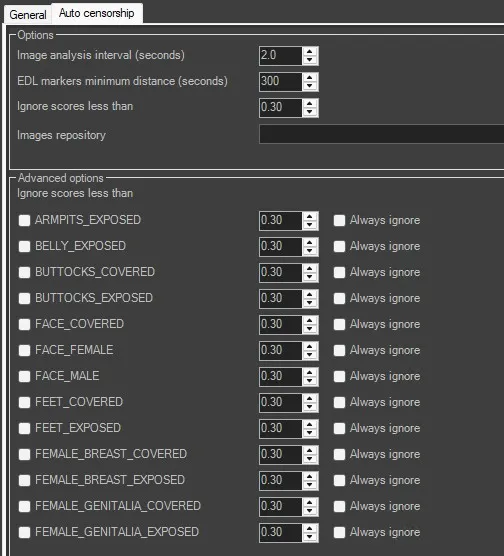
Image Analysis interval (seconds): set the interval in seconds between images analysis
EDL markers minimum distance (seconds): set the minimum distancec between EDL markers
Ignore scores less than: ignore scores points from Image analysis less than the set value. More detailed image scores can be set or ignored in Advanced Options.
Images repository: set the path where images are stored
Vantage integration:
Host: Indicate the URL address of the Vantage server.
Port: Specify the IP port of the Vantage server (default 8676).
T-Workflow: Enter the name of the T-workflow to be used for the transcoding. The workflow must be named exactly as in the Vantage system.
Job Variables: Press the [Edit] button to define an unlimited set of custom variables to be passed to the Vantage web service for carrying out the job. Variables are defined using the Rules Editor (which allows combining database fields and free text)
AWS S3 integration
Before starting the configuration you need to configure the archive (Chapter 59.7.3.9)
Then follow these steps:
1) Select operation
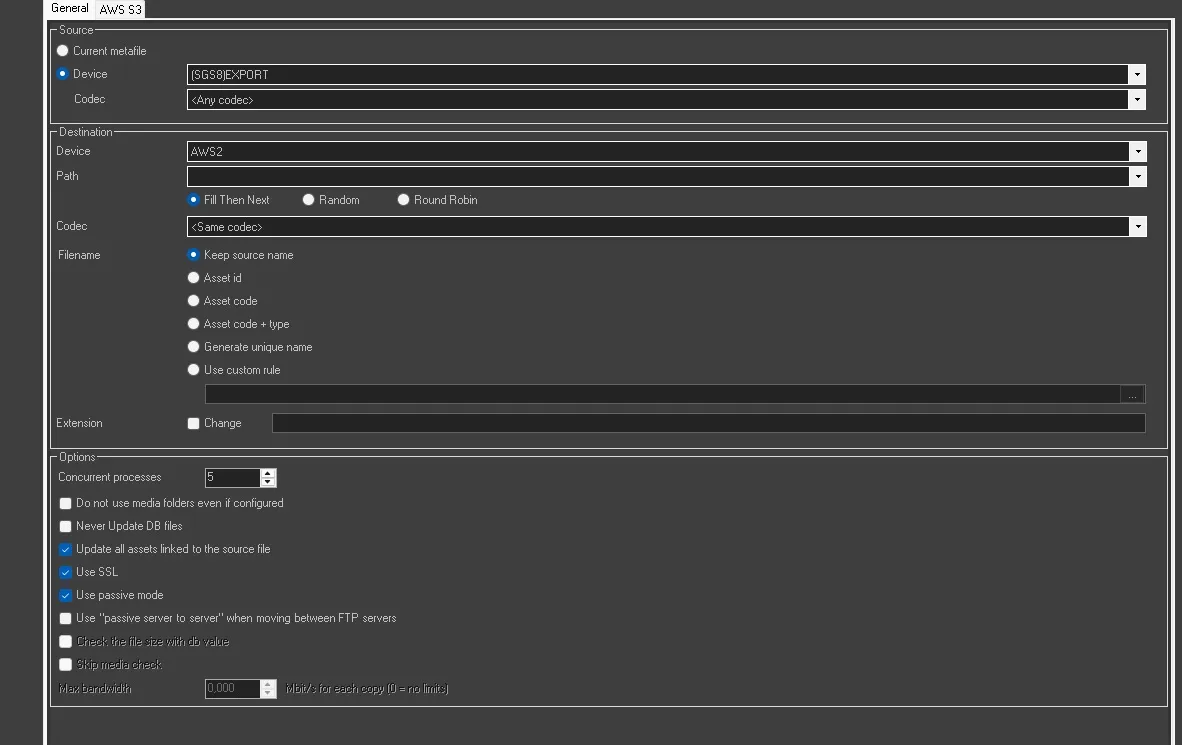
2) Set tab General "source and destination"
->Example:
- For Upload: Source "ARCHIVE" and Destination "AWS"
- For Download: Source "AWS" and Destination "ARCHIVE"
- For Delete: Souurce "AWS" and no Destination
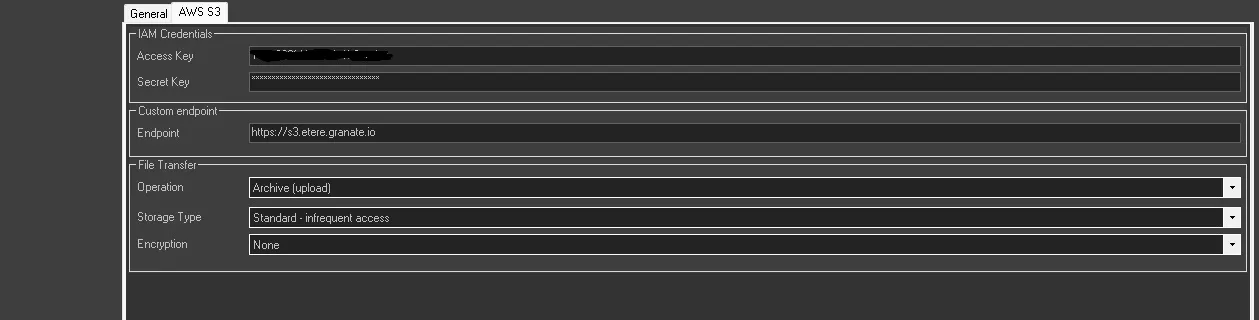
3) Set tab AWS S3
->Example:
- Access Key: this data is given by the supplier
- Secret Key: this data is given by the supplier
- Endpoint: this data is given by the supplier
- Operation: you can set the type of operation that the "Upload, Download, and Delete" action should perform.
- Storage Type: In this option you can se the access method to the cloud storage "Standard, Standard "infrequenty access" and Reduce radunancy"
- Encryption: Here you go to set the option for security method "AES256 and AWSKMS"
NB: It is recommended to restart the media manager service if you change or create the action
 Media_Manager_Service
 partial_retrieve_tab
 icons_regeneration_tab
 MD5_checksum_tab
 transcoding_tab
 mediainfo_tab
 asset_data_export_tab
 Package_Editor
 use_passive_server_to_server
 MMS_Vantage
 Auto_Censorship
 1_Select_operation
 2_Set_General
 3_Set_AWS_S3