201.3.4.5 Scheduling a season
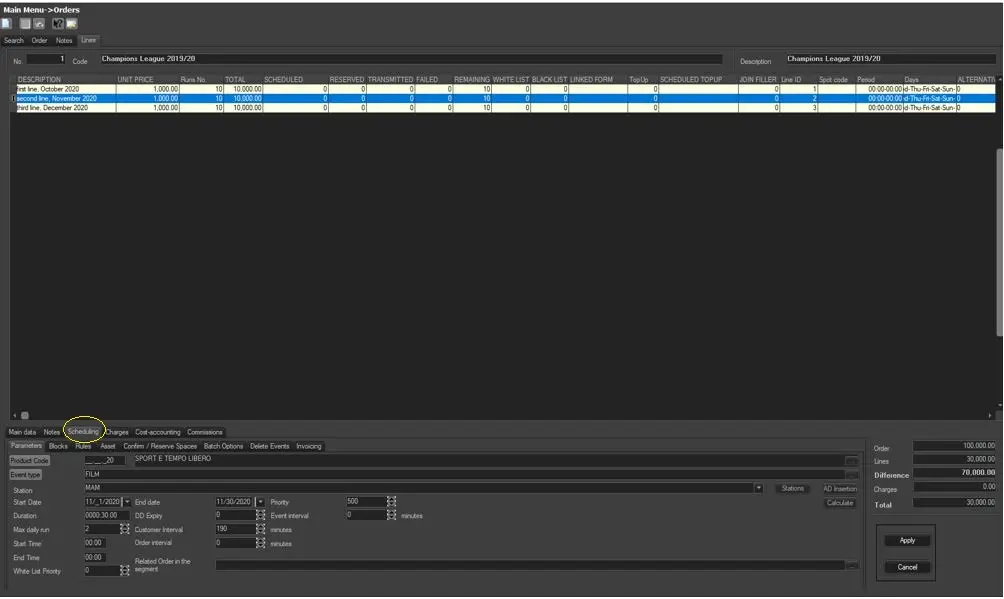
The scheduling section of the Season Orders module allows to automate the programming process by scheduling a whole season within certain duration of time. (e.g. you can program all the episodes of a season for the next two months with all the relative licensing rights respected)
Once all the relevant information has been compiled in the Main Data tab, you are able to schedule the order by reserving the broadcasting space and assign the related assets to the order. in order to perform this operation, simply compile the next parameters:
Airsales_seriesmanager_schedulingwindow
•Blocks: By using the 'Add' button you can select the blocks you wish the season to be scheduled, it showed only those blocks that contain segments with type coincides with the 'Type of event' that you specified before.
In order to perform this action the scheduling structure must exists, else, refer to the How to make Scheduling Structures chapter.
•Scheduling: In the Scheduling tab, the operator can make use of the following features:
- Assign Spaces: Assign on-air space to the season based on the previously selected schedule structure.
- Scheduling Status: View and modify the spaces assigned to the season' order line.
- Episodes Management: Specify the assets that will be associated to each season episode to be subsequently transmitted.
•Delete Events: Use this function to delete scheduled commercial events from a certain dates range, it can narrow the deletion to specific week days and/or time intervals. Once the deletion parameters are specified, press the [Delete] button to events.
•Batch Options: Under the 'Batch Options' tab it display a detailed account of the scheduling effected. The batch option application allows you to view the scheduling operations carried out by the selected commercial event, indicating the date of execution, the date range, the status of the scheduling and the split (if any). It also indicates the method of scheduling (Priority, Rotation etc) and the days in the week linked to the scheduling (as set in the Rules section). This is a useful tool to keep track of the scheduling process.
Parameter - Info
Description : Show detailed information about the scheduling. This option outlines the Operator who performed the scheduling, the workstation, the date, the time, the process involved, the description and any notes (that can be added as needed).
Parameter - Report
Description : Display the exact scheduling process and any 'missed space' due to conflicts during the processing of rules or lack of space in the segment.
Parameter - Delete operations
Description : Undo the batch operation and all its scheduled events. All events scheduled or black/white listed in past days won't be removed from their positions.
NB: In case a scheduling batch is stuck (i.e. not responding), clicking on it and pressing the [Ctrl+ALT+C] keys combination forces its interruption and subsequent deletion from the list.
Parameter - Re-launch the batch
Description : Re-launch the scheduling of the selected line batch.
Parameter - View status
Description : Launches the "Scheduling status" tool to allow viewing the scheduling information (i.e. segment, priority, etc) of all the events scheduled by the selected batch.
Please note that the "scheduling status" will be open in read-only mode, no editing is allowed.
•Deletions History: Under the 'Deletion History' tab you can press the 'Show' button to visualize all deletions that have been carried out by the operator in Batch Options and in Delete Events.
 Airsales_seriesmanager_schedulingwindow