84.4.3 How to IMPORT a schedule
In case playlists to be transmitted by ETERE are produced by an external organization, it will be necessary to import the playlist itself and in some cases also the related video files to be broadcasted.
In order to start importing schedules from an external system (e.g. to be aired, reconciled, or just archived) with a specific structure and in a specific format (e.g. TXT, XML etc) just follow the procedure below:
1.The first thing before start importing a file, is to know EXACTLY how the fields contained in the file are arranged (i.e.: the exact fields position, the character used as separator, etc), if all this information is available, you can start the importation of a schedule by searching, manually or using the "search" form, in the IMPORT tab the desired format of the file to be imported, in this example we will import a Generic TXT file.
2.Under the Import tab you must enter all the values exactly as they were described when exported:
File to export - Select the path to the target file to where the schedule will be saved.
In the example we will export the schedule to the file : 'C:\ExportFolder\Schedule.txt'
Date of schedule to export - Choose the day to where the schedule will be imported. In this case 05/05/2009
Alternative Scheduling - Choose between the Real Scheduling and the 10 different alternative schedules.
In this case we will use the Real Scheduling (meant to be aired).
Fields - Select the fields and the order that will occupy in each line. Set the position to 0 or leave the 'working' checkbox unticked means that this field won't be exported.
In this example, fields will be imported as following: Code; Type; Description; Start Time; Duration
Imports
3.In the Parameters tab you are able to configure all the secondary options set when exported, the most relevant option is the 'Fields separator' which must be the same defined during the export.
4.Once all the parameters are correctly set, you can proceed with the importation just by clicking on the Start button, all the events contained into the file will be retrieved in the schedule of the selected day, you can verify this by clicking on the View button which allows you to view the schedule of the day at its left.
5.An as-run log is always generated to ensure reconciliation and synchronization of broadcast times.
Note
Further information regarding import of many other formats is well described in the chapter "Import Formats".
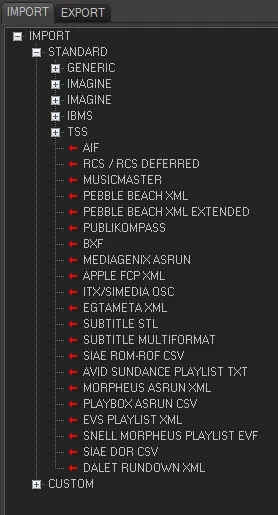 IMPORTS