Configuring MOS Gateway
79.2.1.2 Configure MOS Devices
Upon configuring Etere NCS Server, you can start to add MOS devices to the tree node.
From the Nunzio Tree Menu, expand Mos gateway > Settings >MOS Devices to view the devices.
From the MOS Devices tree node, click the icon under the Edit function to add a new device; the new device can be a prompter or graphics machine. You can also use the shortcuts described in the previous chapter when adding a MOS device.
Fulfill the following parameters to create a new MOS device:
- MOS Id: ID of the new MOS Device (from the 3rd-party device).
- Description: Short description to identify the device.
- IP Address: The IP address of the remote machine.
- Port: Specify the 3rd-party MOS port used for communication.
- Protocol: Select a MOS Protocol version supported by the 3rd-party device.
- Device Type: It can be a Generic device, a Prompter, a Logo generator, a Multiplayer or an Editor. If the device does not belong to any of these types, it's possible to select Unknown device.
- ActiveX Entry Point: Specify the entry Point to access the ActiveX functions of the MOS device (from the 3rd-party device).
- Client Connection: Disable if the server does not support the "mosReqAll" command.
- Send MosReqAll: Execute the "MosReqAll" after every connection with the NCS server.
- Send reqMachInfo: Executes Request Machine Information after every connection with the NCS server.
- Send roElementAction Swap: The "roElementActionSwap" command executes SWAP operations on one or more elements in a playlist.
- Upon completion, click <OK> to confirm settings and create the new device.
- Command Legend:
- MosReqAll: Request All Object Data from MOS Server.
- reqMachInfo: Request Machine Information upon connection.
- roElementAction: The roElementAction command executes INSERT, REPLACE, MOVE, DELETE, and SWAP operations on one or more elements in a playlist. Replaces many messages of Mos protocol v2.6
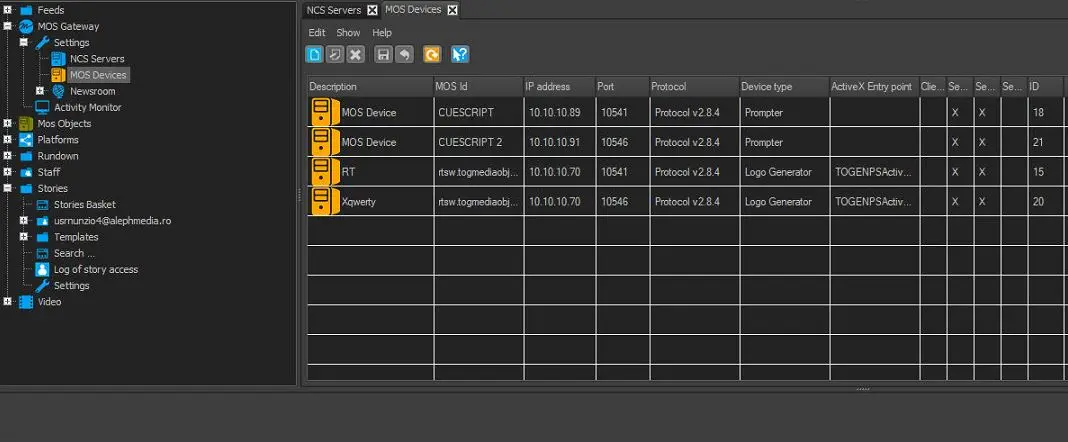 mos_device_list_new_version
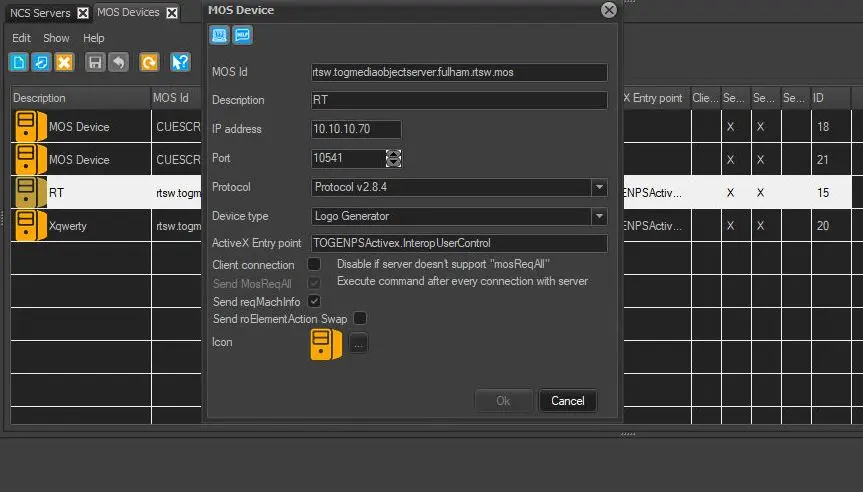 MOS_device_new_version