59.2.35 Logo Generator
A Logo Generator represents a layer of a logo-insertion device (e.g. MTX Logo) used to overlaid objects (e.g. MTX graphic objects) over transmitted programs. The "Configuration > Resources" module defines device layers related to logo generators.
Notes
1. When inserting layers, multiple layers related to the same resource will be overlapped from first to last (i.e. last inserted will be first displayed); therefore, layer#1 will be displayed beneath layer#2, which will be displayed beneath layer#3 and so on.
2. To make logos available across STMan, Automation, and ETX Toolbox, logo numbering should start from 100 (100, 101, 102).
Logo properties
The Logo Generator sections allow configuring of up to 12 Logo Generators. For each Logo Generator Layer, it is possible to configure up to 999 logos featuring the following properties:
•General
Insert, or modify, the 'Logo Description' and the 'Logo Number' that identifies the logo in question;
configuration_logo_generators
The Order area in the bottom section displays the contractual information associated with the logo; this is for reference if the logo forms part of an order created in the Etere Air Sales module. Further details on contractual stamps are available in the Air Sales section's Ordering Logos chapter.
Note: When entering a logo number, do not use a number already assigned to the existing logo; else, an error message would be prompted, and insertion would be denied.
•Aspect
Under the Aspect tab, it is possible to associate an icon to each logo for easier recognition and management:
Aspect_tab
Preview bitmap: In this area it's possible to load a bitmap image as a preview of the logo on screen.
•Editor
The Editor tab allows configuring and using MTX graphics as logos.
NB: This tab is available only if at least one Matrox MTX resource has been configured for the current station.
Contextual menu
New - Add a new logo.
Edit - Modify the selected logo.
Delete - Remove the selected logo.
Delete expired logos - Remove all logos detected as "expired".
Copy to other logo generators - Open the "Copy logo" tool to copy the selected logo into other logo generators (layers).
Screen position - Open the "Screen position" tool to set the screen area to display the logo.
Properties panel - Show or hide a panel at the bottom of the window, containing some of the logo's information.
View - Changes the display mode of the logos list: Large icons, small icons, list or details.
See also:
Multiple Logo Insertion
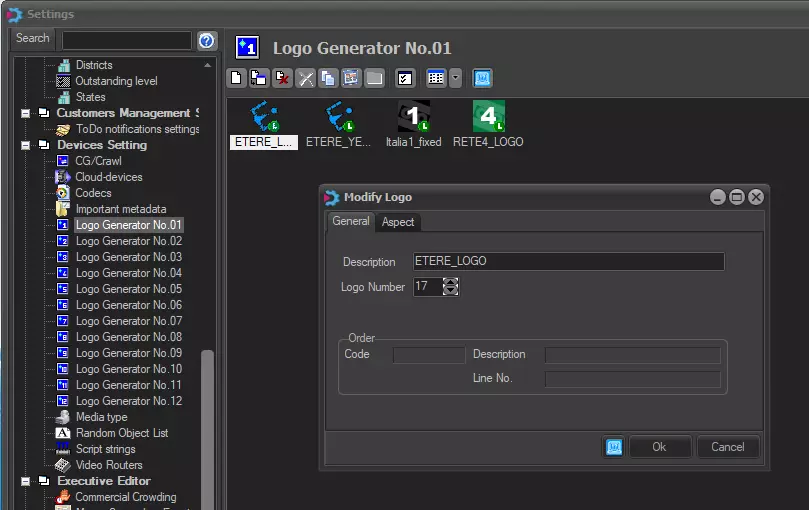 configuration_logo_generators
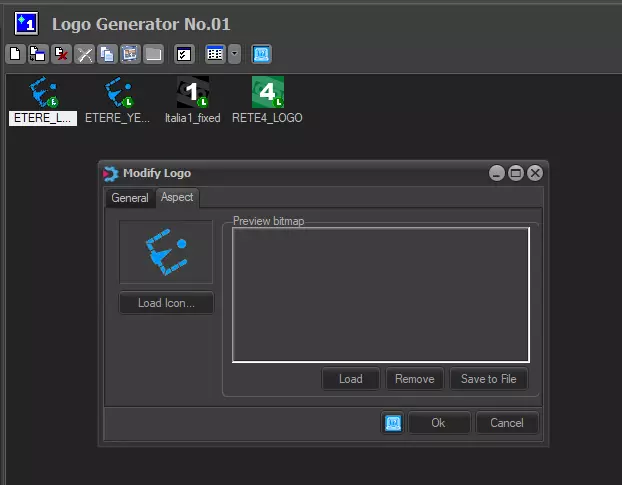 Aspect_tab