84.4.5.56 CUSTOM > DISCOVERY > ASSET XML 3RD-PARTY VENDORS
Import scope
The "Discovery - Asset XML 3rd-Party Vendors" import allows retrieved from an XML file a set of metadata related to a particular asset.
Import prerequisites
The following elements must exist in Etere's flexi-metadata structure (in "Configuration > Settings > MAM > Flexi-metadata"):
Element name - Language name
Element type : string
Import process
In case the imported asset exist in the Etere database, its data will be updated.
Otherwise, if not existing, it will be created into the Etere database.
The code of imported assets is retrieved from the <Id> tag, replacing the "/" character or ~ character found in the tag with the "~t" character,
e.g. ID such as "666~TIMB2.XML" or "666/TIMB2.XML" would imported as "666~tTIMB2.XML".
Languages specified in the <Audio> tag are imported into the "Language name" flexi-metadata, separate by commas (,).
For instance: ITA,FRA,ENG
The fields to be imported are seasons, episode number and title. Each field is separated by “|”.
e.g. Running wild | 8 | National Geographic
Import parameters
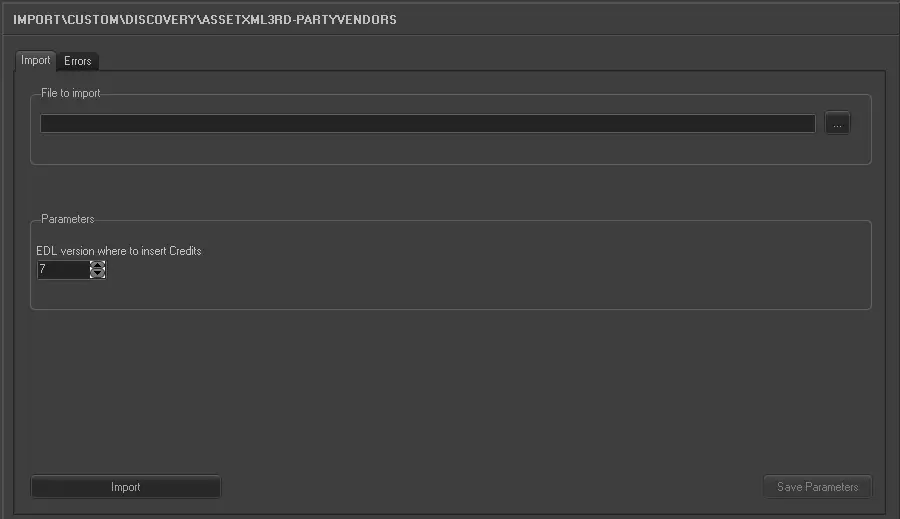
This import allows the following parameters to be set and then [saved]:
Import_custom_discovery_asset_xml_3rd_vendors
Import tab
File to import - Browse for the file to be imported into the system
EDL version containing credits - Indicate the number of EDL where credit segments will be inserted.
Launch the import
Once all parameters have been correctly set, just press the <Import> button to launch the import operation.
Sample imported file
<?xml version="1.0"?>
<Asset>
<Id>666~TIMB2</Id>
<Title>TIMB TEST / TIMB TEST 2</Title>
<DisplayAspectRatio>16</DisplayAspectRatio>
<SOM>09:59:40:00</SOM>
<EOM>10:24:12:00</EOM>
<Duration>00:24:32:00</Duration>
<Segments>
<Segment>
<Number>1</Number>
<SOM>10:00:00:00</SOM>
<EOM>10:12:32:00</EOM>
<Duration>00:12:32:00</Duration>
</Segment>
<Segment>
<Number>2</Number>
<SOM>10:14:00:00</SOM>
<EOM>10:24:12:00</EOM>
<Duration>00:10:12:00</Duration>
</Segment>
</Segments>
<Audio>
<Language>ENG</Language>
<Language>ITA</Language>
</Audio>
<VendorId>LAI01</VendorId>
</Asset>
 5265_Import_custom_discovery_asset_xml_3rd_vendors