84.4.4.46 CUSTOM > AGB ITALY
Export Scope
The AGB ITALY export allows creating a text file (.tel) for various scheduling days according to the following criteria:
•The day runs from 02:00 to 01:59 of the day after,
•Each line represents an event, which data is separated by a comma,
•The file contains a sort of 'Events Log' of the station,
•Events with a duration less than 1 second are not exported,
•Split events are exported in one line with a total duration,
•Events belonging to a commercial break can be grouped as a single event.
Export Parameters
Under the Parameters section, other settings that can be configured are:
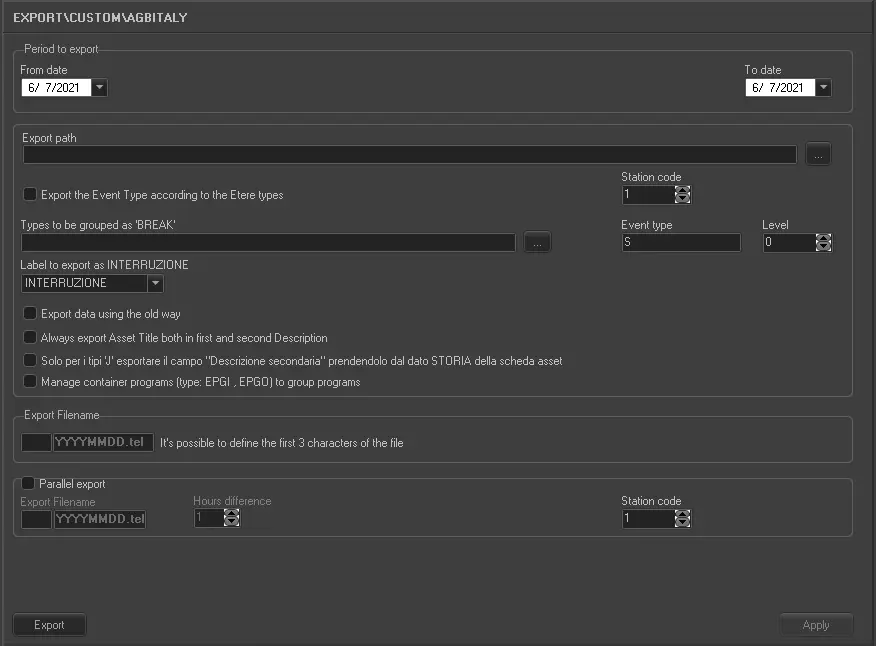
Export_custom_agb_italy
•Period to export: Specify a date range which you wish all schedules to be exported. Each day will be exported into a different file, saved in the 'Export Path' specified.
•Export path: Browse and select the directory on which exported XML files will be stored.
•Export the event type according to the Etere types: Enable this option to export event types matches event types set in Etere system.
•Station code: Select the number of the station from which data will be exported (e.g. 1).
•Event type: Specify the fixed event type defined in "Configuration > Settings > Types Editor > Types" to be used as reference for exported events (e.g. "S" for Program, "B" for Breaks).
•Level: Define the fixed scheduling level to be used as reference for exported events (e.g.0).
•Types to be grouped as Break: Select the event type(s) to be grouped as 'Break', that is, in case a series of consecutive events belonging to the selected types is found, a unique event (i.e. a commercial break) will be created for all of them named as 'Break'.
•Label to export as interruption: Select the label for the events that grouped as break.
•Export data using the old way: In conjunction with parameter “Always export Asset Title both in first and second Description”, if it's enabled, the seasons description would be export into first "Description" column and the asset title would be export into second "Description" column in the export file.
If it's disabled, the asset title would be export into both first and second Description column, as described in the following parameter.
•Always export Asset Title both in first and second Description: If this option is enabled, regardless whether the asset is a seasons or trailer, the same asset title would be export to the 1st “Description” column and “2nd Description” column in the exported file. (As highlighted in red in the sample imported file below)
•For the 'J' types only, export the "Sub-Description" field from the STORY data of the asset tab: This option is valid only for category “J” seasons. If enabled, in the exported TEL file the data field after “seasons Title” field would capture the description of the trailer. If disabled, the “seasons title + season + episode” would be exported to this field.
•Manage container programs (type: EPGI, EPGO) to group programs: By enabling this option, all the programs contained within the “EPGI” and “EPGO” would be exported into single line data in the exported file. If the “EPGO” does not exist, the export would be aborted.
The data in the single line includes:
➢Duration: Indicate the duration of the individual program.
➢End time: Indicate the end time of EPGO.
➢Type: Indicate the type of the first program.
➢Title1: The title of the first program after EPGI.
•Export filename: Indicate the three characters that made up the prefix to be used for naming the exported file (YYYYMMDD.tel).
•Parallel export: If enabled, a second file will be also exported containing the same scheduling information as the main one BUT featuring scheduled times shifted by 'x' hours.
NB: The first and second files (differentiated by file name, e.g. first file starts with “aaa”, while second file starts with “bbb”) would be transferred to destination folder via FTP during F90 custom export.
Note
The "Etere Configuration > Settings > Types Editor > Types > Export" section allows setting -for each type- the following export fields:
▪Standard export: If set, this field will be exported in the second to last position of exported rows (replacing the "event type" set for the export).
▪ABG export: If set, this field will be exported in the third to last position of exported rows.
Launch the export
Once the export has been configured, it can be started just by pressing the <Export> button.
Sample imported file
20110101,1,1,021800,021804,4,408382,"tak e la magia juju","tak e la magia juju","","","S",0
20110101,1,2,021805,022610,485,115159,"Stranick Stagione 1","Puntata 62","ga","","S",0
 5107_Export_custom_agb_italy