Scheduling Current Event and Next Event as Secondary Event
66.8.2.4 Scheduling ETX-G event as Secondary Event
Once the ETX-G graphic objects have been imported and approved in the Media Library, you can start to schedule the templates as secondary events in the Executive Editor.
- click the button Secondary Events on "Secondary Events" tab after searching for the interested asset, in alternative on Executive Editor you can double click on the "secondary events" column of the interested scheduled event
secondary_events_and_secondary_object - In the Secondary Events form that will appear, click on “Secondary Object” from the list or select it from "device avaiable" menu.
- A Secondary Object window popup.
Click on the “ETX-G” tab ,click on Template to launch the asset search form and select the ETX graphics object you want to add as secondary event between Graphics, Scenes or HTML5 Graphics (if the filters are not present you can add them by right click on "standard" tab > add filter > search filter and check for "etx" filters and "html5" filter)
filters - Once the Template is attached to the “ETX-G" tab, click on <Apply> and <OK> to confirm the settings.
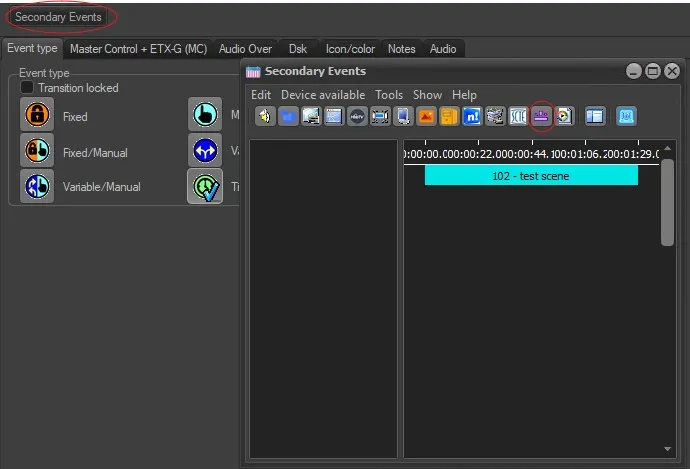 secondary_events_and_secondary_object
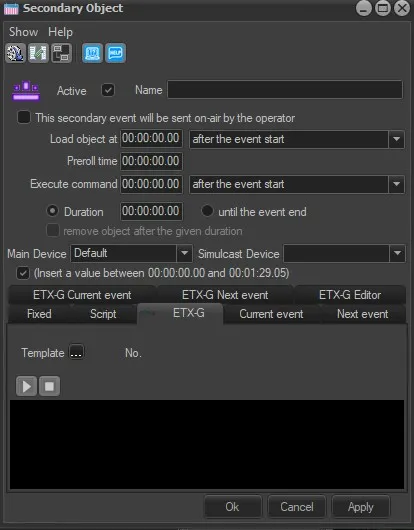 ETX-G_tab
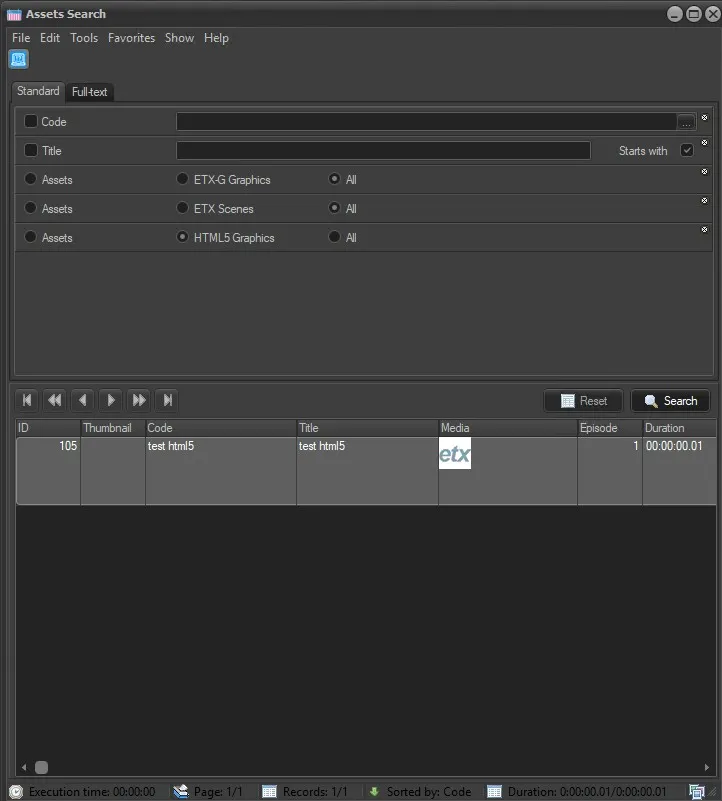 filters