72.7.2.8 Subtitles text settings
Under the subtitle tab, you are able to make edits on subtitle text properties by selecting Text from the drop down menu.
Subtitle Text Configurations:
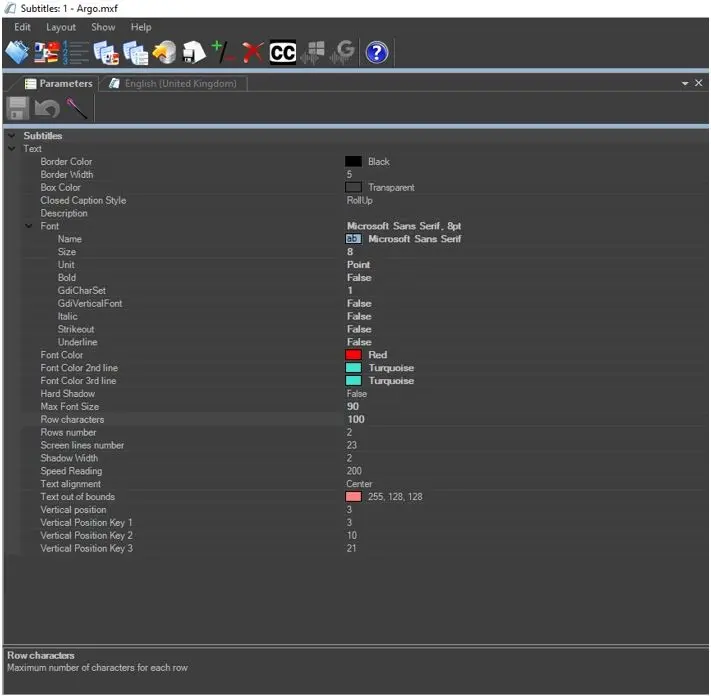
In the Subtitles properties, the following settings determine how the subtitles text are displayed on screen:
Text Configurations
Settings - Border Color
Description : Select a color for subtitles border.
Settings - Border Width
Description : Set the width for the subtitles text.
Settings - Box Color
Description : Set the background color when subtitles are displayed. The default is set to transparent.
Settings - Closed Captions Style
Description : Set the subtitles display style. You can select the display style as RollUp, PaintOn, or PopOn.
NB: For DVB subtitles, it does not support “Roll Up” and “Paint On” closed captions style in Live Subtitling, only “Pop On” style is available
Settings - Description
Description : This parameter displays the current version of the closed captions file.
Settings - Font
Description : You can set various self-explanatory parameters pertaining to subtitles font.
Settings - Font Color
Description : If the subtitles has only one line, it indicate the color of the subtitles text when displayed on screen.
Settings - Font Color 2nd line *
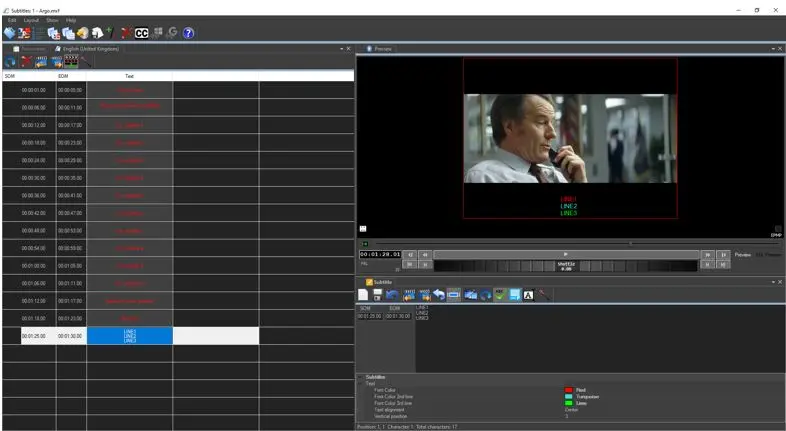
Description : If the subtitles contains 2 lines, you can indicate the color for the 2nd line of the subtitles text when displayed on screen. If the color is set to Transparent (the default) the 2nd line subtitles text would displayed in the same color as the first line.
Settings - Font Color 3rd line *
Description : If the subtitles contains 3 lines, you can indicate the color for the 3rd line of the subtitles text when displayed on screen. If the color is set to Transparent (the default) the 3rd line subtitles text would displayed in the same color as the first line.
Settings - Hard shadow
Description : Enable/Disable the hard shadow for subtitles.
Settings - Max Font Size
Description : Set the maximum font size.
Settings - Row Characters
Description : Set the maximum characters per subtitle line.
Settings - Row Number
Description : Set the maximum row allowed when displaying subtitles.
Settings - Screen Lines Number
Description : Set the maximum number of subtitles lines allowed to be displayed on screen.
Settings - Speed Reading
Description : Set the maximum words per minute.
Settings - Text alignment
Description : You can select the position where the subtitles text would be displayed. The positions are left, right, or center of the screen.
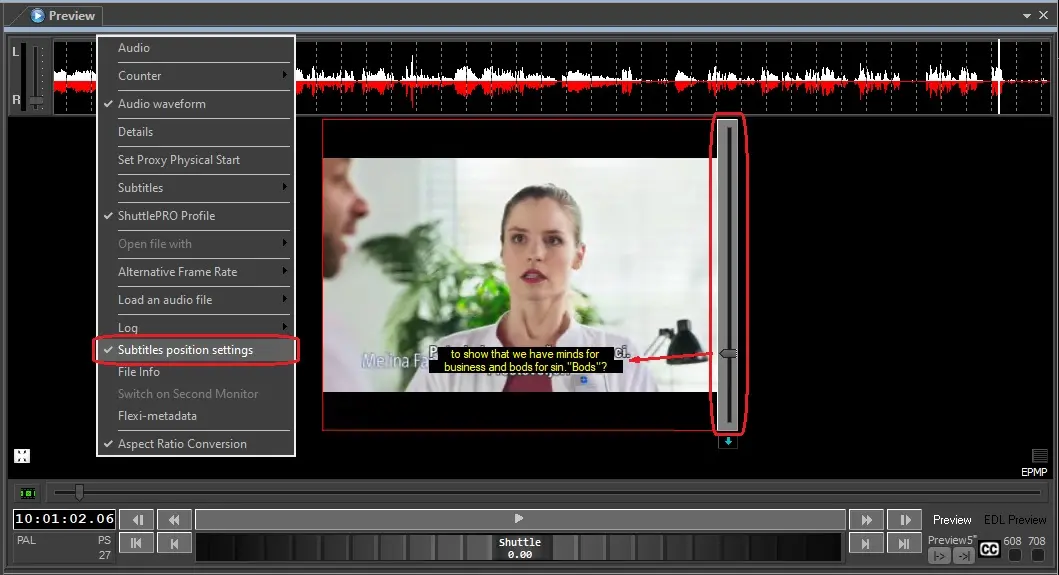
Settings - Vertical Position
Description : The vertical position allows you to set the vertical alignment of the subtitles text.
* Notes
•If there are more than 3 lines in the subtitles text, the 4th line subtitle text would displayed in the same color as 1st line text, the 5th line subtitle text would displayed in the same color as 2nd line text, likewise for the remaining lines of subtitles text. (See image below)
•The “Font Color 2nd line” and “Font Color 3rd line” settings are only supported in the Import/Export of the subtitle in STL format.
•Other than applying the subtitle font color attributes globally (as mentioned above), for subtitles file with extension “ml-cgc” it is possible to apply different font color and style for subtitle text at program runtime.
Multiple_subtitles_text
Subtitles Speed Reading
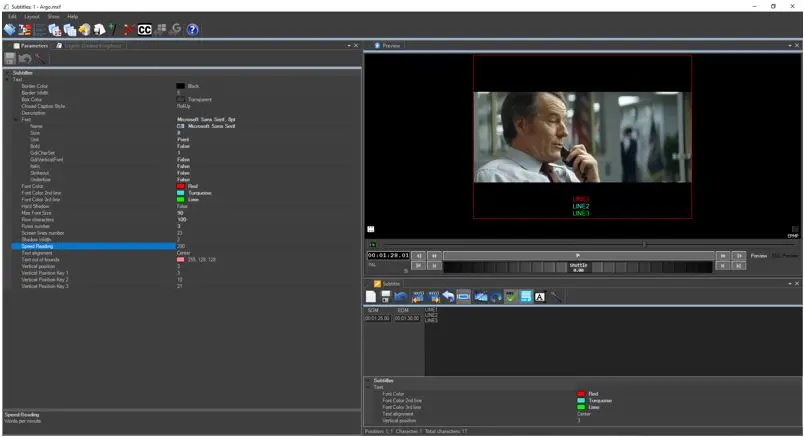
The Speed Reading global parameter in the Subtitles Configuration settings allows you to define the reading speed when displaying subtitles.
Subtitles Speed Reading
In the Parameter tab, the reading speed is set to the maximum of 200 words per minute (as default value) between the TCin and TCout, if the subtitles text exceed the maximum limit set in this parameter, a warning message and a yellow icon would be prompted in the Language tab to alert the user.
Using the programmable Vertical Position Keys
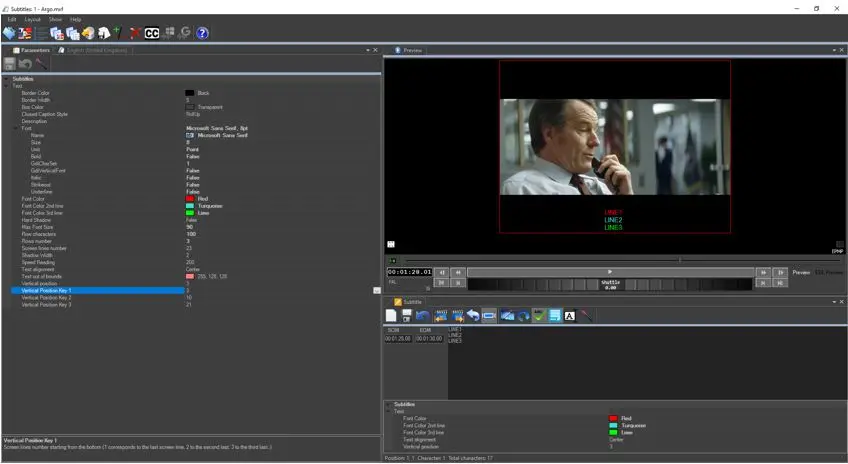
Using the Subtitles Tool, you can use the vertical track bar to display or align the subtitles text on screen. This features is enabled by setting the programmable Vertical Position Keys in the Subtitles configuration settings.
Subtitles_text_settings_vertical_position
In the Subtitles configuration settings shown above, 3 programmable Vertical Position Keys has been inserted and defined, the parameter value for each Vertical Position Key indicate the row number (starting from bottom) to display the subtitles.
After the Vertical Position Keys has been defined, you can right click on the Subtitles toolbar menu and select Edit function to activate any vertical position key to align the subtitles text. You could also activate the function using the "Ctrl" control key with the designated number, as indicated in the screenshot below.
Subtitles_edit_vertical_position
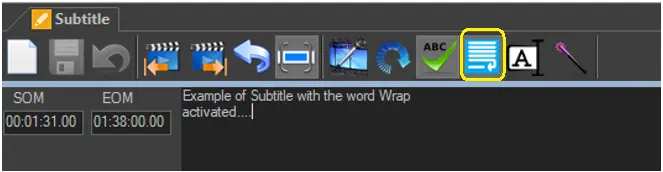
Subtitles Word Wrap
Word wrap
When the “Word wrap” function is enabled, subtitles with long stings of words would be broken into next line in order to fit into the width of the display window.
Update SOM and EOM of Subtitle During Play:
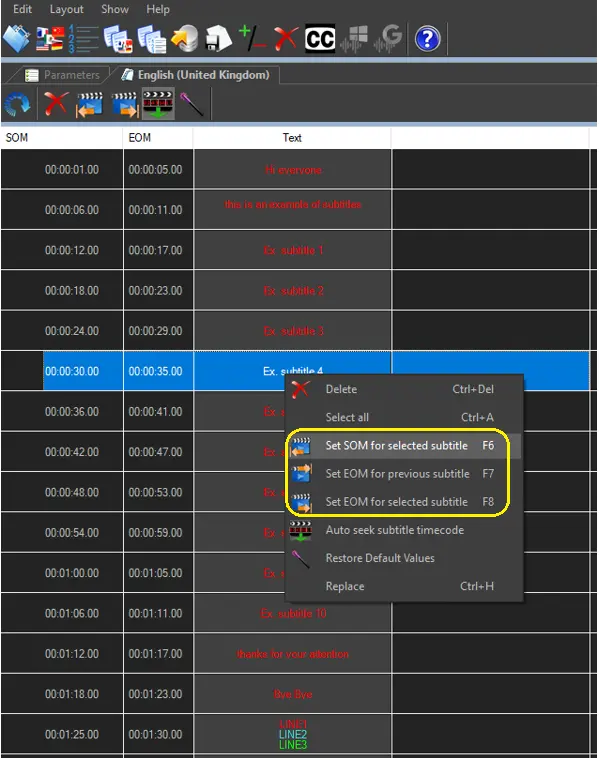
Specific function keys are assigned to update subtitle SOM and EOM of each row during play:
1) som of selected row (F6)
2) eom of previous row (F7)
3) eom of selected row (F8)
The steps are as follow:
1) Play the video
2) Select the first row in the list of subtitles
3) Press F6 when you hear the text
4) The next row will be automatically selected and will be ready for the new F6
5) With the silence you can press F7 to set eom of previous row
Update SOM and EOM of Subtitle
Find and Replace Subtitles Text
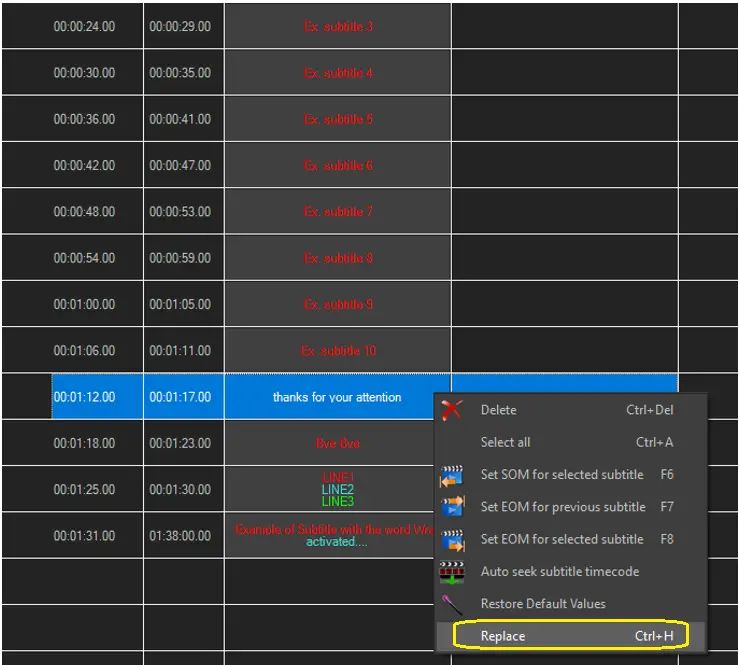
While editing subtitles text, you can simply replace the words in selected subtitles line using the “Replace” (Ctrl + H) function as illustrated below.
Replace Subtitles Text
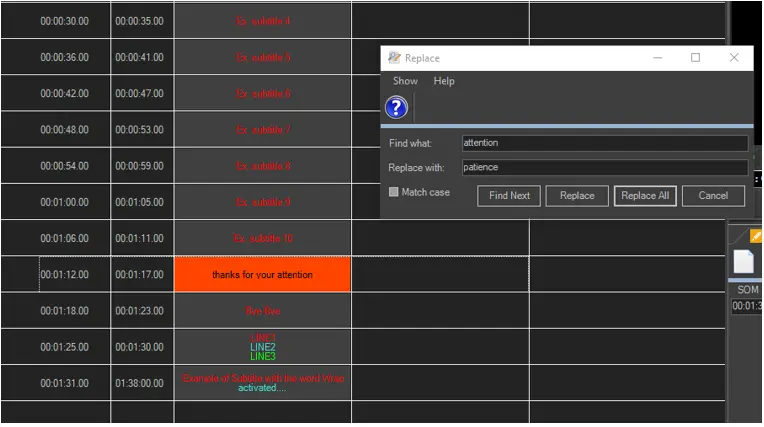
A “Replace” dialog box popup, allow you to locate and change subtitles text in the selected subtitles line.
Replace
•Enter the text to be searched in the “Find what” textbox. Noticed that subtitles text matched the entered value in all subtitles lines would be highlighted in orange color.
•Enter the replacement text in the “Replace with” textbox to replace the text found in subtitles lines.
•Now you can click the <Replace> button to replace the single subtitles line that matched the entered value. The single subtitles line with the text been replaced would be highlighted in dark orange color.
•You can click the <Find Next> button to go to next subtitles line that matched the “Find what” value and press the <Replace> button to replace the value in that subtitles line. Repeat the same steps to replace subtitles line one at a time.
•If you want to replace all subtitles lines that matched the “Find what” value, simply click the <Replace All> button to replace all subtitles lines with the new value.
To be precise, you can enable the “Match case” option to zoom-in those subtitles text that matched the exact value (e.g. UPPER case, lower case, or combination of both) and replace the subtitles.
 Update_SOM_and_EOM_of_Subtitle
 Replace
 Replace_Subtitles_Text
 Multiple_subtitles_text
 Subtitles_text_settings_vertical_position
 Word_Wrap
 Subtitles_Speed_Reading
 Text_Configurations
 Subtitles_edit_vertical_position