59.3.9.21 Conform Version
Action Description
The "Conform version" action type allows preparing a conforming operation by putting all required segments (i.e. video parts) into the EDL of a new asset created for holding the conformed material.
To make the conforming ready to be started, the action will automatically perform the operations below:
1. Create a new asset copy from the T-workflow's attached asset. The new asset will feature the same data as the original asset (e.g. title, metadata, subtitles, etc) but with a different ID, Code and Media (future conformed video).
NB: Depending on action settings, the created asset will be either related to the original asset as a child or version or not related at all.
2. Add into the EDL 77 the source files to be conformed (according to the codec and device set in the conforming settings).
3. Add into the EDL 77 the ancillary segments (head and tile segments specified in the conforming settings).
4. Attach and launch the default T-workflow for conforming (based on a Data Mover External Exe); the EtConform.exe tool will be executed using the target parameters (XML GUID and Path specified in the conforming settings
Note
▪This action must not be placed in the same T-workflow along with the Conforming video files check as it will result in a looped processing.
▪The "ignore non-ingested assets" parameter of Etere Data Mover must be disabled to allow new conformed assets to be processed.
Suggestion
▪The "Conform version" action is helpful to create a "censored copy" of an asset from the Media Library through a file-based T-workflow operation. See "EDL conforming T-workflow".
▪Creating a new version, it will be also possible to distinguish a broadcast version from a VOD version, as they could have different censorship.
▪For either an overview of the conforming process or detailed information, please refer to the "Conforming" chapter.
Action Parameters
To create it just complete the following data:
General info
Name - Enter a self-descriptive name for the action (e.g. "Conform version [wf] [p1] [child]").
EDL version - Specify the EDL of the original asset to be conformed, that is, from where segments will be retrieved. The version of this EDL can be set by selecting one of the following options:
Version "n" - Manually set the EDL to be conformed (i.e. 1, 2, 3... or 9).
Based on T-workflow - Automatically set the EDL to be conformed, depending on whether the T-workflow is launched for an asset or a segment:
Asset - If the T-workflow is launched for an asset, the EDL version will be the default one (e.g. 1) of the original asset.
Segment - If the T-workflow is launched for a segment, the EDL version will be the one to which the segment is located.
By Flexi-metadata - Automatically set the EDL to be conformed by reading the value stored on a specific Flexi-metadata (e.g. "Conforming EDL").
NB: There will be available only supported types (i.e. boolean and array list).
Profile - Select the profile to be used to determine the parameters (e.g. codec , destination, structure, transcoding module, etc) for carrying out the conforming of segments.
NB: Conforming profiles are configured in the Conforming settings section.
Create asset as - Specify the relationship that must be established between the original asset and the asset created for holding the conformed file this, selecting one of the following options:
New child - The created asset will be linked to the original asset; it will appear in the Media Library > Links of the source asset related as a "child."
NB: If the original asset is a "child", the created asset will be added as a child of the same parent.
New version - The created asset will be linked to the original asset; it will appear in the Media Library > Links of the source asset related as a "version."
Standalone - The created asset won't be linked to the original asset; that is, it will be created as a different asset unrelated to the source one.
Keep video tape - If enabled, tapes linked to the source asset will also be linked to the new conformed asset.
If disabled, only the conformed file will be linked to the new conformed asset.
Keep images - In case the source original asset has linked images related to Episode\Season\Series thumbnail, poster or background, it is possible to choose if they must be copied into the new conformed asset or not
VOD - If enabled, the new version will start from number 1000, in order to not interfere with version to be used for normal broadcasting.
Depending on the success of the requested operation, one of the following results will be returned by the action:
Done (asset successfully created)
Not done (unable to create the new asset)
How to use it
Use the T-Workflow Designer to implement a T-workflow to prepare the list of segments to be conformed, for example, to create a "censored copy" of an asset:
censored_copy
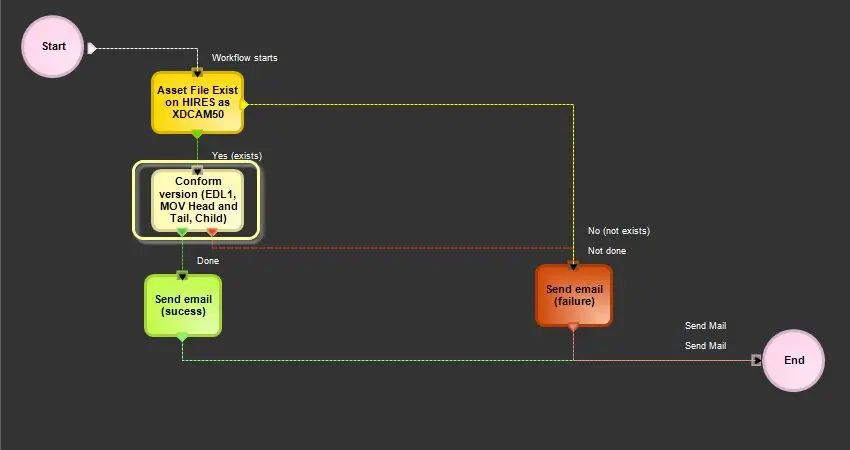 censored_copy