59.7.2 Resources diagram
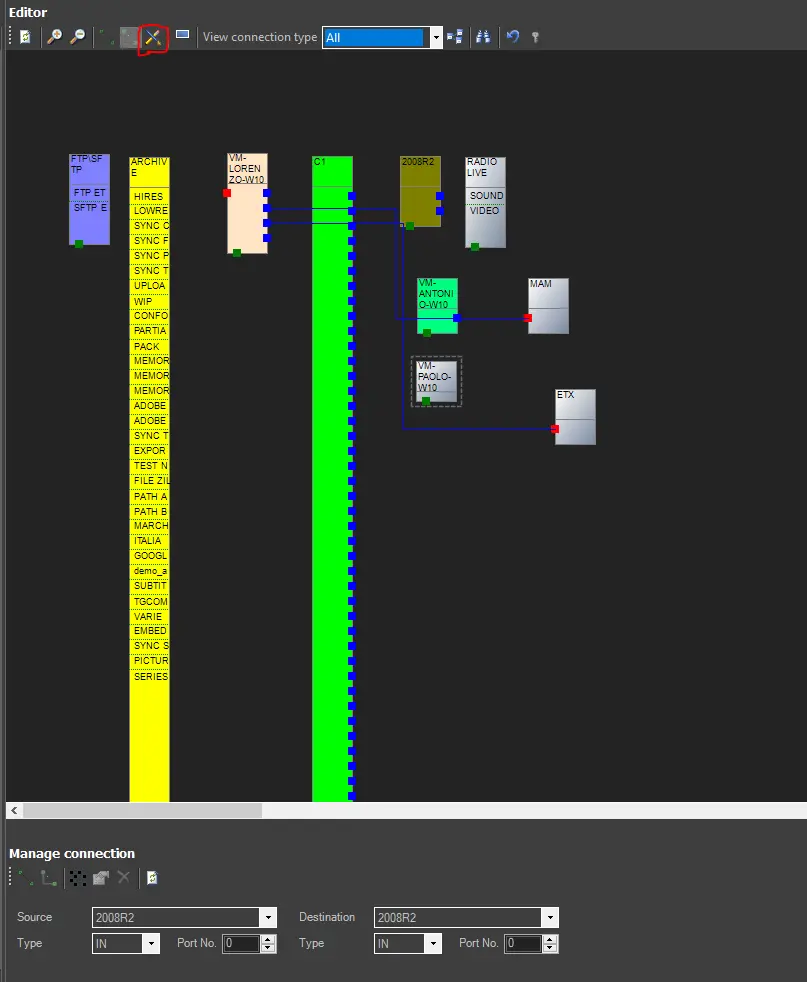
This area shows the resources diagram in the right part of the window, allowing us to design and edit it through a simple drag-and-drop mechanism. The "Resources Diagram" shows the interconnections between devices, the status of said connections, etc.
Insert a Resource into the View
Once resources have been added and configured, they must be inserted into the "Resources Diagram" to build up the resources diagram. To add a resource to the Resources Diagram, drag and drop the resources into the diagram.
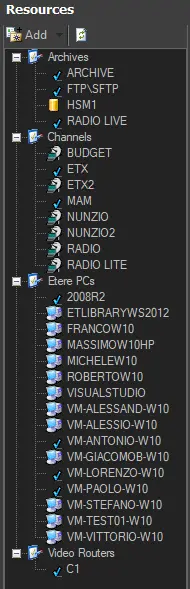
Once added, the device icon will be visible in the Resources Diagram, and its information (i.e. number of inputs/outputs, encoders/decoders, ports, etc) would be visible on the device depending on how many were configured in the device Properties form. Moreover, a tick will appear beside its name in the Resources List, indicating that the resource has been inserted into the Resources Diagram:
Resources
Connect Two Devices
Devices can be connected manually by creating connecting lines between two device images. Alternatively, they can be connected automatically by specifying the source and destination device and allowing the system to insert the connecting lines for you.
•Manually: Select either the straight 'Create connection' icon or the elbow 'Create connection' icon in the toolbar, changing the cursor image to a square. Position the cursor over the input or output point of the device, press and hold with the left mouse button, drag the connection to the input or output point of the connecting device and release the mouse button. If the attempted connection is invalid, the system will return with an error message 'Impossible to connect'.
•Automatically: Select the 'Manage connection' option from the toolbar to bring up a new section at the bottom of the Editor screen titled 'Manage Connection'. Select the source device (only those devices available in the Resources Diagram will appear in the drop-down), the type of connection (In, Out or InOut) and the Port number. Do the same for the destination device. Press either the straight 'Create connection' or the elbow 'Create connection' button in the Manage Connection section. The system will automatically create the connection between the two devices, which is visible automatically on the Resources Diagram.
To help you ascertain the correct device port, etc, by positioning the cursor over the port in question along the bottom of the main Editor screen, the details will appear:
Resource editor
 Resources
 Resource_editor