10.2 Browser
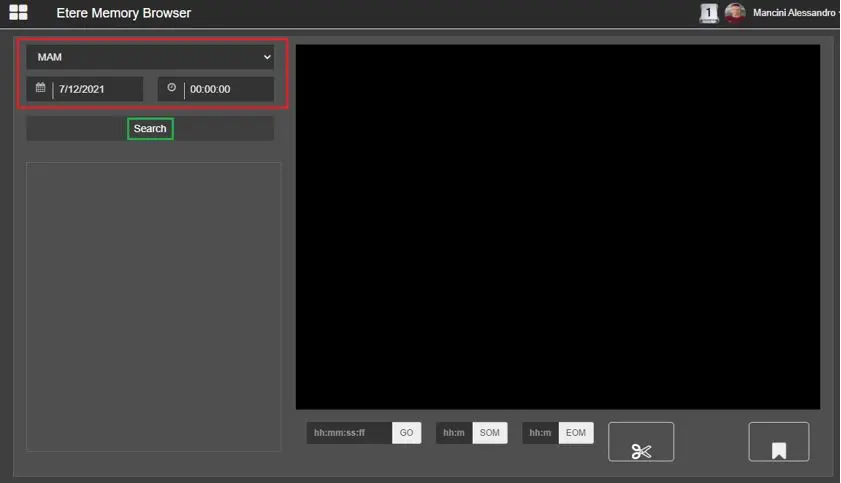
In Etere Memory Browser, you can search for memory asset by simply selecting the station and the date and time when the recording was made, then click Search button, a date as indicated in the screenshot below.
Etere memory browser 1
The Memory Browser would first search the files in Memory Asset form, if the assets were not found, it would search the Memory main path and backup path configured in the encoder.
You can also search Memory assets via HTTP or HTTPS protocol. Upon loaded, it is necessary to update the SMPTE fields to retrieve the information of audio and video files. When searching for Memory assets via HTTPS, the virtual directory must be set as the destination path in Media Folder.
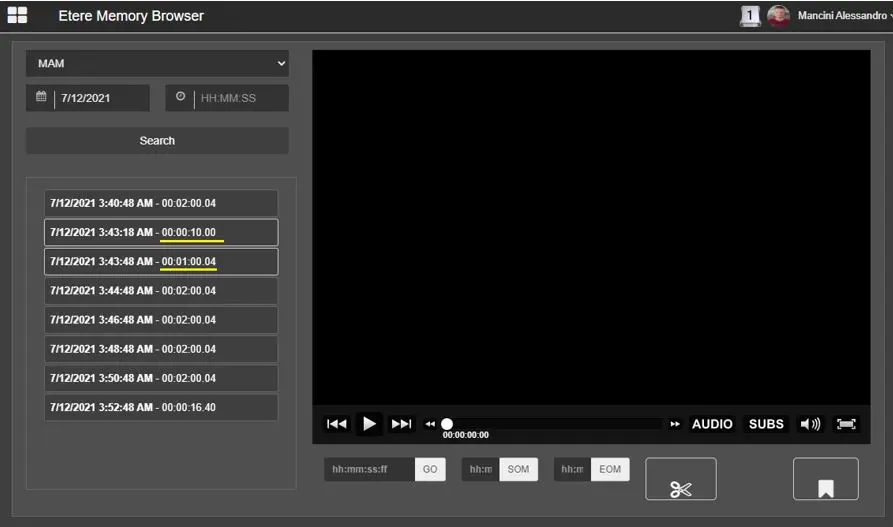
When browsing Memory file, the file name would be invisible, only the date, the time and the duration of the file recorded would be displayed.
If the Memory file contain video faults saved as segments, they would be highlighted and only the “good” parts of the file would be listed.
In the example below, the recording total duration is "00:02:00.04", but it has a video fault from "00:00:00.00" to "00:00:30.00" and from "00:00:40.00" to "00:01:00.00".
Etere memory browser 2
So, memory browser displayed the recording in 2 rows:
- one has 10 seconds of duration (the “good” part between "00:00:30.00" and "00:00:40.00');
- one has about 1 minute (the “good” part between "00:01:00.00" and "00:02:00.04").
When browsing between segments, the browser would automation position itself and start from SOM value found in the clip.
UTC TIME IN FILENAME
From Etere released version 28.2.7.17 onwards, asset files generated by Etere Memory would contains UTC Time in the filename, instead of the Local Time.
In the following example, output files in Local Time has been converted to UTC Time in filename format:
- MEM001M-20180912-162159.mpg (Local Time);
- MEM001M-20180912-162159B.mp4 (Local Time);
- MEM001M-20180912-162159C.wmv (Local Time);
- MEM001M-20180912Z142159.mpg (UTC Time, with UTC + 2);
- MEM001M-20180912Z142159B.mp4 (UTC Time, with UTC + 2);
- MEM001M-20180912Z142159C.wmv (UTC Time, with UTC + 2).
The example above uses UTC Time in filename, replacing the hyphen (“-“) with a character “Z” to separate the date from time.
Note: If your Memory Browser version is 28.2.5.6 or higher, it is able to recognize Memory output filenames generated in UTC Time and Local Time.
WARNING: In the file name “MEM001M-20180912Z142159.mpg“ (UTC Time) or “MEM001M-20180912-162159.mpg” (Local Time), the character “M” indicate the file is generated from the Main server.
File generated from Backup server would be indicated by a character “B”, e.g. “MEM001B-20180912Z142159.mpg" (UTC Time) or “MEM001B-20180912-162159.mpg” (Local Time).
BOOKMARKS
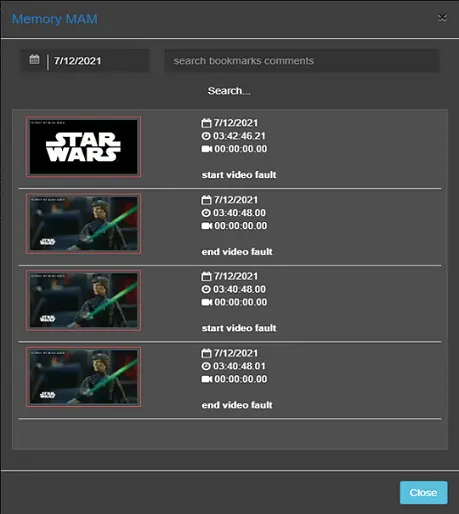
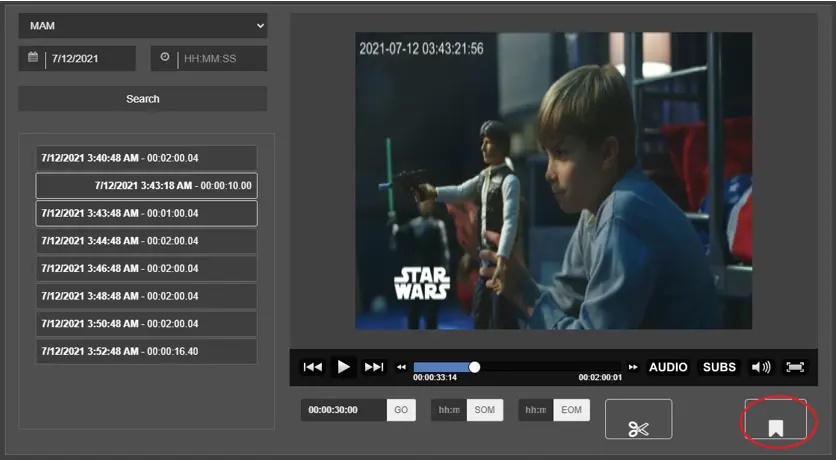
The Bookmarks function allows you to search for recorded files in Memory using the comments added to the files.
Bookmarks
From the Search form, select a date in calendar and click the <Search> bar to filter the bookmarks in Memory files recorded on selected date.
Memory MAM
VIDEO CUT
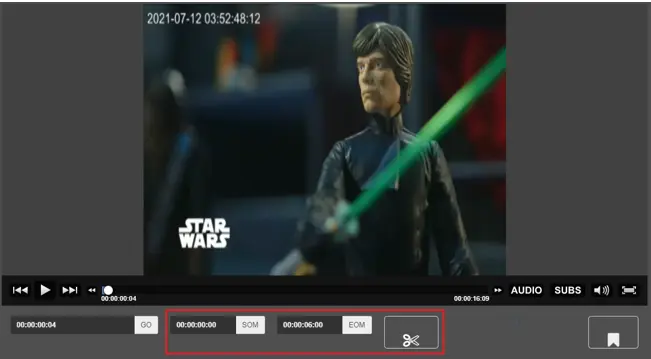
Memory browser allows to cut the selected video by simply filling the SOM and EOM fields and clicking on the <Cut> button.
Video Cut
In order to perform cutting of memory file, the "Memory Cut" workflow action must be properly configured in Default T-workflow.
 Etere_memory_browser_1
 Etere_memory_browser_2
 Memory_MAM
 Bookmarks
 Video_Cut