59.2.6.3 Barcode
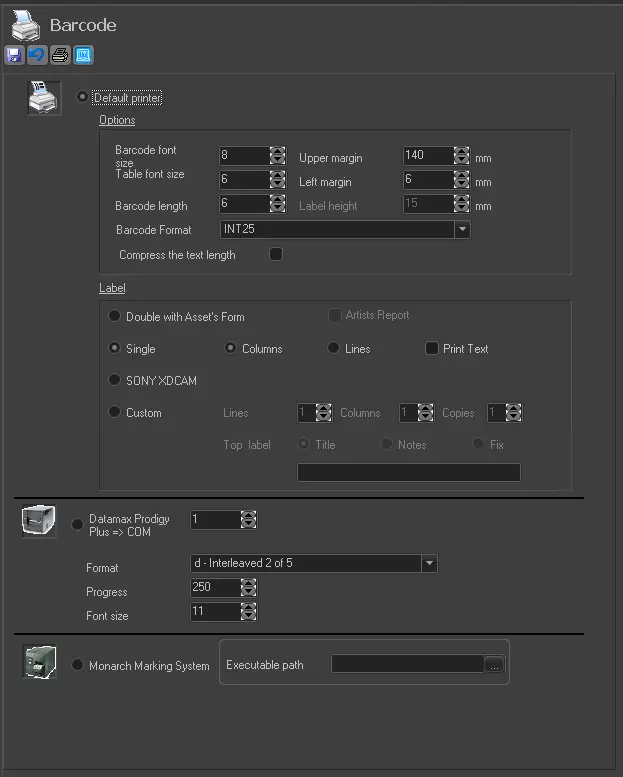
The Barcode section holds all the parameters regarding the barcode printer configuration. To configure the printer, first select the printer to be used for printing barcodes:
configuration_barcodes
Default printer
Select this option to use the default Windows printer, which will be used based on the following parameters:
OPTIONS
•Barcode font size, Barcode length, Barcode format,
•Table font size,
•Upper margin & Left margin,
•Compress the text length.
LABEL
•Double with asset's form. Print artists
•Single Vertical/horizontal Print text,
•Sony XDCAM,
•Custom: Set the number of rows and columns that determine the printing layout (e.g. 5x10=50 barcode labels per page) and the number of copies printed on each page. Moreover, specify the text to be used as a label header (i.e. asset title, asset note or a fixed string).
Datamax prodigy
Select this option if you are using a Datamax Prodigy Plus barcode printer:
•COM Port: Set the local port to which the barcode printer is connected.
•Format: Specify the format in which barcodes will be printed.
•Progress: Set the feed length, the distance (mm) which will be fed before the printing, to align the printer header with the label's top margin.
•Font size: Indicate the font size to be used.
Monarch Marking System
Select this option to use a Monarch Marking System barcode printer:
•Executable path: Indicate the path on which the barcode printer executable is located; it will allow Etere to launch the printing software automatically.
Printing barcodes
Once the printer is defined, press the [Print] button to select the tape for which the barcode will be printed.
NB: For detailed information on supported barcode printers (e.g. Zebra, Brother, etc.) and configurations, please refer to the sponsored device chapter.
 configuration_barcodes