84.4.4.29 STANDARD > PLAYBOXPLY
Export Scope
The export PLAYBOXPLY feature export playlist into a text file (extension .ply) containing one day schedule for the playout system. The exported file name format is “yyyy_mm_dd.ply”.
During export, the following criteria would be applied:
• The Asset Title would be exported in Arabic, if applicable.
• The first value of “#STARTTIME” field is exported as “0”, e.g. #STARTTIME 0;00:26:40;30;30;1;;-1
• The “#PERFORMER” field indicate the start time for each event.
• The value of “#DYNAMICMEDIA” field would be exported as “TRUE”.
• If the playlists contains "Live "events with duration, the duration of the "Live"events would also be exported.
• The value in the “Technical Notes” field is exported from asset's crawl description in the playlist (rather than asset's commercial note field) into the “#CATEGORY” tag in the exported PLY file.
• In Asset’s Secondary Events tab, if there is value in the “Technical Notes” field (e.g. ABCD), the value would be exported into the “#CATEGORY” tab in the exported file. For example, if the category is LOGO, the value in the “#CATEGORY” tab in exported file would be “#CATEGORY LOGO , ABCD”. If the "Part" field is greater than 0, the part number is added at the end of the #CATEGORY tag.
- In “#CATEGORY LOGO , ABCD” tab, a space must be inserted before and after the comma (“,”)
- If the asset has no secondary event, no comma should be inserted after LOGO, e.g. “#CATEGORY LOGO”
• In the example above, if the value in the Technical Note field is “ABCD” and the asset’s secondary event consists of 3 segments, only the First and Last segment would be assigned with segment number, no segment number would be assigned to second segment, as listed below:
- “#CATEGORY LOGO , ABCD1”
- “#CATEGORY LOGO , ABCD”
- “#CATEGORY LOGO , ABCD3”
• If the exported program consists of multiple program parts, the various program parts would be indicated with “(Segment x)” string in the “#NOTES” tag field in the exported file to identify the program part in Playbox, e.g. “#NOTES Never say never (Segment 1)”. The “#NOTES” field is the Description field in Etere, when importing the AsRun file to Etere only the title would be imported (e.g. "Never say never"), without the segment number.
• In the tag #NOTES, is exported also the series' title and the master series' title.
Export Parameters
The following parameters are required in order to export the playlist file:
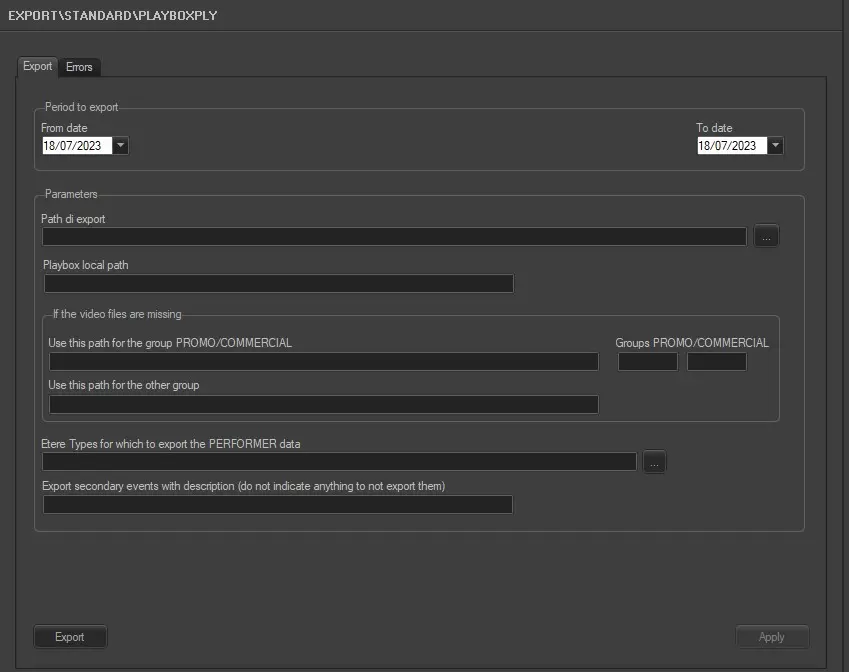
Export_standard_playbox_ply
Period to export:
• From date - To date: Select a date from the calendar to indicate the start and end date for export.
Parameters:
• Export path: Indicate the directory path where the schedule file is stored after exporting. You can use the browse button to locate the file in the network.
• Playbox local path: If the schedule file is located in local PC, specify the local path in local PC where the file is residing.
Note: When exporting “PROMOS” asset type, the “Playbox local path” would take precedence over the “Export path”, all “PROMOS” assets would exported to the local path.
• Extension of the video files to be exported: This parameter allows to choose the extension of the video file to be exported (.mpg/.mp4/etc.).
• Use this path for the group PROMO / COMMERCIAL: Specify the directory path stated in the text box to locate the playlist file which event type are Promo or Commercial.
• Group PROMO / COMMERCIAL: Group event type by Promo or Commercial.
Note: Regardless whether there is media file linked to the asset, both the Promo and Commercial asset types would use the same export path specified in the “Use this path for the group PROMO / COMMERCIAL” parameter.
• Use this path for the other group: Specify the directory path to locate the playlist file type which are not Promo or Commercial.
• Etere Types for which to export the PERFORMER data: Specify the Etere code type (e.g. PGM) to export the data in the “PERFORMER” field. Asset with codes and types not specified in this parameter the “PERFORMER” field would be exported as blank (no data).
• Export secondary events with description (do not indicate anything to not export them): write down here a description that will be used by the export to evaluate if a secondary event must be exported or not. If its description matches this field, it will be exported.
Launch the export
Once all the above parameters are fulfilled, click the <Export> button to start exporting schedule from the database.
 Export_standard_playbox_ply