72.7.2.13 Offline Microsoft Speech Recognition Engine
You can use “Offline Microsoft Speech Recognition Engine” feature to import an offline audio file into subtitles text in Live Subtitling using the icon “Import subtitles from Audio file using Offline Microsoft Speech Recognition Engine” deployed in the Live Subtitling module.
Offline_ms_speech_recognition
NB: The “Import subtitles from audio file using Offline Microsoft Speech Recognition Engine” function is only visible if “license EA6763” is installed in workstation.
This icon is enabled ONLY if the following requirements are met:
1.The MS Speech Engine has been installed in the station
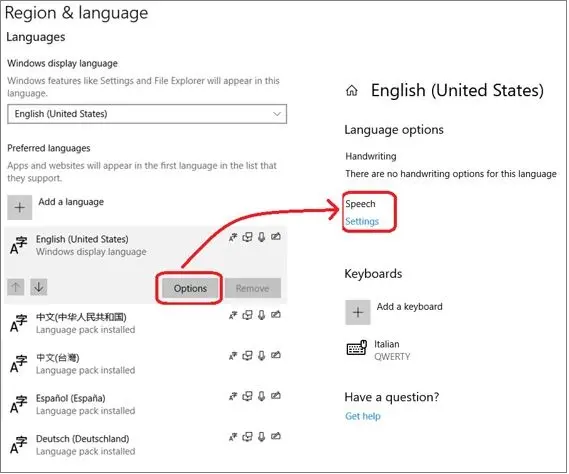
You must download the Microsoft Speech Recognition Engine from a recognized website and install the engine in the station. After installation, use the “Region and Language” in the station Control Panel to set the Language option.
Speech_recognition_language_settings
The following languages are available when using the recognition engine:
•en-GB: English (United Kingdom)
•en-US: English (United States)
•de-DE: German (Germany)
•es-ES: Spanish (Spain)
•fr-FR: French (France)
•ja-JP: Japanese (Japan)
•zh-CN: Chinese (China)
•zh-TW: Chinese (Taiwan)
2.The Windows Language Pack has been installed in the station
Download Windows Language Pack suitable for your current Windows OS of the station, after which, enter command “Windows Update” in the Windows Start Menu and follow the instruction on screen to complete the update for the language pack.
3.The language has the “RecognizerID” assigned in the Language view
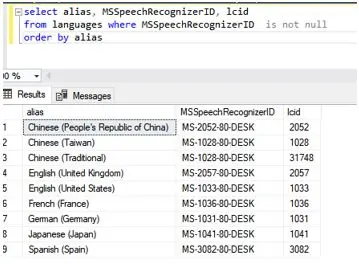
After updates has been completed, the “RecognizerID” for each available language would be listed in the Language view as shown in the screenshot below. The “RecognizerID” would be used to initialize the Speech Recognition Engine when the feature is activated.
RecognizerID
With the above settings are in place, you are enable to import an audio file into subtitles text in Live Subtitling.
For import audio file process, please refer to “Import Subtitles from Audio File” chapter.
 Offline_ms_speech_recognition
 Speech_recognition_language_settings
 RecognizerID