84.2.6.14 Video Assist - Use the Panel
Once playout channels are selected and configured, the Video Assist panel is displayed, it will allow the operator, through an easy-to-use interface, to either playback a Video Assist playlist or just preview it:
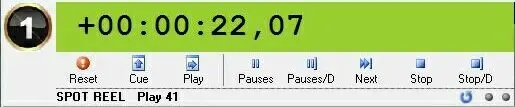
Playback controls
The Playback controls allows to manage the playback of all those events present in the current open broadcast schedule (starting from a selected event and automatically finishing on either a separator or at the playlist end):
5038_Playback_controls
Reset - Releases the output channel of the video server, stopping it, unlocking it and cleaning any existing playlist.
Cue - Communicates to the video server that the playback will start by the current selected event. When cued, the playback background will be colored yellow.
Please note that this command will interrupt any Jog&shuttle preview currently being performed.
Play - Starts the playback from the currently cued event (with a default preroll time of 3 seconds). During the play, the playback background will be colored green.
Pauses - Temporally pauses the video server playback (e.g. to perform the jog&shuttle) until another button is pressed by the operator.
Pauses/D - Commands the video server to pause the playback at the end of the current playing clip.
Next - Continues the playback (with a default preroll time of 3 seconds) of the immediately next event of the playlist. In case the next event is a 'separator' (i.e. the playlist has finished), the playback will be automatically stopped.
Stop - Interrupts either the cue or the playback of the video server. When stopped, the playback background is colored gray.
Stop/D - Commands the video server to stop the playback at the end of the current playing clip.
NB: Every time a playlist item is selected and the [play] button is pressed the "findclip" command will be performed prior to the play (i.e. before putting the automation in cue), loading a maximum of 40 clips on the Jog&shuttle preview (e.g. to ensure that clips are available).
Jog&Shuttle preview
The Jog&Shuttle preview allows operators to made up a playlist of certain events and preview them (e.g. to confirm their availability) using the following functions:
5039_Jog&Shuttle_preview
Insert in playlist - Clean the current jog&shuttle playlist and load in it all events selected from the schedule.
Jog & Shuttle - Make right-click on this area to switch between the following functions:
- Jog: Drag the indicator either to the left or right to play the media at variable positive or negative speed respectively.
- Shuttle: Change the playback speed by moving the cursor across the bar, thus making go slower or faster
Timeline slider - This bar permits to freely position the playback just by dragging and dropping the indicator (the playback will be paused).
Step -1 - This button shifts the playback backward of one frame
Step +1 - It simply shifts the playback forward of one frame
Play - This button starts the playback of the media from the current timeline slider position
Stop - It simply interrupts the video playback (i.e. pauses it)
RW (Rewind) - Press it to quickly move backward the playback (i.e. shuttle -30)
FF (Fast Forward) - Press this button to quickly move forward the playback (i.e. shuttle +5)
Go to start - It moves the playback indicator to the first frame of the clip
Go to end - This button moves the playback indicator to the last frame of the clip
hh:mm:ss,ff
Elapsed time - Displays the current playlist elapsed time (e.g. 00:18:33:20).
hh:mm:ss,ff
Remaining time - Displays the current playlist remaining time (e.g. 00:01:27:40).
Stop
Status - Shows the current playlist status (e.g. stop, play, cue)
Jog&Shuttle Preview
Events in the jog&shuttle playlist can be easily cued for preview by making double-click in them (cued events are highlighted and displayed with a 'cue icon'). Moreover, Etere allows controlling the Jog&shuttle preview using either a mouse or a ShuttlePro device mapped to the playback commands as shown below:
Additionally, it is important to notice that media linked to events present in the Video Assist playlist can be previewed just by making right-click on them and selecting the 'preview...' option, the Preview Browser module will be open allowing to preview all entirely loaded clips, move to specific time code points, change the SOM/EOM marks, and much more.
Important considerations
When playing/previewing events through the Video Assist panel, it is important to take into account the following considerations:
➢Events cannot be played and previewed contemporaneously through the same video server channel; but in this case, it will be required to use the preview on a different channel.
➢In case an event selected for preview doesn't count with a linked media, an error message will be displayed during the load attempt in order to point out the missing media issue.
➢When an event is being played, only one event is cued for playback.
➢In case a cued event has a missing file (i.e. not in its expected location) a red mark will be displayed for it in the playlist and the play button will be disabled until the file is available.
 5038_Playback_controls
 5039_Jog&Shuttle_preview