Crawling Ticker
66.4.8.1 Modify Crawling Ticker
- Create Crawling Ticker
Ticker can be simply created by specifying the contents in a notepad file. Upon completion, save the notepad as a text document in the dedicated path folder.
Etx_ticker_content
Etx_ticker_path_1
Warning: The ticker file must be created in UTF-8 Plain Text format; using different types, such as ANSI format for encoded text files, may lead to some issues for some specific languages, such as Chinese or Vietnamese.
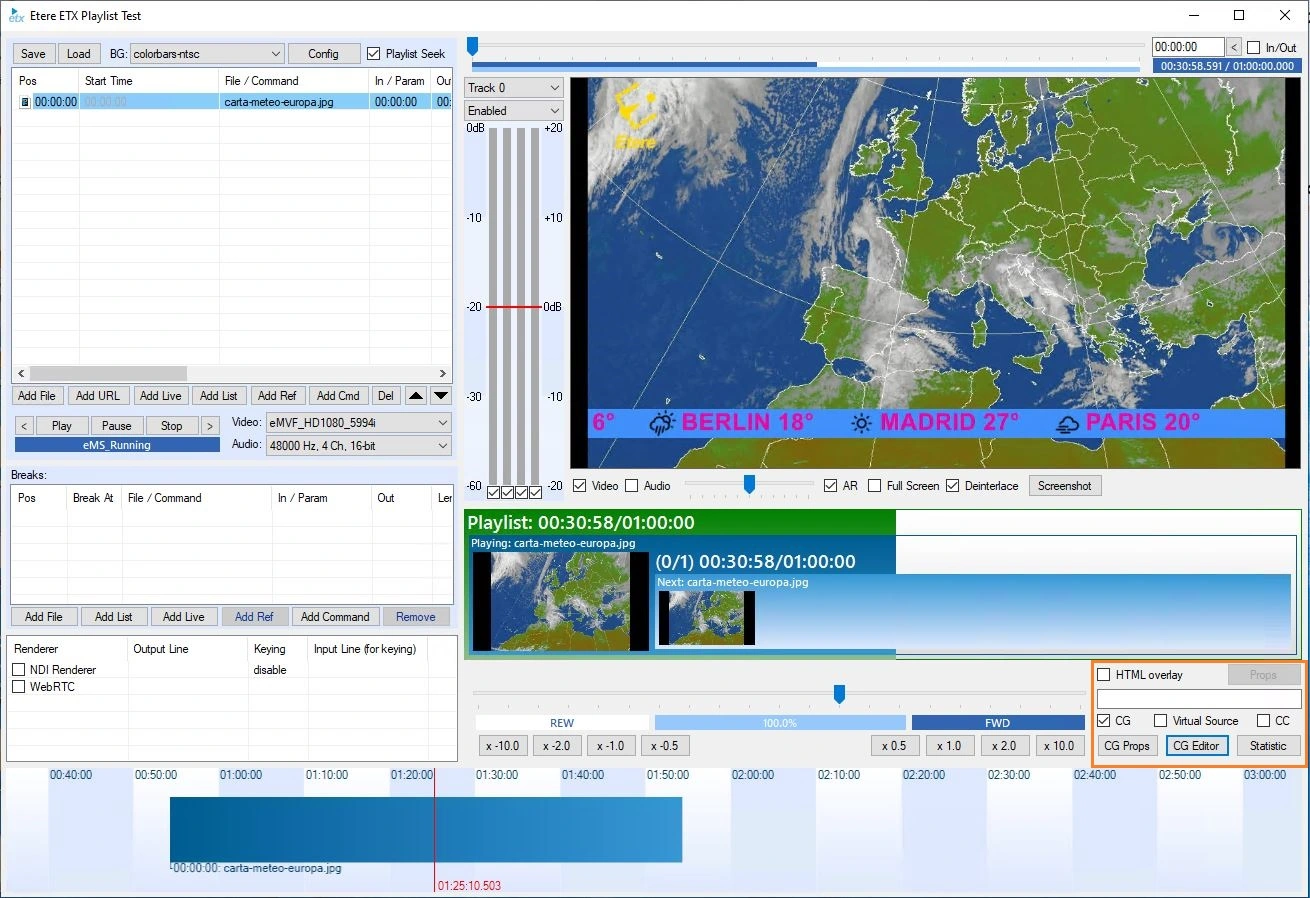
Open up Etere ETX Toolbox Player on the PC where ETX is running, select the <CG Enabled> check-box and click on the <CG Props> check-box to enter the properties page.
open_etx_gc_editor
open_etx_gc_props
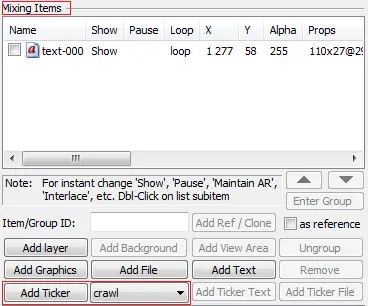
Select the type of Ticker, for instance, crawl, from the drop-down list and click <Add Ticker>; then select the content file created in the dedicated path, and finally, the Ticker would be added in <Mixing Items> windows.
Etx_add_ticker
Perform a preview of the newly added Ticker.
etx_cg_preview
etx_cg_preview_2
- Add Logo to Crawling Ticker
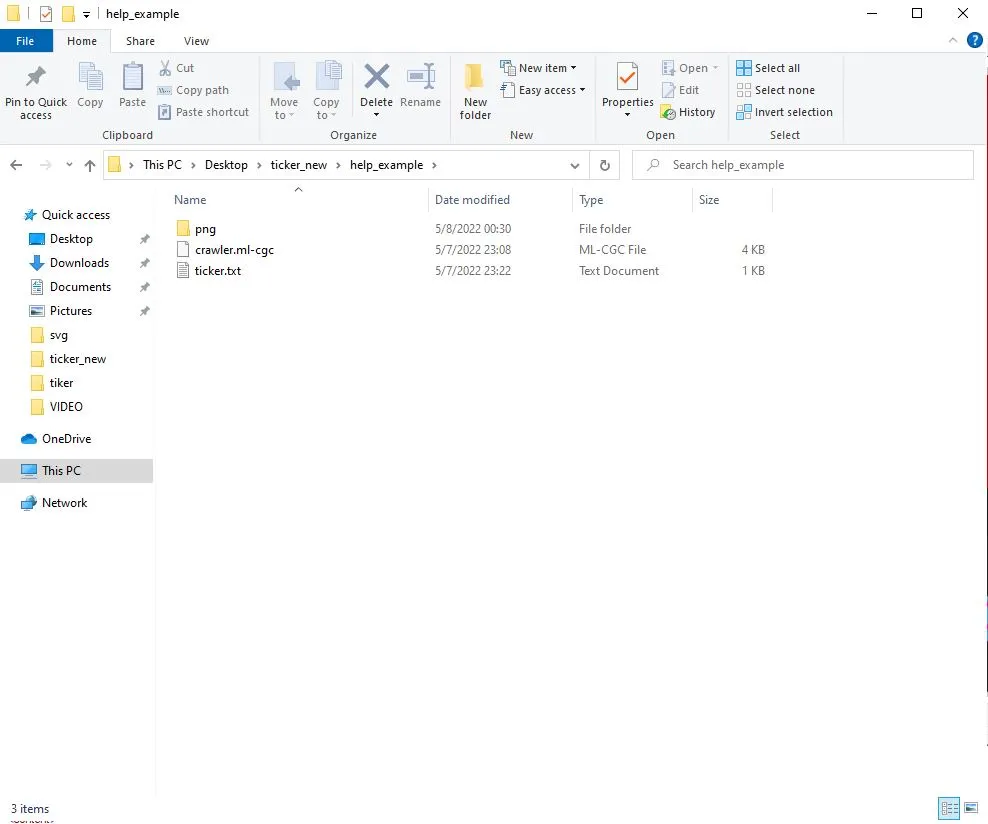
All images associated with the ticker content can be grouped into a folder and saved in the same folder as the file.
cg_ticker_path
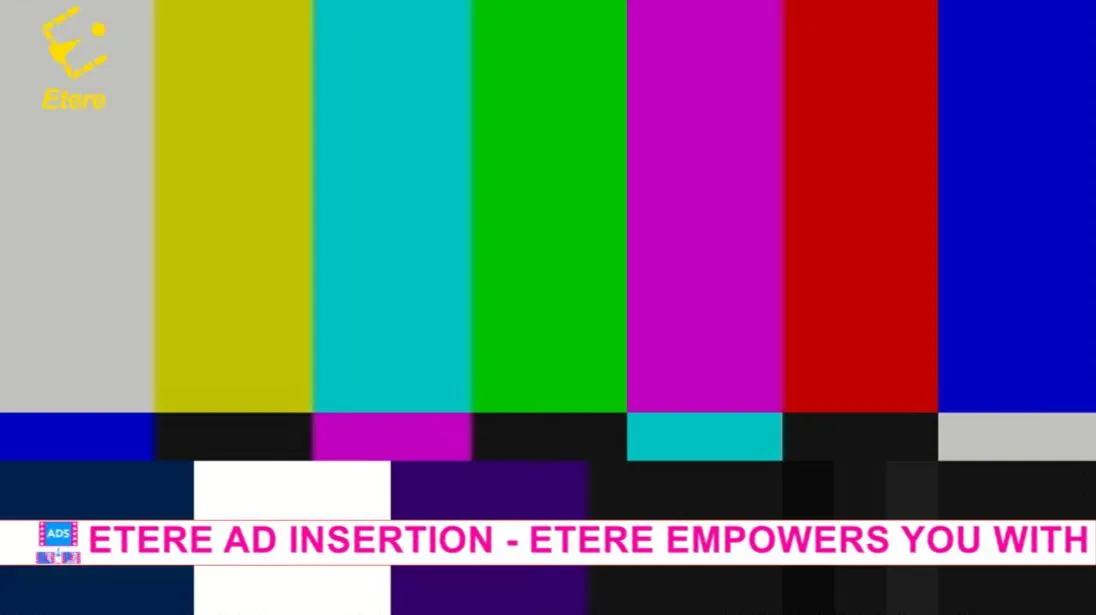
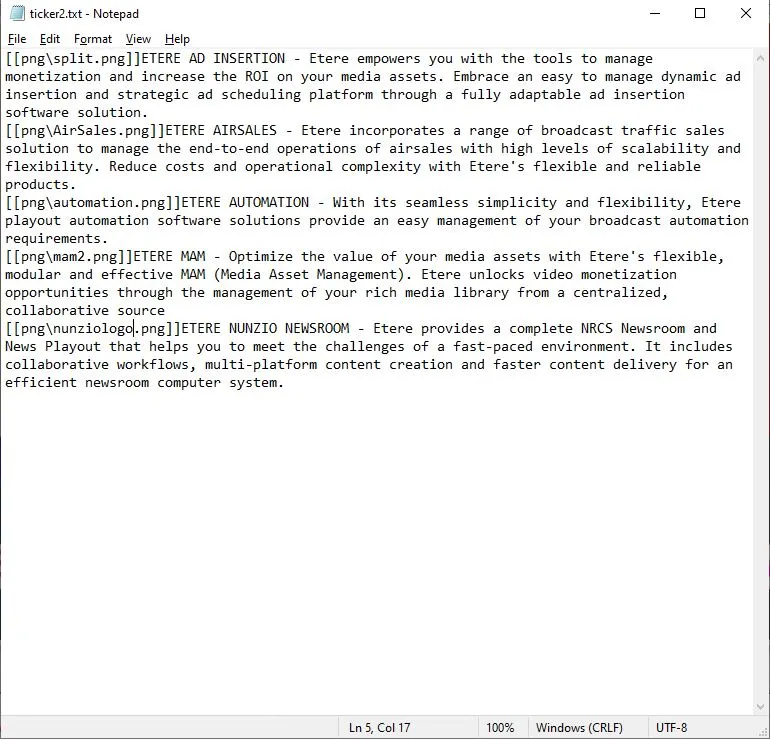
To insert/append images or logos to Ticker, open the text document and simply add the path of the image or logo to every line statement in the text document. Below is the content file with the image path added to the line statement.
etx_cg_ticker_content
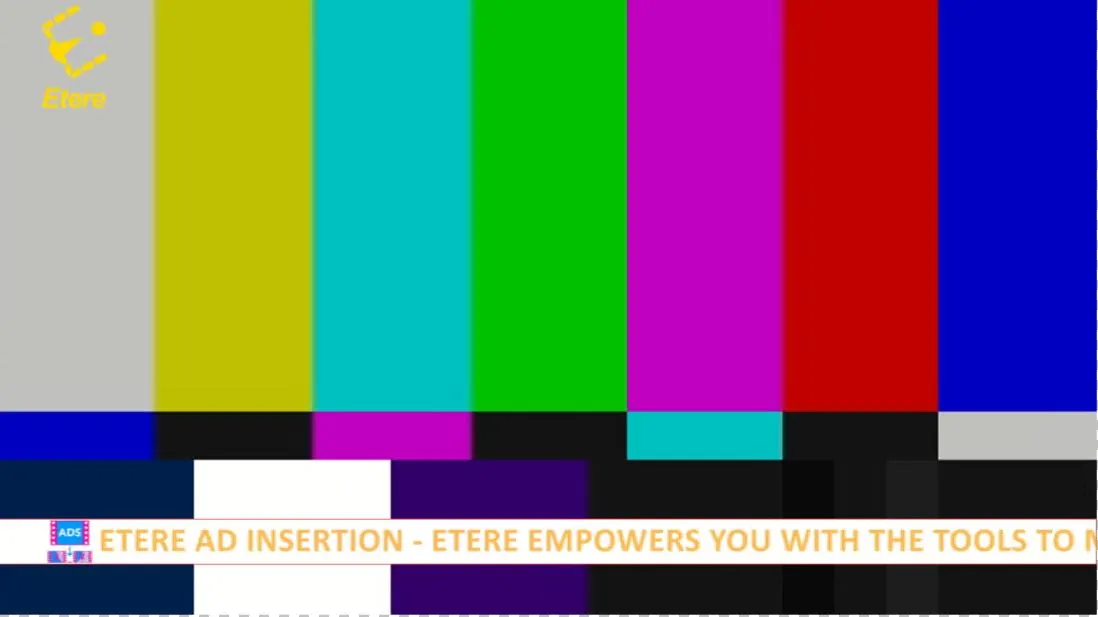
Whenever the ticker content file is saved and closed, it automatically updates the source file if the attribute "track-file" is specified as "yes" in the XML configuration. In this scenario, logo images have been added to the ticker content; you can preview the results before proceeding to the next step. - Change Font and Colour
The following example changes the font and colour in the crawling Ticker by adding a command line in the ticker content document.
After inserting the commands, I closed and saved the document. The font style and colour in the following preview have been modified in the Ticker.
etx_cg_preview_3
etx_cg_preview_4
- Modify the Speed of the Crawling Ticker
Launch ETX, check on <CG Enabled> and click on <CG Editor> to enter the ETX CG Editor page. From the <Effects> tab, you can adjust the speed of the ticker movement vertically (Y) or horizontally (X) by simply moving the speed bar.
etx_cg_ticker_speed
etx_cg_preview
etx_cg_preview_2
- Functional Tabs
- Common Properties
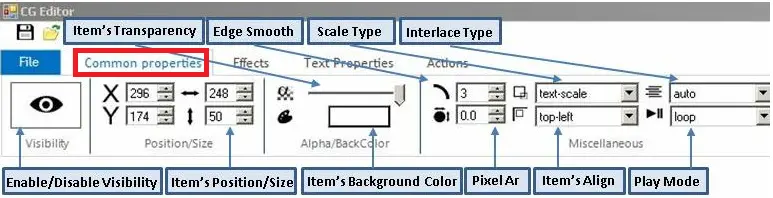
Etx_ticker_common_tab
In the <Common properties> tab, the functions available are:- Enable/disable the visibility of the Ticker
- Adjust the size of the object and its position
- Adjust object transparency level and its background colour
- Enable a smooth edge of the object
- Adjust object pixel level
- Select the scale type of the object
- Align the object to any of the four corners
- Select play mode and interface mode
- Effects
etx_gc_ticker_effects
Functions available under the Effects tab are:- Adjust the speed of Ticker (as mentioned in the previous section)
- Enable/disable the shadow
- Set shadow transparency level
- Change shadow colour
- Offset shadow vertically or horizontally
- Enable/disable blur
- Set blur height and width
- Set blur alignment
- Enable/disable glow
- Set glow value
- Set glow height and width
- Actions
etx_cg_actions
Functions available in appearing sequence are:- Group: Group items with the same type as one selection will allow modification to be done in a single action
- Ungroup: Ungroup items which are previously grouped as one selection
- Layer Up: Move the object up to the next layer if available
- Layer Down: Move the object one layer down, if available
- Bring to Front: Bring an object to the topmost layer
- Send to Back: Bring the object to the bottommost layer
- Align Lefts: Align the object to the left of the frame
- Align Centres: Align the object to the centre of the frame
- Align Rights: Align the object to the right of the frame
- Align Tops: Align the object to the top of the frame
- Align Middles: Align the object to the middle of the frame
- Align Bottoms: Align the object to the bottom of the frame
- Ticker Properties
cg_ticker_props
In the Ticker Properties tab, the functions available are:- Create a new ticker content
- Set the font size of the Ticker
- Rewind the ticker movement
- Turn on / off the uninterrupted playback of tickers
- Determine the shape of the Ticker, e.g. rectangle, block, circle, ellipse, triangle, polygon, or star shape.
- Add colour to the shape and fine-tune the colour for Ticker.
- Select the shape outline, set the width, and add colour to the shape outline. The shape outline selections are horizontal, vertical, radial, follow, and diagonal.
- Add text to Ticker and add colour to the text.
- Select the outline and width of the Ticker, and add a colour to the selected outline. The available outlines are horizontal, vertical, radial, follow, and diagonal.
- Set the font size for Ticker; the wording can be wrapped, strikeout, or appear vertically from right to left.
- Common Properties
- Create Multiple Crawling Ticker
Creating multiple crawling tickers repeats the steps described in <Create Crawling Ticker> using different content files and image folders.
The 1st crawling Ticker created was the News ticker; for this instance, we made a 2nd crawling ticker for Weather and 3rd crawling Ticker for Sport.
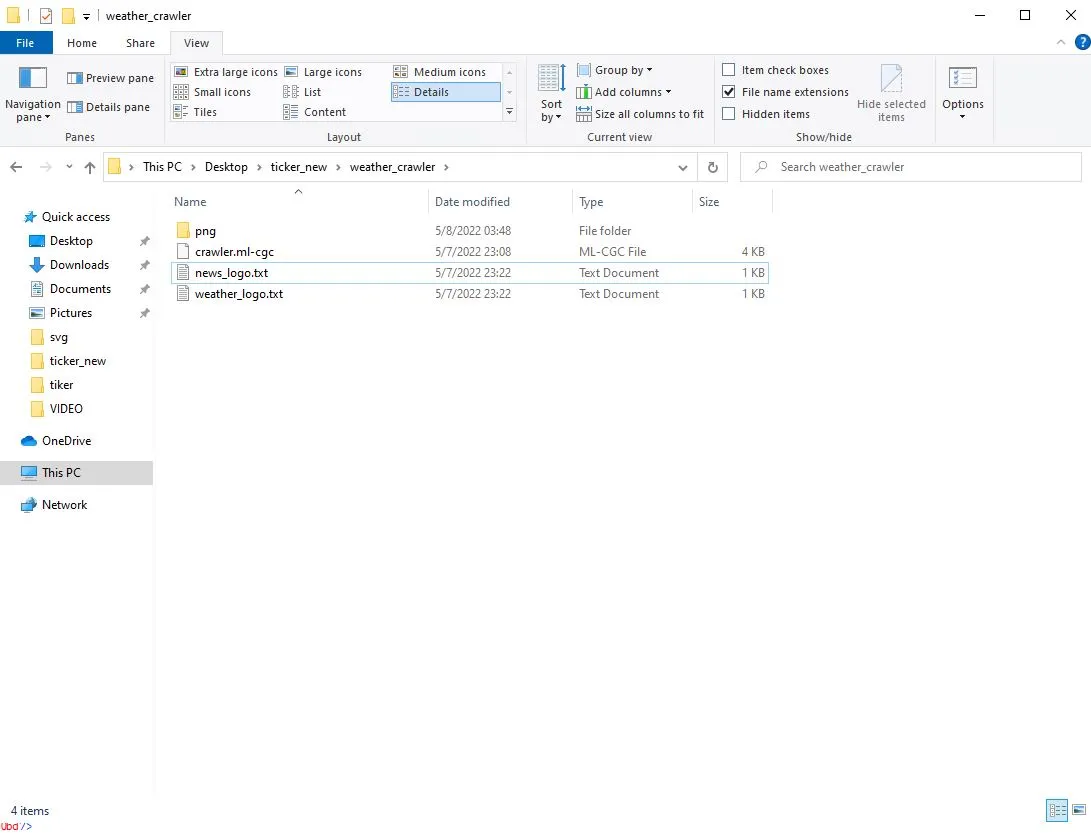
In the below notepad document, input the weather information, including the logo file, and save the document as "weather_logo.txt".
Etx_cg_ticker_content
cg_crawl_filesystem
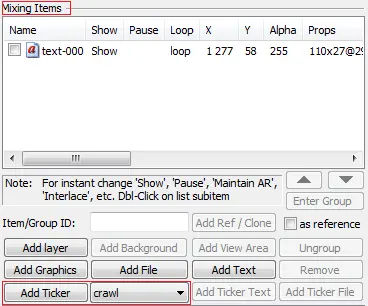
Launch Etere ETX Toolbox Player in the workstation where ETX is running, check on the ETX CG Enabled check-box and click on the ETX CG Props check-box to enter the properties page. Leave the ticker type <crawl> as default and click the <Add Ticker> button.
Etx_add_ticker_1
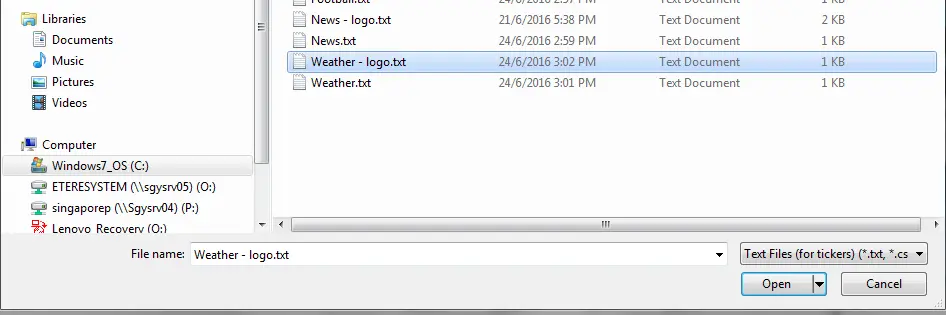
When prompted, select the content file weather_logo.txt and click <Open> to complete the action.
cg_crawl_filesystem
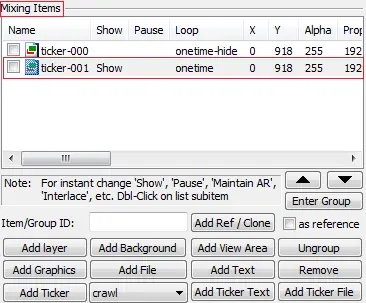
When returned to the Properties page, the newly added weather ticker appeared in the Mixing Items windows with the status <Show>.
Crawling_ticker_weahter-logo_5
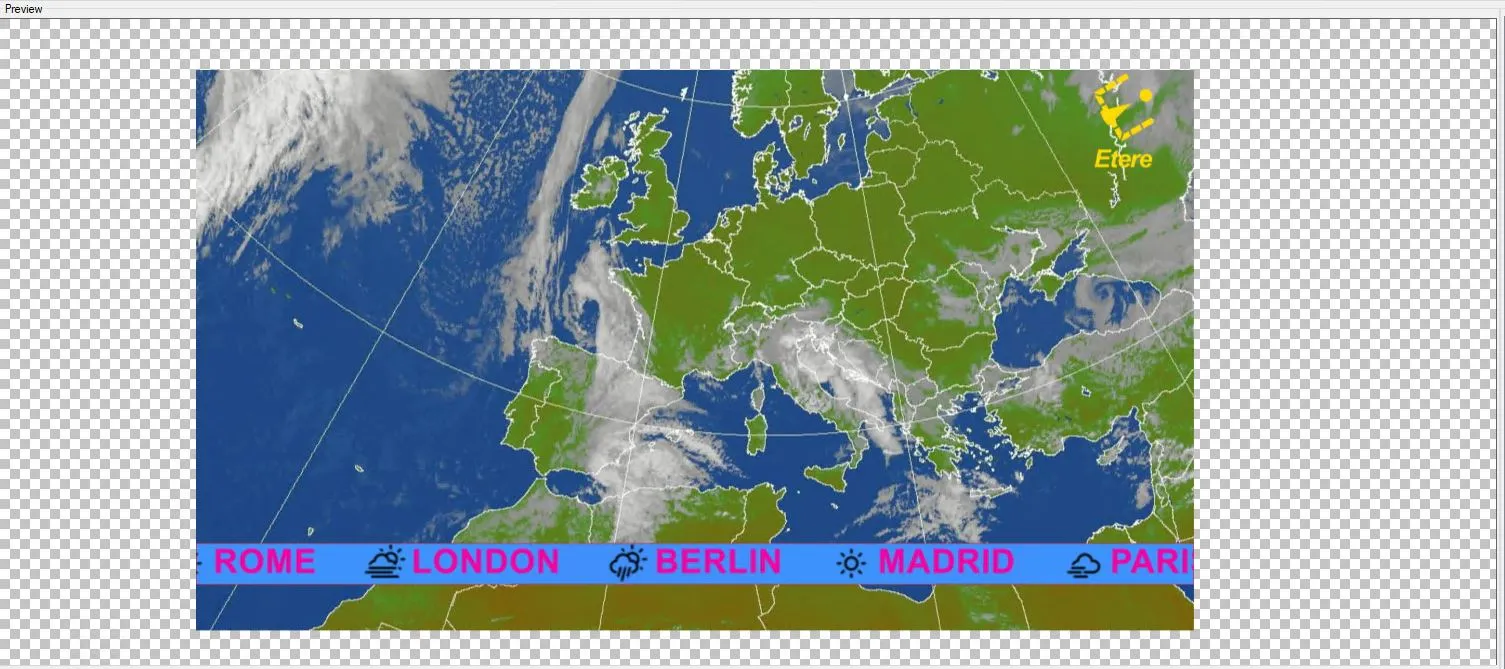
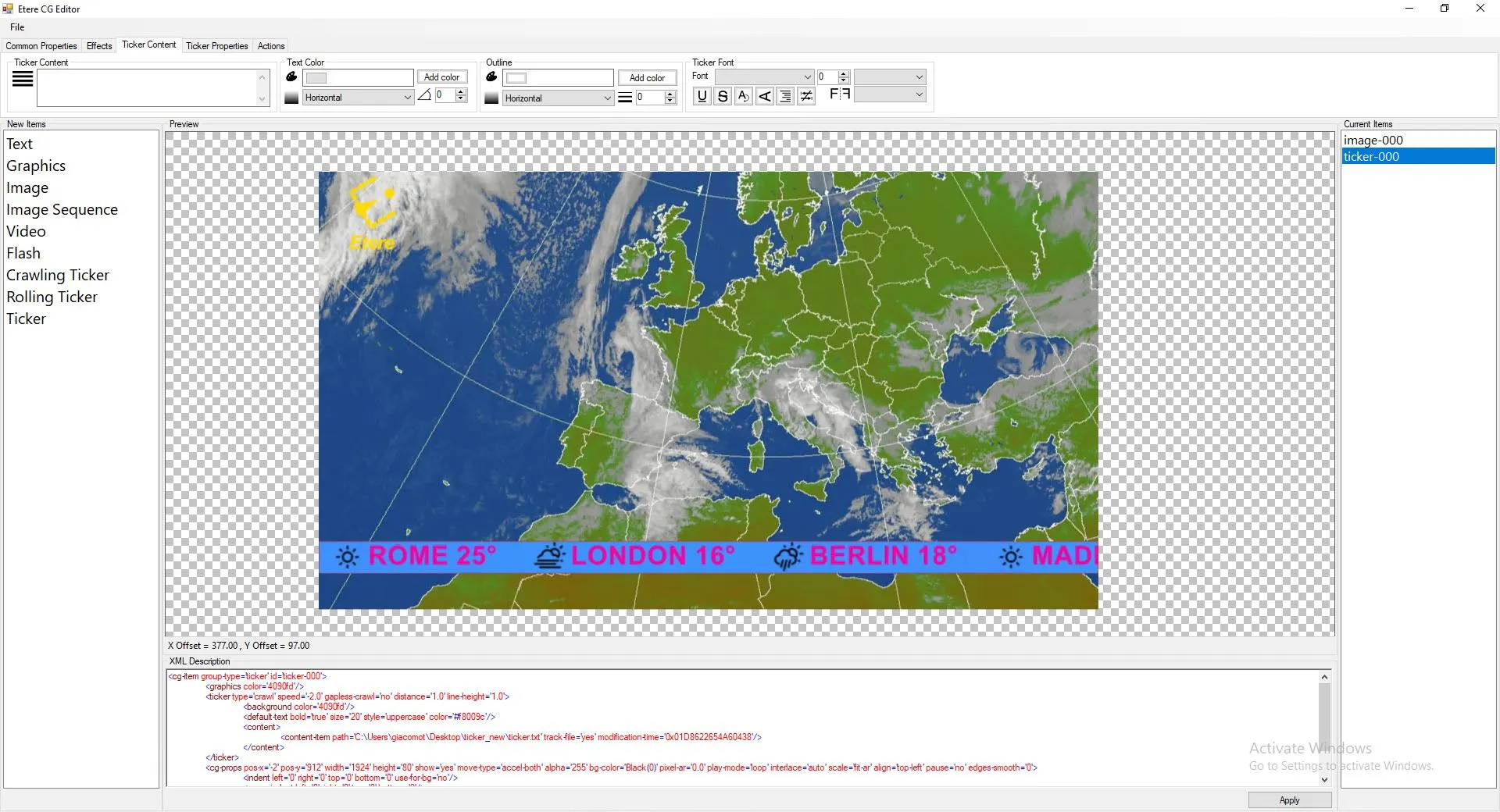
The preview at the ETX windows displays the newly added weather ticker.
ticker_meteo
ticker_meteo_2
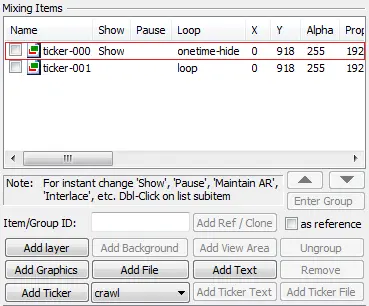
To return to the 1st News ticker, double-click on the Weather ticker to turn off the <Show> status; after that, double-click on the News ticker to activate the <Show> status.
Crawling_ticker_weahter-logo_7
The News ticker is returned to the preview windows, as shown below.
Etx_cg_preview_base
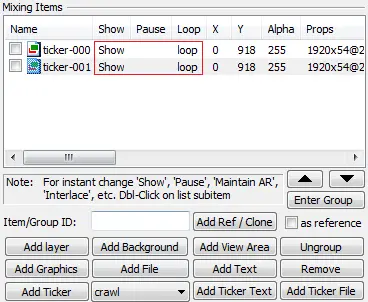
It is possible to enable the News and Weather ticker to <Show> status simultaneously; the information displayed will be overlaid as shown in the preview.
Crawling_ticker_weahter-logo_9
ticker_meteo
The <Show>, <Pause>, and <Loop> columns control the display of the multiple tickers; double-click on each column to modify the display status:
- Show: either enable ("Show") or disable (blank). It is possible to set all tickers to <Show> status while all information overlay.
It is also possible to leave all as blank. Refer to the <Loop> column description to better understand the combined features.
- Pause: It can be enabled (blank) or disabled (paused). Set to "Pause" would stop the crawling Ticker instantly.
- Loop: there are three available statuses to coordinate with the Show column
- Loop: the Ticker went into a loop when Show status was enabled. When more than one Ticker is enabled, the information will be overlayed.
- Onetime: the Ticker will appear one time only. When more than one Ticker is enabled, the information will be overlayed.
- Onetime-hide: the Ticker would appear one time only. When more than one Ticker is enabled ("Show"), the information overlay.
- Do take note that if the Show status is reset (turn on and off) after changing the onetime-hide mode, when the Ticker is hidden, the "Show" status will be disabled.
- Show: either enable ("Show") or disable (blank). It is possible to set all tickers to <Show> status while all information overlay.
 Etx_add_ticker_1
 Crawling_ticker_weahter-logo_7
 Crawling_ticker_weahter-logo_5
 Crawling_ticker_weahter-logo_3
 Crawling_ticker_weahter-logo_9
 Etx_ticker_common_tab
 Etx_ticker_properties_tab1
 Etx_ticker_properties_tab2
 Etx_add_ticker
 open_etx_gc_editor
.webp "open_etx_gc_props_(1)") open_etx_gc_props_(1)
open_etx_gc_props_(1)
 etx_cg_preview_base
 cg_ticker_path
 etx_gc_preview
 etx_gc_preview_2
 etx_cg_ticker_content
 etx_gc_preview_3
 etx_cg_ticker_speed
 etx_cg_ticker_effects
 etx_cg_actions
 etx_gc_preview_4
 cg_crawl_filesystem
 ticker_meteo
 ticker_meteo_2