84.4.5.4 STANDARD > BXF
Import Scope
The BXF import allows importing an .XML file containing the broadcast schedule (including primary and secondary events) of a certain day formatted conforming to the Flexi-metadata specifications of the BXF (Broadcast Exchange Format) format.
Import Parameters
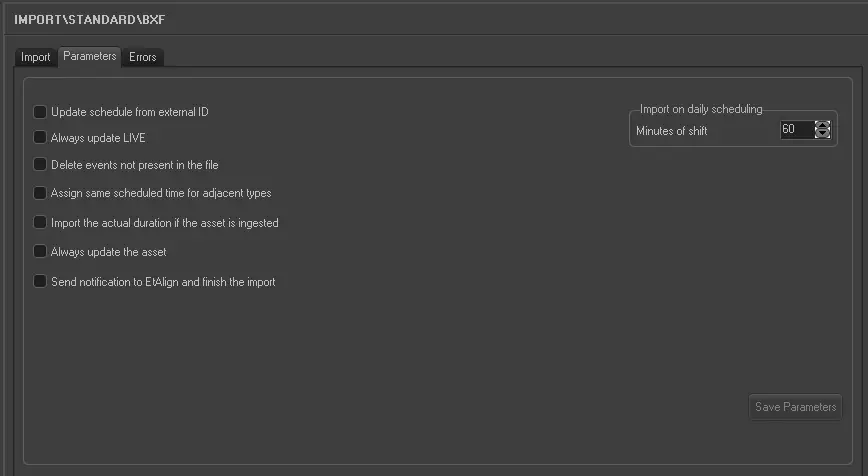
Under the Parameters section, other settings that can be configured are:
Import_standard_bxf
•File to import: Enter or browse the file (.XML) to be imported. The filename must be formatted as follows:
BXF[YYYYMMDD][Traffic][Automation][XXXXXXXX-XXXX-XXXX-XXXX-XXXXXXXXXXXX]
where
▪[YYYYMMDD]: The year, month and day of the exported schedule.
▪[XXXXXXXX-XXXX-XXXX-XXXX-XXXXXXXXXXXX]: A 32-characters automatically generated code.
•Parameters:
❑Update schedule from external ID: If enabled, the import would update the asset schedule based on external ID.
❑Always update LIVE: By enabling this option, the import would always update the Live events, even if they are already exist in archive.
❑Delete events not presented in the file: This option allows you to delete events scheduled on the day but not presented in the import file.
❑Assign same scheduled time for adjacent types: For events that having the same typology and fall adjacent to each other in schedule, if this option is enabled, you can assign the same scheduled time to those events.
❑Import the actual duration if the asset is ingested: Enable this option to import the actual duration of the asset in the import file if the asset is ingested.
❑Always update the asset: If enabled, the import would always update the asset form even if they exist in archive. Elements to be updated are duration, mark in/mark out, type, description and insertion points.
❑Send notification to EtAlign and finish the import: This option enable you to send notification to Aligner at the end of import for Aligner to publish the schedules in Automation.
•Import on daily scheduling: If you are importing the schedule for the current day, this parameter indicates what time on the schedule the import starts from (calculated as [current time] + [time shift]). Events with a start time before the current time will not be imported.
Once the import has been configured, it can be started just by pressing the < File Import> button, once the import has finished, it will be possible to display the schedule of the related day to check/approve the operation.
Sample imported file
<?xml version="1.0" encoding="UTF-8"?>
<BxfMessage id="urn:uuid:B263F17C-9DCE-49BB-B8B0-2ACA114C9CEE" dateTime="2012-09-11T09:39:30.40" messageType="Information" origin="Traffic System" originType="Traffic" userName="Traffic System User" destination="Automation" xmlns="http://smpte-ra.org/schemas/2021/2008/BXF" xmlns:xsi="http://www.w3.org/2001/XMLSchema-instance" xsi:schemaLocation="http://smpte-ra.org/schemas/2021/2008/BXF BxfSchema.xsd" xmlns:pmcp="http://www.atsc.org/XMLSchemas/pmcp/2007/3.1" pmcp:schemaLocation="http://www.atsc.org/XMLSchemas/pmcp/2007/3.1/pmcp31.xsd">
<BxfData xmlns="" action="add">
<Schedule type="Primary" scheduleId="urn:uuid:508AB6F2-5769-464B-9DFC-6EA23A24FF70" scheduleName="Channel 1" scheduleStart="2012-09-11T04:30:00.00" scheduleEnd="2012-09-12T04:30:00.00">
<Channel channelNumber="1" status="active" type="digital_television" ca="false" shortName="Channel 1" outOfBand="true">
<pmcp:Name lang="eng">Channel 1</pmcp:Name>
</Channel>
<ScheduledEvent>
<ScheduleElements>
<EventData eventType="Primary-ProgramHeader">
<EventId>
<EventId>urn:uuid:9d07848e-2387-4331-bca9-f3e5f87594a0</EventId>
</EventId>
<PrimaryEvent>
<ProgramEvent> <SegmentNumber>1</SegmentNumber>
<ProgramName>FILM - LO SQUALO</ProgramName>
</ProgramEvent>
</PrimaryEvent>
<StartDateTime nominalFlag="false">
<SmpteDateTime broadcastDate="2012-09-11"> <SmpteTimeCode>04:30:00:00</SmpteTimeCode>
</SmpteDateTime>
</StartDateTime>
<LengthOption>
<Duration>
<SmpteDuration> <SmpteTimeCode>00:30:00:01</SmpteTimeCode>
</SmpteDuration>
</Duration>
</LengthOption>
<StartMode>Fixed</StartMode>
<EndMode>Duration</EndMode>
</EventData>
<Content>
<ContentId> <HouseNumber>F_LOSQUALO</HouseNumber>
</ContentId>
<Name>FILM - LO SQUALO</Name>
<Media>
<MediaLocation>
<Location>
<AssetServer fileTransferAllowed="true" playoutAllowed="true">
<PathName>
</PathName>
</AssetServer>
</Location>
<SOM> <SmpteTimeCode>00:00:00:00</SmpteTimeCode>
</SOM>
<Duration>
<SmpteDuration> <SmpteTimeCode>00:30:00:01</SmpteTimeCode>
</SmpteDuration>
</Duration>
</MediaLocation>
</Media>
</Content>
</ScheduleElements>
<ScheduleElements>
<EventData eventType="Primary">
<EventId>
<EventId>urn:uuid:d63ac61b-46a3-43cf-95c9-09d4b00778f4</EventId>
</EventId>
<PrimaryEvent>
<NonProgramEvent>
<Details>
<SpotType>Local</SpotType>
<AdvertiserName>PASTA BARILLA</AdvertiserName>
<Product>
<Name>PASTA BARILLA</Name>
</Product>
</Details>
</NonProgramEvent>
</PrimaryEvent>
<StartDateTime nominalFlag="false">
<SmpteDateTime broadcastDate="2012-09-11"> <SmpteTimeCode>05:00:00:01</SmpteTimeCode>
</SmpteDateTime>
</StartDateTime>
<LengthOption>
<Duration>
<SmpteDuration> <SmpteTimeCode>00:00:15:01</SmpteTimeCode>
</SmpteDuration>
</Duration>
</LengthOption>
<StartMode>Follow</StartMode>
<EndMode>Duration</EndMode>
</EventData>
<Content>
<ContentId> <HouseNumber>BARILLA</HouseNumber>
</ContentId>
<Name>PASTA BARILLA</Name>
<Media>
<MediaLocation>
<Location>
<AssetServer fileTransferAllowed="true" playoutAllowed="true">
<PathName>
</PathName>
</AssetServer>
</Location>
<SOM> <SmpteTimeCode>00:00:00:00</SmpteTimeCode>
</SOM>
<Duration>
<SmpteDuration> <SmpteTimeCode>00:00:15:01</SmpteTimeCode>
</SmpteDuration>
</Duration>
</MediaLocation>
</Media>
</Content>
</ScheduleElements>
 5202_Import_standard_bxf