59.5.4.20 Orders Status List Details
Report Description
The Orders status list details report allows the generation of a document that highlights for a given period and account executive/agency all managed orders or proposals, specifying for each one of them the number of expected and scheduled runs, as well as the total expected amount (entered during creation phase) and their total invoiced amount (computed from all scheduled performances); further organizing all data provided by grouping orders and proposals by account executive/agency.
NB: Only those orders compiled with at least an agency or an account executive will be included in the report.
Report Filters
All the parameters that permit detailed report generation have been spread across seven different tabs to allow for a more straightforward configuration. By default, all filters are disabled (i.e., either blank or unselected); it is enough to configure at least one parameter inside to enable them. Available filters include:
•Order period: Indicate the time range for which orders must be valid to be included in the report. All orders with start or end dates falling within the given period will be retrieved.
•Customer ref. Only those orders matching the given reference code will be processed if entered.
•Account Executive: If selected, retrieved orders will be grouped by their related account executive.
•Agency: If selected, retrieved orders will be grouped by their related agency.
•Only master orders: If enabled, the "Order" filter (set below) will retrieve only those orders that are master (i.e., those that have at least one line related to one or more child order lines). The status (runs, amounts, etc) will be indicated for each child line.
NB: Further details on the report generated for master orders can be found in the "Consulting master lines" chapter.
•Order: If selected, data will be retrieved only for a particular order.
NB: If the "only master orders" parameter is enabled, only master orders will be retrieved.
•Order status: Indicate here to include all orders or only a specific status. Available status includes:
Order - all orders
Proposal - all proposals
Approved - all proposals approved for being scheduled
Rejected - all proposals rejected by supervisors
Evaluate - all proposals being evaluated by supervisors
Archived - all approved and rejected proposals archived
Reevaluate - all proposals are being re-prepared by the account executive
Expired - all proposals out of their validity period
To schedule - all approved proposals ready for scheduling
To customer - all approved proposals being evaluated by customers
Customer rejected - all proposals rejected by customers
Report Preview
The [Settings] permits the configuration of the page layout of the outgoing document; once filters and settings have been set, it will be possible to select between displaying a preview using the related [Preview] button or printing the document directly using the [Report] button:
ORDERS_STATUS_LIST_DETAIL_PREVIEW
Columns legend
Account Executive/Agency - Agency/account executive to which the order is related
Status - Indicates the status (order, proposal, etc.)
Date - Start date of the order line
Customer ref. - Reference code of the customer
Order code - Identification code of the order
Description - Description of the order
Customer - Customer related to the order
Invoiced - Amount collected from the order line
Station - The station to which the scheduling is related
Line description - Description of the order line
Runs - Expected number of broadcast performances
Scheduled - Actual number of broadcast performances
BL - Number of performances placed on Black list
WL - Number of performances placed on the White list
ALT - Number of performances set in Alternative schedules
Total (order line) - Amount expected from the order line
Total (order) - Sum of all expected amounts of lines belonging to the order
Total - Sum of all Total orders for all customers related to the same account executive/agency
Please note that some reports permit the export of the generated document in the most common formats (PDF, CSV, doc, xls, XML, etc) just by using the [Export] button.
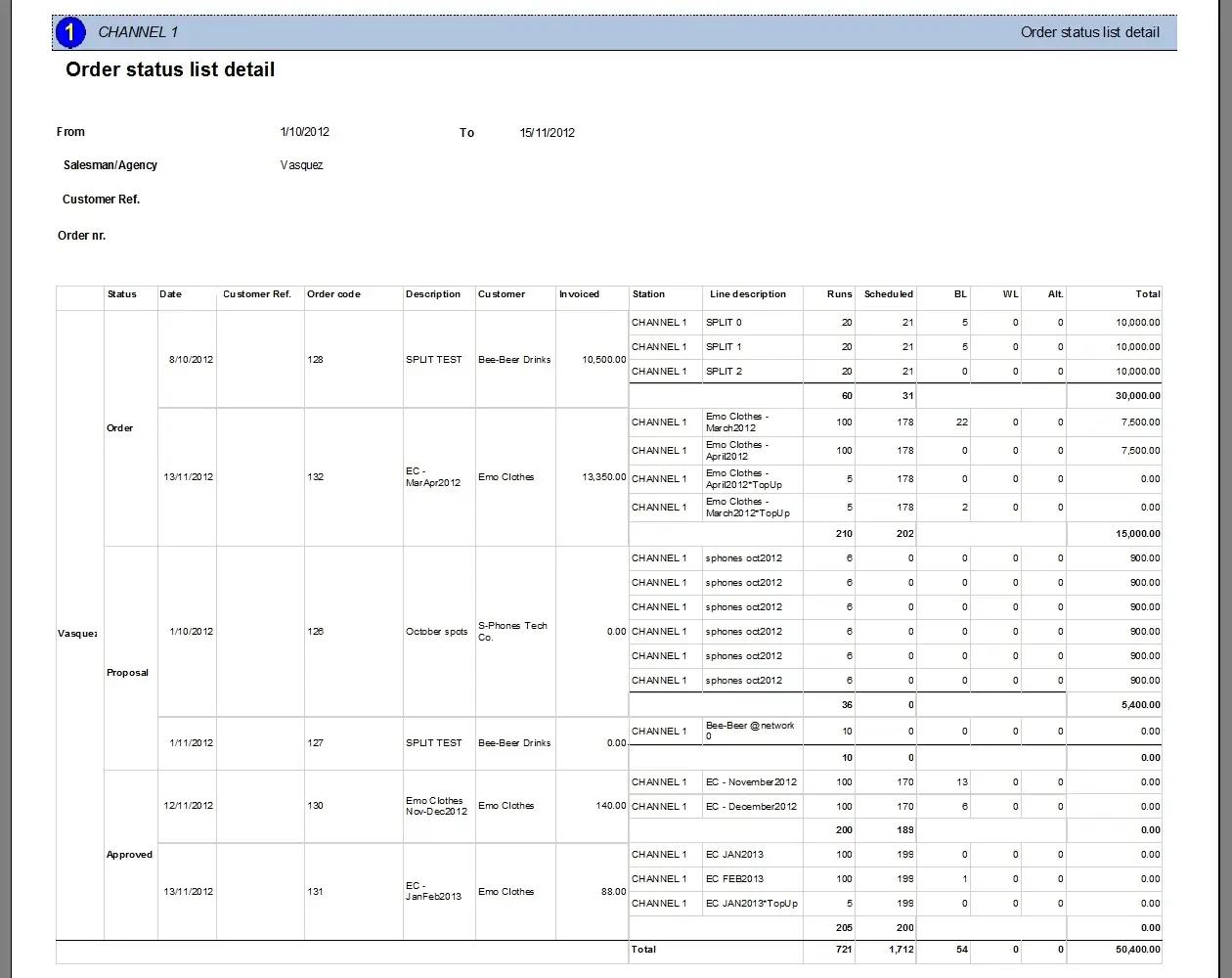 ORDERS_STATUS_LIST_DETAIL_PREVIEW