71.3 Multifunction ingest
The Multifunction Ingest module allows to freely ingest media from/to any available device, just by dragging and dropping the resources you want to use. The procedure for ingesting media through this module is simple, just follow the instructions described below:
1.Search for the asset
2.Set the ingest parameters
3.Compile media information
Search for the asset
In this section, located at the left of the window (coloured with yellow), you are able to either create or search the asset you intend to ingest:
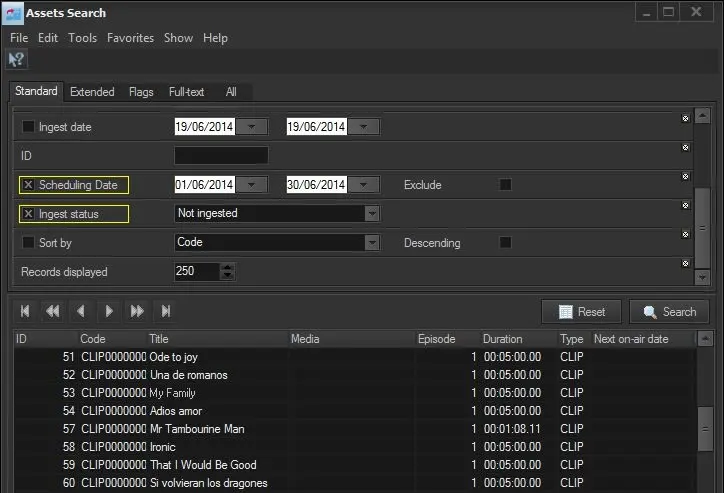
Assets Search
Ingest a new asset - In order to create a new asset just make right-click on the searching list and select the option 'New asset' (or press the CTRL+N combination keys), you will be asked to enter a code for the new asset.
Ingest an existing asset - Instead, to search for an existing asset, just set various searching parameters, then, once you have found the asset make double click on it to go ahead:
•Date of scheduling: Search all events scheduled in the future, in the selected date range,
•Asset Code: Set the code of the asset code you intend to ingest,
•Type: Filter assets by their type,
•Media: Search on specific device(s),
•Search also expired assets: Also those asset which have already expired will be retrieved in the list of results,
•Tapeless: Those assets arriving via tapeless reception will not be shown by default,
For a detailed explanation on these and other filters please refer to the Available search filters section of the Media Library chapter.
To avoid “Query timeout expired” error during asset search, it is recommended to exclude any column related to “On-air date” in the search form, e.g. Last on-air date, Next on-air date, Next on-air time, etc.
Note
In case of selecting an already ingested asset, a warning will be displayed and the Recorder window will only allow the preview of the clip as well as the management of the EDL marks. Please note that will be always possible to delete the linked media and start a new ingest operation.
Note
In case the selected asset is linked to more than one tape (e.g. assets spread across multiple tapes), the application will ask the operator to select the one from which media will be ingested. . If no asset is selected, the application would be closed without triggering ingest.
Note
In case the selected asset is linked to a tape which contains other non-ingested assets, a [multiple ingest] button will be displayed (near to the proxy area) to allow performing a single ingest operation for all the still-non-ingested assets present in the tape in question.
Note
In case a path has been configured in the resource of the video server used for ingest, the path and filename will be stored in the database for all ingested files.
Set the ingest parameters
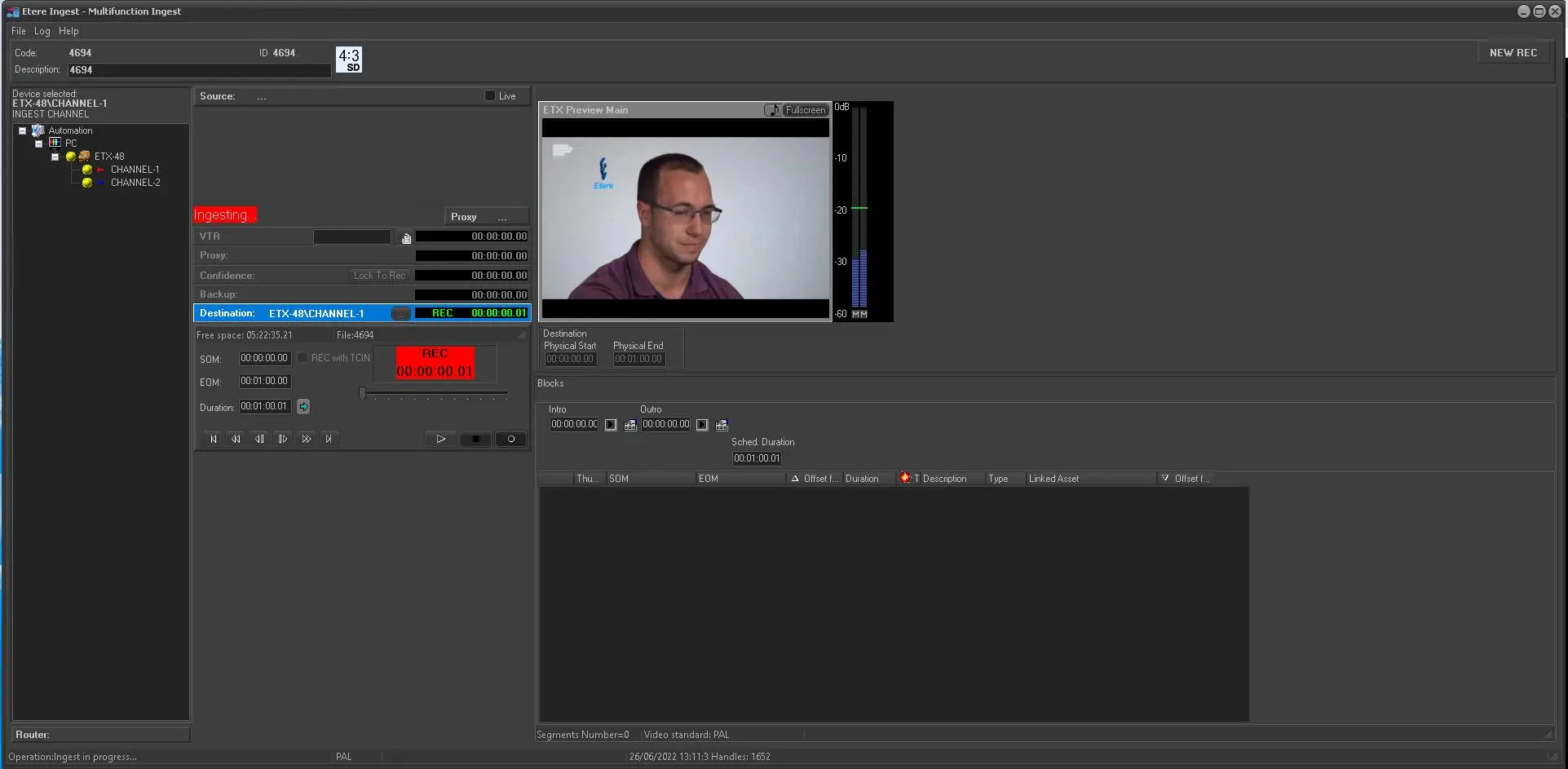
Once you have selected the asset to be ingested, the Recorder window will be open, allowing to go ahead with the selection of the resources to be used for the ingest as well as the required parameters to perform it:
Multifunction ingest 1
(Left: select resources; Center: Recording; Right: edit EDL. The multifunction ingest is visible in full screen mode.)
NB: In the event when the recording button is not visible in Multifunction Ingest, you can close the Ingest module, delete the following Windows Registry key and re-launch Ingest:
[HKEY_CURRENT_USER\Software\Etere\RTB, Ingest\Form_Registrazione]
•Resources
Make right-click on the resources tree on the left side, and selecting a profile previously defined in the parameters module (Configuring Multifunction). Then, drag and drop devices from the Resource's tree to the title bar of the related device.
NB: During Ingest operation, an obsolete “.scc” extension file would be created in the destination cloud-device path, you can disable the creation of “.scc” extension file by setting the attribute “scc_capture = false” in the device’s output file format parameter.
•Data
In this part the most relevant data of the selected will be displayed as well as some useful functions to be used after the ingest:
Code - String code of the asset to be ingested.
ID - Unique identification number of the asset.
Title - Descriptive text of the asset.
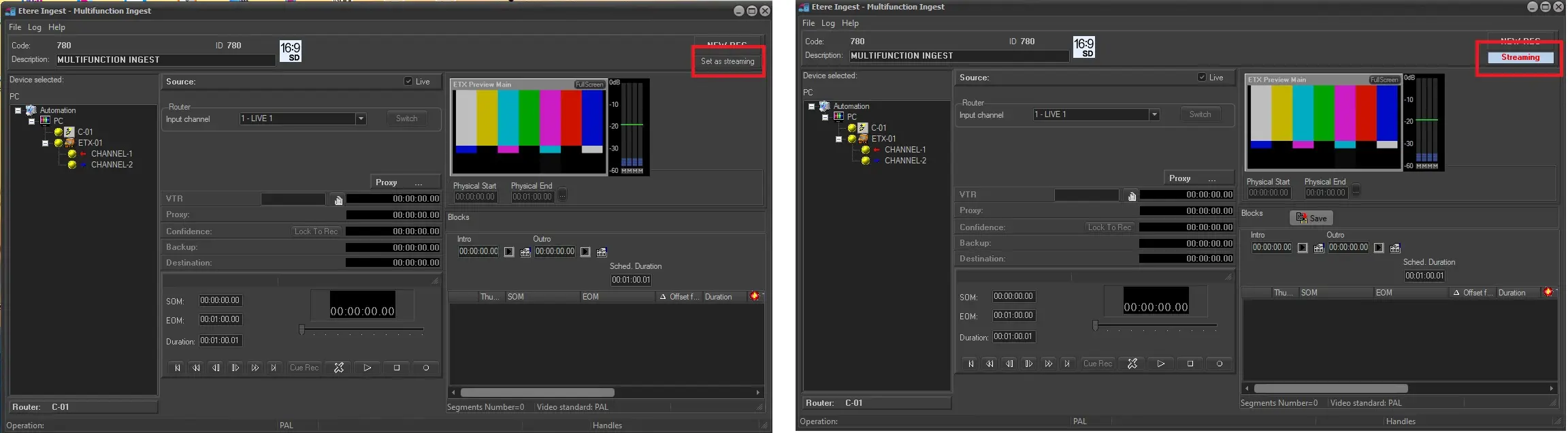
Set as Streaming - On the right you can right-click on the Set as Streaming button and enable it, so that the asset will be able to start streaming while it is being ingested.
•Source
The ingest Source could be either an input channel for LIVE or a VTR, information on how to proceed in both cases is following explained:
LIVE - In case you intend to ingest from a live router channel, you must select the channel from where acquire the video, press 'switch' and indicate the expected duration that can be extended up to the maximum double of the expected duration in 10 minute long passages.
VTR - This section allows to manage the VTR to be used for ingesting media (e.g. the one dragged & dropped from the resources tree). The VTR recording information will depend on the following cases:
a. Measured tape already linked: In case the asset has been already associated to a tape, the mark-in and mark-out defined in its EDL will be automatically retrieved as the VTR's start time and end time.
b. No measured tape linked: In case the asset doesn't count with any tape, the VTR's start time and end time will be set by the operator and it will be stored in the asset's EDL as the mark-in and mark-out.
Please note that it will be possible to select the counter type to be used for the ingest, available types include:
•LTC (Longitudinal Time Code): In this case, set the SOM, EOM and Duration according to the time you intend to ingest. Remember that instead of writing this data, you are able to use the standard buttons located in the Main Part to acquire positions on the tape and using the grey square buttons located at the right of SOM/EOM to retrieve the current position on the tape.
•CTL (Control Track Longitudinal): For a tape without time code or not continuous, the [RESET] key will appear on the source panel (press it to put the counter at zero), place the tape at the point you want the ingest operation starts, and enter both its SOM, EOM and duration.
Moreover, in case the "Rec with TC IN" parameter is enabled (see "Ingest using Timecode"), the ingest process will also store the tape timecode besides the ingested file timecode.
NB: If there are no input video signal detected when ingest starts, a black screen would be present in Preview with message “Input signal lost” during recording. Moreover, the asset been ingest would be marked as “Not ok to broadcast”.
•Controls
In this section are located some useful functions to be used after the ingest, these functions includes:
Signal corrector - In case a Signal Corrector has been configured in Resources (Etere Configuration | Resources), by pressing this button (enable), you can commute the router between the 'Out Source', 'Corrector' and 'Video server'; and if you press it twice (disable), the video signal will not pass through the corrector.
Quality setting - Set here the quality of the ingested media with an integer value from 0 (to be checked) to 9(excellent).
Note: In case the recording is not discarded (i.e. not confirmed), the quality is set to its previous value.
Audio setting - Used to define the audio type (e.g. unknown, left mono, right mono, stereo, dolby, etc).
Aspect Ratio - Specify here the conversion profile to be used for the Aspect Ratio Conversion required for recording and preview. Profiles displayed here depends on whether the GPI conversion option is enabled or not:
•Enabled: Only profiles configured in Etere Ingest > Parameters > General 4 > Activate ARC section.
•Disabled: All supported profiles present in the Etere Configuration > Settings > ARC section.
Here will be loaded the conversion profile set in the asset video properties (Media Library > Properties > Video). If that profile is not included in the GPI conversions a warning message will appear.
The conversion profile selected here will be automatically updated also in the asset video properties.
NB: Further info on this feature can be found in the "ARC from Ingest" chapter.
Preview - Open the Preview Browser to allow watching the proxy file of the recorded file.
•VTR
This section allows to set a VTR to be used as the destination on which media will be ingested. Here will be also possible to link a new tape to the asset in case it doesn't have one.
Please note that XDCAM carts can be also set in this section, for detailed information on this operation refer to the How to ingest from VTR to XDCAM chapter.
•Proxy
The device on which the proxy version of the ingested file will be stored. it is possible to preview the asset video with the [Preview] button as well as set its mark points (SOM, EOM, Breaks).
•Confidence
Confidence monitoring is a handy feature to watch video streams while ingesting, thus allowing to check media and set EDL marks.
Once a recording start, drag and drop a decoder into the confidence panel to enable this feature. Once enabled, the confidence counter will be displayed in the destination, where, it will be possible to get the start timecode (double-click the SOM or Mark-in) as well as to move back and forth across the video using playback buttons.
Moreover, by pressing [Lock to Rec] button, the confidence playback will be synchronized with the ingest process respecting a given delay (set in Parameters > General > General3 > Lock to Rec). Please note that some devices (e.g. SeaChange MSV1000) have some limitations regarding small delays for confidence, in these cases, the "Lock to Rec" value must be set at least to 5 seconds in order to avoid errors (e.g. when performing a 'goto', 'cue with data').
•Backup
The Backup device allows to ingest the media, besides on the destination video server, also on a secondary video server, thus increasing reliability.
•Destination
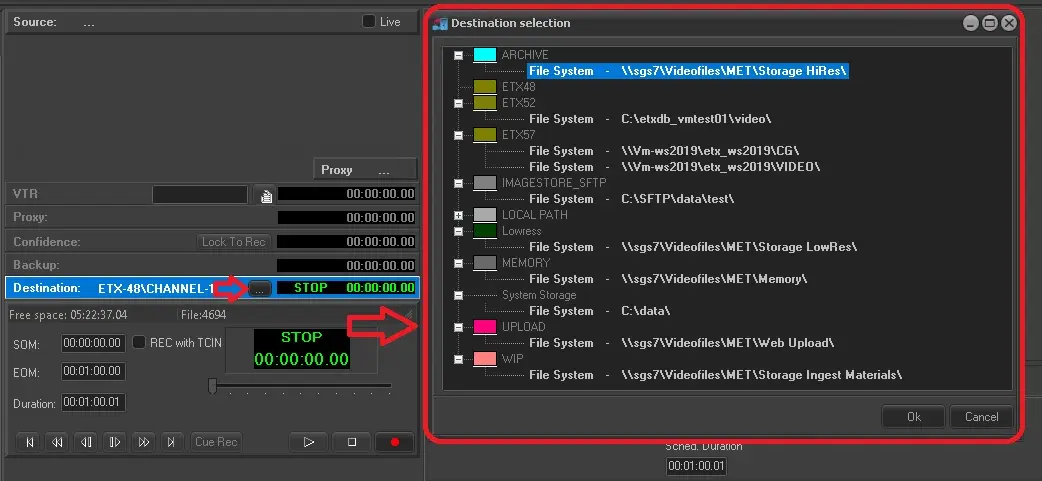
The Destination device represents the video server channel (encoder) to be used as the main destination on which media will be ingested.
Once the destination encoder is selected, there will be displayed the "free space" label showing the storage space available on the selected encoder, this, based on the ingest profile (e.g. MTX ingest profile) currently set in the encoder.
If the recording device is ETX resources, click on the button (as shown in below screenshot) to select a list of recording paths previously configured as destination paths for ETX, the selected paths includes cloud devices outside ETX. If the path is not linked to any video server, the registration is linked to the cloud device corresponding.
ETX can perform preview of any file, so long as the file name is registered in full path (path name + file name with extension), the search would end once the file is located.
Destination - ETX
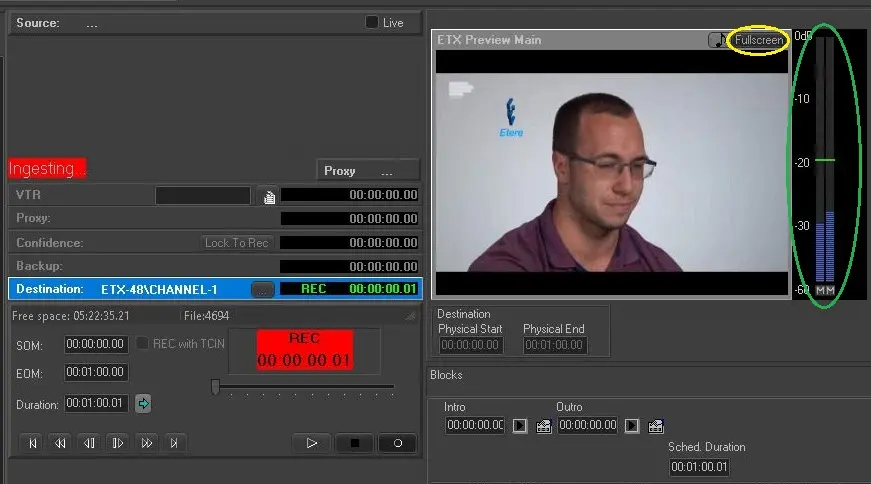
During the ETX Preview, besides hearing the audio from the audio channel, the audio level VU (volume unit) Meter are displayed in different color to indicate the audio volume level for reference (see image below). The volume indicators are also available during recording and Live input.
Alternately, you can use the Multifunction_Ingest_Preview_Silent_Audio audio button to silent the audio in preview while the clip is recording.
In the ETX Preview window, you can enlarge the preview to full-screen mode by click on the appropriate <Fullscreen> button.
ETX Preview
NB: If you had experienced preview errors on Windows Server 2008 R2 x64 (e.g. preview window grayed out, or receiving blur images from ingest) it would require Windows Registry key “preview.type” to be set to “True”. These preview errors are addressed in Etere released version 29.3 and higher.
NB: During ETX Preview, codec type “UNK” (unknown) would be set if there is no codec specified in the parameter.
Once all devices have been correctly selected, in order to start ingesting the asset media, just point out ingest panel and press the -now active- [REC_Multi_XDCAM06 Recording] button, if a preview resource is configured, the video file will be loaded automatically; at this point, it will be required to wait for the ingest process to finish.
When previewing the video file, if the Shuttle Pro Contour is inactive, the following function keys are available if focus on the video track bar:
*Shift + > = move forward 5 seconds
*Ctrl + > = move forward 10 seconds
*Shift + < = move backward 5 seconds
*Ctrl + < = move backward 10 seconds
*Home key = move to SOM
*End key = move to EOM
You might notice that the timecode in Destination Source and Destination in Preview are not exactly the same, where,
Destination (Source)
•SOM: The logical MarkIn of the first frame in the media file to be on-air.
•EOM: The logical MarkOut of the last frame in the media file to be on-air.
Destination (Preview)
•Physical Start: The start timecode of the first frame in media file.
•Physical End: The end timecode of the first frame in media file.
NB: When a clip is loaded for preview, if the physical duration has been modified a warning message would be popup indicating the exact changes in physical marks to alert the user.
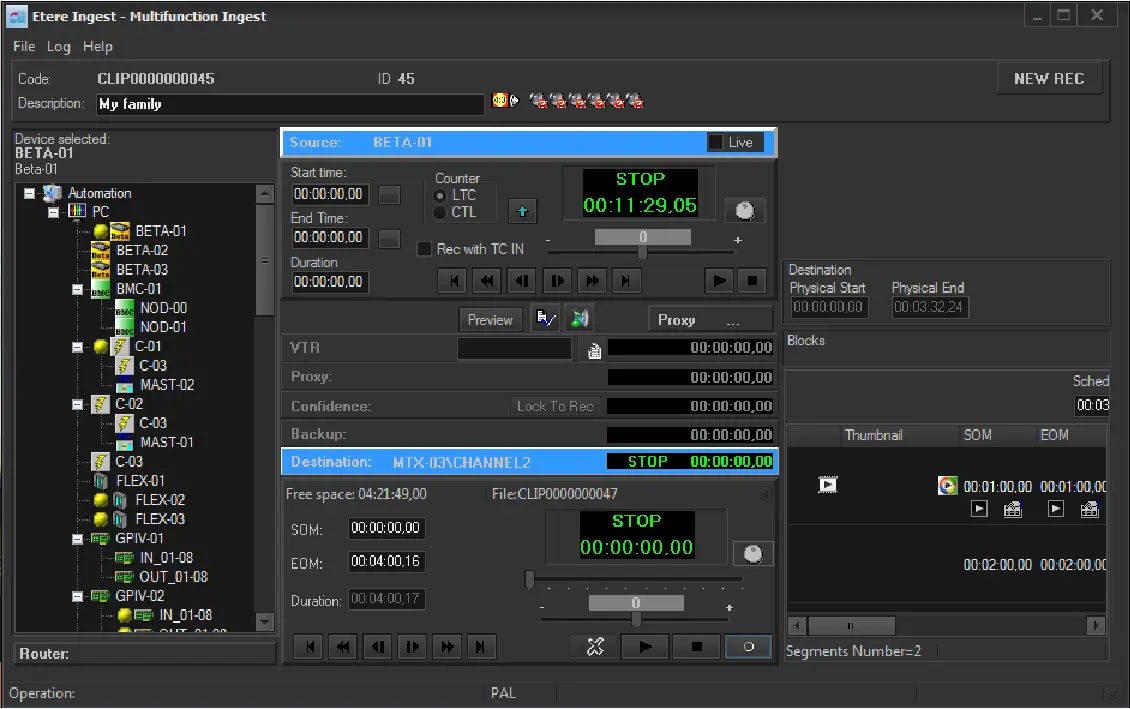
When the ingest process ends and when no other information needs to be inserted, just close the Recorder window and save the changes when asked by the program; otherwise, it is possible to compile some other information (e.g. EDL marks) as explained below.
Multifunction ingest 2
NB: In the Destination selection, if you are using the same device and path for subsequent ingest, you would need to repeat the selection of device and path for each ingest.
Compile media information
The right section allows to view and define the following information:
•Tape source
As for the "Source" section, here will be displayed the tape recording information (tape code, tape type, start time, end time and duration) of the -eventual- tape from which the asset will be ingested.
•EDL
Manage here the asset's EDL (Edit Decision List). When ingesting an event you can insert eventual breaks on specific segments, mark either video faults or garbage segments to avoid them to be played, set the visible segments to be played, etc.
NB: Please note that in case the asset has been ingested with timecode, the EDL will be automatically translated according to the new timecode.
When the ingest ends, decoders configured for preview will be used to play the just ingested media clip, in this way the operator will be allowed to quickly check the quality and trim of the clip.
In order to set marks (i.e. SOM and EOM) it will be enough to pause the clip and a certain point and make double-click on the SOM/EOM to be inserted. Moreover, it is possible to define "Insertion Points" and "Video Faults" by selecting them from the pop up after right clicking on the "Blocks" area on the right side.
In the event if clip is not loaded due to virtual asset, you can overcome the problem in either ways:
- Open EDL and change the duration of the clip, e.g. by simply adding an extra frame.
- Open EDL and delete all versions of clip, if any.
 Multifunction_ingest_2
 Assets_Search
 Multifunction_ingest_1
 ETX_Preview
 Destination_-_ETX
 MULTIFUNCTION_INGEST_SET_AS_STREAMING