84.2.4.33 Other Insertion Methods - Insert a Logo or Graphic Object from Order Line
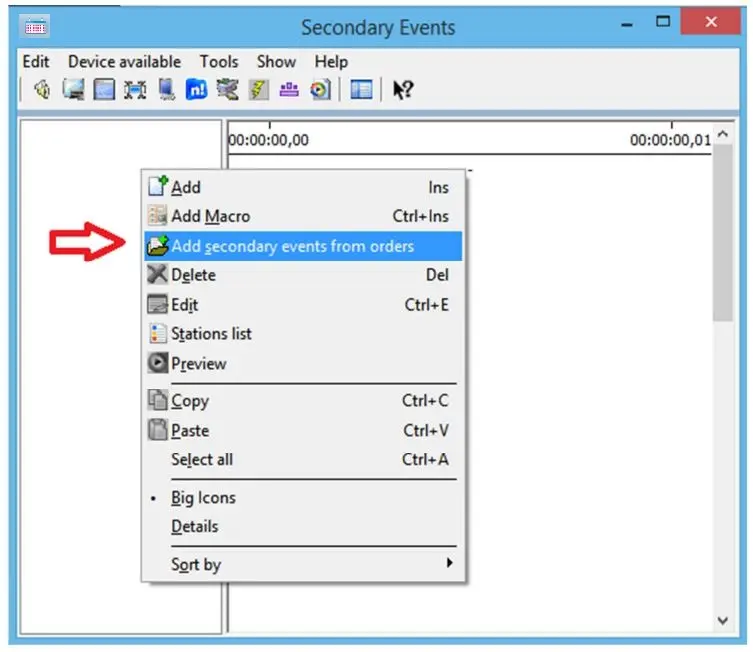
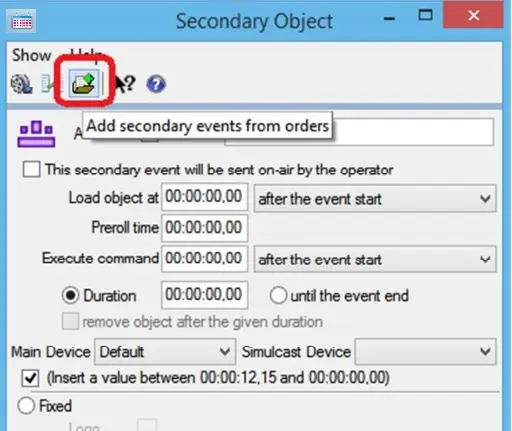
1. This is a function that allows to insert a Logo from Order Line. This function is available in Secondary Events form and in Secondary Object form.
5003_Secondary_Events
5005_Secondary_Object
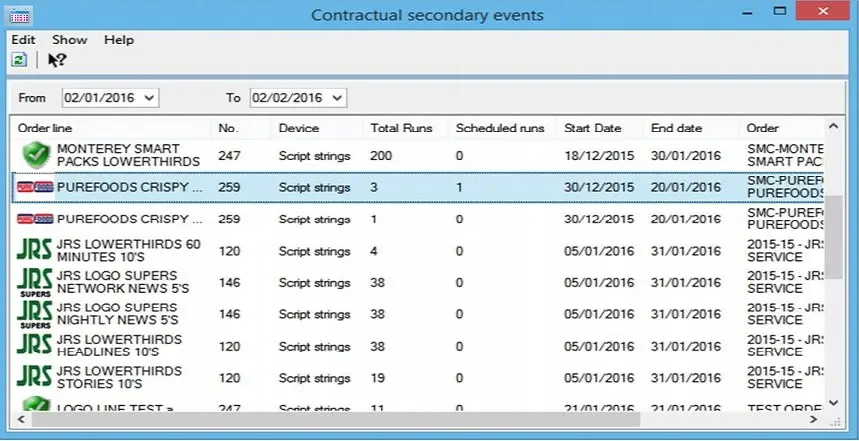
2. Select the Add Secondary Events from Orders option to open a form with the list of “Order Lines” filtered by date:
5006_Order_Lines
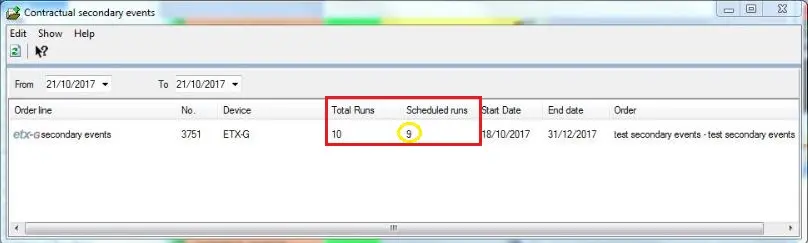
In the Contractual Secondary Events, from Etere version 27.5 and higher, you can determine the availability of inserting secondary events to the schedules. In the example shown below, out of 10 scheduled runs there are 9 scheduled runs with secondary events inserted, only one run is available for inserting secondary event to the schedule.
5004_Contractual_Secondary_Events_1
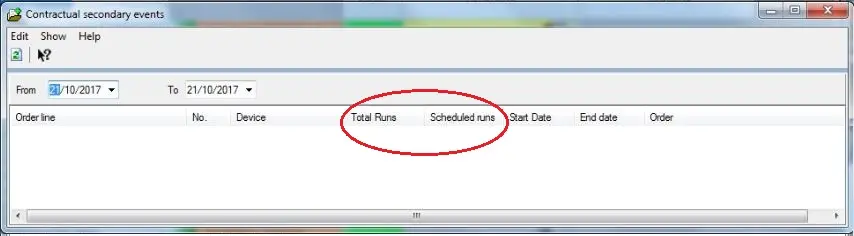
When all runs has been scheduled, the Contractual Secondary Events would display blank (without information) to alert user that there is no schedule available for inserting secondary event.
5007_Contractual_Secondary_Events_2
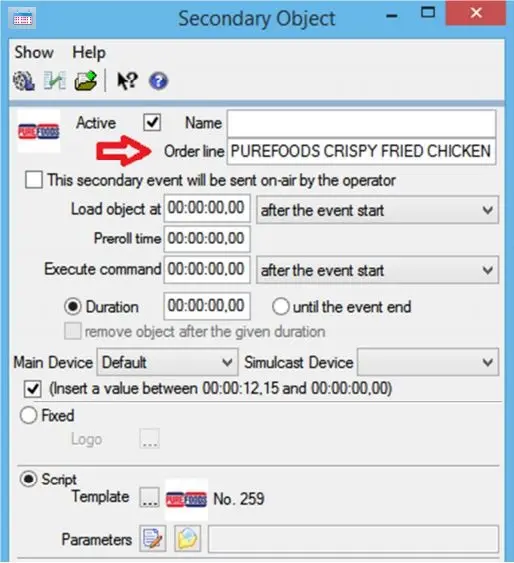
3. Once inserted the selected order line, you are able to view the Order Line description:
5011_Secondary_events
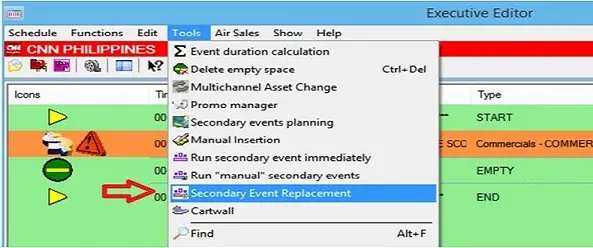
4. From Executive Editor it is possible to launch the Secondary Event Replacement as seen in the screen capture below:
5008_econdary_Event_Replacement_1
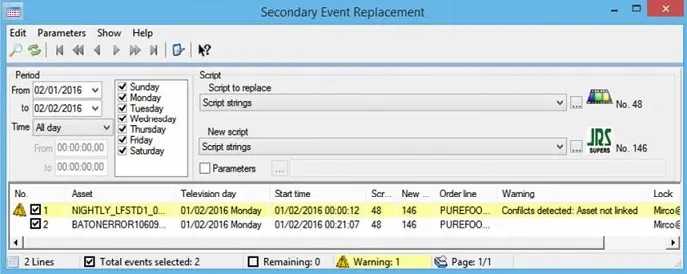
The form has filters for date range, time range and day of week.
It’s possible to replace the Ctm and assign new parameters or to leave the existing parameters (using the Parameters checkbox).
5. It is possible to replace a Ctm with a Logo and vice-versa. You can see an “Asset not linked” warning when a Secondary object, with an Order Line, is scheduled in a Primary Event not linked in the Air Sales structure.
5009_econdary_Event_Replacement_2
 5003_Secondary_Events
 5005_Secondary_Object
 5006_Order_Lines
 5004_Contractual_Secondary_Events_1
 5007_Contractual_Secondary_Events_2
 5008_econdary_Event_Replacement_1
 5009_econdary_Event_Replacement_2
 5011_Secondary_events