Create ETX-G Current Event and Next Event Templates
66.8.1 Ingest Current Event and Next Event template in Media Library
Before ingest, the “CurrentEvent.ml-cgc” and “NextEvent.ml-cgc” template files must be already created in the respective folder in the local workstation as described in the previous chapter.
- Launch Media Library; from the Search tab, click on the New Asset icon to create a new asset with asset type “ETX-G” as indicated below. Indicate the asset title as “Current event”.
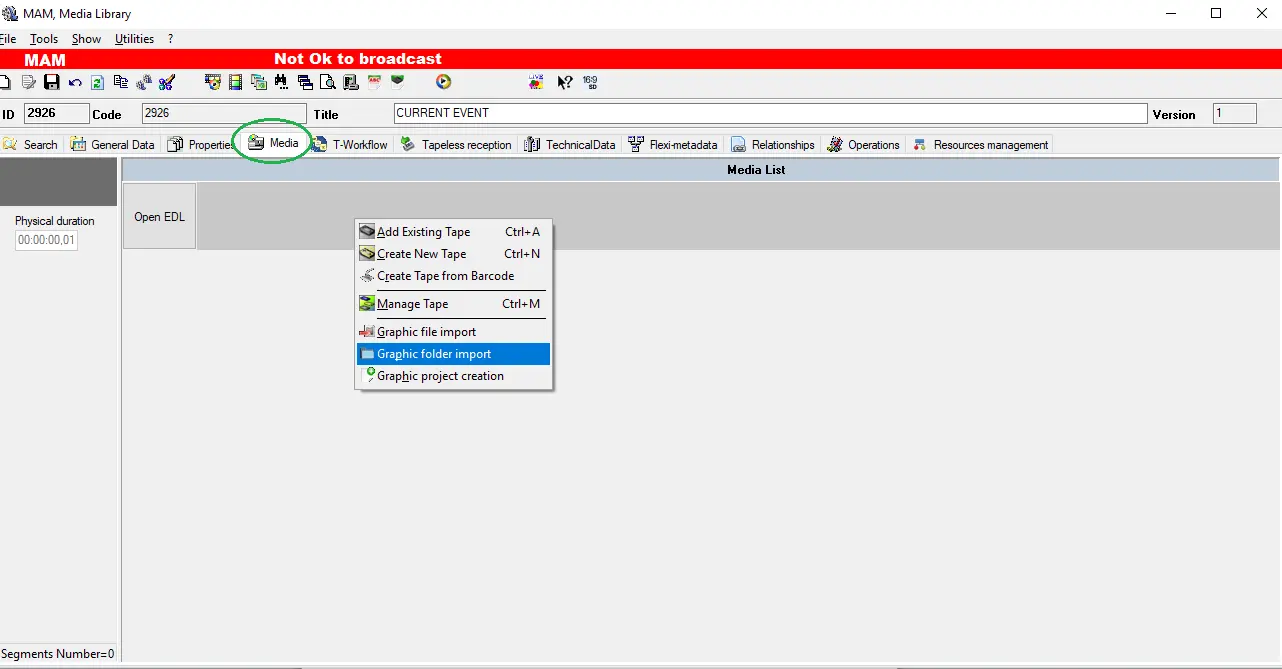
Create_etx-g_new - In the Media tab, right-click and select “Graphics Folder Import” to import the folder containing the “params.txt” file and the “CurrentEvent.ml-cgc” file created in the previous chapter.
Media_library_import_project_folder
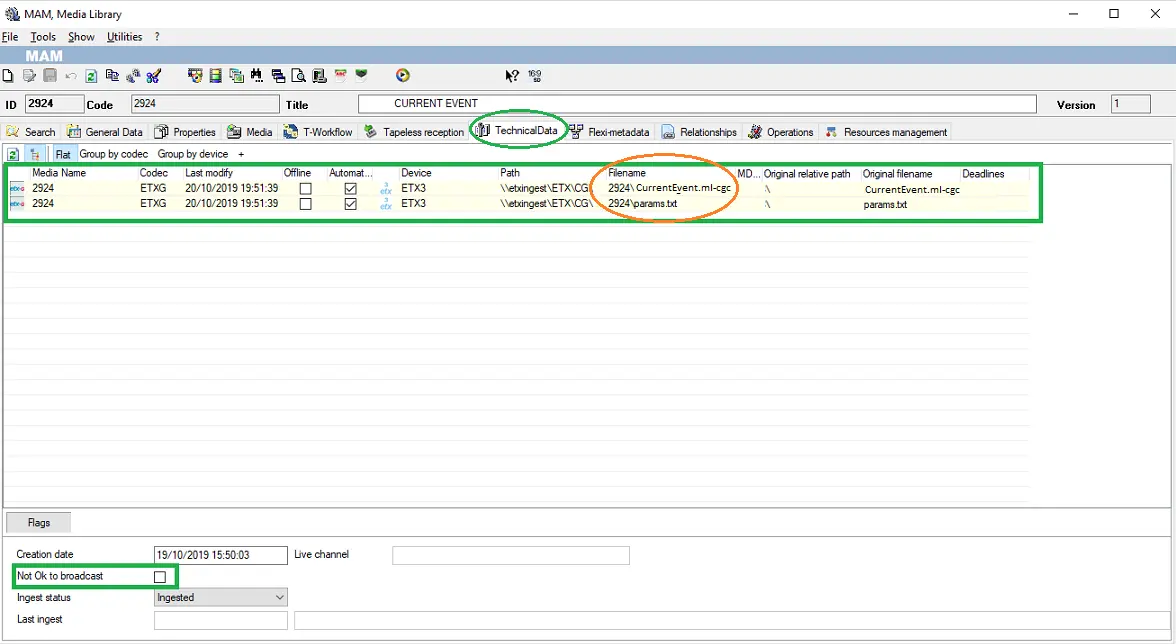
- After import, the graphics object would appear in the Media Library pending approval.
Technical_data_current_evt
- The “Current event” template is now imported to the Media Library. Repeat the same steps described above to import the folder (“999”) containing the “params.txt” file and “NextEvent.ml-cgc” file for the “Next event” template into Media Library.
INGESTION IN MEDIA LIBRARY USING ETERE GRAPHICS EDITOR
The module Etere graphics editor, when the SAVE button is pressed, automatically creates the folder and imports the files used to build the graphic there, then links them as a project in the related Media library asset (or in a new one, if you're creating a new graphic).
 Media_library_import_project_folder
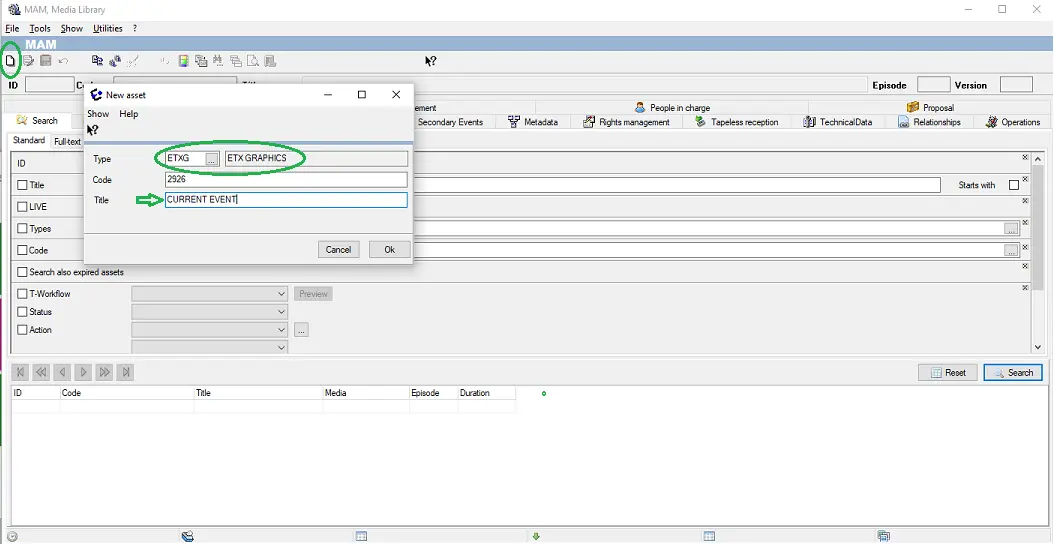 Create_etx-g_new
 Technical_data_current_evt