66.8 Create ETX-G Current Event and Next Event Templates
This chapter documents the steps to create “Current Event” and “Next Event” templates in ETX-G and previews the templates in the Executive Editor’s Secondary Object section. Upon preview, you can schedule the “Current Event” and “Next Event” to go on-air via the Etere STMan feature.
- Create a “Current event” template
- In the local workstation, create a new folder, e.g. “888”.
- Create an empty text file in the new folder and name the file “params.txt”.
- Launch the Etere CG Editor at the local workstation.
- Click on the “Text” item in the New Items list, drag and drop the text layer into the Preview window, and enter “Current Event” in the text content.
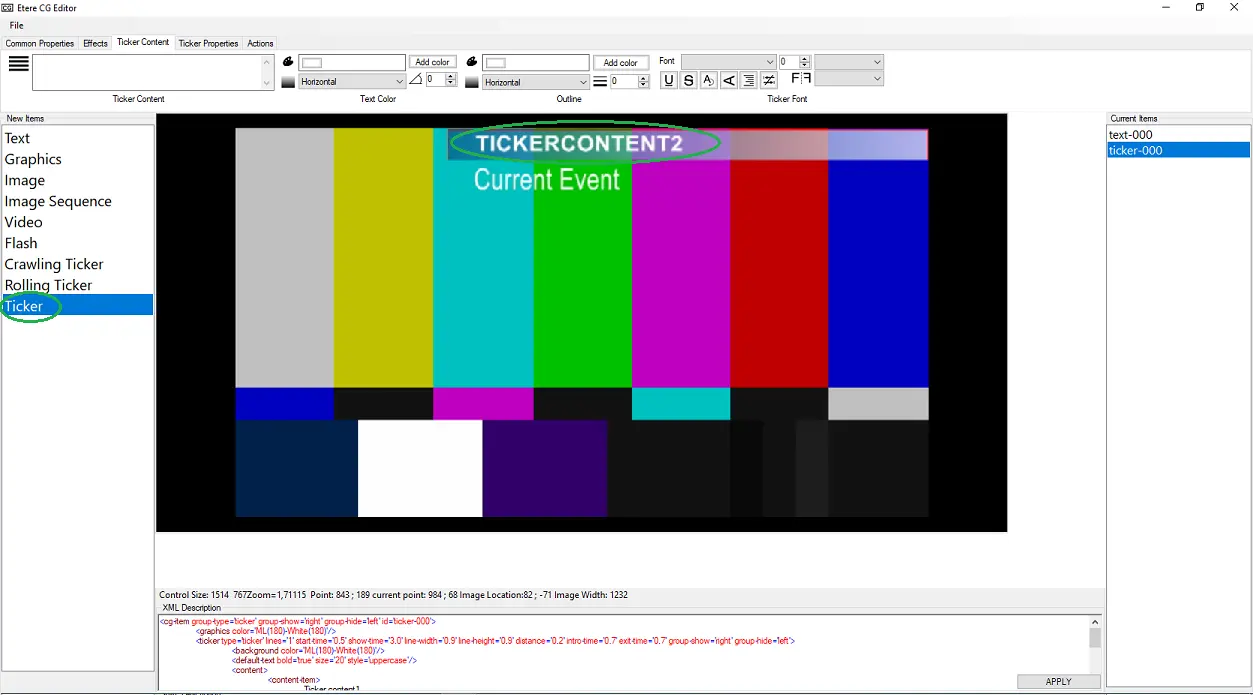
Etx-g_current_event_1 - Next, click on the “Ticker” item in the New Items list, drag and drop an empty ticker layer into the Preview window, and enter “TickerContent2” in ticker content. You can adjust the ticker position, size, and background colour using the features provided in CG Editor.
Etx-g_current_event_2 - Upon completion, select “File > Save Configuration” and save the file to the folder “888” created in local workstation, assign a name to the file and save as default “.ml-cgc” file type, e.g. “CurrentEvent.ml-cgc” or “888.ml-cgc”.
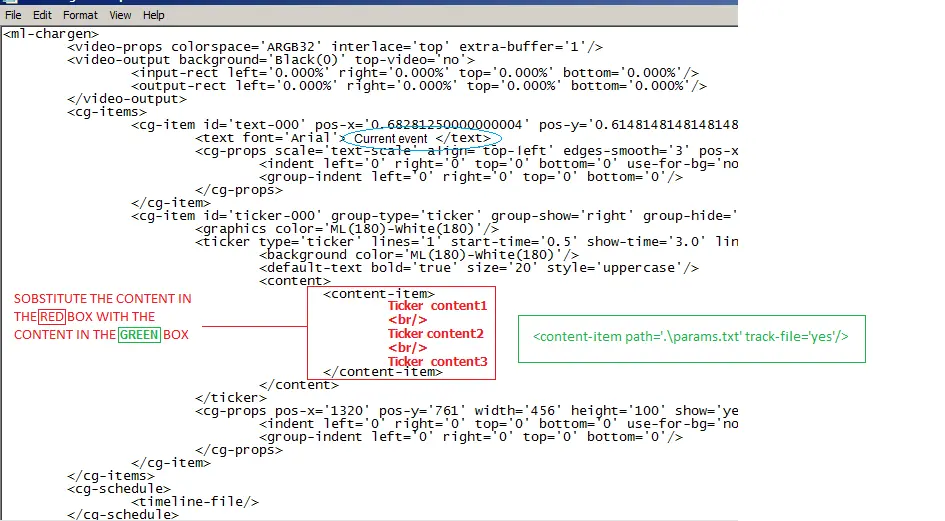
- In folder “888”, open the “CurrentEvent. ml-GCC” with Notepad and replace the content highlighted in red with content highlighted in green.
Change_image_current_event
- Save the changes to the file “CurrentEvent.ml-cgc” and exit from Notepad.
- Create a “Next event” template
- create a new folder in the local workstation, e.g. “999”.
- Create an empty text file in the new folder and name the file “params.txt”.
- Launch the Etere CG Editor at the local workstation.
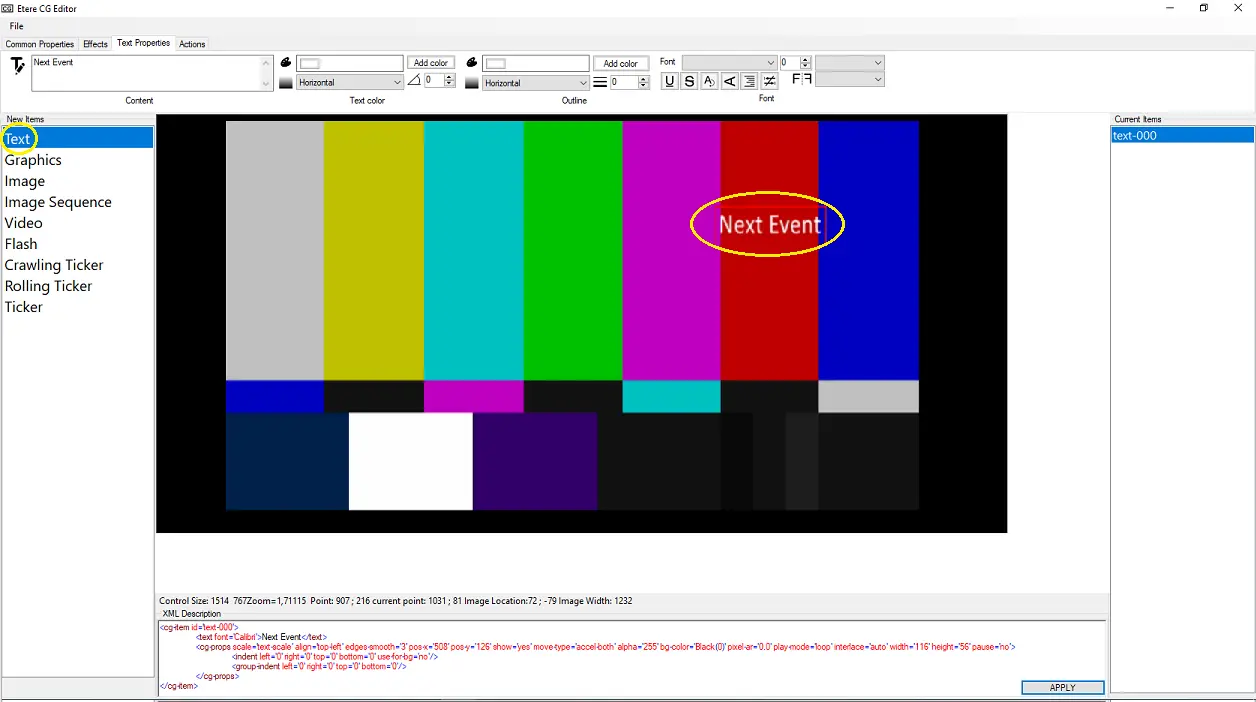
- Click on the “Text” item in the New Items list, drag and drop the text layer into the Preview window, and enter “Next Event” in the text content.
Etx-g_next_event_1
- Click on the “Ticker” item in the New Items list, drag and drop an empty ticker layer into the Preview window, and enter “Ticker Content 1” in the ticker content. You can adjust the ticker position, size, and background colour with the features provided in CG Editor.
Etx-g_next_event_2
- Upon completion, select “File > Save Configuration” and save the file to the folder “999” created in local workstation, assign a name to the file and save as default “.ml-cgc” file type, e.g. “NextEvent.ml-cgc” or “999.ml-cgc”.
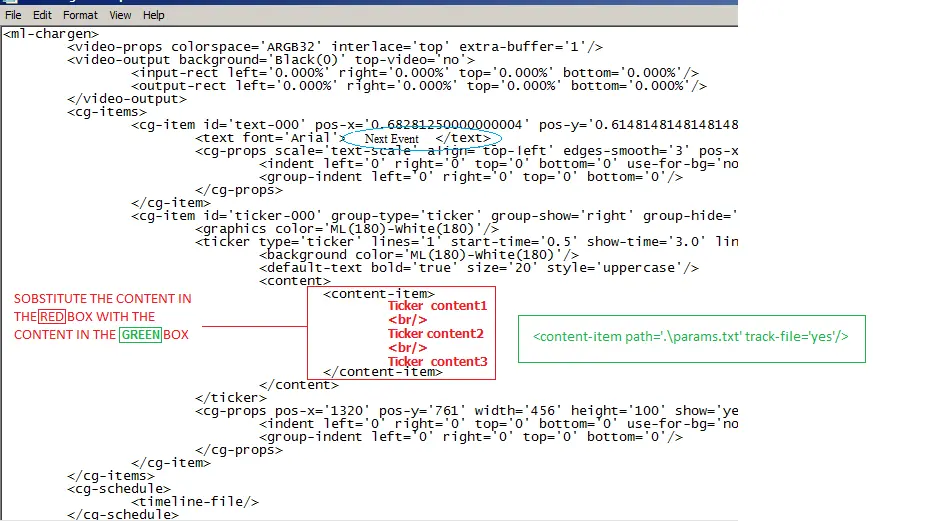
- In folder “999”, open the “NextEvent. ml-GCC” with Notepad and replace the content highlighted in red with content highlighted in green.
Change_image_next_event
- Save the changes to the file “NextEvent.ml-cgc” and exit from Notepad.
- create a new folder in the local workstation, e.g. “999”.
Note: for both current event and next event templates, it's also possible to use only text objects, but Etere will insert the content of the database fields only in those object types, starting from the first text node found in the ml-cgc configuration file. In order to have a text that should NOT be replaced with the database data (asset title, description, artist, genre, production year...) the ticker object has to be used.
TEMPLATES CREATION USING ETERE GRAPHICS EDITOR
The module Etere Graphics Editor, provides a faster way to create ETX-G current event and next event templates. The procedure is mostly the same as described above, but the module performs some of the steps automatically, allowing to save time.
Once a new graphic is created, you can start modifying it, adding the needed elements and setting their properties. Once saved, every file needed (configuration files, images, text files, etc.) will be imported into an automatically created folder and linked as a project in a new Media library asset.
The folder is created in the default storage path for graphics (set in Etere Configuration > Settings > Schedule parameters > Global tab > Destination folder where graphics will be stored) and named as the graphic asset id.
 Change_image_current_event
 Change_image_next_event
 Etx-g_current_event_2
 Etx-g_next_event_1
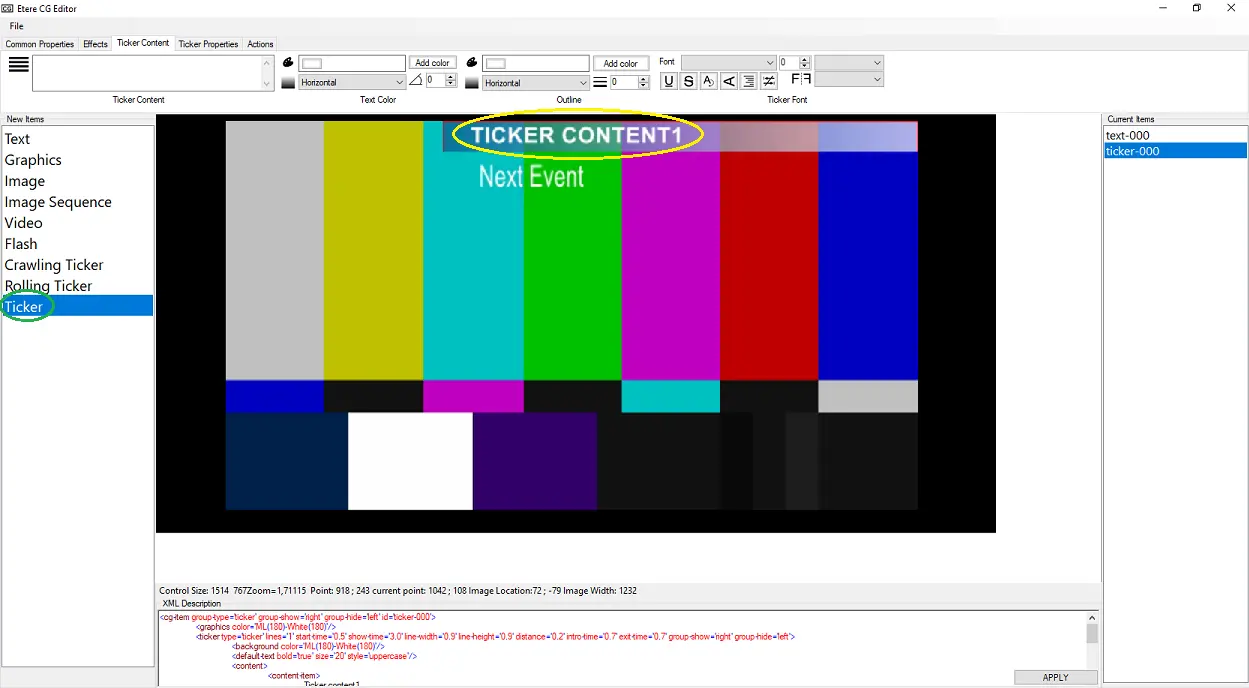 Etx-g_next_event_2
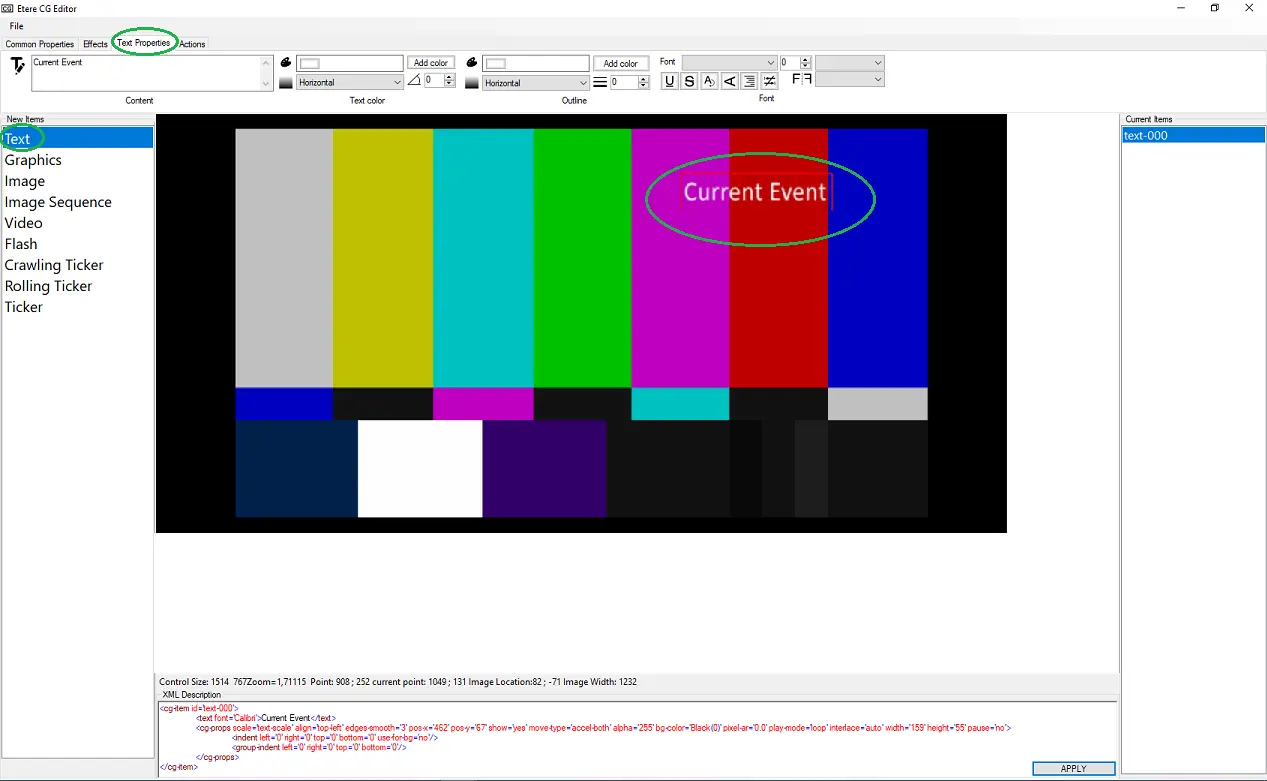 Etx-g_current_event_1