80.3.1 Object/Commercial Archive Parameters
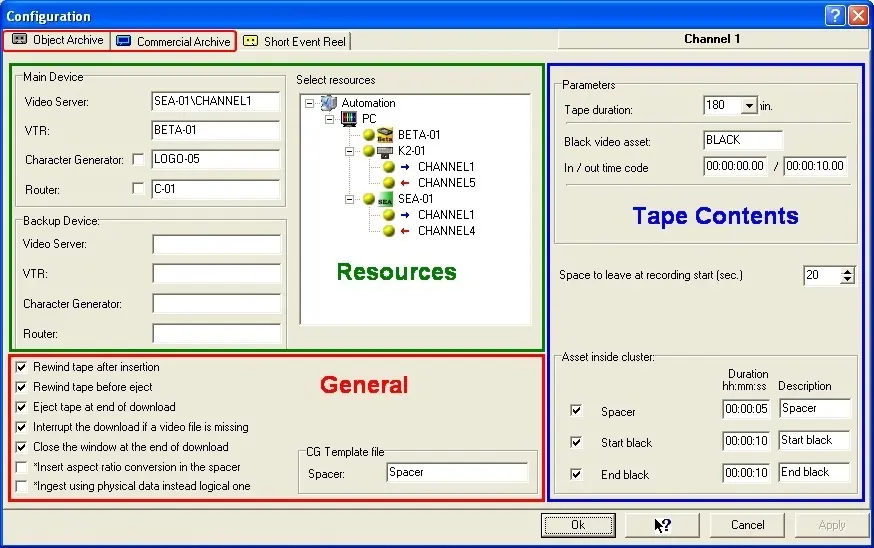
The Object Archive and Commercial Archive tabs, located under the Parameters module, allows to specify some general configuration parameters as well as the resources to be used by the homonym modules. Both configuration tabs are identical but allows setting different parameters; their configuration can be performed by compiling the parameters distributed across three sections:
Osr_parameters
Resources
Under the Main and Backup Device profiles (which are applied to the Main and Backup Automation modes respectively), the user is able to set the various devices intended to be used in each specific module, this by dragging & dropping the relative resources from the resource's tree:
•Video Server: Indicate the source Video Server where video files are stored.
•VTR: Set the Digital VTR to be used for recording video files into tapes.
•Character Generator: Indicate which CG device should be used to overlap static/animated text into the video stream. See the chapter for supported models.
•Router: In case of using a video router to switch video signals, set it here.
NB: For information regarding supported devices models, please refer to the Etere supported Devices chapter.
General
Set here general options referred mainly to the VTR behaviour:
•Rewind tape after insertion: If checked off, the VTR will automatically rewind the tape to the beginning on each insertion.
•Rewind tape before eject: Tick off this option to automatically rewind the tape to the beginning once the recording has finished.
•Eject tape at the end of download: If enabled, the VTR will automatically eject the tape once the recording has finished.
•Interrupt the download if a video file is missing: Use this option to stop recording if any of the video files selected to be recorded is missing.
•Close the window at the end of download: The window listing the items to record and their progress will be automatically closed once recording is complete.
•Insert aspect ratio conversion in the spacer: If enabled, the spacer will includes, besides the duration, media and timecode, also the aspect ratio of selected assets.
•Ingest using physical data instead logical one: Enable this option to record into the Object/Commercial Reel the entire video content of selected assets instead of recording only from their SOM to their EOM.
•CG Template file: Insert the Character Generator's template name for Spacer, Commercial and Commercials on-Live. These templates will be recalled and filled with the name of the reel and its scheduled time, use this option to facilitate the search function in the VTR.
Tape Contents
In this section is specified all data regarding the asset to be included in the tape, these parameters are:
•Tape Duration: Specify the length of the tape to be used amongst the values: 120, 180 and 240.
•Black Video Asset: Here you can specify the asset code of the 'black video' to be inserted between video clips, it serves to break up the videos rather than record them back to back. It is also possible to -optionally- specify its mark-In and mark-Out (if the SOM is not 00:00:00,00 it needs to be stated).
•Space to leave at recording start (in seconds): It is the empty space to leave at the beginning of the tape.
•Asset inside clusters: For all elements here, their duration needs to be specified and also a description tho be shown on the Recording list.
- Spacer: This asset will be inserted at the start of a cluster but between the 'initial bars' (if enabled) and the 'start black' (if enabled).
- Start black: If checked off, it will be inserted just before the first video clip of each cluster.
- End black: If ticked off, this asset will be inserted at the end of each cluster (just after its last video clip).
In the figure below are illustrated all assets included within each single cluster contained in the videotape:
Asset_inside_clusters
 Asset_inside_clusters
 Osr_parameters