82.1.1 Simple query examples
The procedure described below illustrates how to use the Query Wizard tool for a a simple example: search all customers from Rome.
1.Select the Personal data table (Anagraf);
2.Select the columns in which you want to apply the search. In the example you have to insert the 'City' field and other fields to identify the customers univocally;
3.Set the search condition by selecting the field in which you want to search in. You can search on a value of inserted field (insert the value that satisfies the condition) or request that value as a parameter when the query is executed (by checking the specific checkbox "request as parameter"). Notice you can verify several conditions using logical connectors that can be chosen from the specific menu;
4.Afterwards you should indicate on which column(s) to order the report view, and then continue by pressing the button 'End'. This is the last stage needed to create a query;
5.At this point the query will be shown in the belonging argument. To execute the query, double click on it, insert the requested parameters (if they are present in the query) then observe the result on screen.
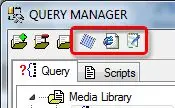
6.By selecting one of the options present in the tool bar menu, it's possible to save a file with the query result:
Query_manager_1
Other simple examples
Here below will be listed some non-complex queries for a simple data retrieval, these queries can be used by creating a new query and add the query text as following explained:
Search all codes with digital media:
1.Select Assets ('Filmati') table ;
2.Select useful fields ('SupportoD' field is mandatory);
3.Select the searching condition: SupportoD <> (different) and keep the next field empty;
4.Choose the ordering method and, once saved the query, execute it.
Search for the scheduling of day X:
1.Select 'Tpalinse' table;
2.Select the useful fields ('Data' field is mandatory);
3.Select the searching condition: data = (equal) and select the option 'request as parameter'
4.Choose the ordering method and, once saved the query, execute it.
5.You'll be asked to indicate the parameter, write a date in format dd/mm/yyyy.
Search all codes with an X type:
1.Select Assets ('Filmati') table ;
2.Select useful fields ('Type' field is mandatory);
3.Select the searching condition: data = (equal) and select the option 'request as parameter'
4.Choose the ordering method and, once saved the query, execute it.
5.You'll be asked to indicate the parameter, please try to insert the letter P in order to view all commercial codes present in the database.
NB: For an easier use of the query result, it's possible to execute an export in excel or xml format. To execute this feature you just have to press the corresponding button on the menubar, after you've obtained the report.
 Query_manager_1