Etere Studio Player

86.3 Playout Function

■ PLAYOUT

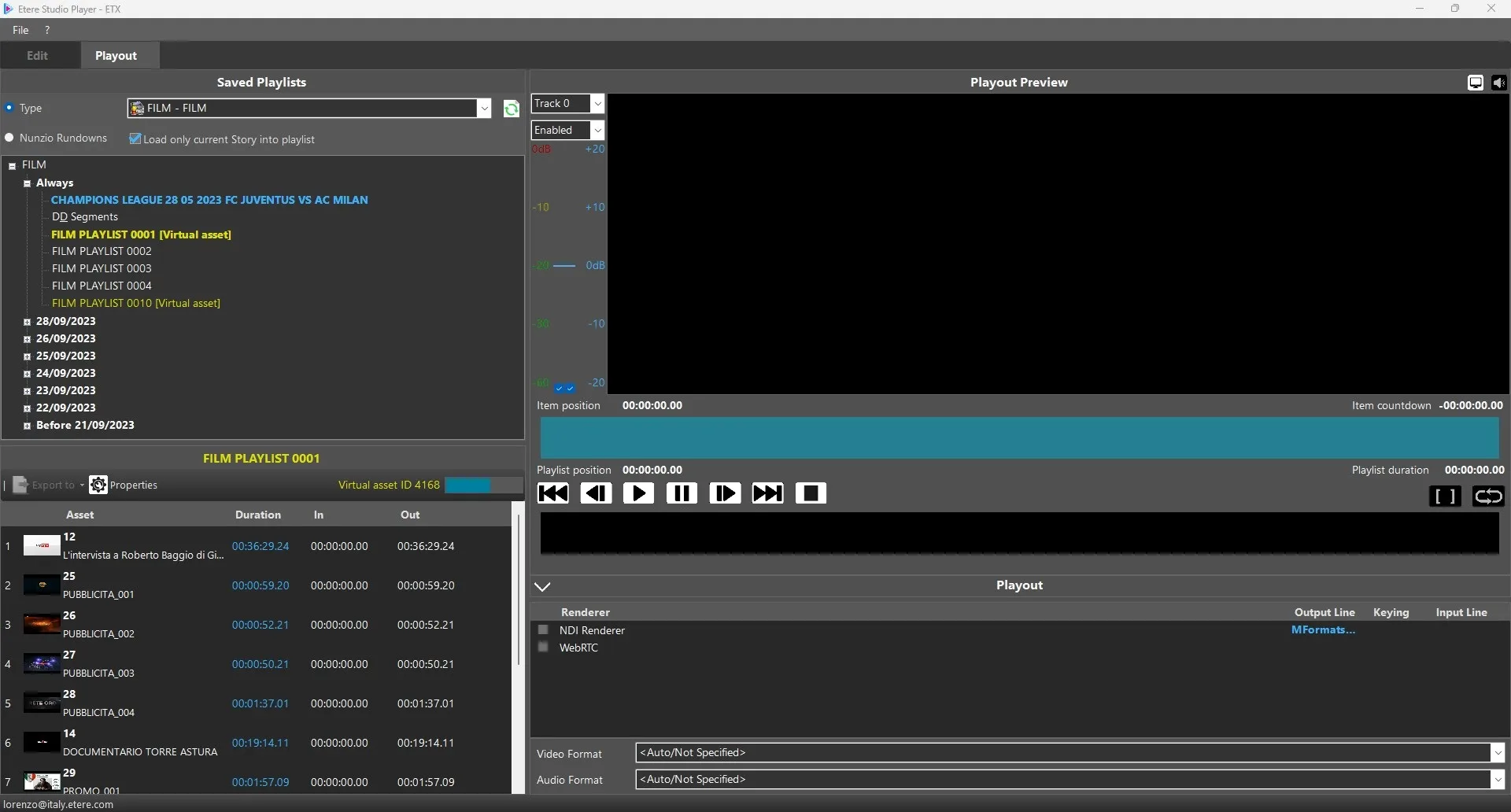
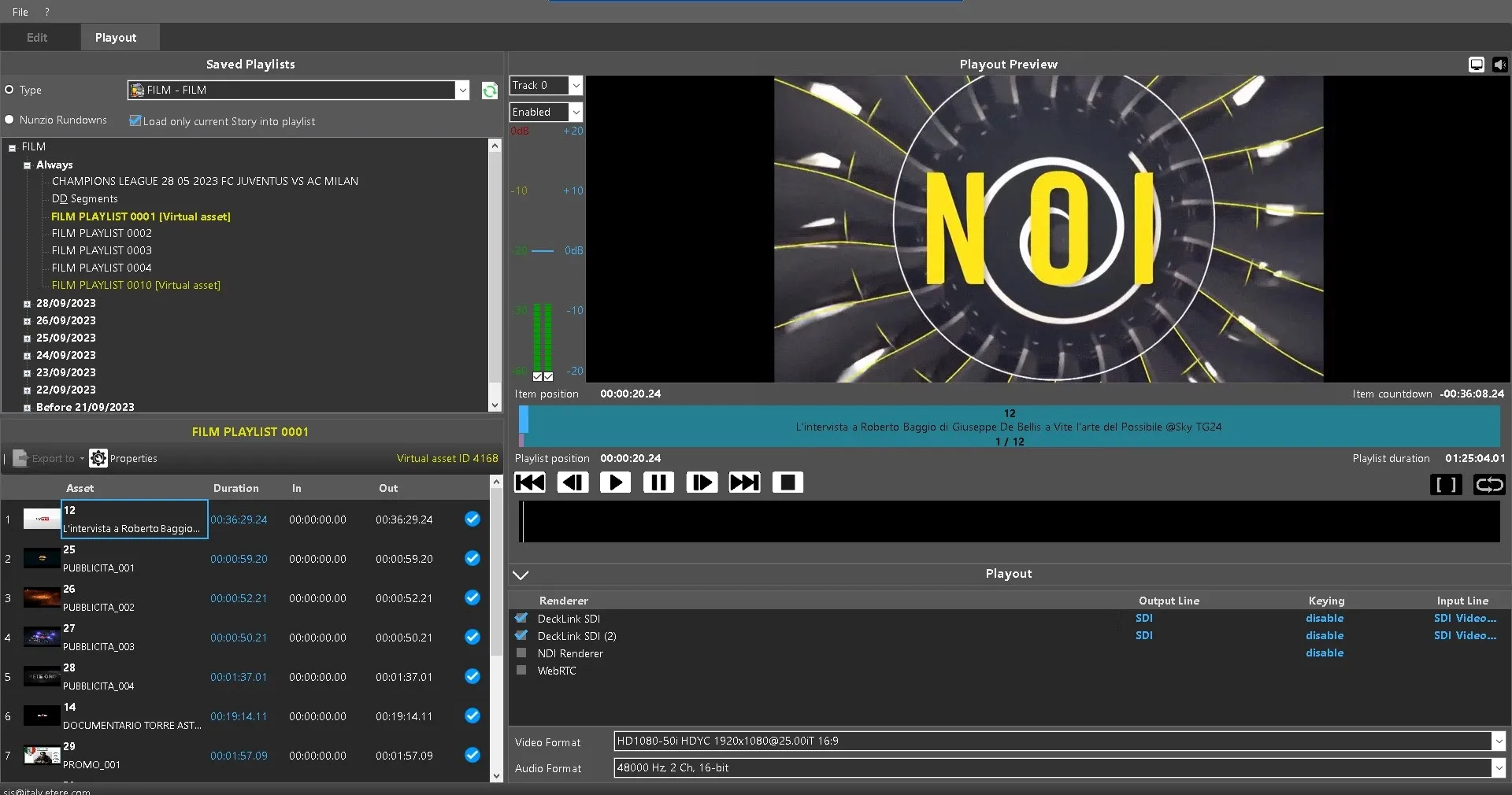
In Studio Player > Playout, there are mainly 4 areas where you can manage the playout. These areas are: SAVED PLAYLIST - PLAYLIST - PLAYOUT PREVIEW - PLAYOUT


-> SAVED PLAYLIST

You can divide this part in two. In the top part it's possible to filter the search by playlist type, playlist name or, if it is a Nunzio story, to find a rundown and choose whether to load only the current story. The bottom part is where the results will be shown.


-> PLAYLIST

Once selected with a double click from the search results, the selected playlist will be exploded here.
The items of which they are part will be shown line by line. These will be shown in ascending order and gridded in the following columns:
Thumbnail: It displays the thumbnail of the asset.
Asset: It displays asset code and asset description.
Duration: It displays the duration of the asset. The duration are displayed in frames, it is the same duration when the asset is loaded in Media Library.
In: It indicate the starting point where the asset playlist would be played.
Out: It indicate the ending point the asset playlist would be stopped.
Valid: This icon indicate a valid file in the asset.
No valid: This icon indicate there is no valid file in asset.
NB: The sorting of playlist in alphabetically order is not intended for during the playout.

In this panel, the following button allow to manage the playlist items:

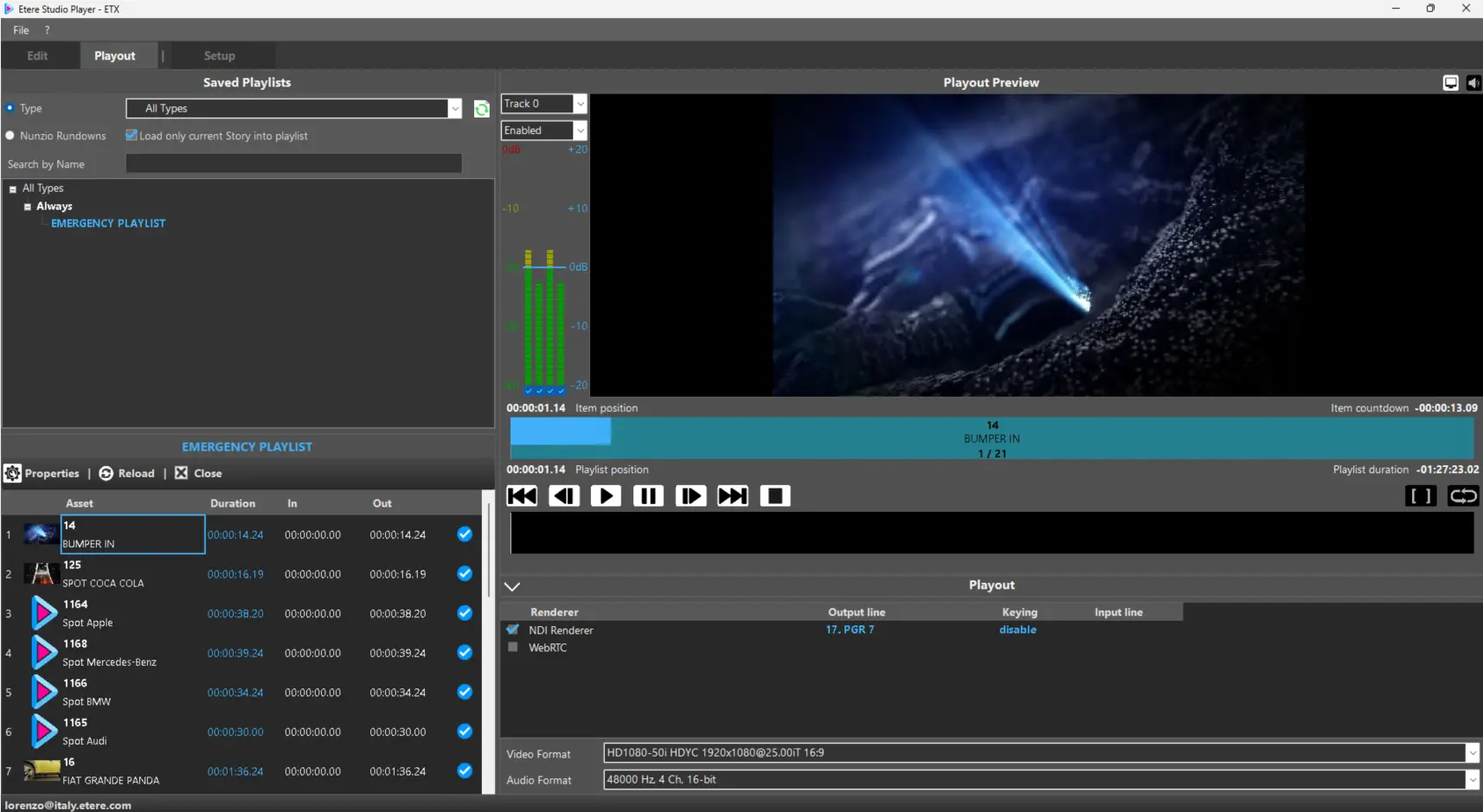
Properties: Opens/closes the properties of the playlist (name, type, start validity date).
Reload: Reloads the assets previously inserted in the playlist
Close: Unloads the playlist and all the items currently playing.


-> PLAYOUT PREVIEW

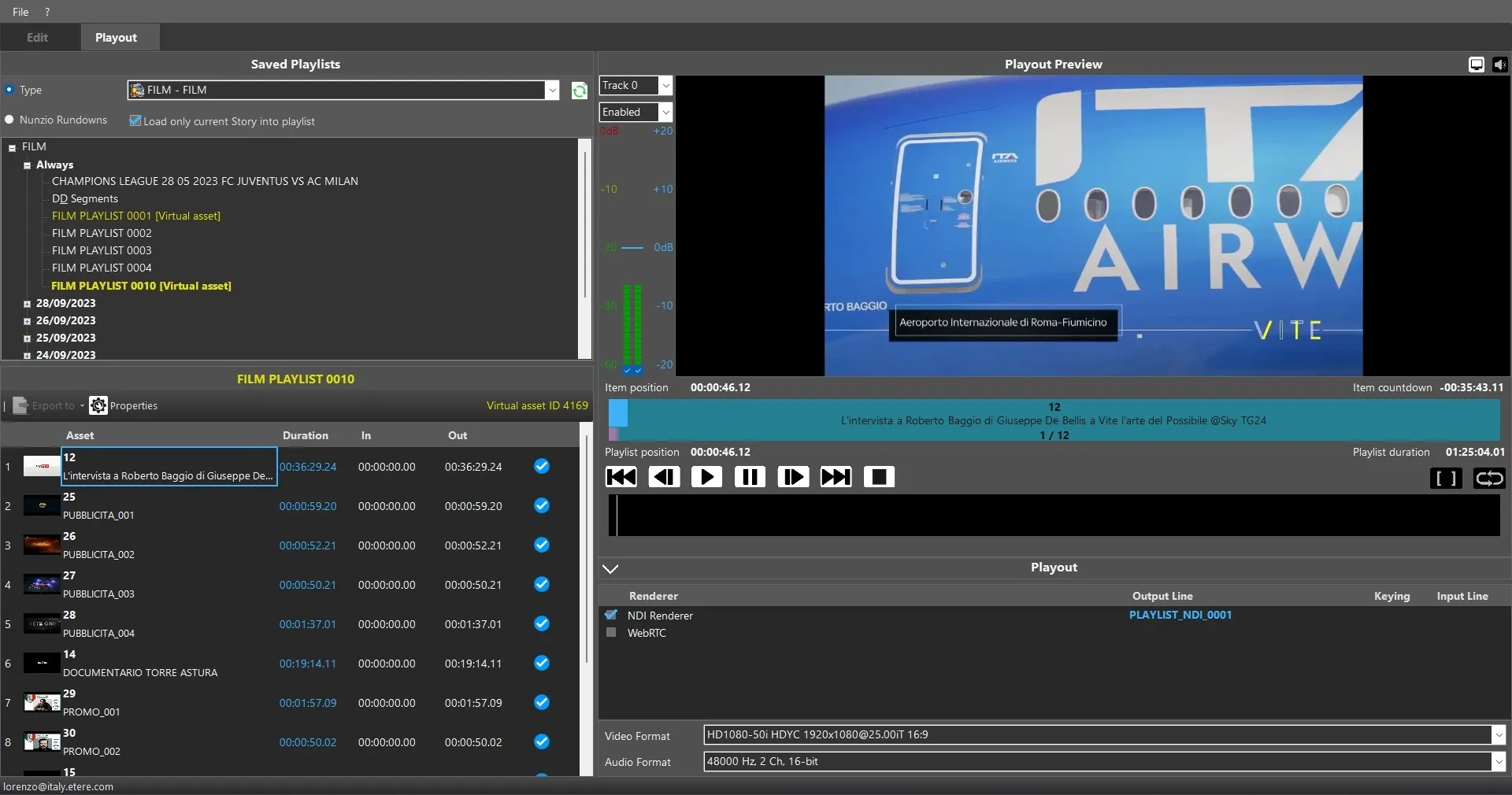
The Preview panel allows you to preview playlist during playout.
The available control functions includes:
Audio track and channels volume: In the audio mater, it display the audio track and channels volume:
•You can enable/disable the audio track using the top checkbox.
•You can enable/disable the audio channel using the bottom checkbox.
•You can set the audio gain for each channel by moving the cursor.
NB: The number of available channels are defined in the playlist. When more channels are available, only 2 channels would be automatically displayed. You can manually select more channels to be shown during playout.

Video Preview: Enable/Disable the video preview on workstation.
Audio Preview: Enable/Disable audio preview on workstation.

Play: Play the playlist. Shortcut key : Enter
Pause: Pause the playlist. Shortcut key : Spacebar
Previous Frame: Back to previous frame. Shortcut key : left arrow key
Next Frame: Go to next frame. Shortcut key : right arrow key
Previous File: Go to previous item in the playlist. Shortcut key : Ctrl + left arrow key
Next File: Go to next item in the playlist. Shortcut key : Ctrl + right arrow key
Stop: Stop the playlist. Shortcut key : Ctrl + Spacebar
Single File: Switch on/off to play a single file in the playlist. Shortcut key :
Loop: Set on/off the looping of playlist. The looping is done by appending the same clip in the playlist.
Item position: It display the current timecode of the item in play.
Item countdown: It display the countdown of the current playing item in the playlist
Playlist position: The timecode of the current playing item in the playlist.
Playlist duration: The total duration of all items in the playlist.


-> PLAYOUT

In the Playout panel, you can select the one or more Renderer to be used when playout the playlist.
The available Renderer listed are depending on the renderer software and devices installed on the workstation.
If NDI Renderer is installed, you can select between NDI Channel configured for the Etere IP Router in Video Router configuration. Alternatively, you can input a NDI renderer name to set the NDI output signal.
If the selected Renderer in locked by other application, error message "Unable to open XXX: it could be in use by another application" would be written in the log file.
At the bottom of the Playout panel, you can set the valid video format and audio format for the playlist in playout

NB: The video and audio format settings would affect the preview of the playout.
Hide Playout Panel
In Playout panel, you can hide the renderer settings once the renderer is configured by click on the collapse button.
If necessary, you can unhide the Playout panel by click on the expand button, as indicated above.
When the Player is closed and re-opened, the last saved renderer settings would be present.
If you had change the GUI window size and position, the changes would be saved when you exist from Studio Player. The saved GUI layout would be present when Studio Player is relaunched.

StudioPlayer_Playout_Load_Playlist
StudioPlayer_Playout_NDI


NB: From Etere.FlexyPlayer.Lib.dll ver. 35.1.17.59 -> Etere Studio Player avoids playing resources marked as EXPIRED or NOT SUITABLE FOR BROADCAST if the relevant parameters in Configuration>Settings>Executive Editor> "Event which as not ok to broadcast must not go onair" and "Expire events must not be transmitted" are enabled. The operator can add these resources to the playlist, but they will be underlined with a warning indicating why they cannot be played.

StudioPlayer_Playout_Load_Playlist
StudioPlayer_Playout_SDI
StudioPlayer_Playout_NDI