ETX Toolbox Writer
65.3.1 Capturing
As we said in the previous chapter, by relying on Etere ETX Toolbox Writer is possible to caption any INPUT source.
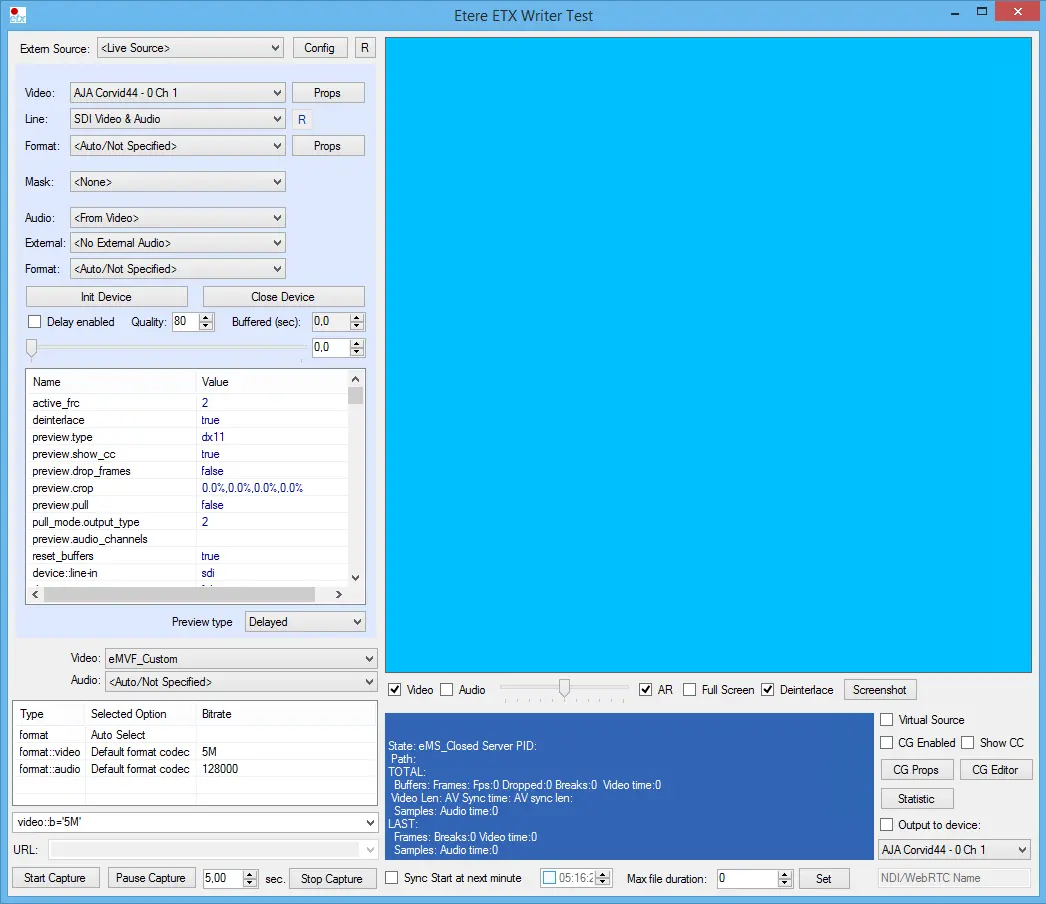
Once the software is open, you can set up any supported SDI card or NDI Stream, from which is possible to caption any video and audio, configure parameters of capturing and operate the capturing process.
5477_etx_writer_skin
To start captioning is mandatory to complete the following steps:
- Configure your device and initialize it by clicking Init Device button.
- Select Format, Video codec and Audio codec from lists.
- Add some additional attributes to the configuration string.
- Start capturing by clicking Start Capture button.
- To pause captioning you should set pause duration and press Pause capture button.
- To stop the process of captioning you should click Stop capture button.
If you are using Etere ETX Toolbox Writer as debugging tool for recording and preview, you would need to change the Windows Registry key value “preview.type” in both MLive and MPreview registry from “direct3d” to “dshow” to enable the preview feature.
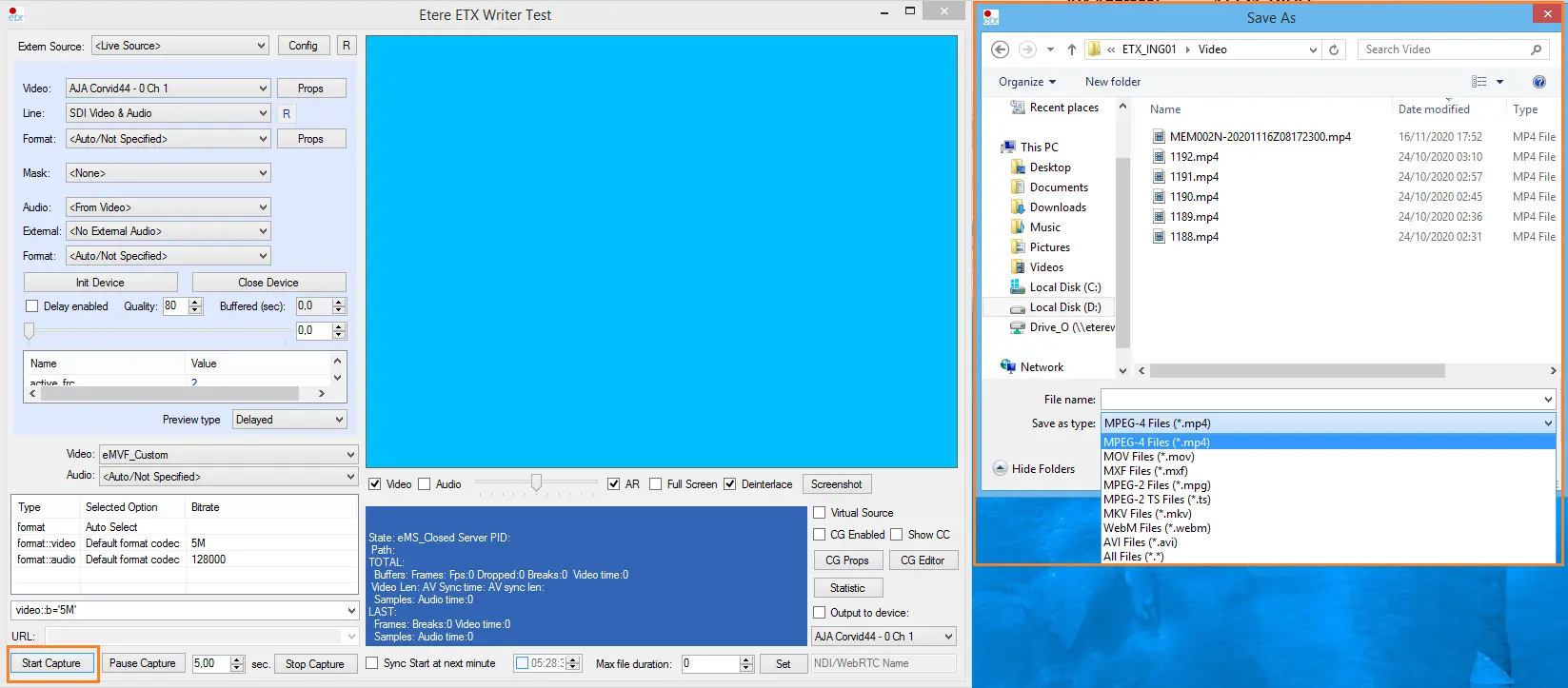
Start Capture feature allows you to save your files locally in these formats:
5478_etx_writer_start_cap
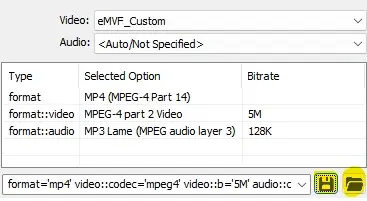
Starting from Etere ver.34, save and load configuration buttons are available near the attributes string. By pressing the save one, an XML file will be saved on a user-defined folder.
8970_writer_save_button
 etx_writer_skin
 etx_writer_start_cap
 writer_save_button