66.8.2 Scheduling Current Event and Next Event as Secondary Event
Once the Current Event and Next Event templates have been imported and approved in the Media Library, you can start to schedule the templates as secondary events in the Executive Editor.
SECONDARY EVENT CREATION
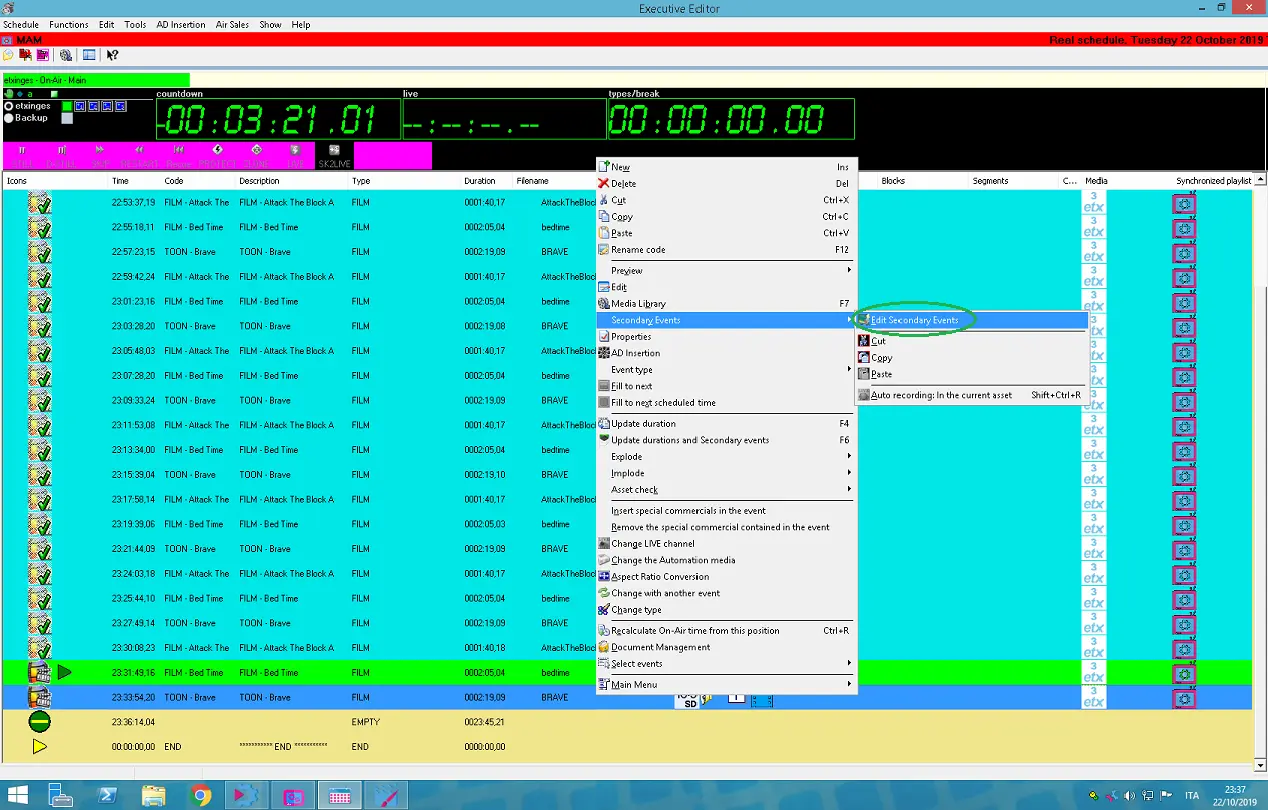
- Launch Executive Editor, select the primary event you want to schedule the secondary event for, right-click on the event, and select the “Secondary Events > Edit Secondary Events” function to launch the Secondary Events wizard.
Executive_editor_add_secondary
- In the Secondary Events wizard, right-click on the blank space, select “Add” to open a dialogue and click on “Secondary Object” from the list.
Executive_editor_add_secondary_object
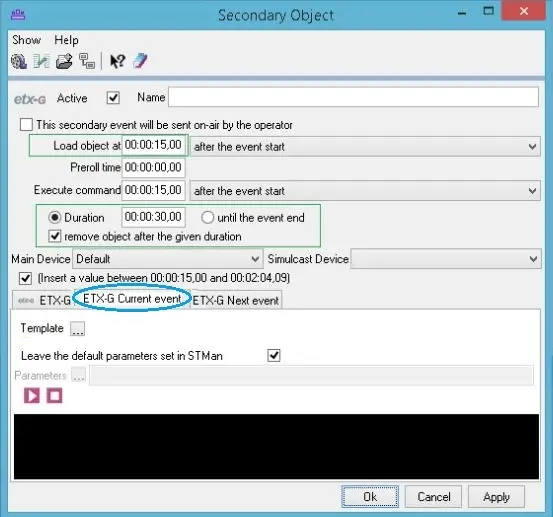
- A Secondary Object window popup.
Executive_editor_secondary_object_current_a
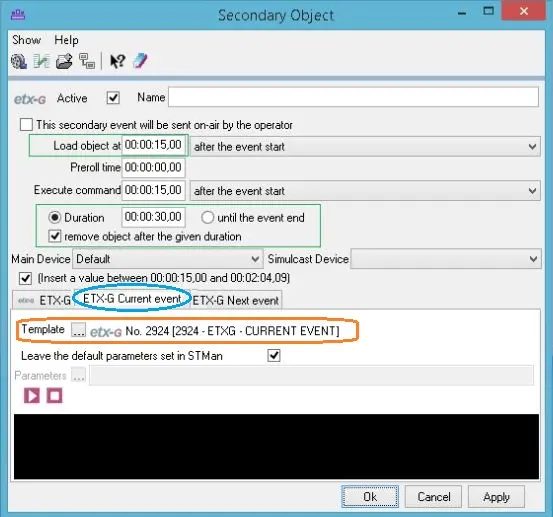
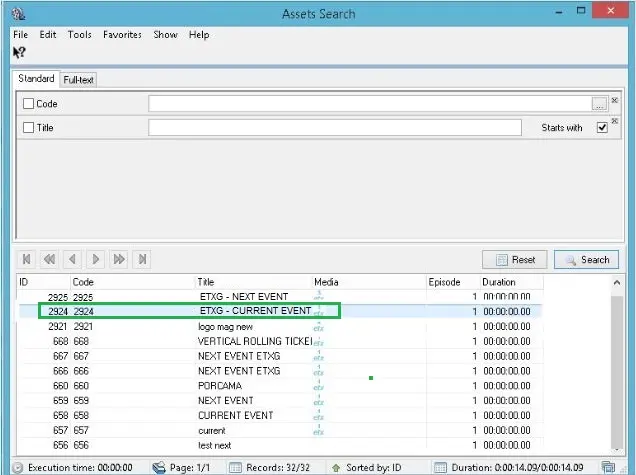
Click on the “ETX-G Current Event” tab to configure the secondary object as a current event, and click on Template to launch the asset search and select the “ETXG – Current Event” template in the list.
Executive_editor_secondary_object_current_search
- Once the Template is attached to the “ETX-G Current event” tab, click on <Apply> and <OK> to confirm the settings.
Executive_editor_secondary_object_current
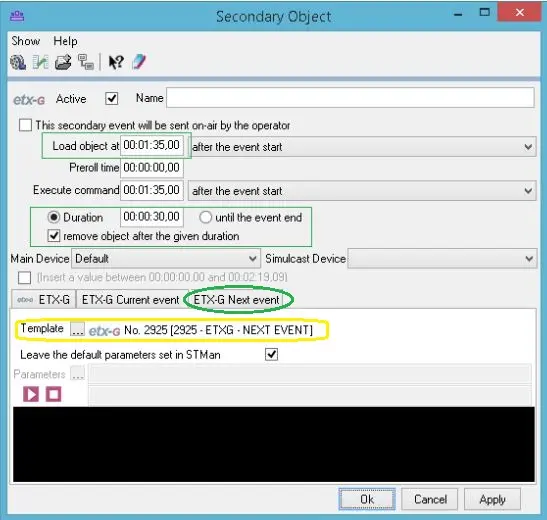
- Next, click on the “ETX-G Next Event” tab and repeat the steps described above to configure the secondary object for the Next Event template, as indicated below.
Executive_editor_secondary_object_next
In order to define which data have to be displayed in the graphic, the proper database fields must be selected, as described below. Etere will read from those fields the data to display.
If the option Leave the default parameters set in STMan is enabled, Etere will take the database fields and parameters set through the wizard in STMan's Secondary events plugin. These parameters will be the same for every secondary event scheduled with this option enabled. STMan's parameters affect only the current station and secondary events scheduled for that station.
If the option is disabled, it's possible to define the database fields only for the secondary event being edited, as follows.
CURRENT EVENT WIZARD
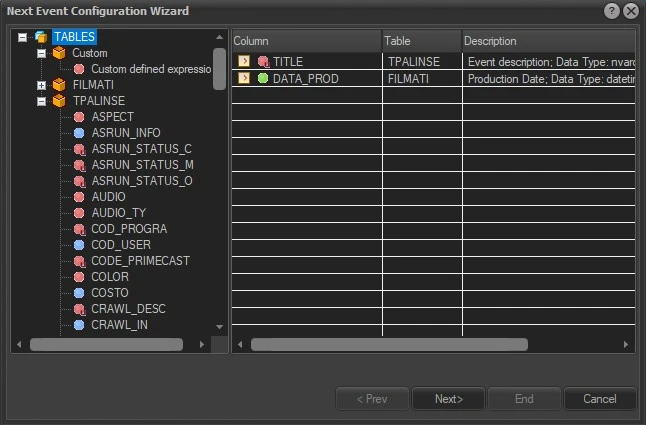
1. Select from the left column the database table which the needed fields belong to:
• Custom: If you need Etere to execute a more complex query in the database, you can type here a custom-defined expression. Note: it's recommended to ask Etere support team the right query to insert, according to your needs.
• FILMATI: Select one among Media Library fields, related to the asset where the current secondary event is scheduled.
• TPALINSE: Select one among Scheduling fields, related to the event where the current secondary event is scheduled.
Select the fields with a double-click. They will be listed in the table on the right, and sorted according to the order they're added.
The order represents how the data will be displayed in the graphic and can be changed moving the fields with a drag&drop.
You can delete a field or edit a custom expression, through the contextual menu.
current_1st_step
2. The next step allows to select the conditions the next event has to match in order for Etere to display its data. In this case all the fields are disabled because this wizard is for the CURRENT event, so this step can be skipped.
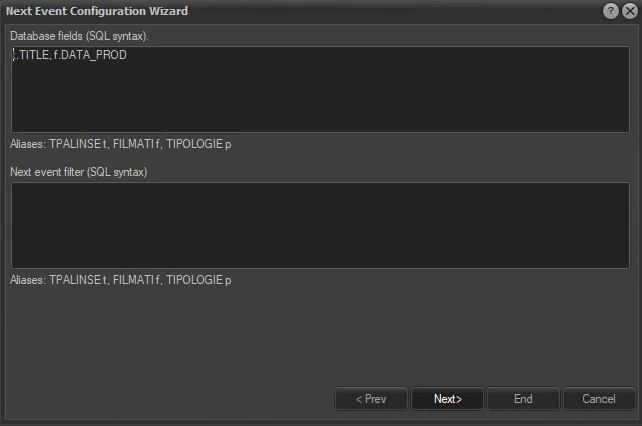
3. In the last step, the wizard shows a summary of the previously selected fields and allows to add manually some more data, like database fields preceded by the proper alias (t for table TPALINSE, f for table FILMATI, p for table TIPOLOGIE) or a custom expression, dividing it from the other fields with a comma.
current_3rd_step
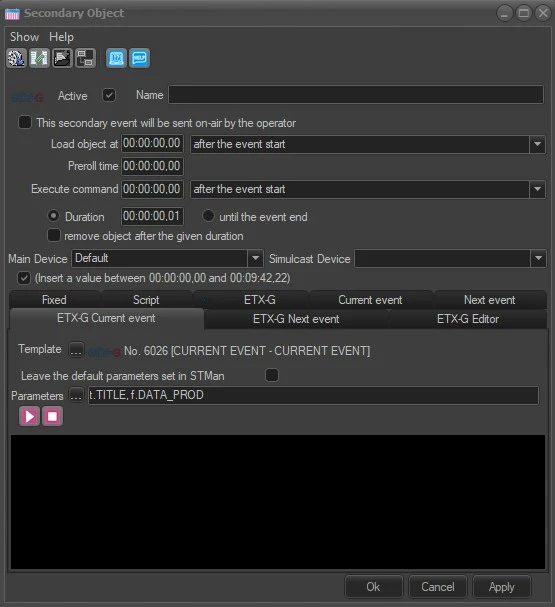
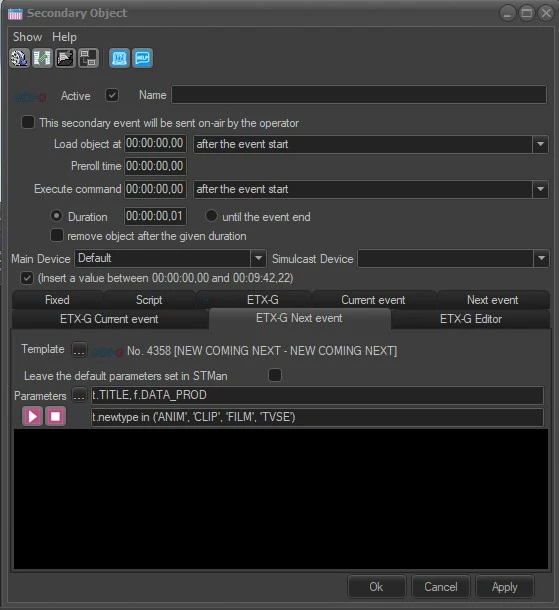
When the wizard ends, the parameters defined will be displayed in the Secondary object window in this way:
alias1.FIELD1, alias2.FIELD2, alias3.FIELD3...
For example, if you want to display the event title and the asset's production date in 2 text objects of the same graphic, the resulting parameters string will be:
t.TITLE, f.DATA_PROD
sec_event_etxg_current
Etere will read the graphic's configuration file and will begin to insert the database data starting from the first text node.
Note: ONLY text nodes are supported for this feature.
So for example with an ml-cgc file like this:
<ml-chargen>
<video-props colorspace='ARGB32' interlace='top' extra-buffer='1'/>
<video-output background='Black(0)' top-video='no'>
<input-rect left='0.000%' right='100.000%' top='0.000%' bottom='100.000%'/>
<output-rect left='0.000%' right='100.000%' top='0.000%' bottom='100.000%'/>
</video-output>
<cg-items>
<cg-item id='text-000' pos-x='0.052' pos-y='0.741' size-x='0.651' size-y='0.079'>
<text font='Calibri Bold' font-size='11' type='xtext' color='Black' word-break='no'>text.TITLE</text>
<cg-props scale='text-scale' align='top-left' edges-smooth='3' pos-x='100' pos-y='800' show='yes' move-type='accel-both' alpha='255' bg-color='Black(0)' pixel-ar='0.0' play-mode='loop' interlace='auto' width='1250' height='85' pause='no'>
<indent left='0' right='0' top='0' bottom='0' use-for-bg='no'/>
<group-indent left='0' right='0' top='0' bottom='0'/>
</cg-props>
</cg-item>
<cg-item id='text-001' pos-x='0.052' pos-y='0.833' size-x='0.643' size-y='0.079'>
<text font='Calibri' font-size='11' type='text' color='Black' word-break='no'>text.PROD</text>
<cg-props scale='text-scale' align='top-left' edges-smooth='3' pos-x='100' pos-y='900' show='yes' move-type='accel-both' alpha='255' bg-color='Black(0)' pixel-ar='0.0' play-mode='loop' interlace='auto' width='1235' height='85' pause='no'>
<indent left='0' right='0' top='0' bottom='0' use-for-bg='no'/>
<group-indent left='0' right='0' top='0' bottom='0'/>
</cg-props>
</cg-item>
</cg-items>
<cg-compositions/>
</ml-chargen>
The text "text.TITLE" will be replaced by the content of the TITLE field; the text "text.PROD" will be replaced by the content of the PRODUCTION DATE field, in this exact order (text.TITLE and text.PROD are just placeholders, any text can be contained in the <text> tag).
To display the production date first, then the title, the position of the fields have to be changed in the wizard, so that the resulting string is:
f.DATA_PROD, t.TITLE
NEXT EVENT WIZARD
The steps of the wizard in this case are the same as the current event one, except for the second step.
1. Select from the left column the database table which the needed fields belong to:
• Custom: If you need Etere to execute a more complex query in the database, you can type here a custom-defined expression. Note: it's recommended to ask Etere support team the right query to insert, according to your needs.
• FILMATI: Select one among Media Library fields, related to the asset where the current secondary event is scheduled.
• TPALINSE: Select one among Scheduling fields, related to the event where the current secondary event is scheduled.
Select the fields with a double-click. They will be listed in the table on the right, and sorted according to the order they're added.
The order represents how the data will be displayed in the graphic and can be changed moving the fields with a drag&drop.
You can delete a field or edit a custom expression, through the contextual menu.
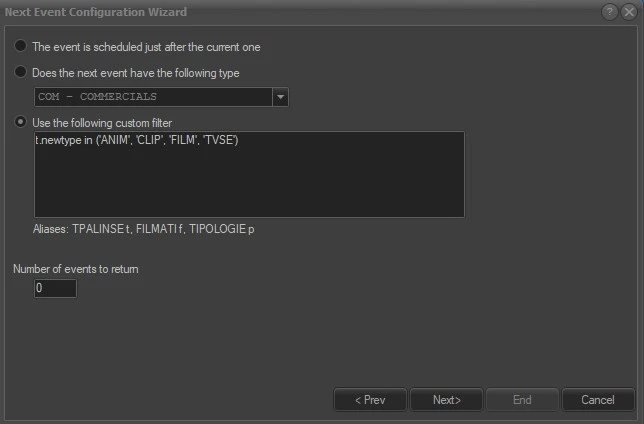
2. This step allows to select the conditions the next event has to match in order for Etere to display its data.
• The event is the scheduled one just after the current one: If checked, the "next event(s)" will be chosen by taken the one(s) scheduled immediately after the current event.
• Does the next event have the following type: If checked, the "next event(s)" will be chosen by taking the one(s) matching the selected type.
• Use the following custom filter: If enabled, the "next event(s)" will be chosen by applying a custom query. For instance, to filter only events belonging to a certain group of types one can use:
t.newtype in ('ANIM', 'CLIP', 'FILM', 'TVSE')
• Number of events to return: Specify how many "next events" will be displayed among the ones scheduled after the current event and matching the given filter.
next_2nd_step
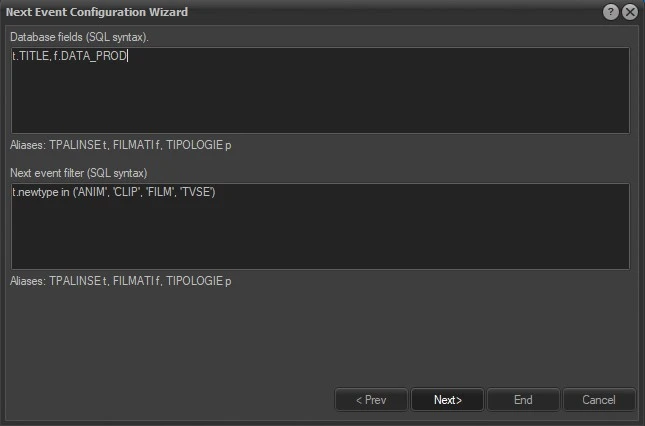
3. In the last step, the wizard shows a summary of the previously selected fields and allows to add manually some more data, like database fields preceded by the proper alias (t for table TPALINSE, f for table FILMATI, p for table TIPOLOGIE) or a custom expression, dividing it from the other fields with a comma. The next event wizard allows also to review and type additional filters for the next event.
next_3rd_step
sec_event_etxg_next
 Executive_editor_secondary_object_current_a
 Executive_editor_secondary_object_current
 Executive_editor_secondary_object_current_search
 Executive_editor_add_secondary_object
 Executive_editor_secondary_object_next
 Executive_editor_add_secondary
 current_1st_step
 current_3rd_step
 sec_event_etxg_current
 next_2nd_step
 next_3rd_step
 sec_event_etxg_next