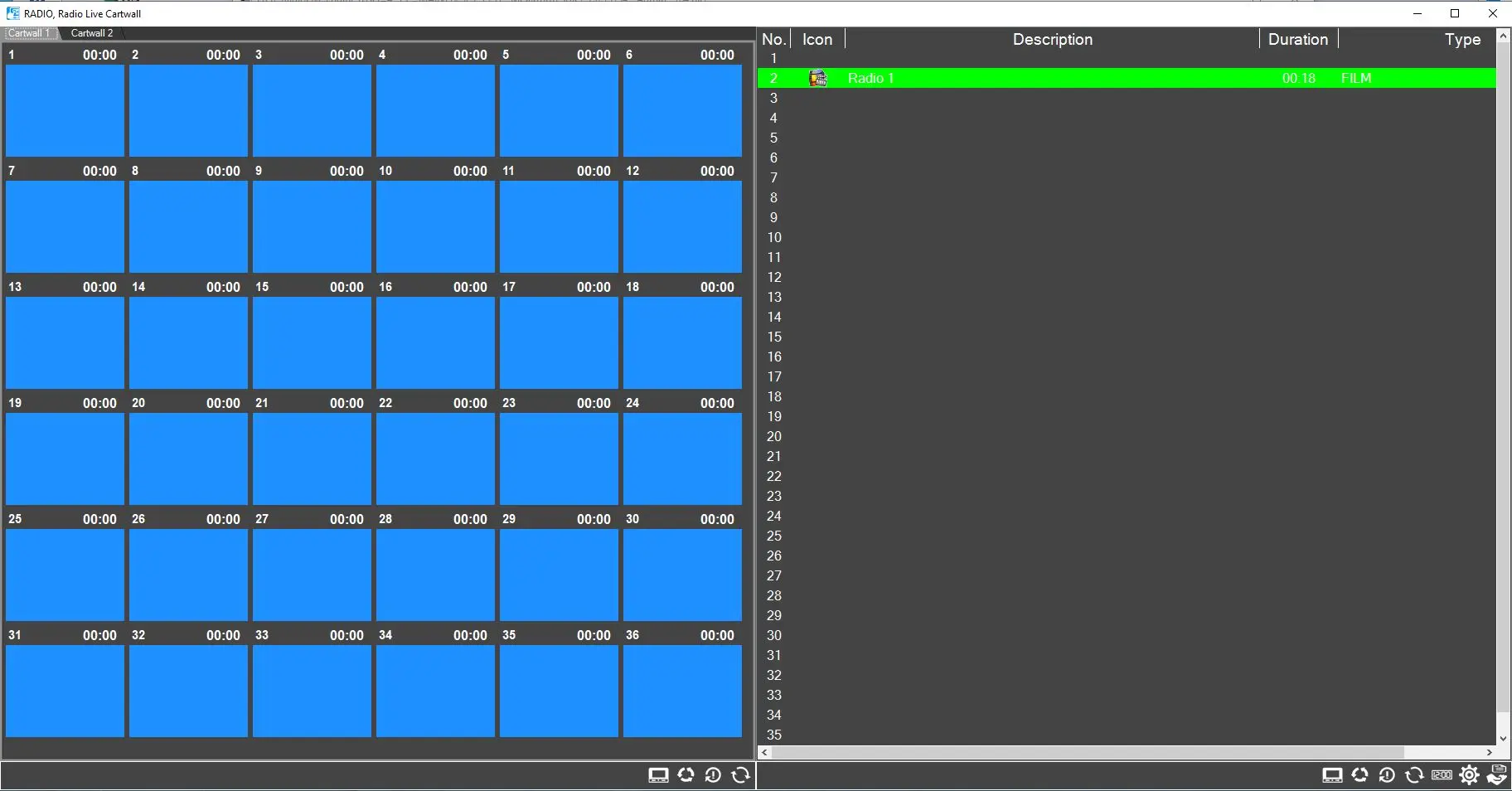
To allow the cartwall usage without all the other Radio Live Playout features, Etere has developed a stand-alone version called Radio Live Cartwall, which inherits the settings from the Cartwall section inside Radio Live Playout.
Radio Live Cartwall GUI
Radio live the following areas make Cartwall's user interface:
rl_cartwall_gui
Remote panel: In the upper section of the application, users can monitor what Radio live playout is playing through the remote panel. It shows the counter, the closest events to the onair one, and the playout commands that can be used to control the playlist remotely. Selecting the main or backup radio buttons, the user can switch the monitoring to one or another playout.
The remote panel can be toggled on and off using the proper button in the right toolbar.
remote_panel_button
Cartwalls: Below the remote panel are displayed the cartwalls configured. This space is split in 2: the left side shows one cart wall as a grid, like the one integrated into Radio Live Playout; another cart wall is displayed on the right side as a list.
Both sides show all the configured cartwalls in the form of tabs.
How to play a file in Player A
By clicking on one of the buttons on the left cartwall, the related file is loaded on player A, right below the grid. Once the file is in play, the bar above the button becomes green and yellow when paused. Clicking on the timecode, it's possible to pause the file playing and reproduce it frame by frame.
How to play a file in Player B
To load a file from the right cartwall, the user can right-click and select Load on Player B or double-click it.
In the contextual menu, users can also choose the size of the icons in the list (and, therefore, the height of the rows) and refresh the cartwall's list.
Players: This space is dedicated to the players, each placed below the related cartwall.
Players can be shown or hidden using the toolbars' buttons Player A and Player B. They are identical and can be controlled using Play\Pause, Frame+1 and Frame-1 buttons.
playerab_buttons
Toolbars: This module has 2 toolbars in the lower part of the window, one on the left and one on the right. These are the buttons available:
- Waveform: Generate and display the audio waveform of the file. The time to generate it may vary according to the length of the file.
- Player A/B: Show or hide the related player.
- Loop: Allow the related player to play the file in the loop.
- Reset player A/B: Unload the file currently loaded or in play on the related player.
- Refresh Updates all the configured cartwalls on both views, loading the last changes done on Radio Playout.
- Remote Panel: Show or hide the remote panel on the upper part of the window.
- Parameters: Open the parameters window (see below for additional info).
- Save logs: Open the save logs form.
Parameters
The Radio Live Cartwall parameters are divided into 2 tabs:
Cartwall grid view
params_gridview
Player A - Audio OUT: Choose the device for the audio output.
Player A - Axia Livewire: Enable it if there is Axia Livewire installed in the system and it's used to manage the audio output. Specify the IP address, port where the software is installed, and the GPI that should be controlled.
In the same way, the EmBER+ flag can be enabled to support devices that use this protocol, and the following settings are needed:
- Gpi ONAIR trigger, Play and Stop: when the dedicated Radio Playout button is pressed, Etere plays the selected event on the preview (Trigger), opens (starts) the fader channel set in Audio OUT once the gpi command is received (Play), close (stops) the fader channel set in Audio OUT once the gpi command is received (Stop).
Note: leaving the Gpi ONAIR forms empty is preferable if the user wants to use only mixers.
- Gpi PFL trigger, Play and Stop: when the dedicated mixer button is pressed, Etere plays the selected event on the preview (Trigger), opens (starts) the fader channel set in Audio OUT once the gpi command is received (Play), close (stops) the fader channel set in Audio OUT once the gpi command is received (Stop).
Columns: The number of columns of the cartwall's grid.
Flow direction: The order of the buttons in the cartwall. Selecting Left to the right, the button's number will increase horizontally; with a Top-down option, it will increase vertically.
Cartwall list view
params_listview
Player B - Audio OUT: Choose the device for the audio output.
Player B - Axia Livewire: Enable it if there is Axia Livewire installed in the system and it's used to manage the audio output. Specify the IP address, port where the software is installed, and the GPI that should be controlled.
In the same way, the EmBER+ flag can be enabled to support devices that use this protocol, and the following settings are needed:
- Gpi ONAIR trigger, Play and Stop: when the dedicated Radio Playout button is pressed, Etere plays the selected event on the preview (Trigger), opens (starts) the fader channel set in Audio OUT once the gpi command is received (Play), close (stops) the fader channel set in Audio OUT once the gpi command is received (Stop).
Notes: leaving the Gpi ONAIR forms empty is preferable if the user wants to use only mixers.
- Gpi PFL trigger, Play and Stop: when the dedicated mixer button is pressed, Etere plays the selected event on the preview (Trigger), opens (starts) the fader channel set in Audio OUT once the gpi command is received (Play), close (stops) the fader channel set in Audio OUT once the gpi command is received (Stop).
Columns selection: In this table, users can choose which columns should be shown or hidden in the cartwall list view.
Restore default values: This button is available in both tabs and allows resetting the related tab's settings to default.