17.3.1 Preliminary configuration
Some configurations need to be done before starting to use Etere Music Manager.
Radio Live Flexi-metadata
RL_flexi
These metadata are created by system maintenance, but to be used in asset forms, they must be enabled from Etere Configuration > Settings > Flexi-metadata and inserted in a tab through the Flexi-metadata editor.
RL_flexi_editor
Associate Radio Live Flexi-metadata to a type
To see the Radio Live metadata only in the Radio Live assets, they must be associated with the type to which those assets belong.
The example below shows the type of MUSIC ASSET the Radio Live assets use. We enabled the Song property and associated the RL MUSIC DATA with the type through the Additional Data tab.
song type_additional data
Add artists and genres
Radio live assets can also be scheduled according to the artists and genres associated with them.
For more information about how to manage artists and genres, refer to the related chapters in WEB APPS > System.
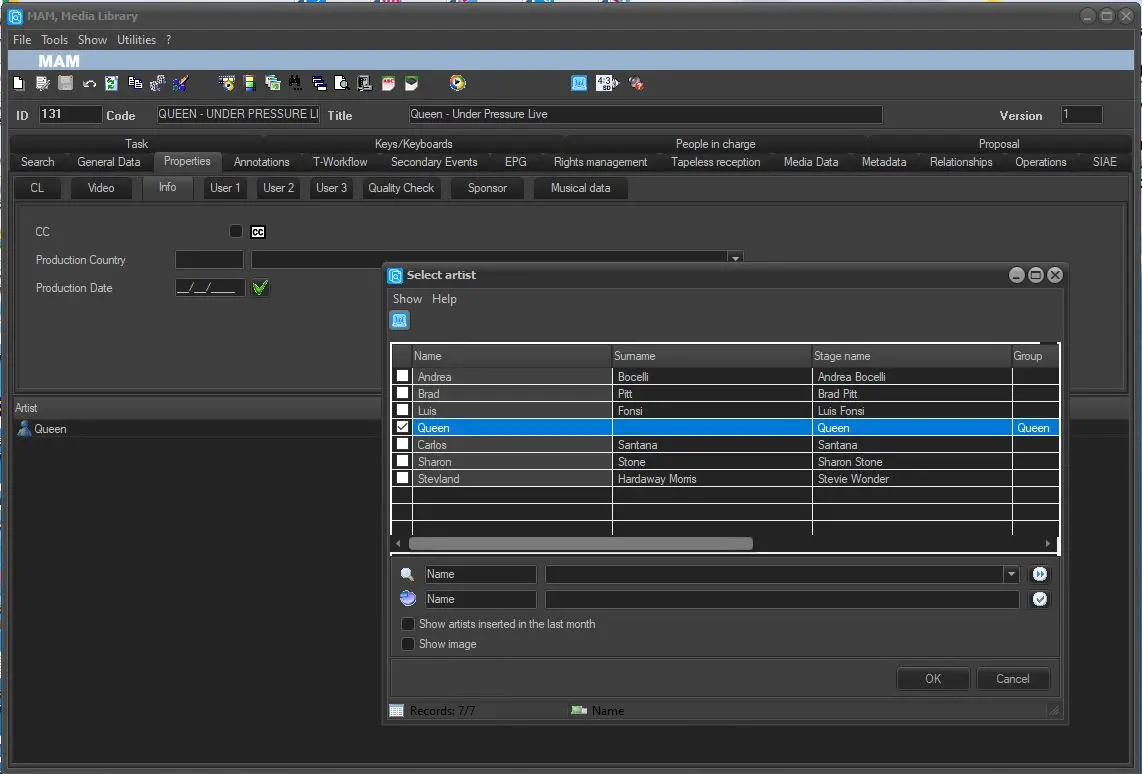
Once these steps are done, the metadata will be visible in the Media library, and it will be possible to add artists and genres, as shown in the images below.
medialib_metadata
medialib_genre
medialib_artist
Schedule structure
The Music Manager module needs a pre-made structure to schedule the assets automatically. This structure has to be made from Air Sales > Weekly Schedule module and Air Sales > Block Editor.
With Block Editor, users can create new blocks and fill them with new segments. The templates created with Music Manager (see the related chapter for reference) need to be associated with the segments to apply the rules enabled in the template. The rules are applied to the template, and the template is used for the segment.
With Weekly Schedule, the user can build the structure of the scheduled day using the previously created blocks. This will be the structure loaded by the Music Manager just before the publishing.
Refer to the proper chapters in the Air Sales module for more information about Block Editor and Weekly Schedule.
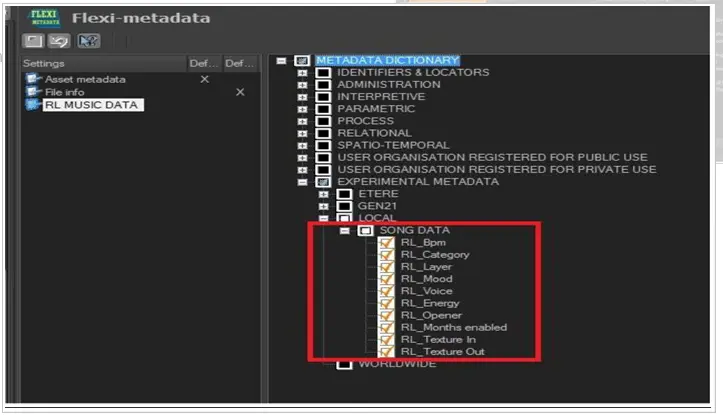 RL_flexi
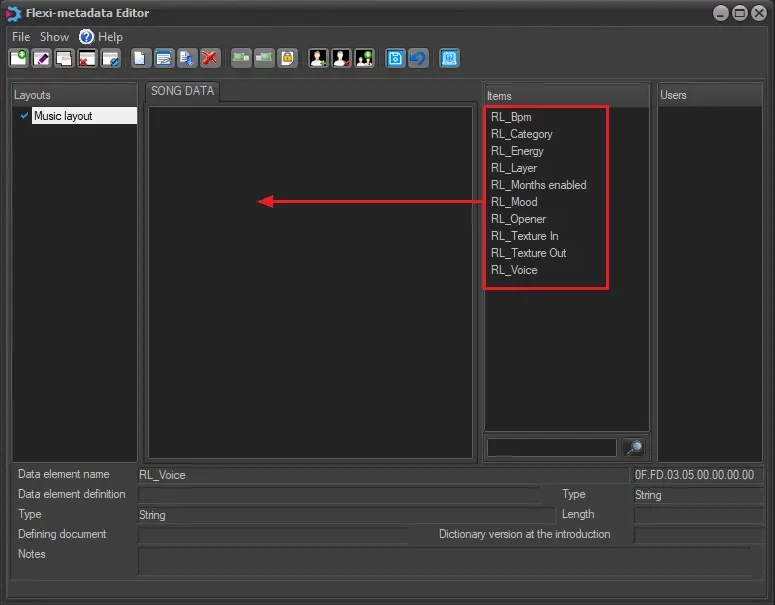 RL_flexi_editor
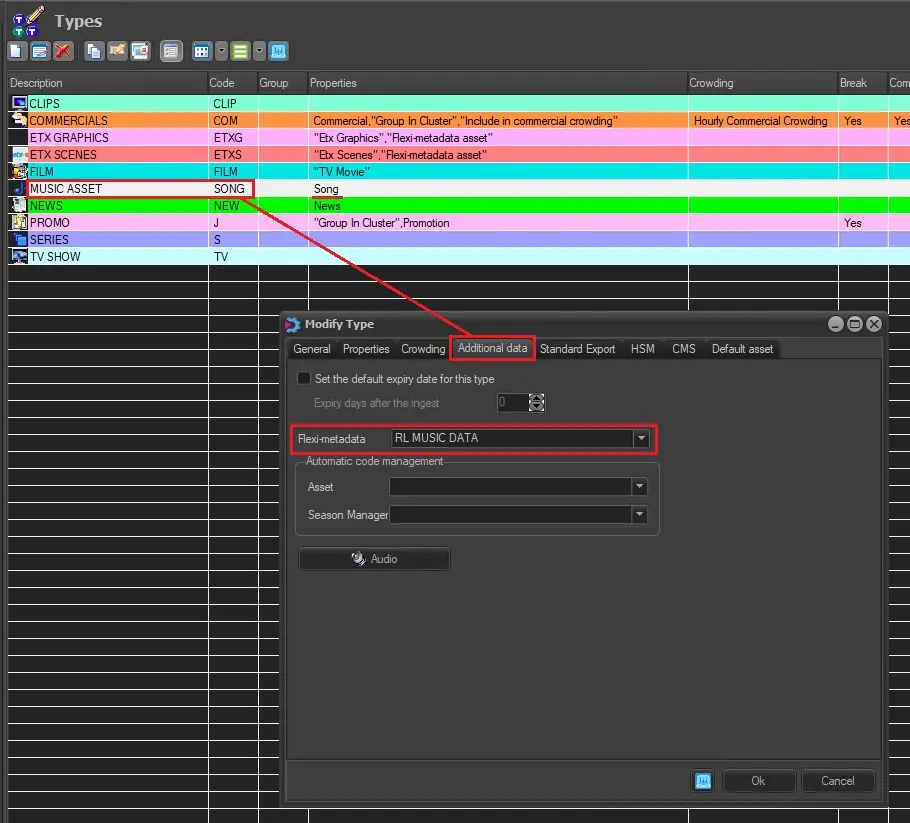 song_type_additional_data
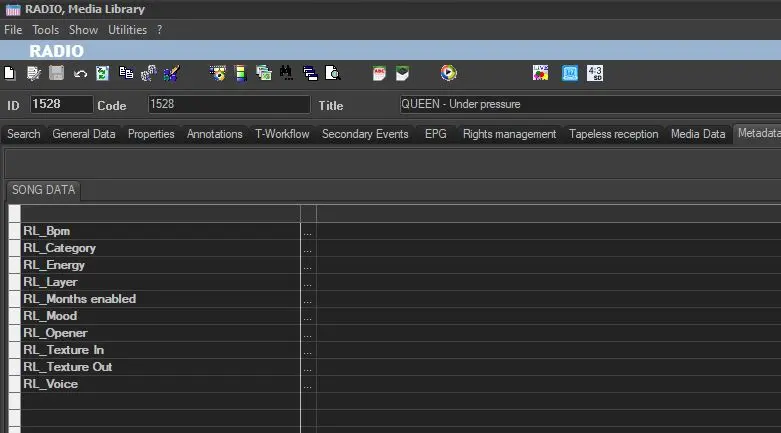 medialib_metadata
 medialib_genre
 medialib_artist