59.2.40.23 Synchronized Playlists
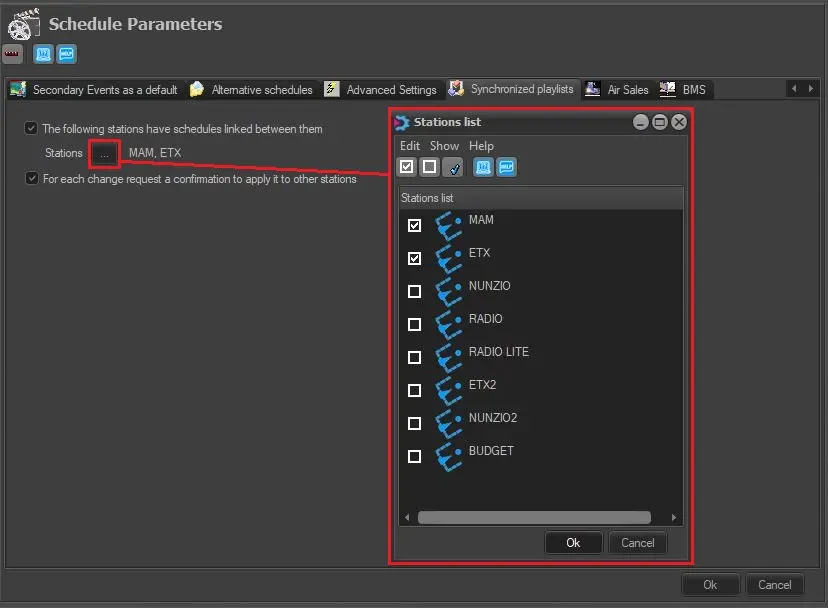
In the Synchronized playlists section, it's possible to set the stations which schedules are linked between them.
synchronized_playlists
Available options include:
• The following stations have schedules linked between them:
Enable this option to activate the multichannel mode for the scheduling of events; you can click on the Stations icon to select the stations in which scheduled events will be mirrored.
Note: In station selection form, only stations yet to be linked are displayed.
• For each change, request a confirmation to apply it to other stations:
When this option is enabled, you can synchronise the playlist between 2 stations with similar events in the majority and send a confirmation to effect the synchronisation. This option is particularly useful when:
- The scheduled events have flexible time delay
- There's the need to manage a regional playlist with different advertising and local news
If this parameter is configured in the Master station in a controlled environment, no confirmation is required when synchronising the playlist from the Master station to other stations. In the Master and Client setup, when an event is linked in the Master station, all changes to the event would be copied to the client station, but not viceversa. Note that event must be inserted BEFORE a common (linked) event.
Etere Scheduling needs to be restarted to load the new configuration once configured.
Alternatively, you can use the Copy Automation Schedule function in Scheduling > Utilities menu to copy all scheduled events (primary events, including all associated secondary events and logos), within a specific date or range of dates, from the source channel to target channel, by specifying the copy criteria.
Refer to chapter 84.6.1.0 Copy automation schedule for more detailed information.
 synchronized_playlists