59.2.32.6 Video Routers - Configuring a Virtual Router
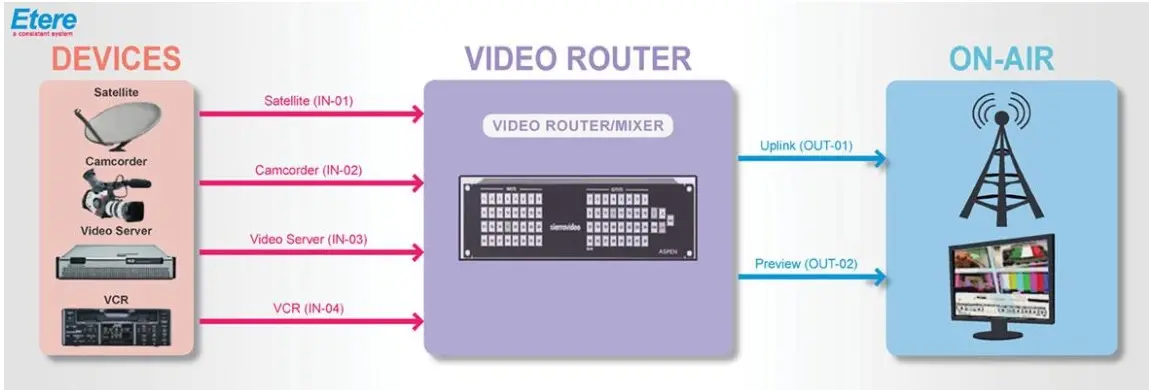
A virtual router is a software solution that permits pairing multiple channels from different physical routers into one "virtual router". The use of a virtual router allows connecting one virtual source/destination to multiple sources/destinations (e.g. Video, Audio, GPIO), when a switch is performed on the virtual router, all related channels will be simultaneously switched.
A virtual router can feature many switches as required, each virtual switch is able to trigger multiple switches across the various physical routers, you can also specify the exact layers to be switched as well as includes the secondary switches.
Once the resource(s) related to the virtual router (and its managed sub-routers) has been created, it can be configured under Etere's Configuration > Settings > Devices > Video Routers section as described in the following procedure:
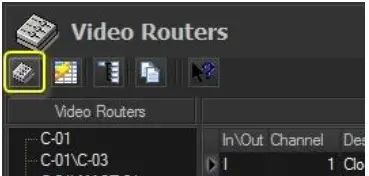
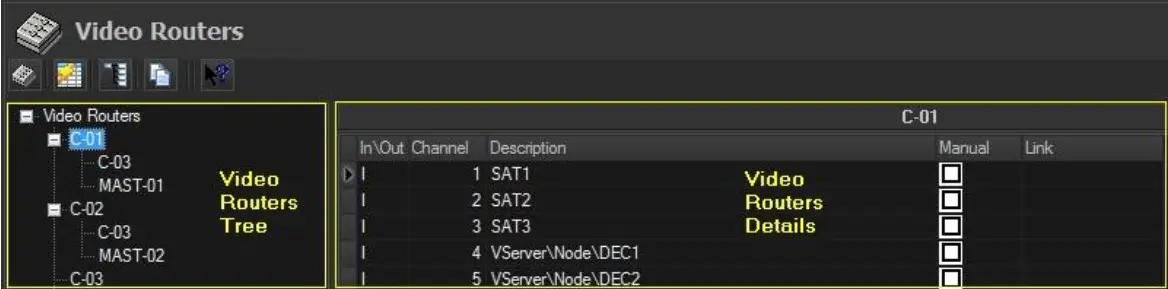
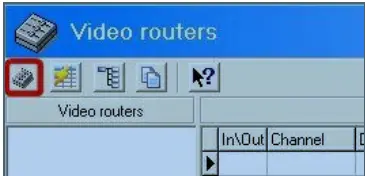
1. First of all, press the [Update routers table] button to refresh the list of routers. The list of routers has been updated including all routing devices previously configured in the resources:
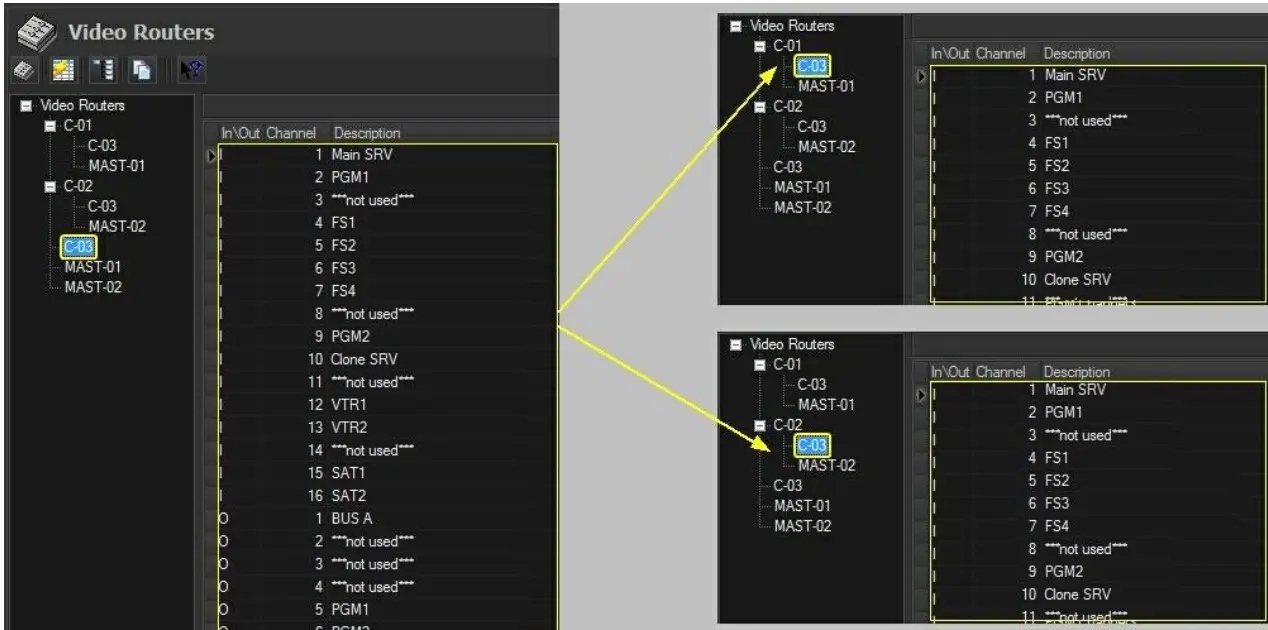
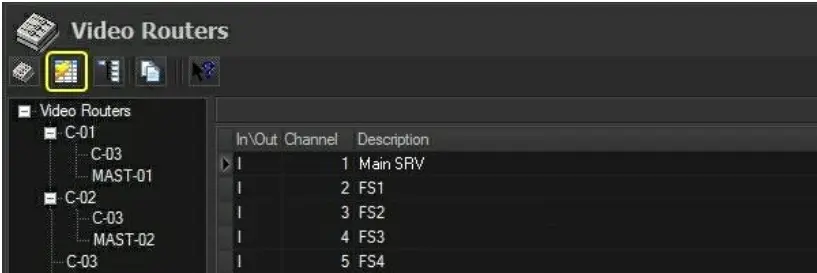
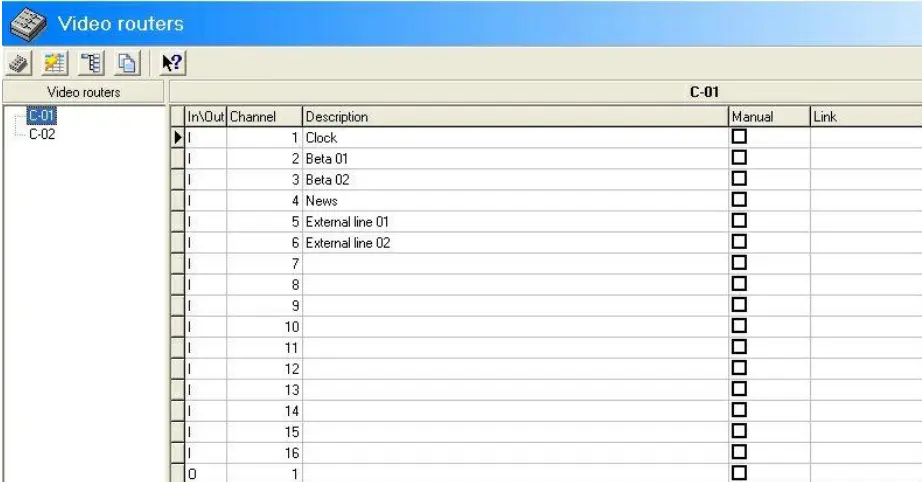
2. All channels descriptions of physical router will be displayed in the "virtualized" instance. If no description was inserted, enter the description on the physical router or its "virtualized" instance:
NB: Descriptions entered on physical routers (e.g. C-03) w ill be automatically extended to its "virtualized" instance (w ithin the virtual router), and vice versa.
3. Click on the [Virtual Router Editing] button (located in the toolbar) to start configuring the properties of the virtual router:
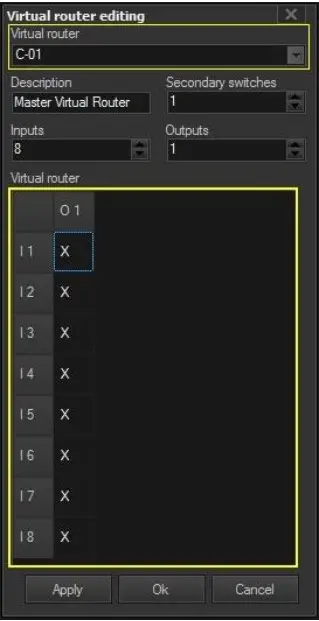
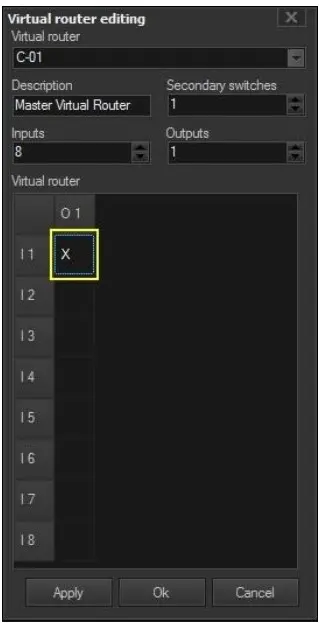
4. A configuration window allow editing the properties of the virtual router:
- Description: Insert a brief description for the virtual router. For instance, indicate the name of the channel's feed.
- Sec. switches: Set the number of secondary switches to be managed in addition to the main switch.
- Inputs: Set the number of incoming (source) channels (e.g. 8) to be managed by the VR.
- Outputs: Set the number of outgoing (destination) channels (e.g. 1) to managed by the VR.
- Virtual Router Table: The Virtual Router table is essentially a crosspoint table where all multiple switches managed by the virtual router are defined.
For all virtual switches (e.g. I1, O1) it is possible to define a main switch and various secondary switches (to be concurrently performed), every main/secondary switch will allow to:
· Set one switch (in->out) for each physical router within the virtual router.
· Select the layers (L1, L2...) to which the switch will be applied (e.g. audio, video, etc).
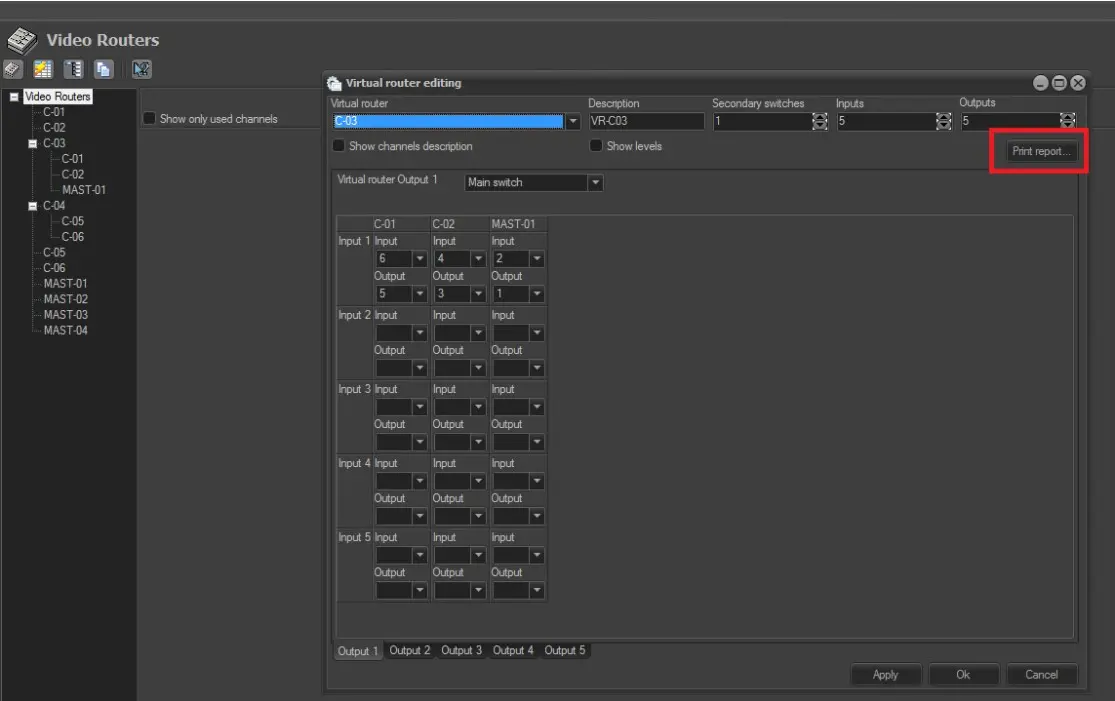
5. In the Virtual Router Table, double-click on a cell (e.g. I1,O1) to define the main switch (and eventual secondary switches) to be triggered when virtual switching occurred:
For example, it's possible to set one virtual switch (e.g. I1, O1) to perform all the follow ing physical sw itches:
(1,1) Main switch Router1 (C-03): input 1->output 2 Router2 (Mast-01): input 2->output 1
(1,1) Secondary switch Router1 (C-03): input 3->output 1 Router2 (Mast-01): input 2->output 1
Practical examples on how to set virtual switches can be found in the "Use Cases for Virtual Routing" chapter.
6. All configured switches will be marked with a "X" whereas switches not-configured would remain blank. Continue configuring all switches and then press the [OK] button:
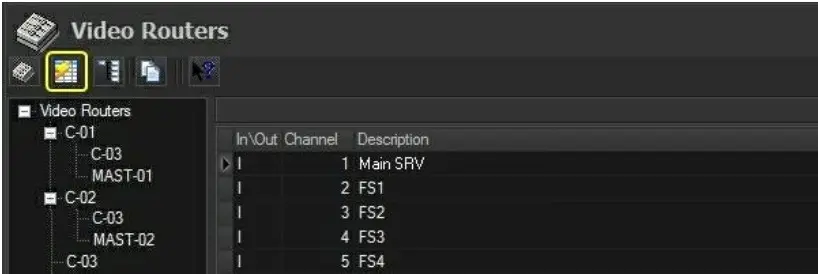
7. Press the [Update routers table] button to update all changes made to the virtual router (e.g. added inputs/outputs):
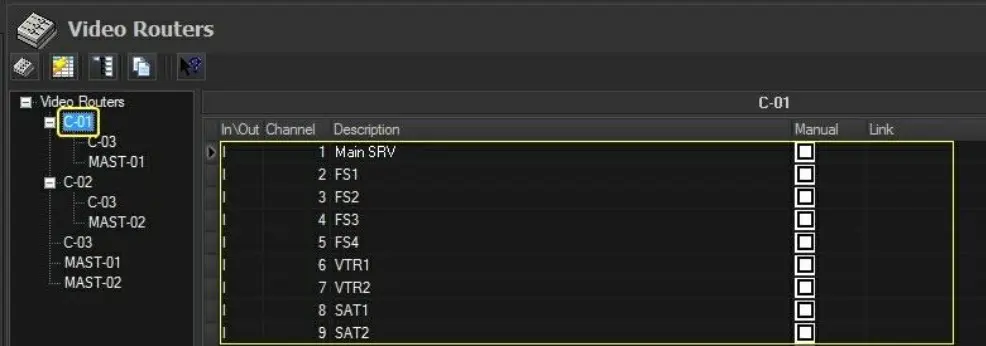
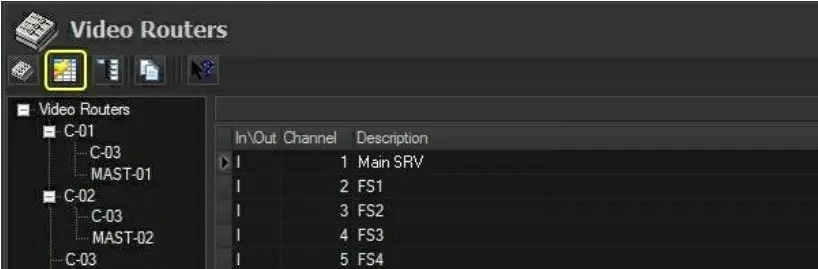
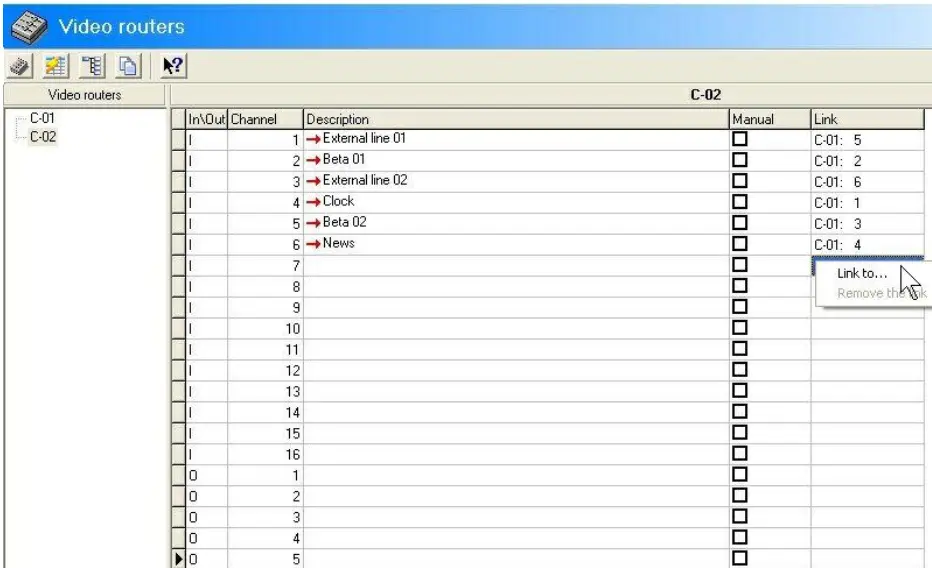
8. Enter a description for the in/out channels of the virtual router to facilitate their future identification:
Note: In case your system has a redundant automation deployment, the channels of the clone virtual router must be connected to the corresponding ones in the master virtual router to enable a parallel sw itching. See "Connecting routing channels"
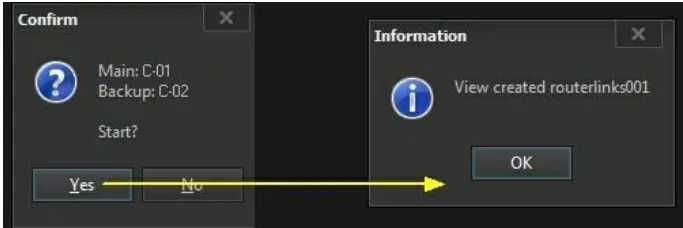
9. Press the [ Create table] button to update the virtual router (and its added video-routers and/or master-controls) into the routing table:
NB: Please consult the "Generating the Routing Table" chapter for information on the requisites for creating a routing table.
10. At this point, the virtual router (and its linked routers) is ready to be used.
Each station can create as many virtual routers as needed, for instance, 2 virtual routers for the main and clone automations:
Main Virtual Router (C1) > Master Control (MTX MC1) - Video Router (C3)
Backup Virtual Router (C2) > Master Control (MTX MC2) - Video Router (C3)
Follow the procedures described below to create a new virtual router:
1. Open the Etere's Configuration > Resources module, press [Add Resources] and select the virtual router(s) from the Video Routers category:
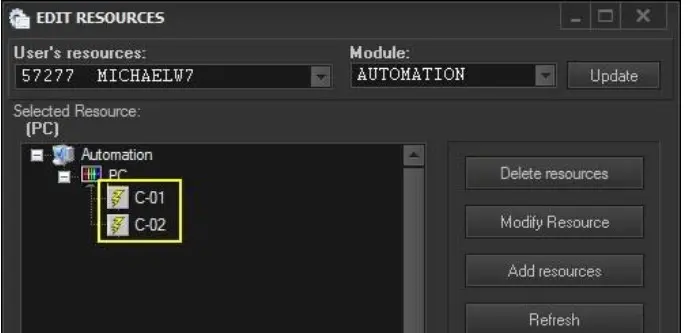
2. Give the resource(s) a name (e.g. Master Virtual Router), the driver would be automatically set to VRouter (virtual routeR). Confirm the creation and the resource(s) will be added into the Resource's tree:
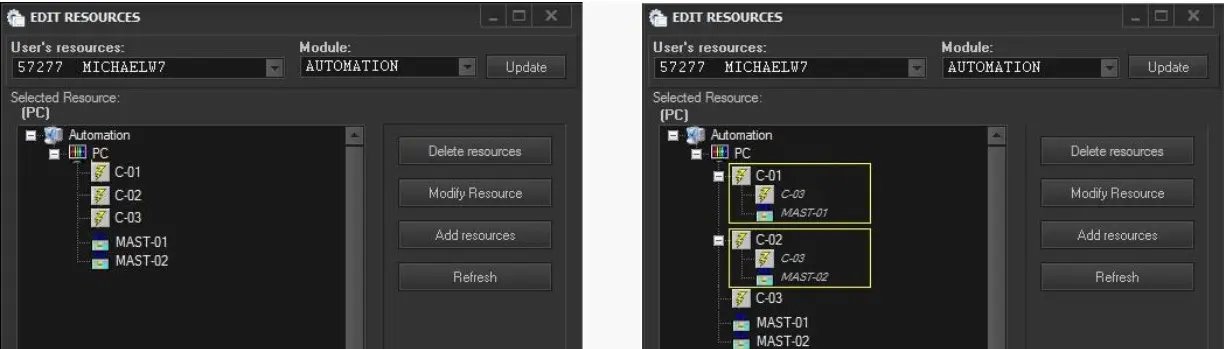
3. Create the physical routers (e.g. Quartz, MTX MC, etc) to be managed by the virtual router; then, drag and drop them into the virtual router as shown in the figure below (they will be added as "linked resources"):
Note: The follow ing considerations must be taken into account w hen dragging and dropping routing resources (video router, master control) into virtual routers:
· Routing resources are not directly added to virtual routers, but only a linked version of them
· A routing resource can be used for more than one virtual router
· Linked resources cannot be modified, changes must be performed to the original routing resource
· Wrong linked resources can be removed from the virtual router by right-clicking on them and selecting "delete"
· Besides the virtual router, also linked resources (not original) need to be assigned to the automation
4. Assign the virtual router and its linked routers (e.g. Quartz and MTX MC) to the automation by selecting each resource, pressing the [Users] button and adding the "automation" or "automation clone" users(s):
5. At this point, follow the instructions stated in the Configuring a Virtual Router chapter for configuring the virtual router (and its managed sub-routers).
The virtual routing features of Etere provides stations with flexibilities for managing their routing switches, this chapter list the most common examples where using virtual router helps improving the routing operation:
USE CASES
A virtual router makes possible to automatically switch a backup router in parallel to a main routing device (e.g. master control), providing user a second output signal to be used in case the primary signal fails. The Virtual router's configuration allows a master control to be configured as main switching device, and a normal router as backup device as shown in the diagram below.
For example, if a television station uses one master control (e.g. MC1) which inputs are connected to a two video routers (e.g. C1 and C2) for redundancy, a virtual router allows to concurrently switch signals coming from the main router to the master controls, if one master control fails the other master control could take over.
virtual router diagram 1
Virtual Router: 8 inputs x 2 outputs
Virtual Switch: (1 , 1) main switch > MAIN A(input 3 -> output 1); BACKUP B(input 3 -> output 1)
Virtual Switch: (1 , 2) main switch > ... ...
A virtual router enables the creation of a "new router" that features only a custom set of channels (e.g. actually used by the station, allowed for specific users). This implementation is useful, for example, create a simple router featuring a limited set of route points (only those actually used, excluding all unused channels) and thus improve the use of channels by operators:
virtual router diagram 2
Virtual Router " A" : 5 inputs x 1 output
Input 1 Output 1 main switch > A(input 1 -> output 1)
Input 2 Output 1 main switch > A(input 2 -> output 1)
Input 3 Output 1 main switch > A(input 4 -> output 1)
Input 4 Output 1 main switch > A(input 6 -> output 1)
Input 5 Output 1 main switch > A(input 9 -> output 1)
A virtual router improves the switching capabilities of the router, defining individual virtual switches to trigger multiple switches across one or more router. The diagram below illustrates a virtual router formed by 3 physical routers, configured with 10 virtual inputs and 2 virtual outputs, enabled with a main virtual switch (for main devices) and a secondary switch (for backup devices):
virtual router diagram 3
Virtual Router : 10 inputs x 2 outputs
 virtual_router_configuration_window
 virtual_router_creation_2
 physical_routers
 printing_reports
 updates_router_table
 descriptions_extended
 define_switches
 create_table
 description
 configured_switches
 confirm
 create_table
 section
 diagram
 generate_routers_table
 Update_Routers_Table
 link_to
 naming_channels