59.3.12.1 User Permissions
Introduction
Etere bases its management of user permissions on the authentication method specified in the Etere Configuration > Settings > Basic > System section; it permits you to identify users that access the system through one of the following authentication methods:
Windows - Users are identified within Etere through the name of the Windows user currently logged into the PC during their access. In this case, managing as many user accounts as Windows users in your domain (i.e., Active Directory) will be possible.
SQL Server - Users are identified within Etere through the name of the SQL Server user automatically or manually specified during their access. In this case, managing many user accounts as set in your SQL Server will be possible.
The User Permissions Structure is composed of groups and users defined in the Etere system through any of the following ways:
By the admin (manually) - The system administrator manually creates groups and users according to the company organization by creating new personal data entries specifying -at least- its code (for persons) or company name (for corporations).
Note
If your system doesn't use an Active Directory, you can create a manual structure using this method.
By the system (automatically) - Each time an operator accesses the Etere system through any of its various modules, the following users are created depending on the authentication method set in the System Settings:
•Windows user: In this case, only one new personal data entry will be automatically created featuring the MS Active Directory's login name as the code (displayed as username in the Rights section).
•SQL Server user: In this case, two new personal data entries will be created, a 1st one featuring the MS Active Directory's login name as the code and a 2nd one featuring the MS SQL Server login name as the code.
By an import (automatically) - The system administrator launches the "Active Directory Integration" function (see above) to load into the Etere Permission structure all groups and users present in the MS Active Directory.
Note
*The active directory integration must be enabled in Etere installations before Etere 24).
In the new Etere installations, the feature is enabled by default.
Note
Etere highly suggests new systems import an automatic structure and existing systems rebuild -from scratch- their manual structure into an automatic one.
NB: Please note that the Permission Structure can be composed by mixing manually (imported) and manually (inserted) groups and users.
It's worth mentioning that the format with which MS Active Directory's login names are created depends on the installed version of Etere:
Etere version: Etere 23 or higher
Username format: AccountName@DnsDomain
Example: USRNLE13@NLE.MyTV.com
Etere version: Etere 22.5 or lower
Username format: AccountName
Example: USRNLE13
NB: Since Etere 23, users are identified in the system (e.g. for user permissions) by their Windows login. In previous Etere versions, identification was performed depending on the authentication set in the system settings (Windows or SQL).
Management Interface
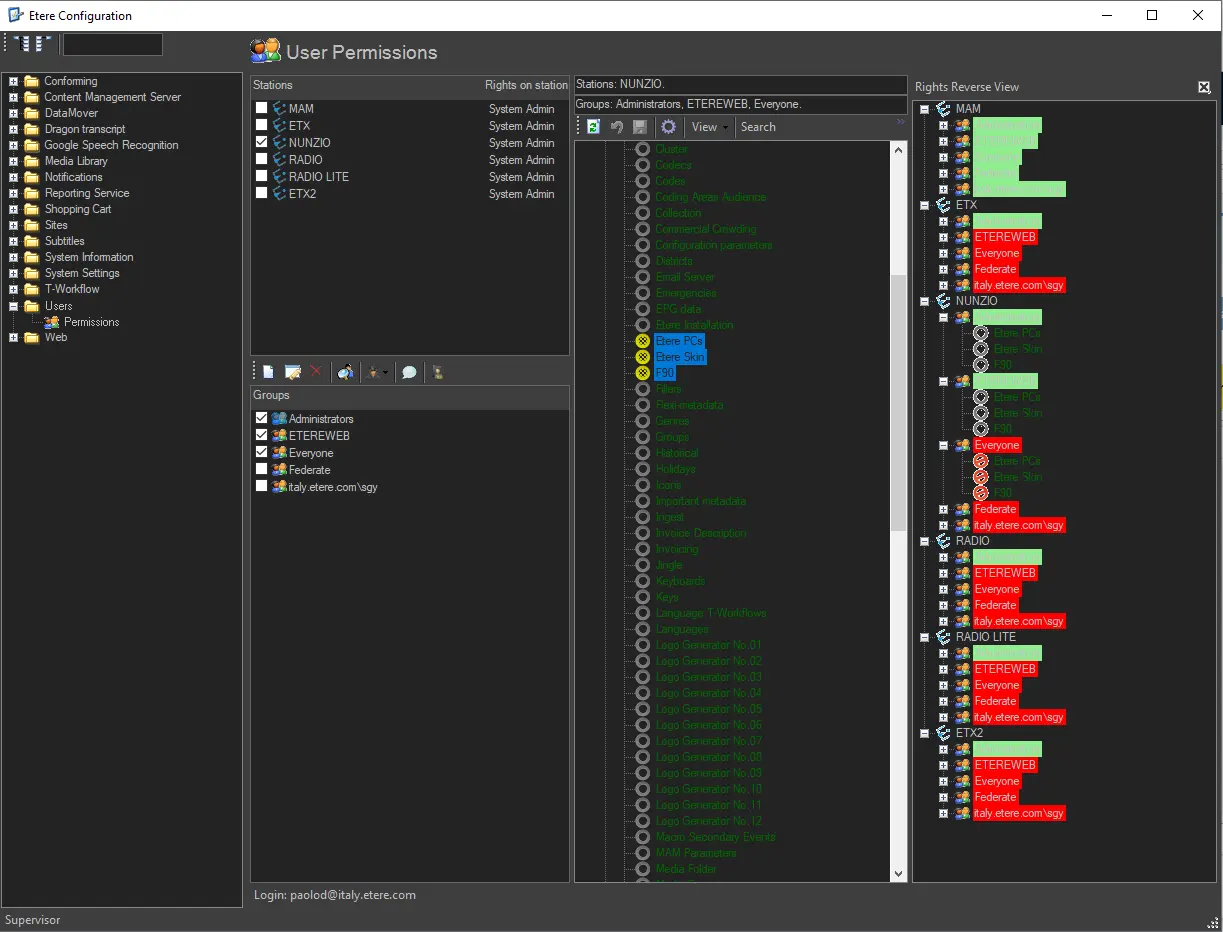
The User Permissions section allows the configuration of the user permission (set by groups) on which the main functioning of Etere is based. His section has been divided into three panels to allow easy management of the user permissions that will allow a group of users to access a specific feature under a certain station:
user_permission
(1) Stations
Located in the upper left of this section, this panel will list all stations making part of the Etere system and on which rights can be applied simultaneously or separately.
(2) Groups and Users
This panel, situated in the bottom left of the section, allows you to select the group of users to which a specific right will be granted or denied. Groups present in this section can be managed by using the following functions:
Function- New
Description: Create a new empty group featuring a user-defined name.
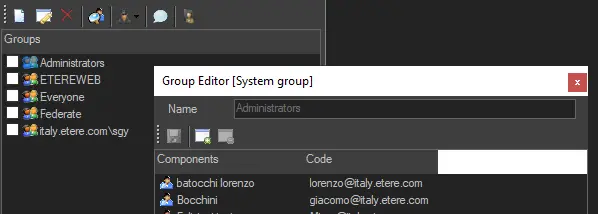
Function- Edit
Description: Either Add or Remove users (multi-selection is enabled) from the selected group, being possible to add the same user to more than one group (i.e. to extend his set of granted rights):
Add_or_Remove_users
Function- Remove
Description: Delete all selected groups permanently.
Function- Search by component
Description: Search for a specific user and highlight the group(s) to which it belongs to:
Search_for_a_specific_user
Function- Anonymous user
Description: If disabled (removed), Etere Web will only allow the login of Etere users (i.e. in the personal data database). If enabled (inserted), Etere Web will allow any user to log in (even if not in the private data database) by granting him the same permissions set for the "anonymous" user.
Once inserted, the "anonymous" user is added by default to the "Everyone" group; it is possible to add it to other groups to customize its permissions:
anonymous
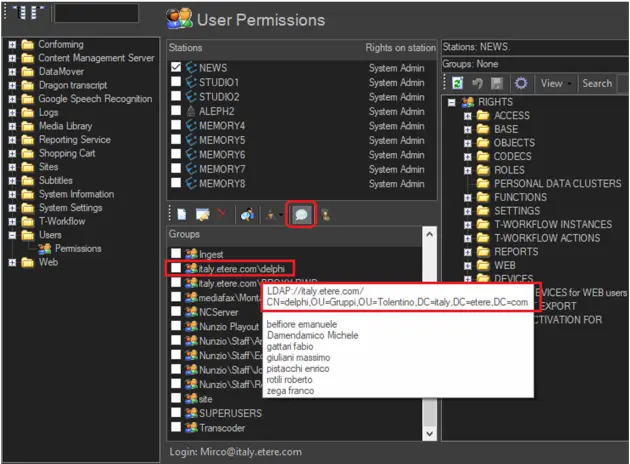
Function- Show balloon
Description: If enabled, every time the mouse pointer overlaps a group, a floating balloon will be displayed, providing information on the users forming part of that group.
If the user group is imported from Active Directory (AD), it contains the LDAP URL, as indicated below.
LDAP_URL
The LDAP URL matches the AD Group to Etere Groups when the option The login process must match with Etere groups to set the correct rights is enabled.
Function- Active Directory
Description: Create a new rights structure by importing groups and users from an Active Directory network.
Note: Detailed information on this function can be found in the Active Directory Integration chapter.
NB: Users managed in this section are inserted manually or automatically in the Personal data database.
(3) Rights
Placed at the right part of the window, this panel contains all permissions managed by Etere divided across specific categories, allowing us to deactivate and activate them. Detailed information on managed rights is available in the Permissions Descriptions chapter.
When deleting user permission from the list, a message with the user permission name (e.g. REPORTS, WEB, etc.) would be prompted to confirm the deletion. If multiple user permissions are selected for deletion, all individual names of each user permission will be included in the confirmation message; you can verify all the set permissions before executing the deletion.
Note
The user permissions system detailed in this chapter has been available since version 21.5 of Etere; from this version onwards, permissions are not set for specific users but for groups of users, thus allowing a more flexible permissions management. Therefore, it is essential to notice that when an Etere system lower than 21.5 is upgraded to a 21.5 or higher version, all formerly user permissions configured in the old system will be converted into individual groups to keep previously configured permissions.
When using SEARCH in User Permission, you can go to the next occurrence using the F3/shift+F3 shortcut to the next/previous item found.
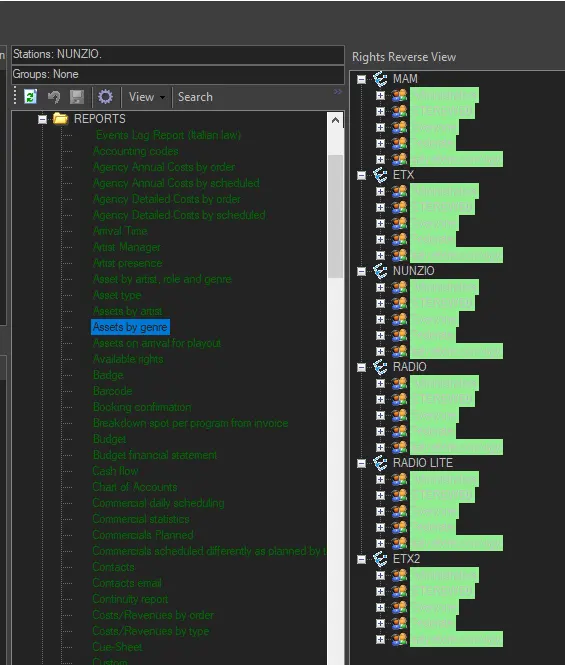
(4) Rights Reverse View
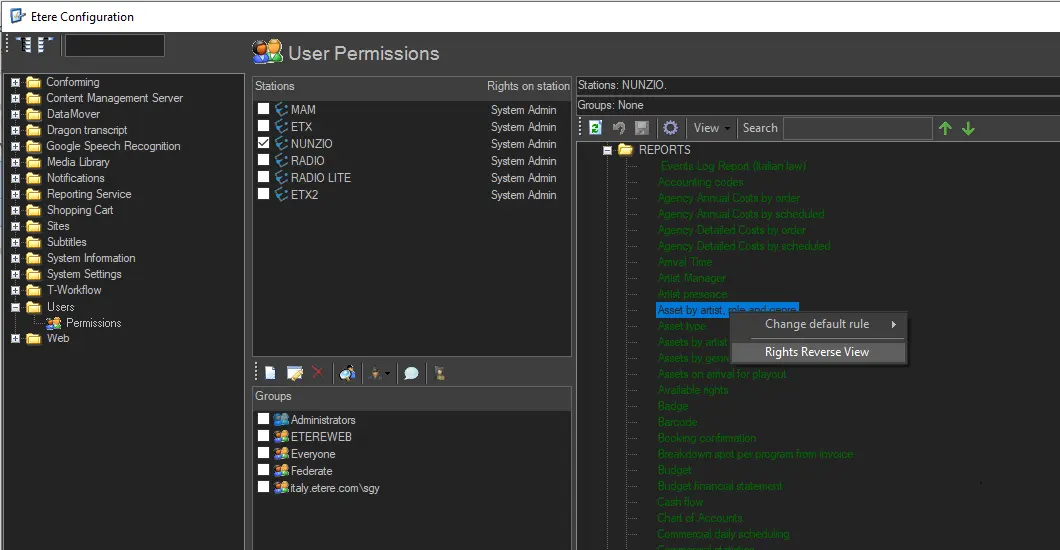
Right-click on one or more rights, and select "Rights Reverse View" from the context menu.
Rights Reverse View is color-coded to show every station/every group's rights status:
- Green background: the group has got all the selected rights;
- Red background: the group has none of the selected rights;
- Yellow background: when more than one right has been selected, the group has only some.
The "group" node can also be expanded to view details on rights management.
To see " group members", right-click on the selected members.
Rights_Reverse_View
Rights_Reverse_View.
 user_permission
 Add_or_Remove_users
 Search_for_a_specific_user
 LDAP_URL
 Rights_Reverse_View
 Rights_Reverse_View.