17.3.4 Scheduling
The Scheduling section is composed of four tabs, explained below.
MUSIC MANAGER (Full version)
As explained in the previous chapters, before starting scheduling, be sure the following steps have been correctly done:
1. The rules have been created
2. The templates have been created, and the rules applied
3. The blocks have been created in Block Editor, and they've been filled with segments
4. The templates have been applied to the segments
5. Blocks have been placed in the Weekly Schedule, and the schedule structure has been built.
General tab
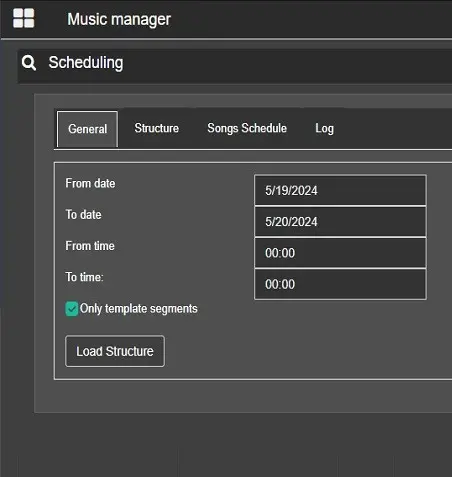
In this tab, the user can choose the day and time range which the schedule should be created for.
Only template segments: With this flag enabled (default), Music Manager will consider only the segments which have a template associated.
scheduling_general
Clicking on the Load Structure button, the view will switch to the Structure tab, described below.
Structure tab
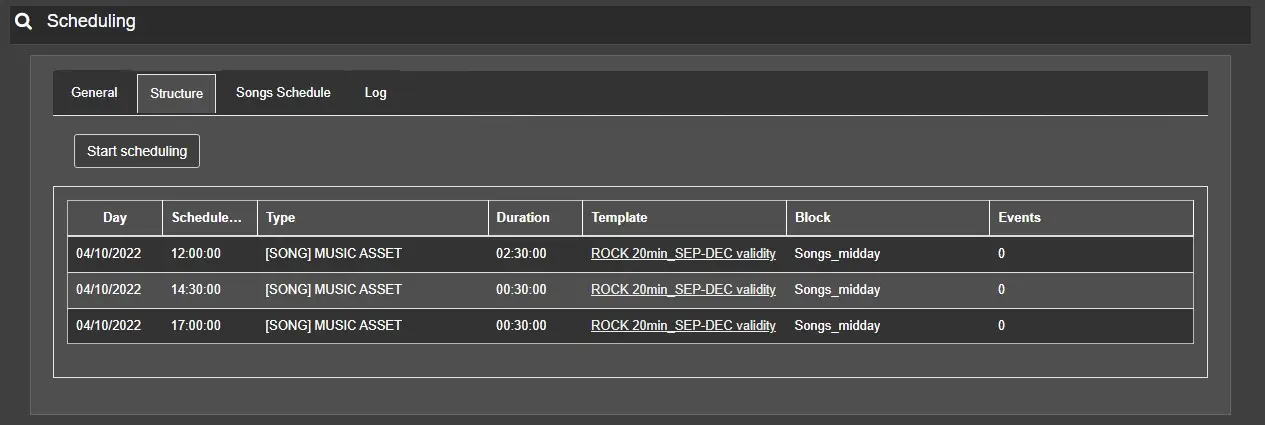
This tab shows the segments where the assets will be placed, according to what has been set in the previous tab.
The table contains different information about them: Schedule day, schedule time, type linked to the segment, duration, template connected, the block where each segment belongs and number of events already scheduled.
scheduling_structure
To proceed and create a preview of the schedule, click on the Start Scheduling button.
Note: if events are already scheduled, they will be removed.
Songs Schedule tab
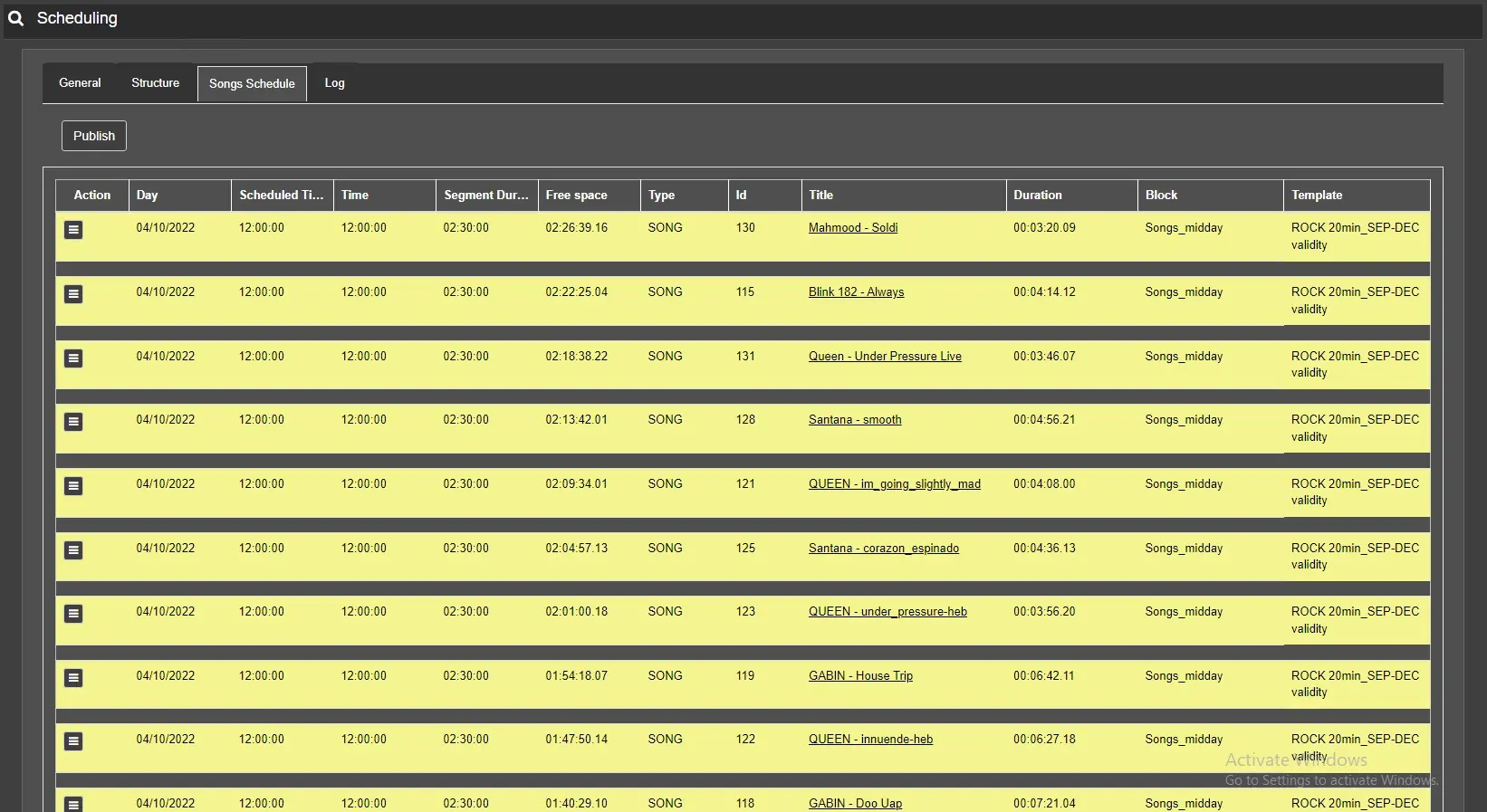
Here, it is possible to see how the schedule will be made before publishing and adding or removing the assets.
In the Action menu, some operations can be done:
Add an asset before Opening the asset search form and allowing another asset to be added above the one selected.
Remove Deletes the selected asset from the schedule.
View scheduled asset: Open an additional form below the asset row showing the scheduled days for the selected material.
The rows will be marked in light red if issues are scheduling those specific assets. Additional information about the errors can be found in the Log tab, explained below.
scheduling_songs schedule
The schedule rows change their colour from green to yellow to red according to the occupation percentage of the segment.
Once the schedule is ready, click the Publish button to create it definitively.
Log tab
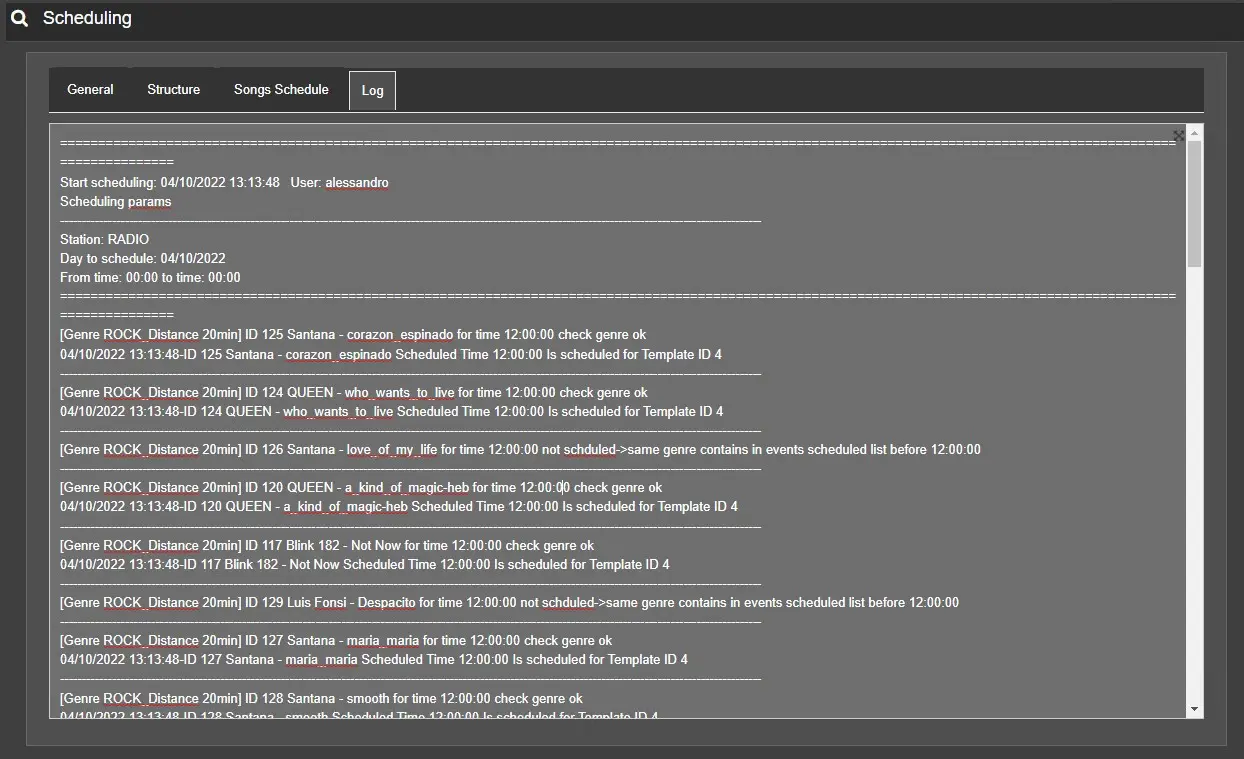
This tab contains information about the scheduling process, indicating the station, the day and time range for which the schedule is created, the connected user who launched the scheduling; the rules check results and the insertion of each asset.
scheduling_log
MUSIC MANAGER (Lite version)
Unlike the full version, Etere Music Manager Lite needs very few parameters to build the schedule, making creating a schedule even simpler.
Of course, ensure the desired rules and templates have been created before scheduling.
General tab
The main parameters to create a schedule with Etere Music Manager Lite are described here.
From-To date: Set the range of schedule days where the Music Manager has to schedule the assets.
From-To time: This will be the time range on the scheduled day where the assets will be placed. This range will be the same for all the days selected in the previous parameter.
Template to apply: Select which template Music Manager should use to create the schedule.
Remove all events in the time range: If this flag is enabled, the Music Manager will delete any event planned in the given date and time range before scheduling.
Once all the parameters have been set, click the [Start scheduling] button and go to the next tab.
Songs Schedule tab
Here, it is possible to see how the schedule will be made before publishing and adding or removing the assets.
In the Action menu, some operations can be done:
Add an asset before Opening the asset search form and allowing another asset to be added above the one selected.
Remove: Delete the selected asset from the schedule.
If the schedule is ready, click the [Publish] button to create the schedule.
Log tab
As mentioned, this tab contains information about the scheduling process, indicating the station, the day and the time range for which the schedule is created. This connected user launched the scheduling, the results of the rules check and the results of the insertion of each asset.
 scheduling_structure
 scheduling_log
 scheduling_songs_schedule
 scheduling_general