Censoring video
58.3.12 View Historic File
You can preview historical video files in the Editor screen. The historical files are stored online for the past 3 hours; you can access the past 24 hours which are stored in the offline media.
Click on the <HISTOR> tile button from the Action pane to launch the historic preview window.
Censormx_load_historic_3
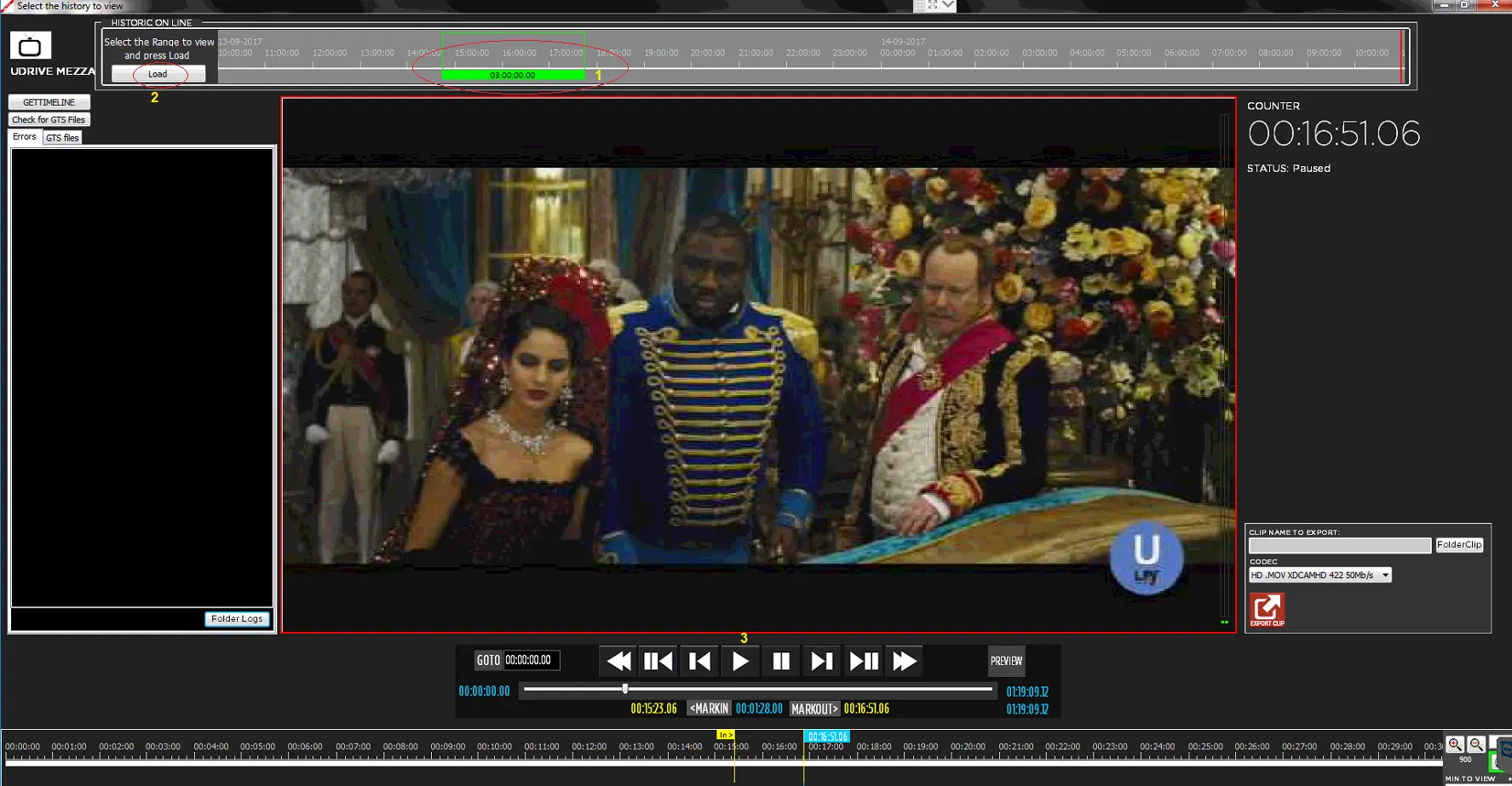
Once the preview window is launched, follow the three simple steps described below to preview any historic video file:
Censormx_load_historic_2
- From the top window, select the timeline to view the historic file by moving the green bar to the left or right of the timeline.
- Once the timeline is selected, click the <Load> button to retrieve the video file. A message would be prompted to notify the number of files loaded for the selected timeline. Censormx_load_historic_4
- Select the historic file and click the <Play> button to preview the video file. The time code of the loaded file is zero-based (00:00:00:00).
WARNING: “Timeout” error will be prompted if the file loading process exceeds 50 seconds.
On the left pane of the historic preview window, you can retrieve historical files stored on the database:
Censormx_historic_gettimeline
- GETTIMELINE: Use this function to retrieve historical files stored online (past 3 hours) and offline (past 24 hours).
- Check for GTS Files: This function check for historical files with error or not recorded files. The files are displayed separately by their type.
- Folder Logs: This function display the folder path where all log files are stored. From Etere released version 28.1 onwards, Log files would be retained for 30 days. When an error occurs, the user is advised to save the Log data as soon as possible (before restarting CensorMX) for investigation purposes.
On the right pane, it provides a function to export the historical file to an external media:
- Censormx_historic_export
- Specify the historical file to export.
- Click the Folder Clip to browse and locate the path.
- Select the codec to be used for exporting the file.
- Click the <Export Clip> button to start the export.
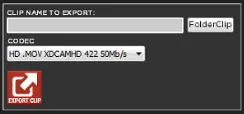 Censormx_historic_export
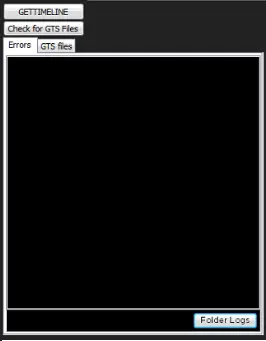 Censormx_historic_gettimeline
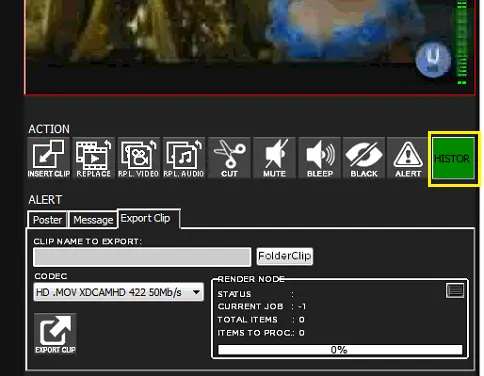 Censormx_load_historic_3
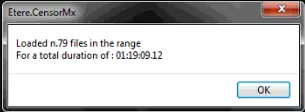 Censormx_load_historic_4
 Censormx_load_historic_2