72.7.4.1 Resource configuration
In order to work, Etere STMan needs the subtitling device to be correctly configured as described below:
1.Open Etere Configuration > Resource Editor and configure the ETX channel in Playout mode or Master Control mode with graphic capabilities enabled for the Broadcast / Automation.
2.From the Channel properties click on "Configure roles" to assign Automation role to the resource.
Configure roles
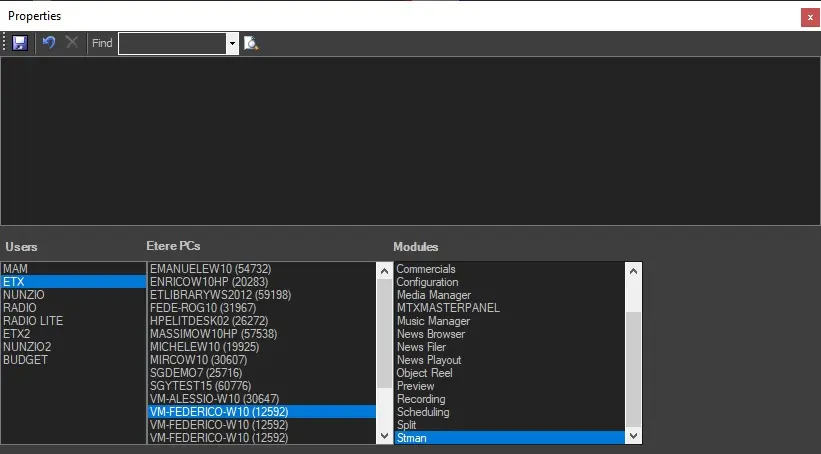
From the properties page, the row “Configure roles” displayed as blank indicate there is no application roles assigned for this specific device. To assign application roles to the ETX resource click on the ETX_PC_Config_Icon icon to open the Properties windows as shown below.
Properties
From the lower panel, select:
•User: select channel or any module where user intend to execute the role.
•Workstation: select a physical workstation to execute the role.
•Modules: select the software modules (e.g. Automation) to be assigned to the workstation.
•Functions: select functions allowed to be performed.
Upon selection, click on the “Save” icon ETX_PC_Role_update to confirm the application roles assignment. The added Automation application roles would be appeared in the top panel. Multiple workstations and application roles can be assigned.
3.Restart Etere Automation for updating the resource's system configuration.
4.Now the subtitler is ready to be used.
 Configure_roles
 Properties