72.2.2.54 Secondary events - GPI
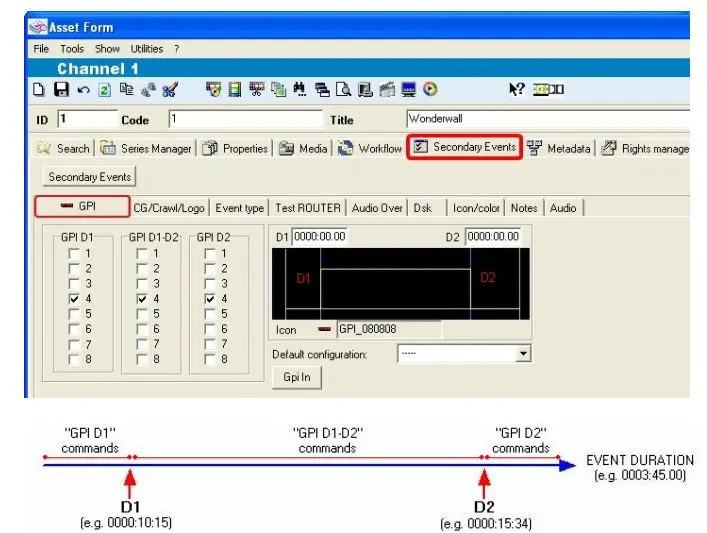
The GPI tab is used to indicate the GPI signals (up to 8) to be activated each time an asset is transmitted, being possible to activate these signal at three different moments of the asset duration:
GPI
GPI D1 - The GPI signals to be activated at the event's start for "D1" mmmm:ss.ff (minutes, seconds and frames).
GPI D1-02 - The GPI signals to be activated between the "D1" and "D2" mmmm:ss.ff (minutes, seconds and frames).
GPI D2 - The GPI signals to be activated at "D2" mm:ss.ff (i.e. minutes, seconds and frames) before the asset's end.
NB: It's worthy mentioning that, in order to activate a GPI for the entire duration of an asset, the GPI signal(s) must be selected under the "GPI D1-D2" column and the D1 and D2 durations must be set to zero.
As shown in the figure above, to each GPI sequence corresponds a unique number generated in the following format:
GPI_[D1][D1-D2][D2] where:
GPI_ - A fixed leading string to indicate that the code is related to a GPI.
[D1] - A hexadecimal number that indicates the enabled GPI's, for example: 00=none; 01=1; 02=2; 03=1,2; 04=03; ...08=4; ...; FF=1,2,3,4,5,6,7,8.
[D1-D2] - A hexadecimal number that indicates the enabled GPI's, for example: 00=none; 01=1; 02=2; 03=1,2; 04=03; ...08=4; ...; FF=1,2,3,4,5,6,7,8.
[D2] - A hexadecimal number that indicates the enabled GPI's, for example: 00=none; 01=1; 02=2; 03=1,2; 04=03; ...08=4; ...; FF=1,2,3,4,5,6,7,8.
For instance, the code GPI_080808 (used in the figure above) indicates that the sequence is related to GPI's D1=4, D1-D2=4 and D2=4.
Associating GPI signals to Automation Controls
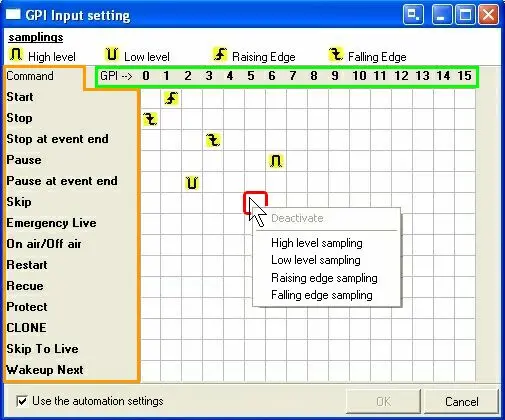
The [GPI IN] button allows to associate GPI signals to automation commands that will be executed during the event playback, this by configuring the GPI Input Setting properly.
As shown in the figure below, the GPI Input Setting window is a form that represents the various GPI inputs as columns (i.e. 1, 2, 3, etc) and the automation commands as rows (i.e. start, stop, etc), thus allowing to associate commands to inputs just by right-clicking on the related square and setting the proper signal:
GPI Input Setting
NB: Not all commands supports both level and edges samplings, for example, the "stop" command can be executed only at a certain edge transition (raising or falling) but not with a continuous level (high or low).
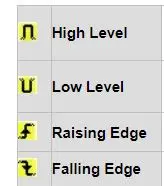
The following types are supported for the interpretation of GPI signal:
GPI signal
High Level - Commands will be executed on the up signal edge and will be active as long as the signal remains high (i.e. 1), then, when the signal goes down the command will be deactivated.
Low Level - Commands will be executed on the down signal edge and will be active as long as the signal remains down (i.e. 0), then, when the signal goes up the command will be deactivated.
Raising Edge - Commands will be executed on the up signal edge (i.e. at each positive transition, for example, 0 -> 1).
Falling Edge - Commands will be executed on the down signal edge (i.e. at each negative transition, for example, 1 -> 0).
NB: The high and low levels are suggested for continuous signals, for example, heartbeats; whereas, the raising and falling edges should be used for intermittent signals, for example, triggering.
Note
In case the 'Use the automation settings' parameter is enabled as by default, Automation will use its default GPI configuration (Automation > Settings > Automation control); otherwise, if disabled, Automation will use the configuration specifically set here for the current asset.
Disabling this parameter is useful to set custom configurations for assets (e.g. avoid skip commands).
If the 'Use the automation settings' parameter is disabled by user (to define a custom setting) but no GPI is activated a fuchsia icon will be displayed as a warning. (activated GPIs are displayed with a blue icon)
GPI Icons
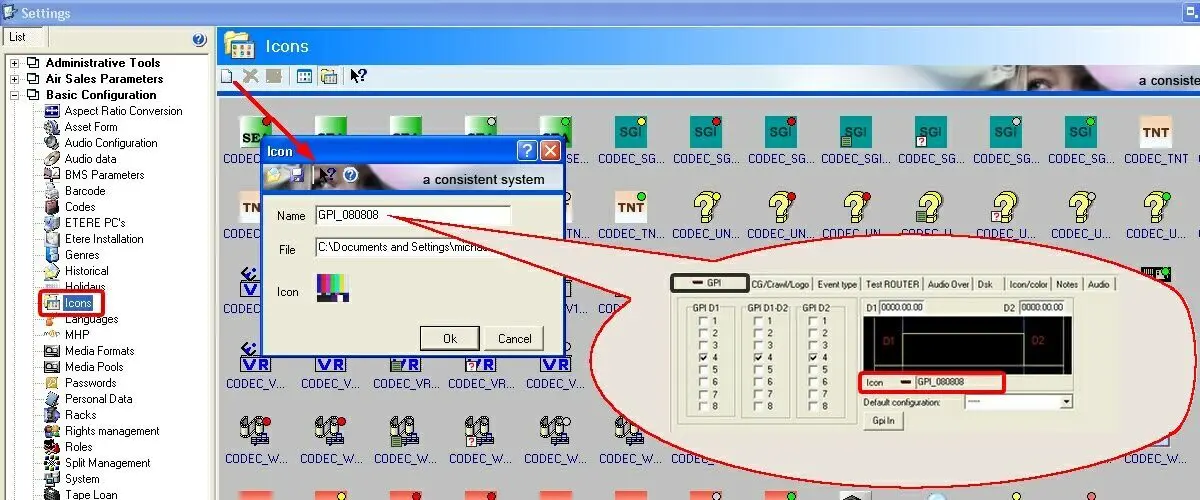
The icon displayed for each GPI sequence can be customized (e.g.: to display a custom icon every time a certain GPI sequence is used) under the Etere Configuration | Settings | Basic | Icons section, where it will be possible to create a new icon (or open an existing one) and naming it as the GPI number (e.g.: GPI_080808):
GPI_080808
Custom GPI icons are useful to, for example, help operators to visually differentiate GPI controls displayed in the 'properties' column) associated to events present in the playlist (e.g.: Executive Editor).
 GPI
GPI
 GPI_080808
 GPI_Input_Setting
 GPI_signal