72.7.6.6 Etere Closed Captions Import
You can import subtitles embedded in video file into Etere workstation. The subtitles must be inserted with CEA-608 or CEA-708 closed captions standards in order for this function to work properly.
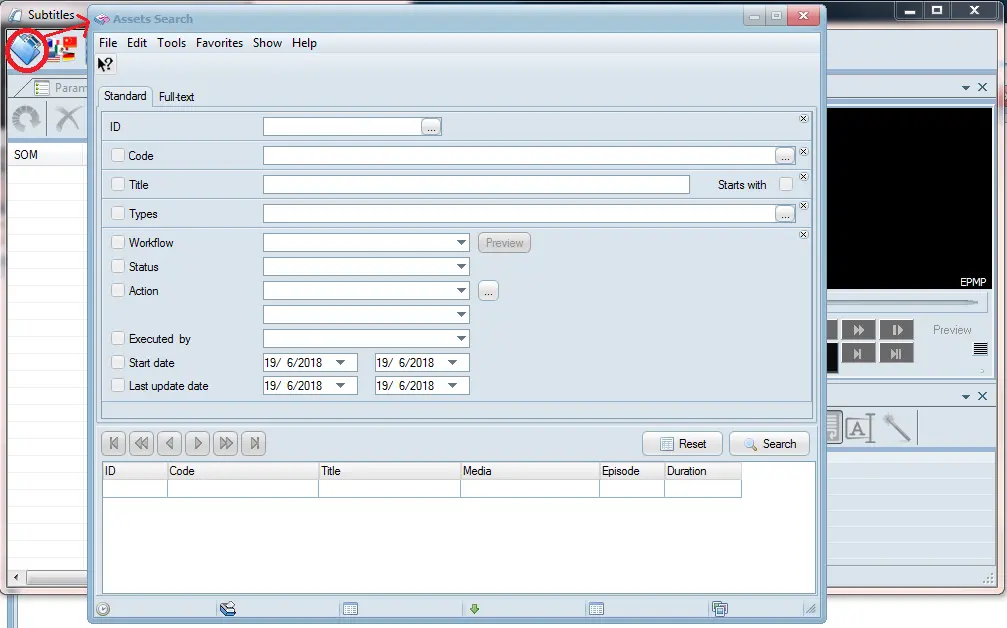
First, launch Subtitles Tools from MAM module and use the Assets Search function to search for video file that containing the subtitles file.
Assets Search
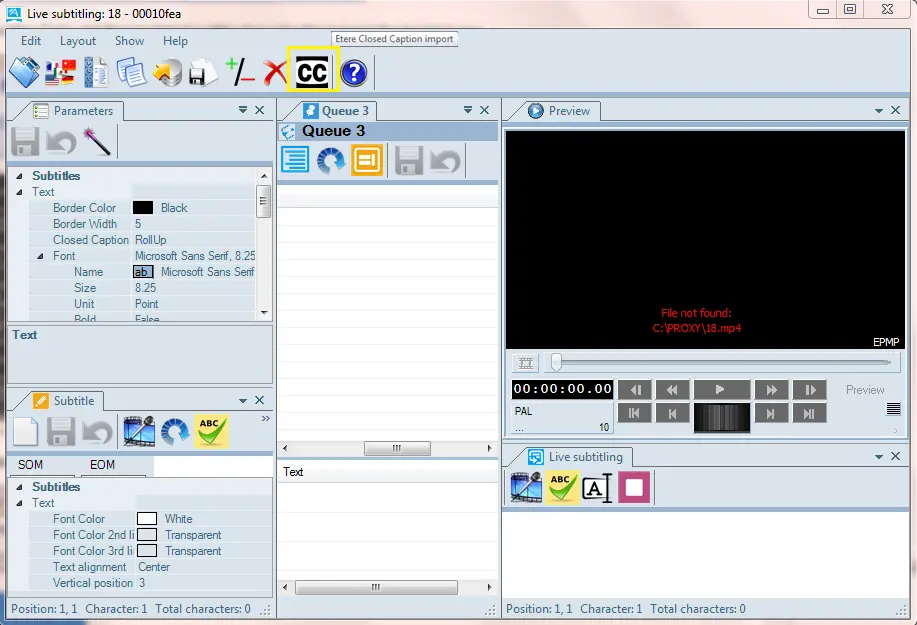
Once the video file is located, from the Subtitles Tools, click the icon “Etere Closed Captions Import” to launch the import process.
Etere Closed Captions Import 1
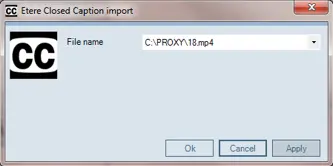
Next, enter the name of the video file which the subtitles are embedded, click <Apply> to confirm file name and click <OK> to start importing subtitles file to workstation.
Etere Closed Captions Import 2
Upon successful import, the import process would be closed automatically. The subtitles file (e.g. sbt_75_result.scc) would be extracted to user’s designated folder in local workstation.
NB: An obsolete file with same file name as subtitles file with extension .mp4 (e.g. sbt_75_result.mp4) is created along with the subtitles file, this file would be removed from designated folder after the successful import.
Import CEA-608 / CEA-708 Closed Captions from Video File
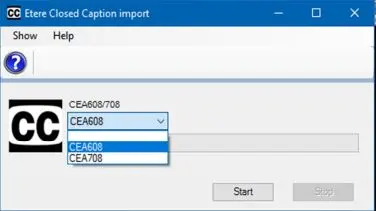
Etere Closed Captions import supports CEA-608 and CEA-708 subtitles, when the import is launched you can select any of the closed captions standard to import the subtitles embedded in video file.
Etere Closed Captions Import 3
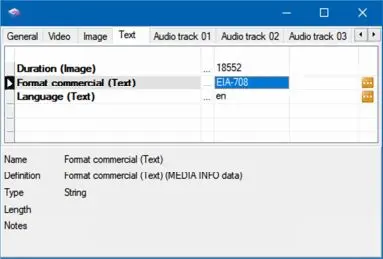
Once the closed captions standard is set, the selected closed captions would be set in the “Text > Format commercial (Text)” tab in Flexi-metadata.
mam_import_set_closedcaptions
If you had selected a different closed captions standard, the “Format commercial (Text)” in Flexi-metadata would be automatically set to the selected standard.
Next, specify the video file name and click the <Start> button to import the closed captions embedded in the video file into an xml file.
 Etere_Closed_Captions_Import_2
 Etere_Closed_Captions_Import_1
 Assets_Search
 Etere_Closed_Captions_Import_3
 mam_import_set_closedcaptions