59.5.8.28 Summary Final Transmission Schedule (alternate)
Report Description
The Summary Final Transmission Schedule (alternate) report is an alternate copy of the Summary Final Transmission Schedule report; it captures the same scheduled events with different properties (columns) and provides an alternate view of all transmitted scheduled events.
Report Filters
Configure the following parameters to generate the report to meet your requirements.
Date
Indicate the date criteria to filter the required data:
Period: Select one of the filter types available to filter data corresponding to the date range; you can filter by:
Customized dates: Allows you to select a date range.
Current day: Generate a report for current-day events.
This week: Generate a report for this week (Monday – Sunday).
Next week: Generate a report for next week (Monday – Sunday).
Current month: Generate a report for the month (first day to last day).
Current year: Generate a report for the current year (first day to last day of the year).
Today’s month date: Generate a report from the first day of the month till today.
Today’s year date: Generate a report from the first day of the year till today.
Previous month: Generate a report for the whole of the previous month (first day to last day of the month).
Previous year: Generate a report for the previous year (first day to last day of the previous year).
Last 30 days: Generate a report for the past 30 days, including today.
Following 30 days: Generate a report for the next 30 days, including today.
All dates: Generate a report for all available dates
From – To: Data should be extracted within the specified date range.
Type
Indicate the event type(s) to filter the events to be included in the report; it can be different from the primary report to have an alternate view. If the option “Hide Groups and System types” is enabled, only the event types defined by the workstation will be included in the report.
Properties
The Properties tab allows you to customize the layout of the report by including/excluding some of the standard information:
Print date: Print the date at the footer of each page.
Page number: Print the page number at the footer of each page.
Operator: The login user name will be printed.
Station name: Print the station name where the report is generated.
Multiple lines text: If details are too long, print all details in the next line; it will be truncated by default.
Interline: Enable this option to increase the line spacing to 1.5 cm; otherwise, it would default to 1 cm.
Insert a borderline between lines to print: This option simply inserts a borderline between the lines to be printed.
Export configuration: You can export the above settings to a registry file (.reg) for future use.
Import configuration: The function imports a registry file previously defined for report printing.
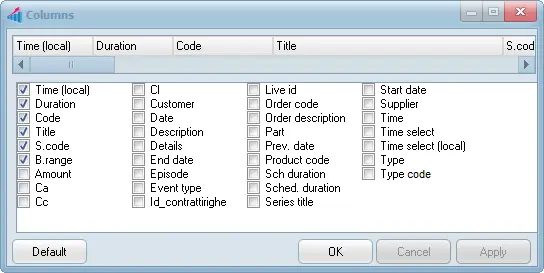
Columns: This column's property allows you to select the database fields displayed as columns in the report.
automation_columns_in_the_report
Display Active Filters
All the filters you had defined above would be displayed in the lower panel; you can examine the settings before printing the report.
Report Preview
There are functions available for report printing:
Settings: This feature defines the report layout.
Export: You can export the report to CSV or XML format.
PDF: This feature simply generates the report in PDF format.
Preview: It presents a report preview before the actual printing.
Print: This feature spools the report to the printer and starts printing.
 automation_columns_in_the_report