59.4.14.17 Carbon Coder Setting a Watch Folder
Watch Folder is defined as a folder on a Windows system that automatically converts source video files dropped into different types of video output files. Any video source files written or dropped into this “Input" folder are converted (transcoded) to one or more types of output files. The format of the output files is specified by the end-user when the Watch Folder is created.
Watch Folder
To configure Rhozet Carbon Coder for using watch folders, the next steps must be followed:
1. Creating a New Watch Folder:
•Start by launching the Carbon Coder/Server Admin application using the application on the desktop.
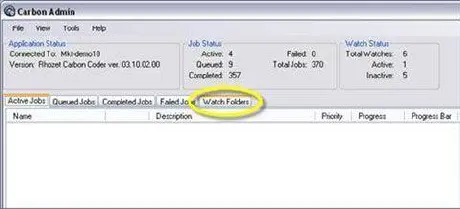
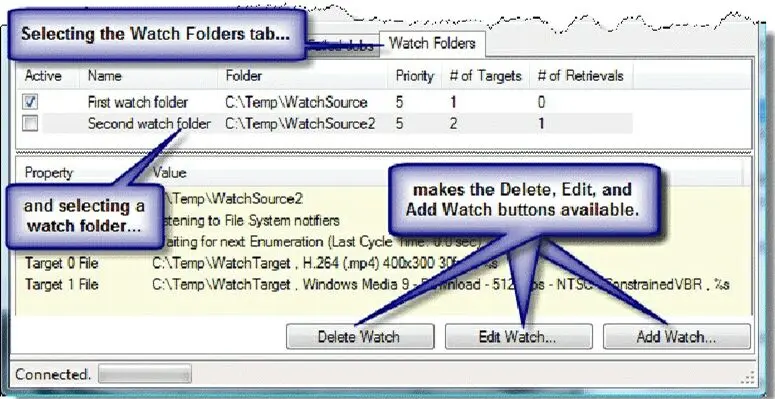
•When the opening screen appears, showing the Active Jobs, Queued Jobs, Completed Jobs, Failed Jobs, and Watch Folders tabs, select the Watch Folders tab:
Creating_a_New_Watch_Folder
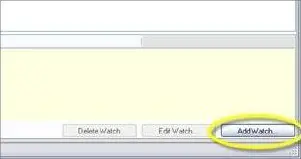
•When the Watch Folder dialogue box appears, click on Add Watch to create a new watch folder.
Add_Watch
2. Setting the General Properties (Input):
•In the Name field, enter the name you want to give to the watch folder.
•To select the folder to drag (or copy) source files too, click on Browse Folders; when the folder selection dialogue box opens, navigate to the folder you want and click OK.
3. Selecting the Profile to be used:
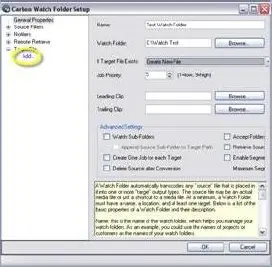
•Click on Add underneath Target File in the watch folder properties list on the left side of the screen:
Target_File
(under this section, it is also possible to set the action to be performed in case the target file exists)
•The Target screen appears. Here is where you choose which kinds of files your source files (input) will be transcoded to (target/output).
You first select a category and then a preset from that category to create your target file. The target file is created from the source file by transcoding from the source format to the format (codec) specified in the preset. For our example, we choose the H.264 preset that creates .mp4 target (output) files 320 pixels wide by 240 pixels high, with a frame rate of 30 frames per second.
Note that you can always create or modify new profiles, refer to the Creating a Carbon Coder Profile chapter for further information.
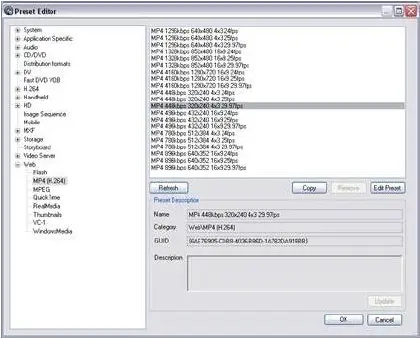
•Click Browse next to the Preset field; this will open the preset selection dialogue:
Preset_field
•In the tree list of preset categories on the left side of the preset selection dialogue box, select the MP4 (H264) category. This will display the MP4 H.264 factory default presets made available during installation.
•In this category, select the H.264 (.mp4) 320x240 30fps preset and click Select Preset (Update & OK).
4. Selecting the Target Folder (output):
•Always under the Target File option, click Browse to select the folder where the H.264 .mp4 files will be written.
•When the folder selection dialogue box opens, navigate to the folder you need and click OK. Once you have selected your output folder, you are now finished with this target. You can read more about all the possible parameters and configurations in the rest of this manual.
•You can now click on Save Watch to save all the changes you made and save the watch folder.
5. Testing the Watched Folder:
•Now open the input and output folders you specified (in the examples above, the input folder where you drop the source files is C:\Temp\WatchSource, and the output folder for the H.264 target file is C:\Temp\WatchTarget.).
•Drop a video file into the watch folder (input). Instead of dropping the file itself, you can also create a shortcut to the file by right-clicking and dragging the file and releasing the right mouse button when the file is over the watch folder.
•Select Create Shortcuts Here to create a shortcut to the input file inside the watch folder.
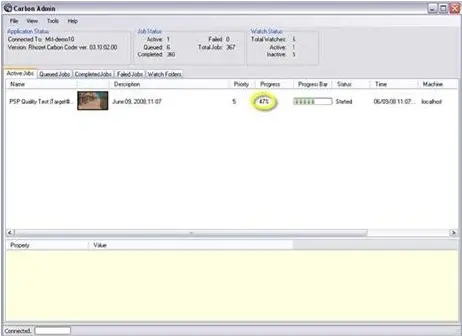
•For seeing the progress of how the source file is transcoded into the target H.264 .mp4 file, go back to the Carbon Coder/Server Admin application and click on the Active Jobs tab. You should now see a display like the following screenshot; 47% of the input file has been transcoded in this example.
Active_Jobs
•After a while, the progress bar will reach 100%, indicating that the job has finished transcoding, and you will see the status change to "Completed". You should now be able to find the new file with the .mp4 file extension in the output folder (C:\Temp\WatchTarget in our example).
 Creating_a_New_Watch_Folder
 Add_Watch
 Target_File
 Preset_field
 Active_Jobs
 Watch_Folder