56.1.1 Preliminary Considerations
Please note that there are some preliminary considerations that must be read and accomplished before start setting Etere Automation, these considerations are listed and described below:
✓ Broadcast resources
Etere Automation needs all broadcast devices (i.e. resources) intended to be used to be configured, this can be done in Etere Configuration > Resources, where it will be possible to add all resources involved in the automation process.
✓ Shared folder
Etere Automation uses a folder to store the file containing the 'automation schedule' of all television days, this folder (e.g. \\au_main\etere\user.001\2011) must be shared with the Etere directory to allow Etere Scheduling to publish that schedule.
Once shared, this folder must be entered in the Etere Configuration > Settings > Executive Editor > On-Air section to specify where the main/backup 'automation schedule' will be stored.
To ensure a smooth operations, the Regional Settings in Automation station and Scheduling station must be in sync.
✓ Automation schedule
Etere Automation reads from a database file the events to be sent on-air; this file (TPAL[dd][mm].dbf) is stored into the automation shared folder and it is generated for each television day containing a table listing all events scheduled to be sent on-air on that day.
It is important to note that the automation schedule (i.e. the TPAL table) has a restriction regarding the maximum length of media filenames linked to assets, this restriction has a limitation of 20 characters in case Etere Automation is installed and 32 characters if it doesn't, this for avoiding playout errors on video servers which doesn't handle filenames longer than 20 characters. Further information on how to prevent this issue can be found in the Checking recorded assets section of the Etere Ingest chapter.
✓ Routing tables
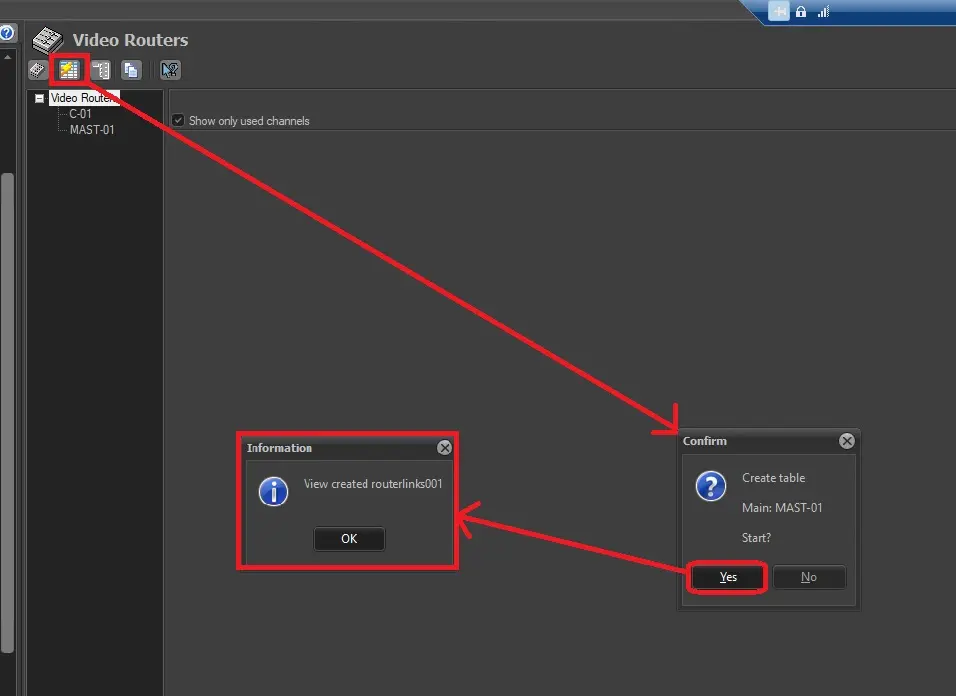
In the case where the Automation has to manage a Router or Master Control, we need to generate a routing view, useful for the Automation. This can be done only after the export path has been defined, and the automations have been started for the first time; just go to Etere Configuration | Settings | Devices Settings | Video Router.
video router
In the example above, it shown how to find the Master Control dedicated for the playout and the Router used for the ingest; both devices can be detailed with specific per-channel descriptions, being also possible to generate a database view to be used for routing.
✓ Enable / Disable SNMP service
In order to closely monitor the Automation schedules, you can install SNMP service in Automation station and trigger the alert messages to Monitoring Console when there are inconsistencies occurred in Automation.
However, installing SNMP service in Automation would consequent to delay in sending Automation commands and slowness in Automation counter.
If SNMP service is installed in Automation, you can control the service by setting the following Windows Registry:
In [Computer \ HKEY_CURRENT_USER \ SOFTWARE \ Etere \ Automation \ user.xxx \ Options ]
set DWORD key “AutomationSNMP” value data to “1” to enable the SNMP service.
Upon setting, restart Automation module for settings to take effect.
NB: The registry key value is disable by default.
✓ Enable / Disable Logging
In Automation, you can manage the generation of log data in Windows Registry.
In [Computer \ HKEY_CURRENT_USER \ SOFTWARE \ Etere \ Automation \ user.xxx \ Options]
Create a DWORD key value “AvoidLogging” and set value data to “0” to enable the logging.
 Generate_router