9.2.4.1 Asset Features
On the asset properties page, you can modify the properties of the selected asset using the various tabs explained in the sub-chapters under this section. Once the modification has been done for the selected asset, the Action menu provides a wide range of functions which allows you to modify the asset on the object level.
The top panel displays general information about the asset, including asset ID, asset type, asset code, asset title, and part of an asset within the season. The part number is written with a division slash (/) where 1st digit must be lower or equal to 2nd digit. For the 2nd digit field, you can enter up to 2 digits (10-99) as the part number.
For the Season field, if the asset is an episode, the Season field is not editable. This field is editable if the asset is not part of the seasons.
The ML button (MultiLanguage) allows you to select multilanguage for the asset title. This button is only visible if any language is chosen in Multilanguage Options.
User or User Group must be assigned appropriate access to “EtereWeb\Asset form insertion and modification” rights in Etere Rights Management to execute the asset actions.
advanced_searche_action
The actions available are:
- Save: Save all the changes made to the properties of the selected asset;
- Add to favourites: This function adds the selected asset to the“Favorites”sub-module in Media Library, where you can have quick access to the asset;
Once added to favourites, a start icon would appear next to the Action Menu.
You can view the assets in the Favorites tab.
Upon added, the function would be renamed toRemove from favouritesto cater for reversion.
- Copy Asset:This function copy the asset and creates a duplicated asset elsewhere;
- Create Backup: This function creates a backup copy of the asset. You can specify the number of backup assets to be made. The default is one copy;
- Import Technical Data: You can import technical data from another asset form; when activated, you need to specify the source asset code and the type of media file to import;
In addition, you can:
- Upload Thumbnail: Upload an image or poster for video in BMP, JPG or PNG format;
- Delete Thumbnail: Remove the uploaded thumbnail.
- Create Promo: Create a new trailer and link to the selected asset;
- Live: This function sets the asset as a Live event. You would need to choose a channel for the Live event and set the duration of the event;
- Reload: Select this function to reload all properties parameters before changes to the asset properties;
- New Version: Create a new version of an asset with the same general data but a different asset code based on the original asset;
- Next Version: Select this function to load the next version of the current asset form, if available;
- Previous Version: Select this function to load the last version of the current asset form, if available;
- Update Code and Title across schedules: If the asset code and title description have been changed, this function will update the asset code and title across programs;
- Update media and properties across programs: If the media file and properties in a selected asset have been changed, this function updates the changes in media and properties to the asset across all schedules;
- Display Asset Scheduling: This function displays the asset in the program, including all various scheduling times and various scheduling workstations;
- View Quarterly Scheduling: This function shows the selected assets scheduled on the three calendar months, including the current month. If a purchase is scheduled twice in the calendar months, it will display the number of schedules besides the calendar date, e.g. first scheduled on 4th May(4 [1]) and second planned on 29th June (29 [2]), etc.;
- Saved searches: This function save the search filter as a query and can execute the same search pattern in future;
The asset properties are described in the sub-chapters within this section.
To view various asset properties in subsequent sub-chapters, the user must be granted “Allowed” permission for all properties in Web\EtereWeb\Media Library and Web\Nunzio Stories to access the Story tab.
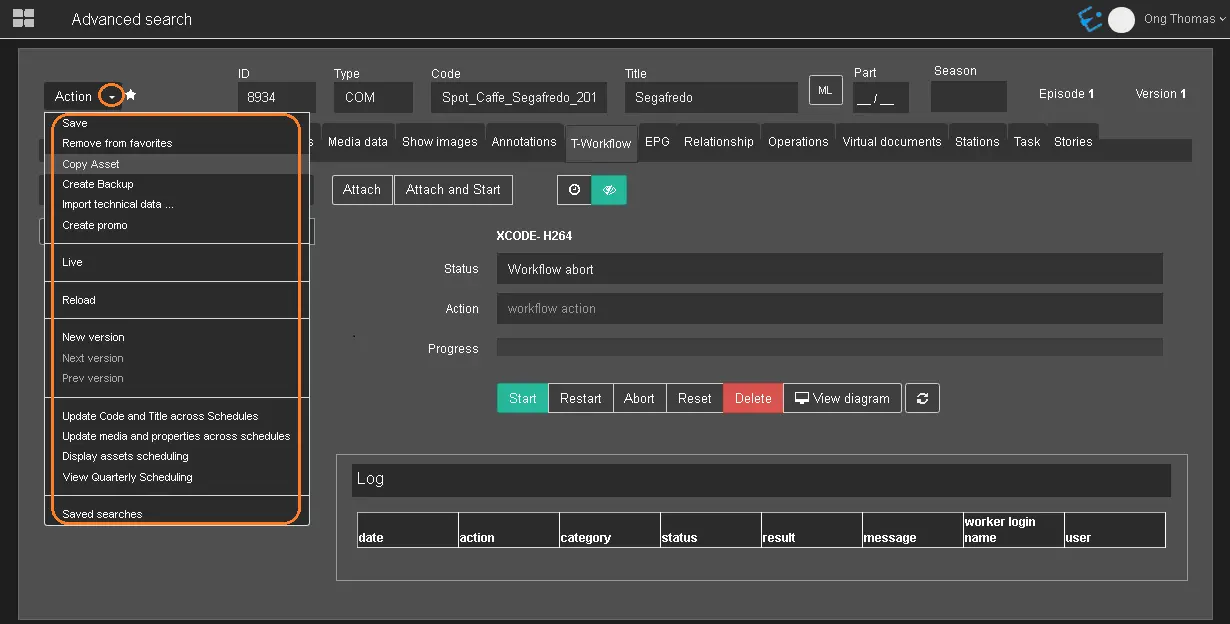 advanced_searche_action