56.1.6.2 Master/Clone Mode
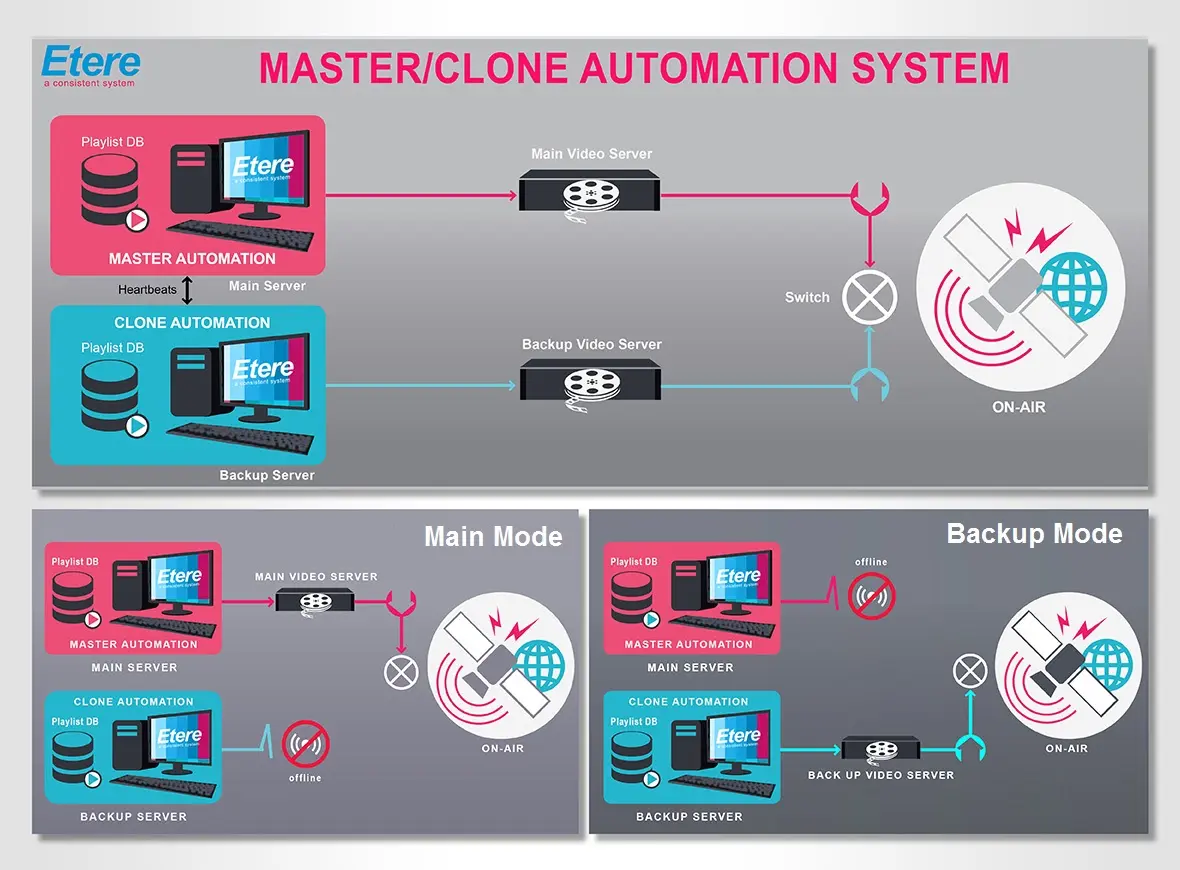
An Etere Master-Clone system is based on two completely independent systems; this' automation mode' improves the system's reliability and avoids cross-crash due to synchronization problems.
Master-Clone_system
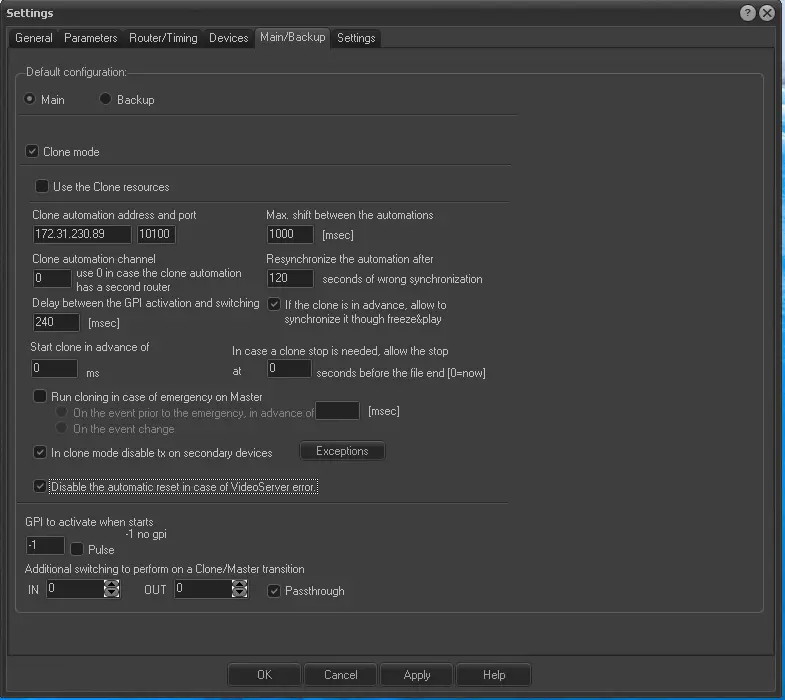
master_clone_settings
In case the Master/Clone mode has been activated, the following parameters will need to be set:
CLONE MODE - Enable it to activate the automation Master/Clone operation mode.
Use Clone resources - If selected, the Automation will load the resources assigned to the "Automation Clone" module instead of those set to the "Automation" module.
Clone automation Address and Port - In this case, you need to indicate the IP Address and Port numbers of the Twin Automation.
Clone automation channel - Indicates the Input channel of clone Automation. The input channel is the channel of the Router/Mixer used by the Twin Automation.
Set it to "0" if the clone automation has a second router.
The delay between the GPI activation and the switch - If the ET-0558 module is used to adjust possible delays in the real commutation, it's possible to set a delay (milliseconds) between the moment the command is given to the GPI card and the moment the commutation of the Router/Master Control starts, delaying the switch command.
Start clone in advance of - Set the "waiting time" for starting the clone automation after. If not set to zero, it delays or anticipates the clone automation's play by the indicated amount of time (milliseconds).
Max. shift between the automations - This parameter sets the maximum difference between master and clone automations before considering them as "not synchronized".
Resynchronize the Automation after "X" seconds of wrong synchronization - In case the master and clone automation are not perfectly synchronized, this parameter allows us to indicate the longer duration needed to start the synchronization. (before stopping the clone automation and synchronizing it with the Master one).
NB: The value set in this parameter MUST be identical in both Main and Backup Automation.
If the clone is in advance, allow to synchronize it through Freeze&Play. If enabled, in case the clone is in advance (not in delay) concerning the master automation, the clone will be only paused (not stopped) for the time needed to synchronize it with the master automation (i.e. frozen and played).
In case a clone stop is needed, allow the finish at "X" seconds before the clip end (0=now) - In case the master and clone automations are unsynchronized for more than a specific time (set in the "resynchronize the automation after..." parameter), this parameter will permit to specify the time before the clip's end at which the clone automation will be stopped (and synchronized).
If this parameter is set to "0" (default), the stop command will be executed immediately; instead, else, the Automation will wait "x" seconds before the end of the clip to run the stop command.
NB: It is suggested to set this parameter to "60" (i.e. stop the clone automation 60 seconds before the clip end) or a higher value since lower values may result in undesired playback issues.
Run cloning in case of emergency - If enabled, the Automation will be automatically switched to "clone" in case the "master" has an emergency; the switch can be performed:
•On the clip before the emergency, in advance, The clone will start running on the last played clip with an advance of 'n' seconds.
•On the clip change: The clone will wait until the current clip ends before starting running. The waiting time for the clip change event is set to a maximum of 120 frames.
In clone mode, disable Tx on secondary devices - If enabled, the Automation will not send any command to the secondary devices if it runs in "clone" mode (i.e. has been switched from main to clone). An error is displayed ("Code=45, Tx_disabled").
Enable this parameter if the module ET558 is not used to connect both automations to the secondary devices (GPI or serial port control) or in case any device is controlled through the network.
If this option is enabled, the [Exceptions] button will allow you to select the type of devices (i.e. Video router, Master control, Logo generator, CG crawl, Subtitles and TV Guide) not to be disabled, that is, to be excluded from the disabling.
Turn off the automation reset in case of a Video Server error. If this option is enabled, when the master automation needs to be restarted after a fatal incident, the clone automation remains in an existing state of condition. It will not start the automatic on-air recovery. This parameter does not impact the policy in master/clone mode settings./
GPI to activate when starts - If enabled (values different from "-1"), the specified GPI output will trigger a level or pulse signal (depending on the checkbox status) every time the backup automation starts up.
NB: This function requires a GPI board enabled for automation use.
Additional switching to perform on a Clone/Master transition - This parameter allows specifying an additional routing switch when a master/clone transition occurs:
Disabled - If disabled (IN=0; OUT=0), no additional switches are performed on a Master/Clone switch.
Enabled - If enabled, every time this automation PC becomes Master (e.g. when the button is pressed), an additional switch (e.g. IN 3 to OUT 7) will be automatically performed according to the "Pass-through" option:
▪Pass-through enabled (default): The ETX Master Control will pass the switching request to the router, which will perform the switch.
▪Pass-through disabled: The switch will be generally performed on the routing device controlled by this automation PC (e.g. MTX Master Control).
Enabling an additional switch is useful when one physical router is used for both primary and clone automations; it will act as a "virtual changeover" that routes to the uplink output the correct input channel every time a "clone->master transition" is performed.
 Master-Clone_system
 Master_clone_settings