72.2.3.14 Audio File Import
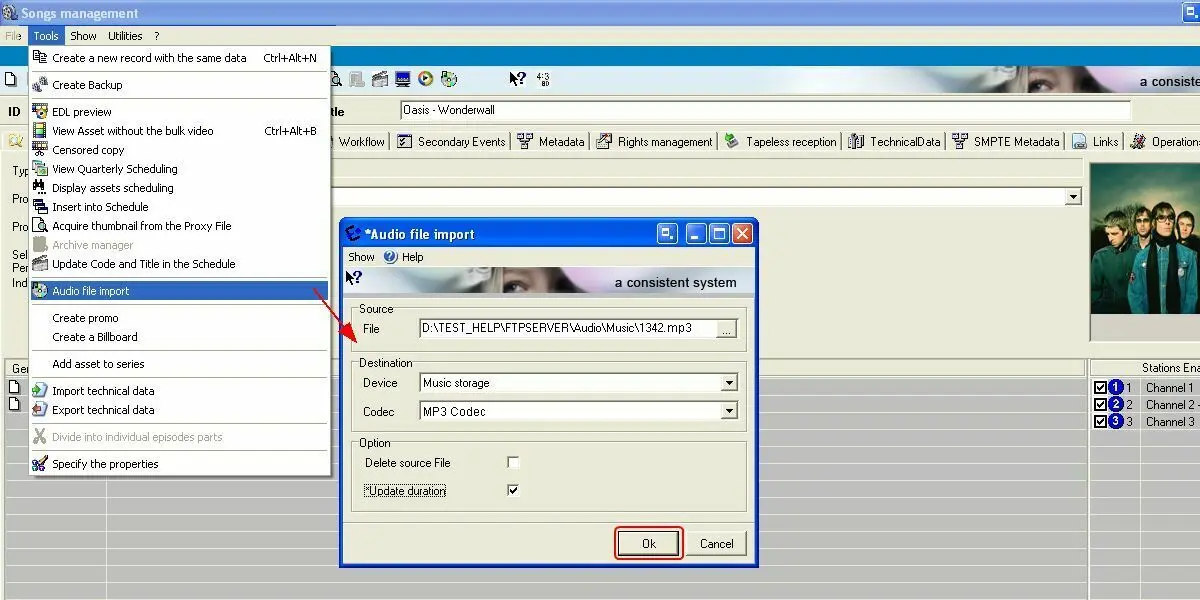
The 'Audio file import' function allows to link audio files to an asset form and storing them automatically into a user-defined metadevice (e.g. an audio archive); audio files can be either imported from a local/network path or directly recorded by the operator:
Audio File Import
NB: Please note that this function is only available for those assets which type is "audio" enabled (under Etere Configuration > Settings > Types > Properties").
Importing an audio file
In order to import and audio file, the following parameters must be compiled:
Source
Choose the method for associating the audio file to the asset form, available methods include:
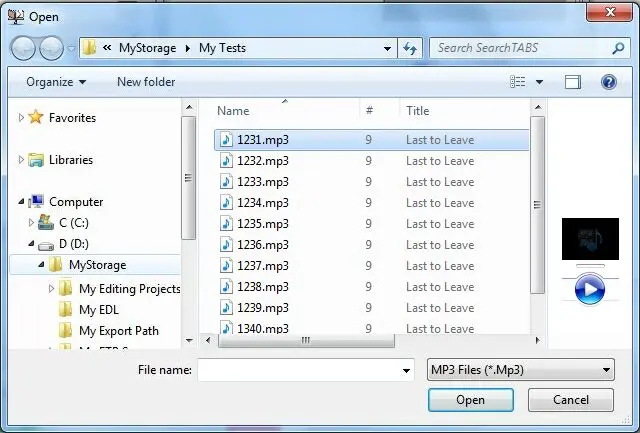
Import file - Browse and select the audio file (e.g. mp3, wma, wav, etc) to be imported:
Import file
or
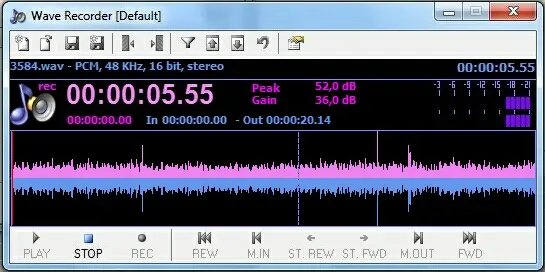
Record file - Record and save the audio file from a certain device using specific editing settings:
Wave Recorder
From this simple and friendly interface, the operator will be allowed to use the following functions:
New file - Starts a new recording, cancelling the currently open.
Open file - Load a user-selected audio file (e.g. to trim it from a SOM to an EOM).
Save - Save the recorded file in a temp folder (i.e. C:\Program Files\ETERE\tmp\) naming the recorded file as the asset ID.
Save as - Save the recorded file with a user-defined name on a user-defined folder.
Set SOM - Specify using the mouse the point at which the audio clip should start.
Set EOM - Specify using the mouse the point at which the audio clip should end.
Normalize - Normalize the currently open audio file.
Increase level - Increments the audio by adding a gain value.
Decrease level - Decreases the audio by subtracting an gain value.
Undo - Cancel the last performed action (e.g. normalize).
Parameters - Set here the recording device to be used for acquiring the audio as well as the editing parameters including:
•silence threshold: Minimum allowed volume level.
•leading silence: To be add at the clip start when saved.
•trailing silence: To be add at the clip end when saved.
•gain increment value: To increase/decrease the volume level.
•peak value attenuation: To be used in the normalization.
In the bottom part there will be available the most common playback functions including "Play", "Stop", "Rec", Rew", etc.
Destination
•Device: Indicate the audio-storage metadevice on which the audio file will be stored (see Creating Audio-Storage Cloud-devices).
•Codec: Specify the codec with which the audio file will be stored (see Creating Music Genres).
Options
•Delete source file: If enabled, the audio file will be deleted from its original location once copied into the selected.
•Update duration: If enabled, the asset form duration will be updated with the duration retrieved from the added audio file.
Once configured, just click on the [OK] button and the audio file will be automatically associated to the asset form, adding it to the media and technical-data sections.
Please note that in case an error found, a message will be displayed indicating the exact problem (e.g.: destination path not found, duration update error, metafile cannot be copied, etc).
Managing imported audio files
Audio file(s) added to an asset form can be easily managed under the following tabs:
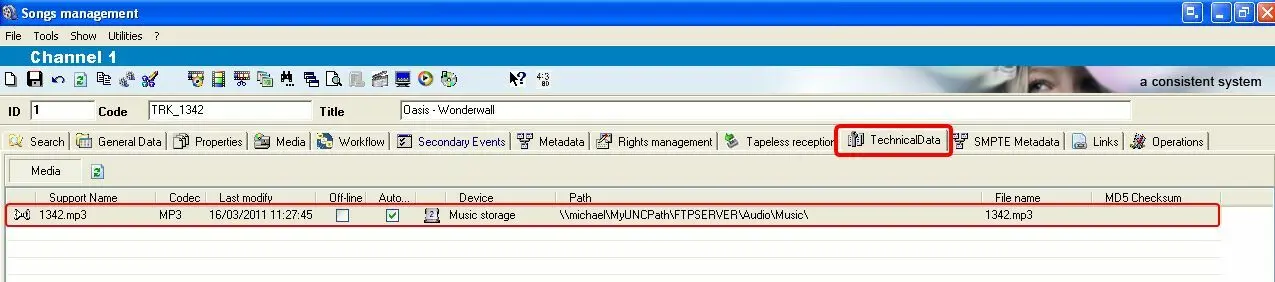
Technical data :
The technical-data tab allows viewing and editing all media files associated to a certain asset form, being possible to modify the media data (e.g.: codec, filename, metadevice, storage path, etc) as well as the asset data (e.g.: broadcast flag, recording status, etc):
Technical data
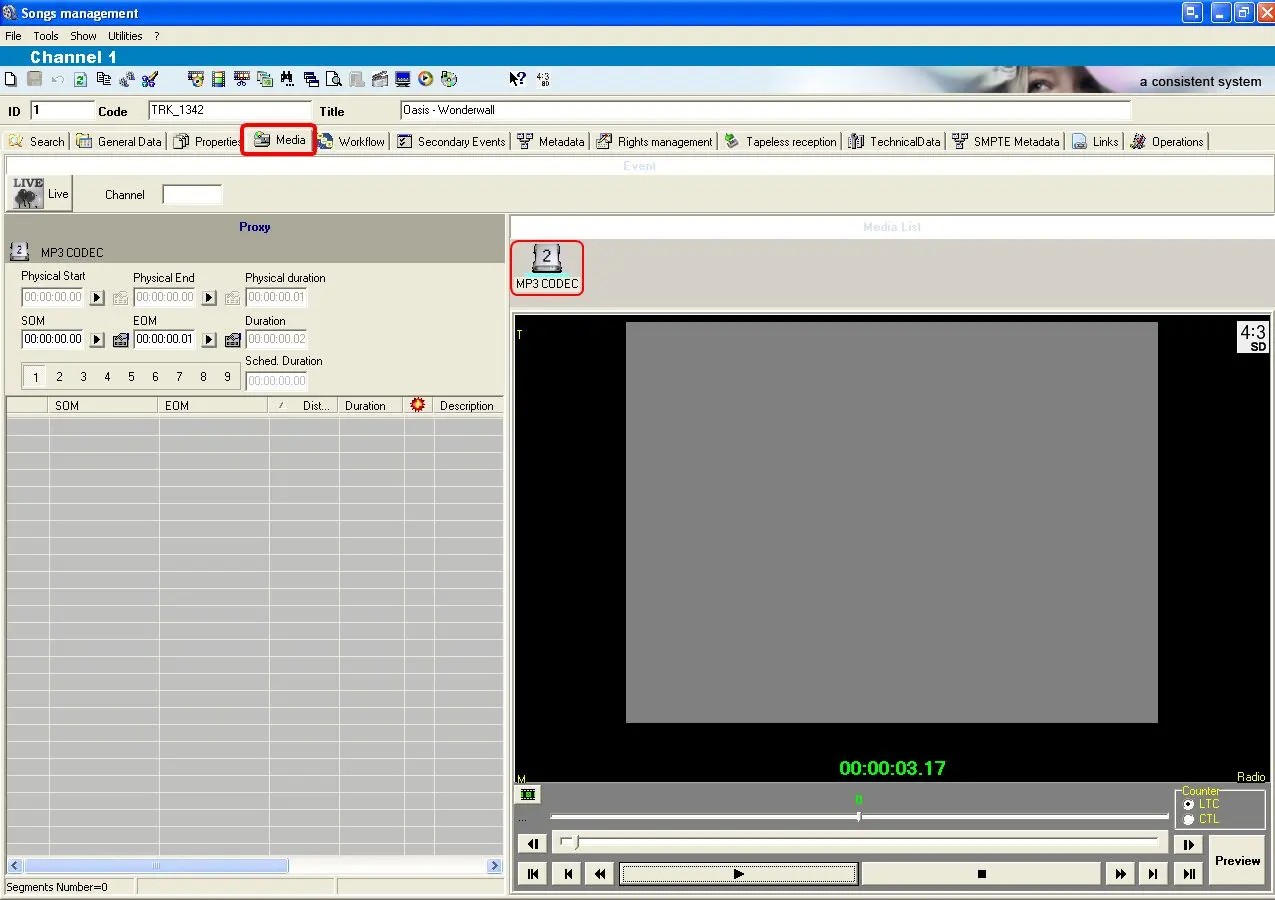
Media :
The media tab holds information regarding the media content associated to the asset form, allowing to view and modify their timecode details as well as previewing the related files:
Media
 Media
Media
 Wave_Recorder
 Import_file
 Technical_data
 Audio_File_Import