56.2.1.3 Devices Logs
From the Message Logs function, you have a log view. Every running device is associated with a log that describes the way it behaves; here, you can read - and save permanently - the messages exchanged between the software and the devices (Logs). The log captures the date and time in dd/mm/yyyy hh:mm:ss: ms format.
devices_log
When problems occur and are escalated to the Etere Support team, it is recommended to attach the program logs for analysis:
1 - Click on Save
2 - Fill up the "Saving logs Info" form with all the important data about the issue, i.e. event codes, time and date, and a complete problem description. If an internet connection is available from the Automation machine, you can flag the "Upload the file on Etere ftp site automatically" check to do the automatic upload.
Remember to notify Etere Support team by email at support@etere.com
3 - During the log saving, a window displays the operation status.
4 - When the operation is complete, a message will prompt you with the logs .zip file name and position.
5 - The name of the log file consists of the following prefix:
[ModuleName], [UserName], [PCName], [Date-time].zip (where date=yymmdd, time=hhmmss)
The .zip file is stored in the "C:\Users\michael.ETERE\AppData\Local\Etere\user.001\log\saved\" directory.
NOTE
It's highly suggested not to save logs from Etere Automation while transmitting on-air, as saving operations may affect the playout performance and cause unexpected delays. Keeping records during on-air transmission will be done at the user's responsibility.
Deleting logs
Log files saved will not be deleted automatically; if they're no longer helpful, they must be purged manually.
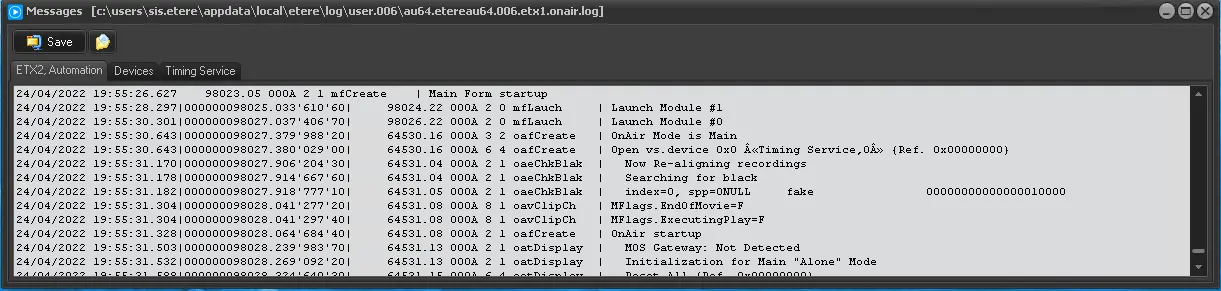 devices_log