10.4 Reports
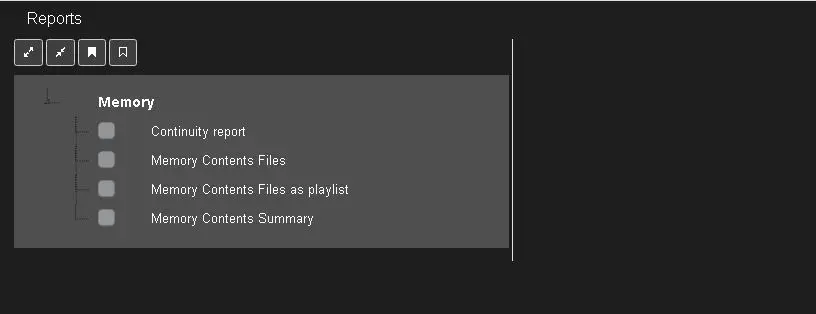
In the Reports section, there are custom reports to suit your needs.
Reports
CONTINUITY REPORT
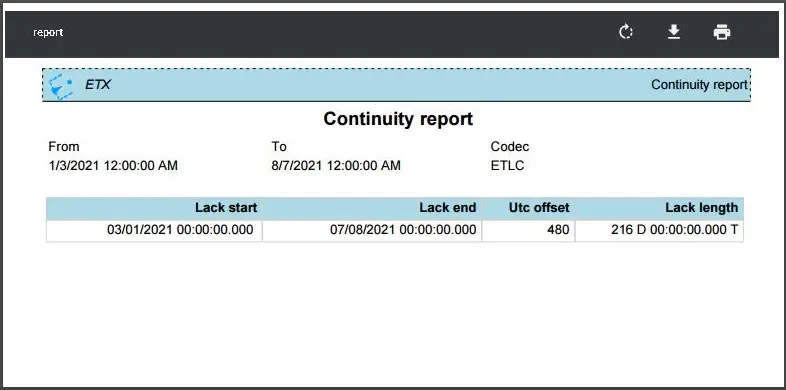
The Continuity report capture acquisitions that took place over a pre-established period.
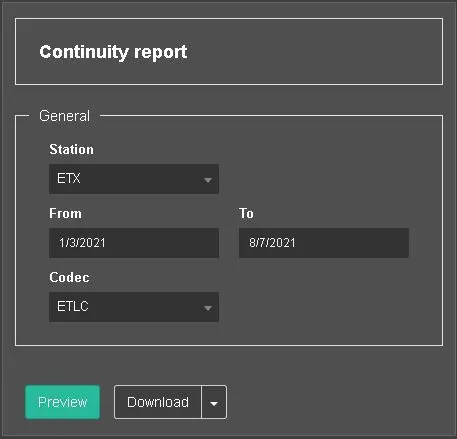
Continuity Report 1
The general criteria to filter the information includes:
- Station: The station/channel is selected to extract the segment details.
- From Select a start date to filter the records.
- Dates: Set an end date for filtering.
- Codec: Select a codec to be used.
Continuity Report 2
If the Preview captured all desired information, you can click on the Download icon to download the report to a local or network drive or click the Print icon to generate the hard-copy report.
Alternatively, you can generate the report in soft copy by selecting one of the report formats from the <Download> button.
Download
The report of the selected format would be created in user specific’s Downloads folder in the local workstation.
MEMORY CONTENTS FILES REPORT
The Memory Contents Files report captures the memory segments created on a specific station (or all stations) with a particular codec (or all codecs) on a specific cloud device (or all cloud devices) within a specific date and time range.
Memory Contents Files 1
- Station: Select a station (or all stations) to retrieve the information;
- From Select a date to start retrieving the information;
- From time: Set the time to extract information from the start date;
- To: Select an end date to stop the retrieving of information;
- To time: Set the end date when the retrieving would stop;
- Codec: Select a codec from the list, or select “All” to include all codecs in the report;
- Cloud device: Select a specific cloud device or “All” to include all cloud devices;
Memory Contents Files 2
If the Preview captured all desired information, you can click on the Download icon to download the report to a local or network drive or click the Print icon to generate the hard-copy report.
Alternatively, you can generate the report in soft copy by selecting one of the report formats from the <Download> button.
Download
The report of the selected format would be created in user specific’s Downloads folder in the local workstation.
MEMORY CONTENTS FILES AS PLAYLIST
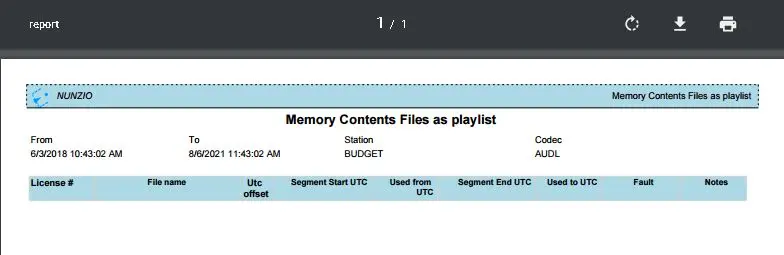
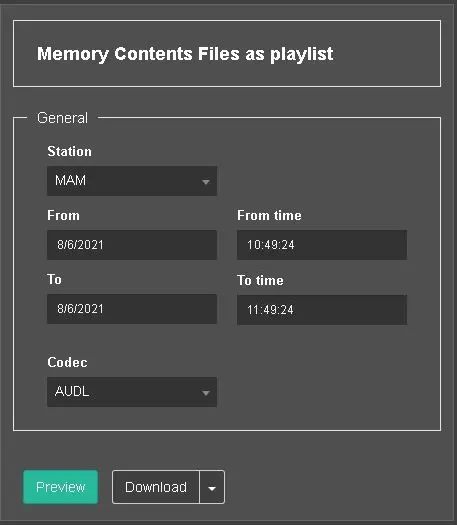
The Memory Contents Files as Playlist report captures the memory segments created on specific stations with specific codecs within a particular date and time range.
Memory Contents Files as Playlist 1
- Station: Select a station or channel to retrieve the information.
- From: Select a date to start retrieving the information.
- From time: Set the time to extract information from the start date.
- To: Select an end date to stop the retrieving of information.
- To time: Set the end date when the retrieving would stop.
- Codec: Select a codec from the list to retrieve the report.
Memory Contents Files as Playlist 2
If the report contains information, you can click on the Download icon to download the report into a local or network drive or click the Print icon to generate the hard-copy report.
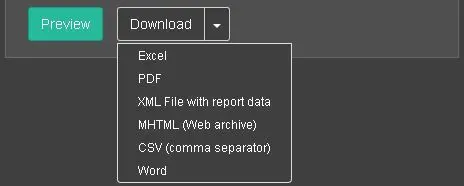
Alternatively, you can generate the report in soft copy by selecting one of the report formats from the <Download> button.
Download
The report of the selected format would be created in user specific’s Downloads folder in the local workstation.
MEMORY CONTENTS SUMMARY
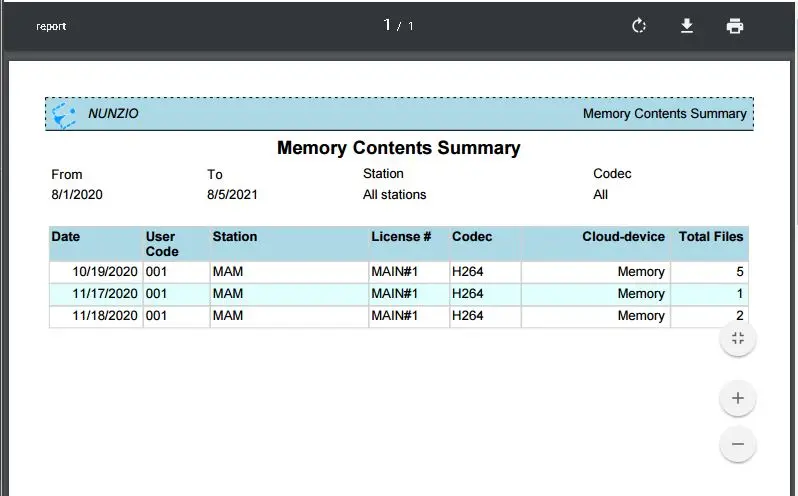
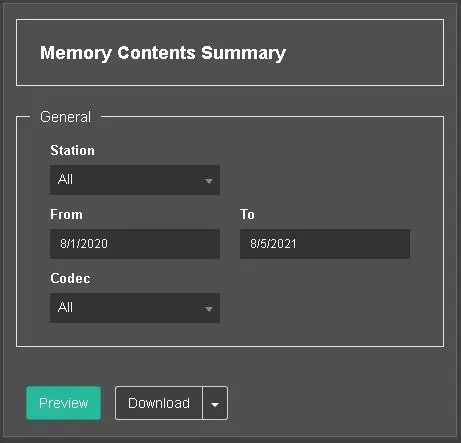
The Memory Contents Summary report generates a summary report containing all contents files and playlists created within a specific period.
Memory Contents Summary 1
- Station: Select a station or channel or “All” station to retrieve the information.
- From Select a date to start retrieving the information.
- To: Select an end date to stop the retrieving of information.
- Codec: Select a codec from the list, or select “All” to include all codecs in the report.
Memory Contents Summary 2
If the report contains the desired information, you can click on the Download icon to download the report into a local or network drive or click the Print icon to generate the hard-copy report.
Alternatively, you can generate the report in soft copy by selecting one of the report formats from the <Download> button.
Download
The report of the selected format would be created in user specific’s Downloads folder in the local workstation.
MEMORY CONTENTS COMPARISON
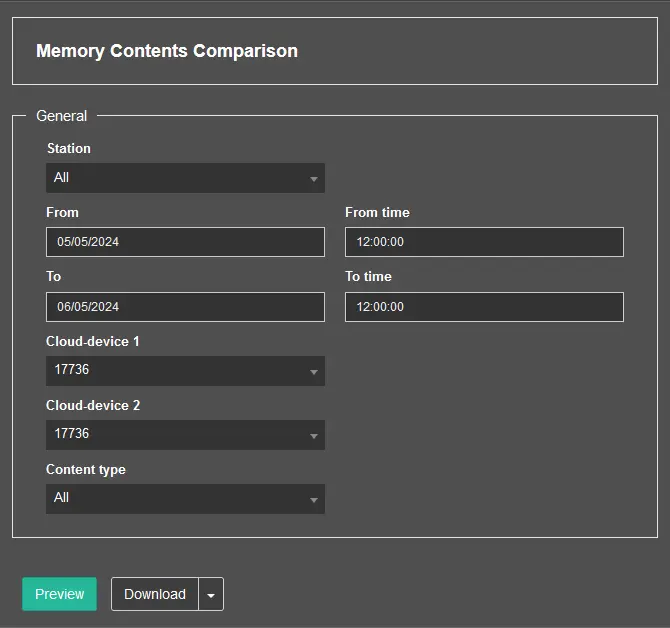
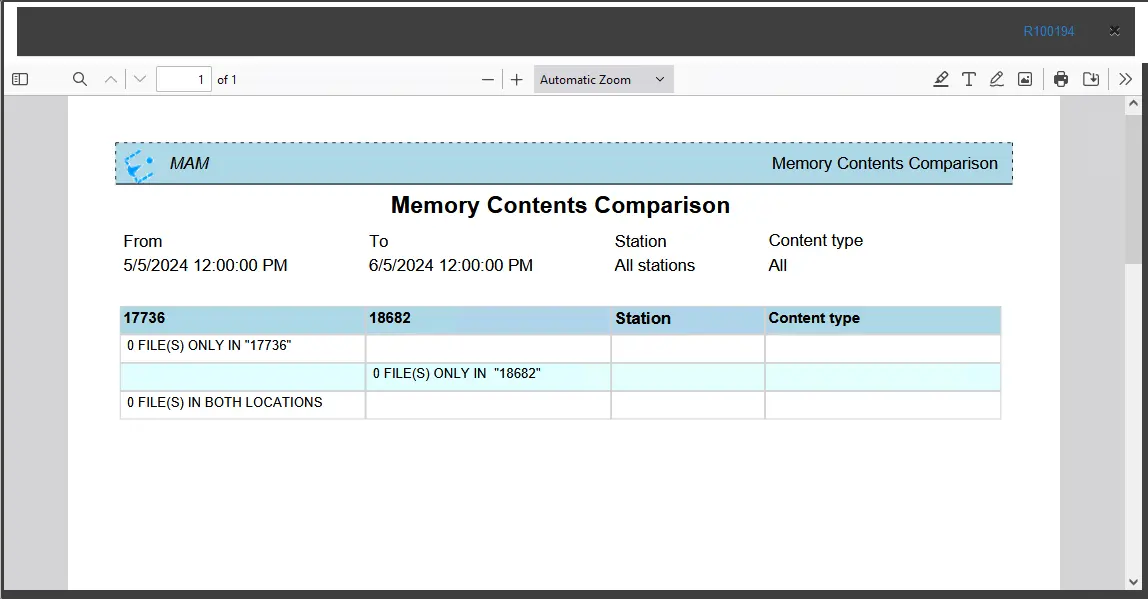
The Memory Contents Comparison report generates a comparison report containing all contents files and playlists created within a specific period between two cloud devices .
- Station: Select a station (or all stations) to retrieve the information;
- From Select a date to start retrieving the information;
- From time: Set the time to extract information from the start date;
- To: Select an end date to stop the retrieving of information;
- To time: Set the end date when the retrieving would stop;
- Cloud device 1: Select the first cloud device to compare;
- Cloud device 2: Select the second cloud device to compare;
- Content Type: Select the asset type to compare;
When all criteria are set, click the <Preview> button to preview the report.
 Reports
 Memory_Contents_Summary_2
 Continuity_Report_2
 Continuity_Report_1
 Memory_Contents_Files_as_Playlist_2
 Memory_Contents_Summary_1
 Memory_Contents_Files_as_Playlist_1
 Download
 memory_contents_comparison
 memory_contents_comparison_preview